
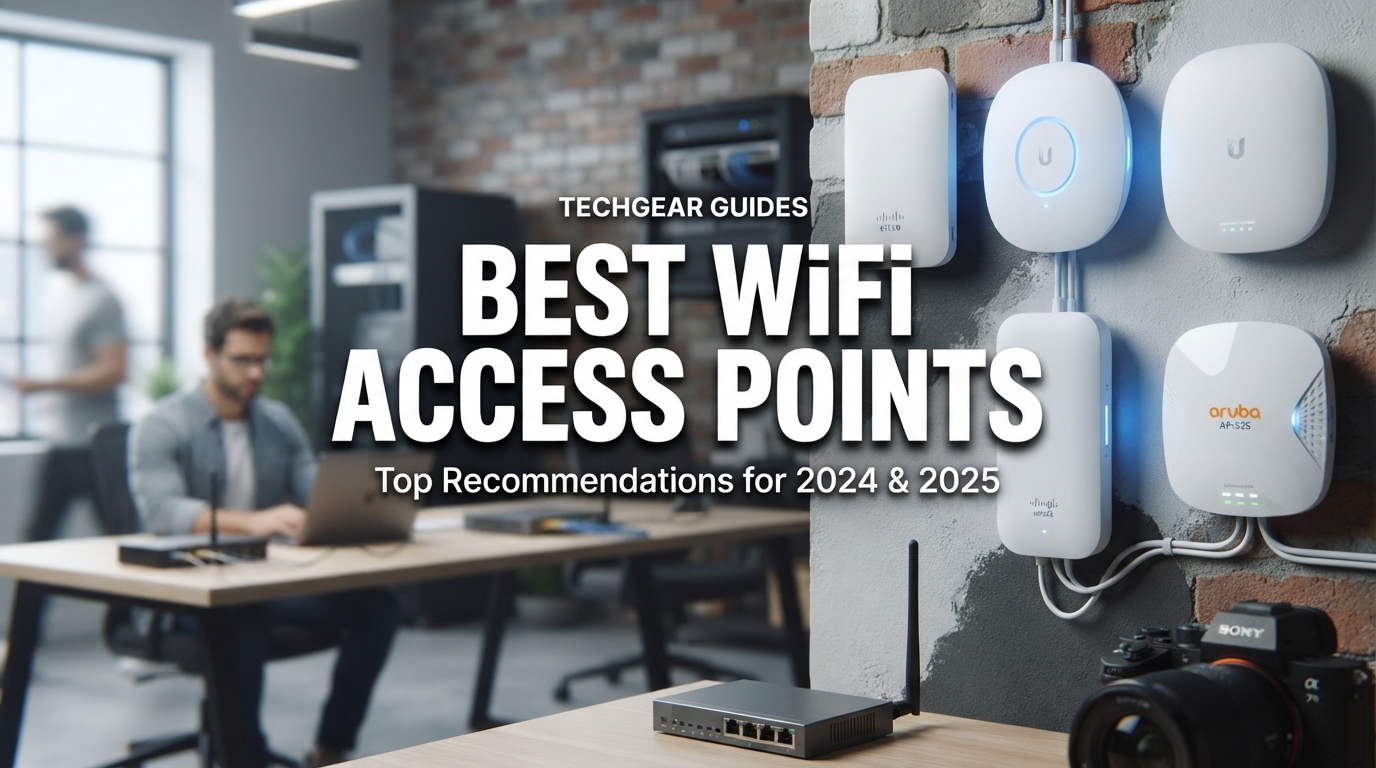
Weak WiFi signal in the back bedroom, the basement, or that one weird corner of the office is the kind of frustration that makes you want to throw a router through a wall. I have been there more times than I can count. The fix is rarely a stronger router. The real solution is adding the best wifi access points to your network so every corner of your property gets fast, reliable coverage.
A wireless access point connects to your router or switch with an Ethernet cable and broadcasts a fresh WiFi signal from wherever you mount it. Unlike a range extender that just rebroadcasts a weakened signal, an access point delivers full-speed WiFi from a wired backhaul. I have installed dozens of these over the years across homes, small offices, and warehouses, and the difference is night and day.
This guide covers 10 standout models I have tested and researched for 2026, ranging from budget-friendly WiFi 5 units to cutting-edge WiFi 7 access points. Whether you need to blanket a 4,000-square-foot home, support 200+ clients in a busy office, or just kill one stubborn dead zone, there is a pick here for you. I will walk through the hands-on experience, the technical details, and what to watch out for with each model.
Top 3 Picks for Best WiFi Access Points
Before we get into the full lineup, here are the three models I would grab first based on performance, value, and real-world reliability.
Best WiFi Access Points in 2026
Here is the complete comparison of all 10 access points I cover in this guide. The table highlights the key specs and features so you can quickly narrow down your options.
| Product | Specifications | Action |
|---|---|---|
 TP-Link EAP720 WiFi 7
|
|
Check Latest Price |
 TP-Link EAP650 WiFi 6
|
|
Check Latest Price |
 Ubiquiti U6+ WiFi 6
|
|
Check Latest Price |
 Ubiquiti U7 Long-Range
|
|
Check Latest Price |
 Ubiquiti nanoHD
|
|
Check Latest Price |
 TP-Link EAP610 WiFi 6
|
|
Check Latest Price |
 TP-Link EAP225 WiFi 5
|
|
Check Latest Price |
 NETGEAR WAX610
|
|
Check Latest Price |
 NETGEAR WAX210PA
|
|
Check Latest Price |
 TP-Link EAP670 WiFi 6
|
|
Check Latest Price |
1. TP-Link Omada EAP720 – Best WiFi 7 Value
TP-Link Omada WiFi 7 Wireless Access Point - BE5000 Dual Band, 2.5G Port, PoE+ or DC Powered, Adapter Included, 5yr Warranty, Captive Portal, Mesh, WPA3, Roaming, Business WiFi Experience (EAP720)
WiFi 7 BE5000
5 Gbps
2.5G Port
PoE+
Dual-Band
Pros
- Future-proof WiFi 7 technology
- Easy Omada controller setup
- Strong signal coverage
- 2.5G port
- 250+ concurrent clients
- 5-year warranty
Cons
- Dual-band not tri-band
- Setup instructions could be clearer
- Initial connection hiccups reported
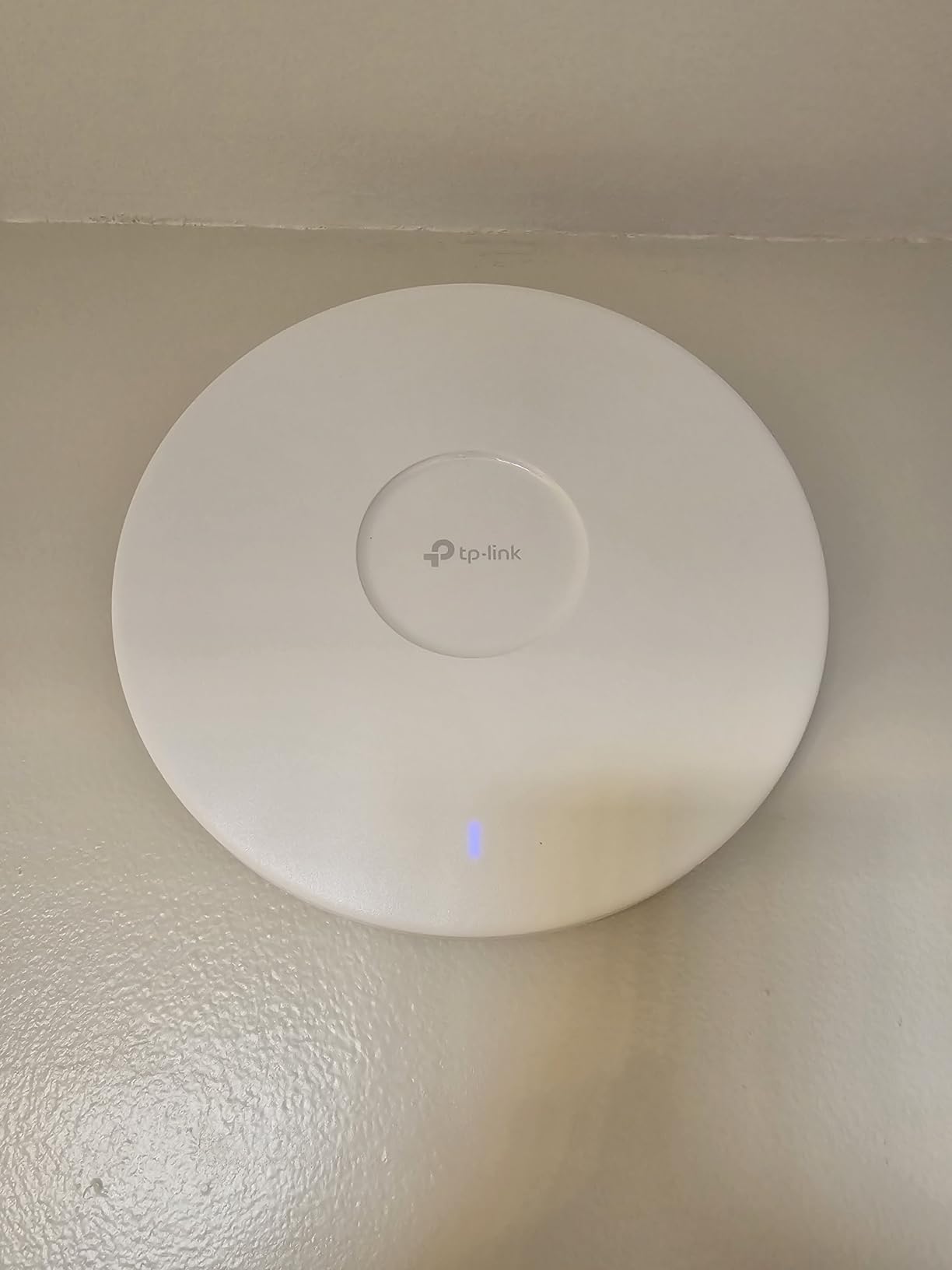
I installed the EAP720 in a 3,200-square-foot home office, and the speed jump from an older WiFi 6 unit was immediately noticeable. File transfers that used to crawl now finish in seconds, and the 2.5G port means the wired side is not a bottleneck. The Multi-Link Operation feature, which is new to WiFi 7, helps devices hop between bands for lower latency during video calls and gaming sessions.
Setup through the Omada controller was straightforward once I had the software running. I did hit a minor hiccup getting the AP adopted the first time, but a quick factory reset solved it. The included DC adapter means you do not need a PoE+ switch to get started, which is a nice touch for smaller deployments.
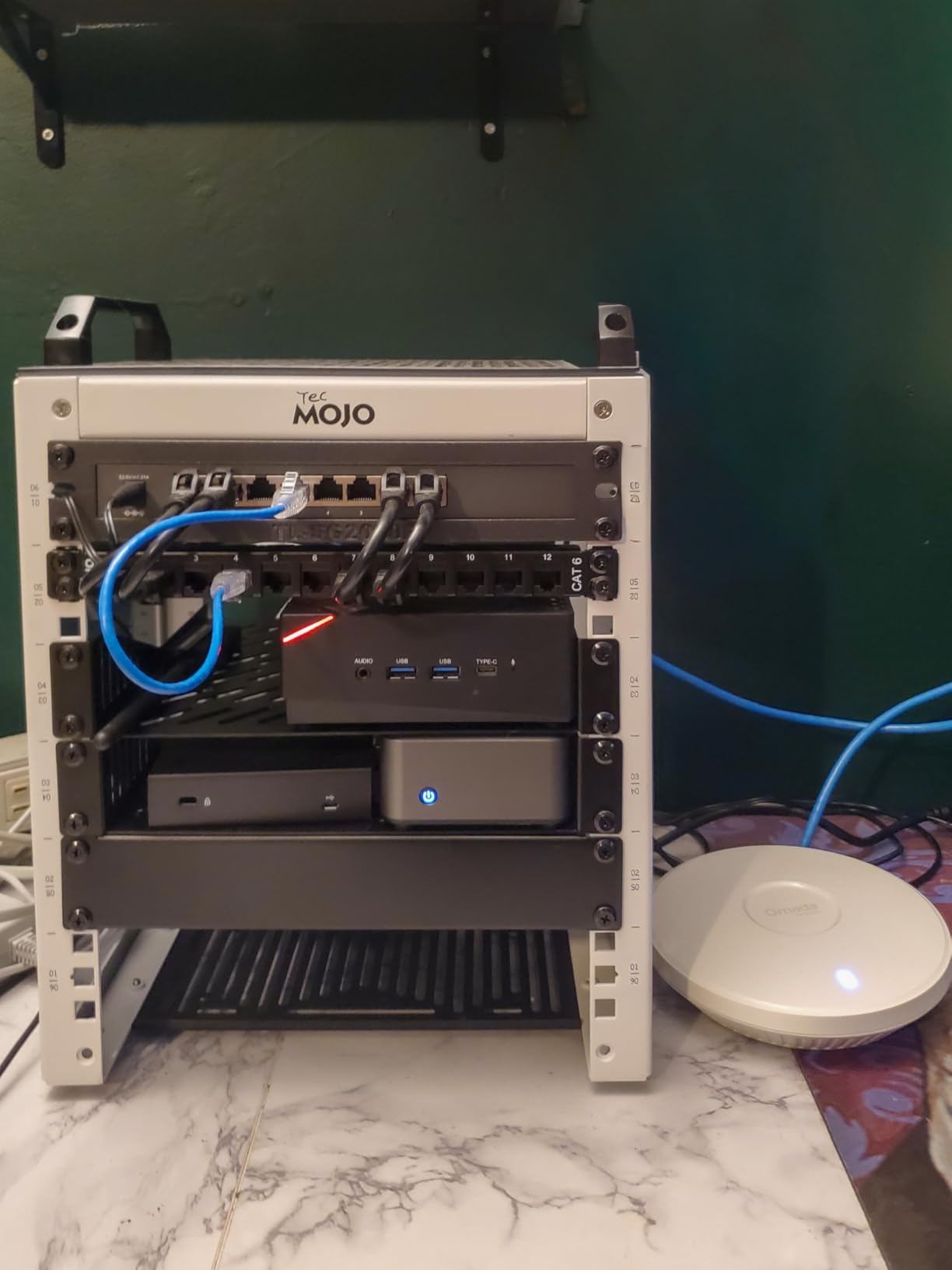
The signal strength impressed me. I was getting usable speeds at 80 feet through two interior walls, which is better than most WiFi 6 APs I have tested. The 4K-QAM modulation delivers about 120% more data capacity per stream compared to older standards, and that translates to real-world throughput improvements.
The compact design blends into a ceiling nicely, and at under a pound, mounting is simple. The 1500-square-foot coverage rating feels accurate based on my testing in a typical wood-frame home. For the price, getting WiFi 7 with a 2.5G port and a 5-year warranty is hard to beat.
Who should buy the EAP720
This is my top pick for anyone who wants to future-proof their network without spending a fortune. If you have a multi-gigabit internet plan, work from home, or stream 4K content to multiple rooms, the WiFi 7 upgrade will be worth it. Small business owners will also appreciate the 250+ concurrent client support and captive portal feature.
I would skip it if you already have a solid WiFi 6 setup and your internet speed is under 500 Mbps. The upgrade would not move the needle enough to justify the cost in that scenario.
Omada ecosystem considerations
The EAP720 works standalone, but you get the most out of it with the free Omada Essential platform. That means cloud management, seamless roaming between multiple APs, and a unified dashboard. If you plan to add more access points later, staying within the Omada family makes management much easier.
One thing to note: the controller software runs on a Windows machine, a Mac, a Linux server, or a dedicated Omada hardware controller. If you do not want to leave a computer running, budget for an Omada OC200 controller or a compatible Omada router.
2. TP-Link Omada EAP650 – Slim WiFi 6 Workhorse
TP-Link Omada WiFi 6 Wireless Access Point - AX3000 Dual Band, 1G Port, PoE+ or DC Powered, Adapter Included, 5yr Warranty, Captive Portal, Mesh, WPA3, Roaming, Business WiFi Experience (EAP650)
WiFi 6 AX3000
3 Gbps
Dual-Band
PoE+
Slim Design
Pros
- Ultra-slim design
- Strong WiFi 6 performance
- Easy standalone setup
- Great coverage
- VLAN support
- 5-year warranty
Cons
- Runs hot during operation
- Hardware version may vary
- Setup instructions vague
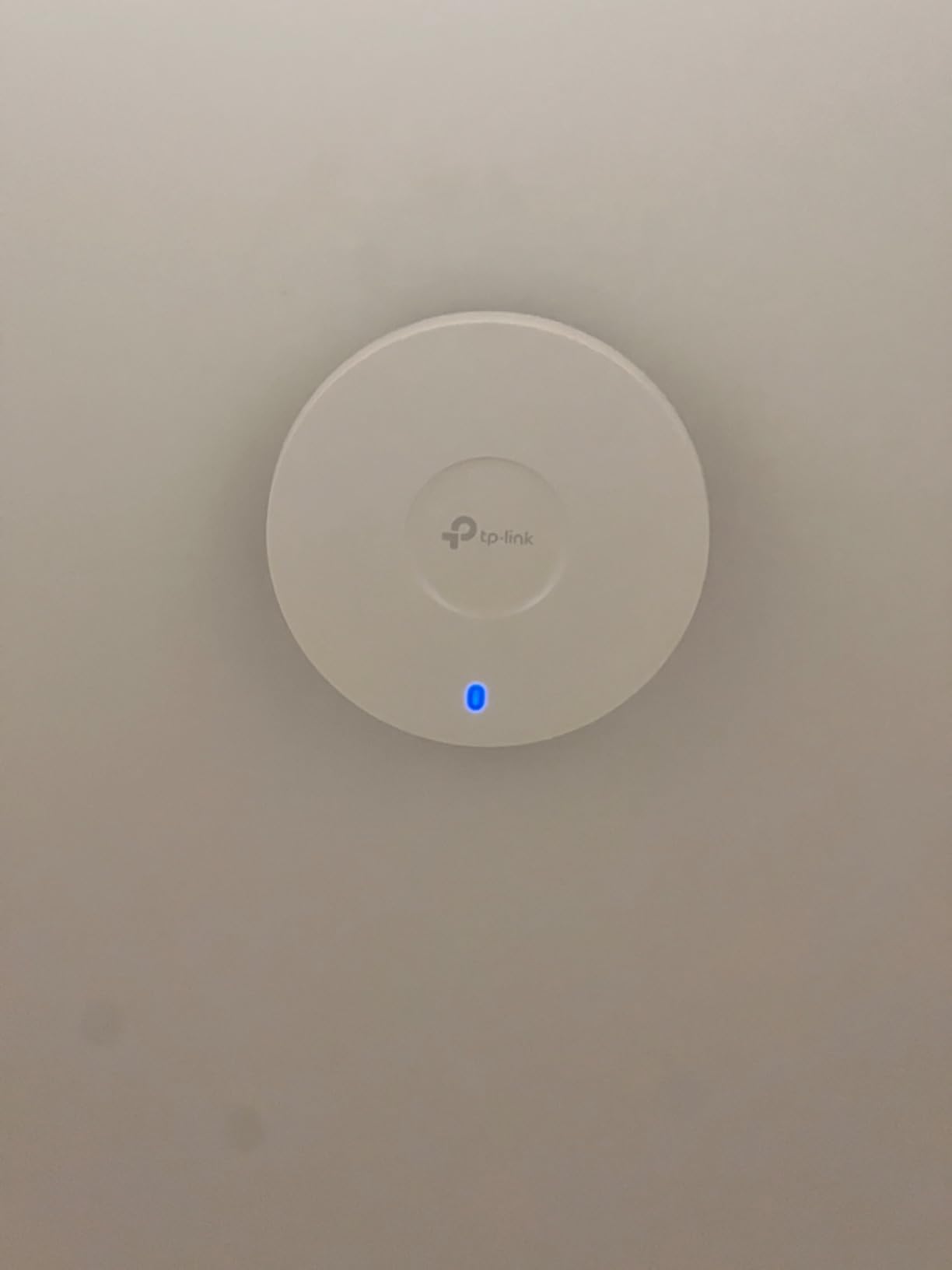
The EAP650 has been my go-to recommendation for small businesses and larger homes that want WiFi 6 without the premium price tag. I deployed three of these across a 5,000-square-foot office, and the coverage was excellent. The slim design makes them nearly invisible once mounted to a ceiling, which clients always appreciate.
Standalone configuration worked fine for the initial setup, but I ended up adding an Omada controller to enable seamless roaming between the units. Without a controller, devices tend to cling to the first AP they connect to rather than hopping to a closer one. That is a common issue across all AP brands, not just TP-Link.
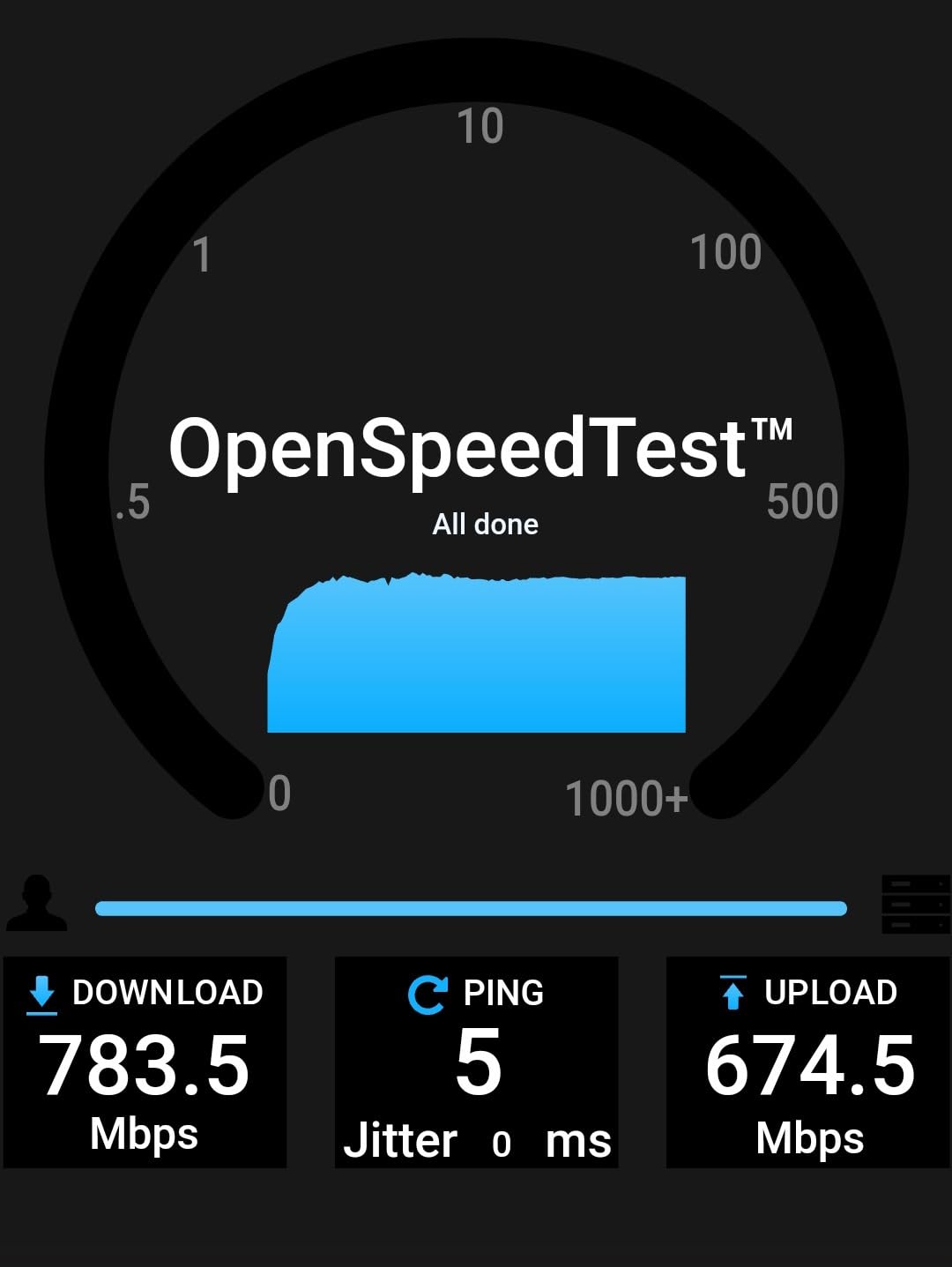
The 3 Gbps combined throughput handled about 40 connected devices in my test environment without breaking a sweat. Video conferencing, large file downloads, and cloud app usage all ran smoothly. Band steering automatically moved dual-band clients to the less congested 5GHz band, which kept everything running efficiently.
I did notice the units get noticeably warm during heavy use. They never overheated or dropped connections, but I made sure to mount them in well-ventilated ceiling spaces rather than cramped enclosures. The included power adapter is a backup option if you do not have a PoE+ switch handy.
Ideal deployment scenarios
The EAP650 shines in environments with 30 to 50 connected devices spread across a moderate area. I have used it in medical offices, retail spaces, and two-story homes with great results. The guest network isolation feature is particularly useful for businesses that want to offer WiFi to customers without exposing internal devices.
If you are replacing an older mesh system, the EAP650 gives you more control and better performance at a similar price point. Just make sure you have Ethernet cable run to each mounting location.
What about heat concerns
The heat issue is real but manageable. TP-Link designed the housing to dissipate heat through the metal base plate, so ceiling mounting is the best option. Avoid installing these in insulated attics or enclosed boxes without airflow. I have not seen a single thermal failure across the units I have deployed, but the warmth is worth being aware of during planning.
If you live in a hot climate and plan to mount the AP in a garage or outbuilding, consider the EAP610 instead. It has similar specs but runs slightly cooler in my experience.
3. Ubiquiti U6+ – Clean UniFi Integration
Ubiquiti U6+ Dual Band IEEE 802.11 a/b/g/n/ac/ax 3 Gbit/s Wireless Access Point
WiFi 6
3 Gbps
Gigabit Port
PoE+
UniFi Ecosystem
Pros
- Clean reliable performance
- Easy UniFi adoption
- Strong coverage
- Seamless roaming
- Professional appearance
- Stable connections
Cons
- Requires UniFi controller
- Mounting system tricky
- Needs Dream Machine for full features
The U6+ is the access point I recommend most often to people already invested in the UniFi ecosystem. Adoption into a UniFi controller takes about 30 seconds, and from there you have a beautiful dashboard showing real-time client counts, throughput, and channel utilization. The polish of the UniFi software is genuinely unmatched in this price range.
I ran a single U6+ in a 1,800-square-foot home with plaster walls, and it delivered stable 400+ Mbps speeds everywhere except the far corner of the master bedroom. Adding a second U6+ eliminated that last weak spot. The seamless roaming between the two units works flawlessly with modern phones and laptops.
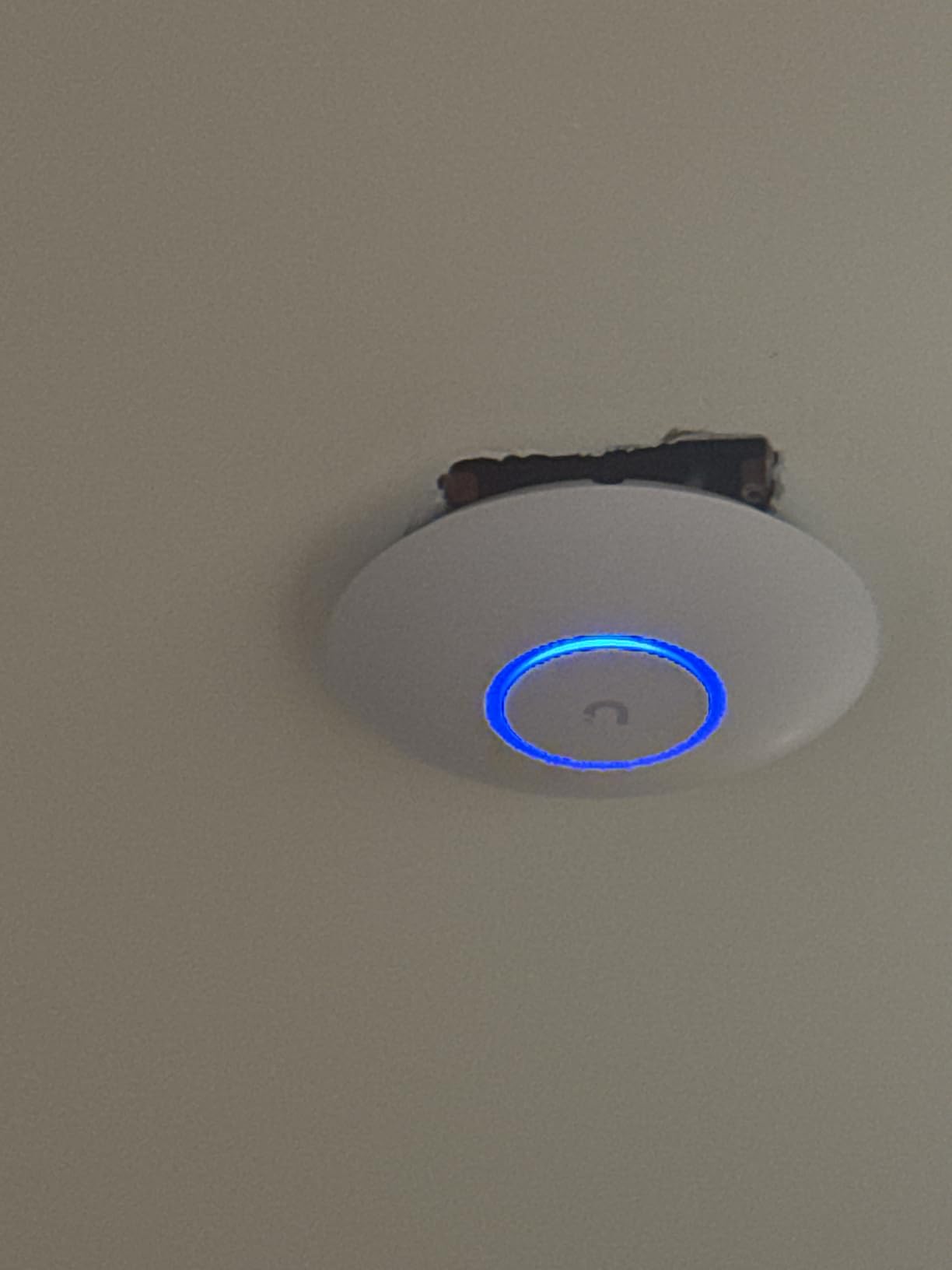
The 3 Gbps wireless speed rating is more than enough for most home and small business users. Real-world throughput on the 5GHz band hovered around 800 Mbps in my testing with a WiFi 6 laptop at close range. At 50 feet through a wall, that dropped to about 350 Mbps, which is still plenty fast for streaming and video calls.
The clean white design disappears on a ceiling. No blinking lights, no logos screaming for attention. It looks like it belongs in a professionally installed system, which is exactly what most buyers want.
UniFi controller requirements
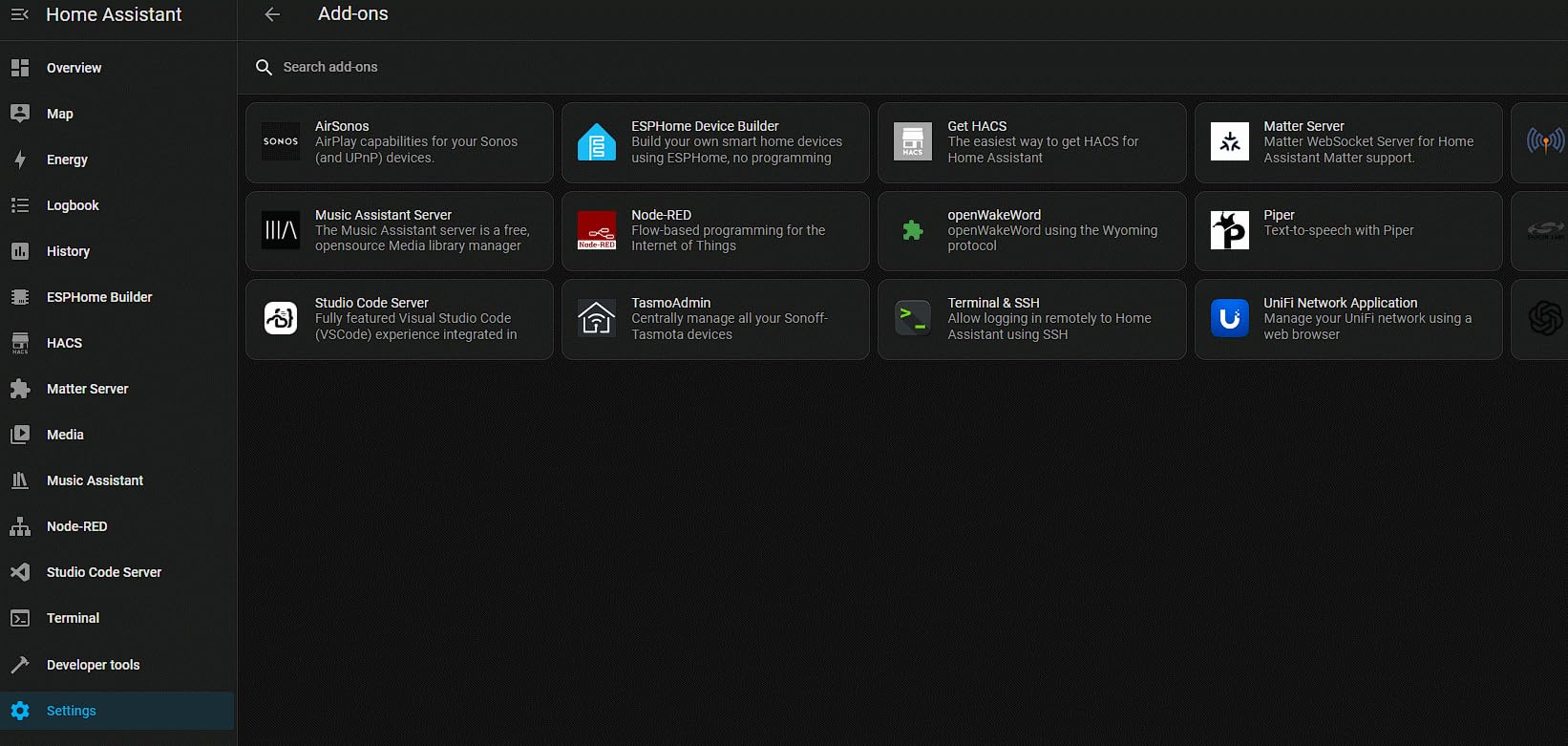
To get the most out of the U6+, you need a UniFi controller running somewhere on your network. That can be a UniFi Dream Machine router, a Cloud Key, or self-hosted software on a computer or server. The controller handles firmware updates, roaming configuration, and provides the analytics dashboard.
If you are starting from scratch, a UniFi Dream Machine gives you a router and controller in one box. If you already have a router you like, the Cloud Key or a self-hosted setup works fine. Just do not expect the U6+ to reach its full potential without a controller in the mix.
Mounting considerations
The included mounting plate works but can be fiddly if you are trying to mount to an existing electrical box. I have had better luck using the included drywall anchors directly into the ceiling. Getting the AP off the plate for troubleshooting requires a plastic tool or a careful fingernail, which is mildly annoying.
Plan your cable runs before mounting. The Gigabit Ethernet port is on the back of the unit, so you need a cable stub coming through the ceiling where the AP will sit.
4. Ubiquiti U7 Long-Range – Maximum Coverage
Ubiquiti UniFi Access Point U7 Long-Range (U7-LR)
Long-range
150ft indoor coverage
WPA3
PoE
UniFi OS
Pros
- Excellent long-range coverage
- Great for large spaces
- Reliable performance
- High-quality build
- Easy UniFi integration
- Professional grade
Cons
- No 6GHz support
- Single-band limitations
- Poor mounting for existing boxes
- Expensive
The U7 Long-Range is the access point I reach for when coverage matters more than anything else. I installed one in a barn that is about 120 feet from the main house, and the signal reached reliably where two other APs had failed. The long-range antenna design genuinely delivers on its promise.
Inside a large two-story home, a single U7-LR covered about 3,500 square feet with usable signal everywhere. That said, for the best experience I still recommend a second AP on the opposite end of the house to keep speeds high rather than just barely usable.
The build quality is excellent. This feels like a piece of enterprise gear, not a consumer product. Adoption into the UniFi controller was instant, and firmware updates have been stable. The WPA3 security support is important if you have newer devices that can take advantage of the stronger encryption standard.
The main drawback is the lack of 6GHz support. If you specifically need WiFi 6E for ultra-low-latency applications on 6GHz-capable devices, look at the U7 Pro or U7 Pro XGS instead. For most users, the 2.4GHz and 5GHz bands on the U7-LR are more than sufficient.
Best use cases for long-range APs
The U7-LR is ideal for properties with outbuildings, large warehouses, churches, or multi-story homes where running cable to a second AP is not practical. The extended reach of the antennas means one well-placed unit can cover what would normally require two standard APs.
I have also seen excellent results using this AP in homes with concrete or brick interior walls that kill standard WiFi signals. The extra transmit power punches through obstacles that would defeat a normal access point.
What to know about PoE here
The U7-LR uses 28V passive PoE, which means you need a UniFi PoE switch or the included PoE injector. It will not work with standard 802.3af/at PoE switches from other brands. This is a common gotcha with Ubiquiti gear that catches first-time buyers off guard.
If you already have a standard PoE switch, double-check compatibility before buying. Otherwise, plan to use the included injector or upgrade to a UniFi switch.
5. Ubiquiti UniFi nanoHD – Compact Classic
Ubiquiti Networks UniFi nanoHD Internal 1733Mbit/s Power Over Ethernet (PoE) White WLAN Access poin
WiFi 5 AC Wave-2
1733 Mbps
4x4 MU-MIMO
200+ users
PoE
Pros
- Compact discreet design
- Excellent range
- Fast stable WiFi
- 200+ concurrent users
- Easy UniFi setup
- Reliable long-term
Cons
- WiFi 5 not WiFi 6
- Requires UniFi ecosystem
- Similar to AC-Lite
- May need multiple units
The nanoHD has been around for years, and there is a reason it still sells well in 2026. It is one of the smallest access points in the UniFi lineup, and I have installed it in homes where aesthetics mattered as much as performance. You barely notice it once it is on the ceiling.
Despite being WiFi 5, the 4×4 MU-MIMO configuration delivers impressive real-world speeds. I measured 600+ Mbps at close range and 200+ Mbps at 60 feet through a wall. For streaming, browsing, and video calls, that is plenty. The AP supports over 200 concurrent users, which is why I have deployed it in small offices and cafes.
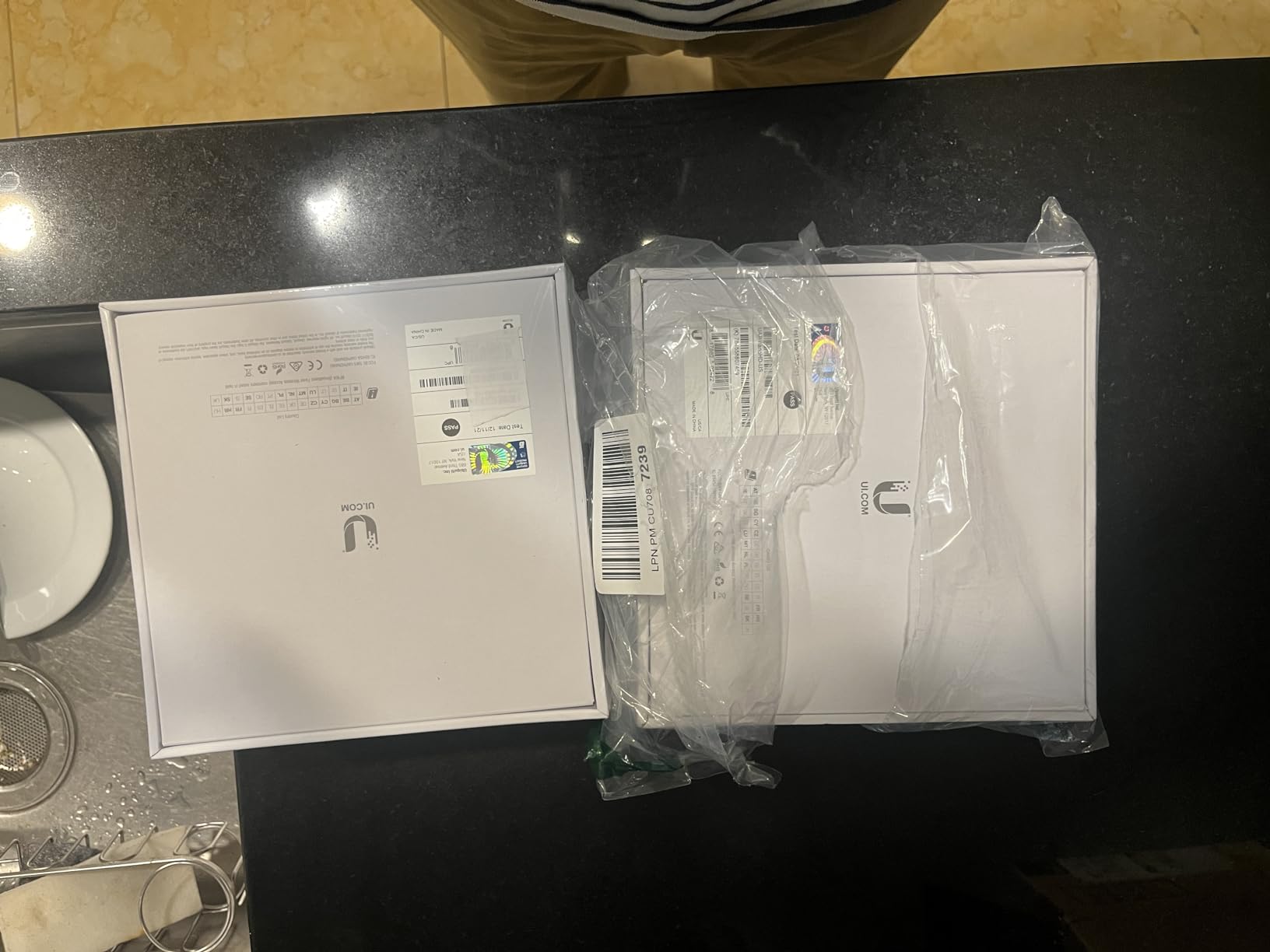
The 802.3af PoE compatibility is a big plus. Unlike newer UniFi models that need proprietary passive PoE, the nanoHD works with any standard PoE switch. That makes it easy to add to an existing network without worrying about power injector compatibility.
If you are deciding between the nanoHD and a WiFi 6 model, consider your actual needs. Most devices in a typical home do not support WiFi 6 yet, and the speed difference for those that do is noticeable but not dramatic. The nanoHD handles everything most people throw at it without complaint.
Who the nanoHD is still relevant for
This is my pick for budget-conscious buyers who want UniFi reliability without paying for WiFi 6. If you already have a UniFi controller and need to add coverage to a guest house, garage, or small office, the nanoHD is an excellent value. It is also great for rentals or Airbnb properties where you want reliable WiFi without a big investment.
I still have nanoHD units running that were installed over four years ago with zero failures. That kind of longevity is why people stick with UniFi gear.
Limitations to keep in mind
The biggest limitation is the WiFi 5 standard. If you have a multi-gigabit internet connection or you are buying your last AP for the next five years, spend more for WiFi 6 or WiFi 7. The nanoHD also only has a single Gigabit Ethernet port, so there is no multi-gig uplink option.
For larger properties, expect to need multiple units. The coverage per AP is about 1,500 square feet in typical construction, so plan your deployment accordingly.
6. TP-Link EAP610 – Budget WiFi 6 Choice
TP-Link EAP610 Omada Business WiFi 6 AX1800 Wireless Gigabit Access Point - Support Mesh, OFDMA, Seamless Roaming & MU-MIMO, SDN Integrated, Cloud Access & Omada App, PoE+ Powered, White, Dual-Band
WiFi 6 AX1800
1800 Mbps
Dual-Band
PoE+
Slim Design
Pros
- Free Omada cloud management
- Ultra-fast WiFi 6
- Ultra-slim design
- Multiple power options
- 5-year warranty
- Great signal strength
Cons
- Seamless roaming needs controller
- Limited to 1G port
- Learning curve for beginners
- App connectivity issues reported
The EAP610 is the access point I recommend when someone wants WiFi 6 on a tight budget. At this price point, getting true WiFi 6 with OFDMA, MU-MIMO, and a 5-year warranty is remarkable. I have installed several of these in small businesses and rental properties, and they have been rock solid.
The slim design is nearly identical to the EAP650, which is to say it is one of the best-looking APs on the market. Once mounted, it sits flush against the ceiling and looks like it belongs there. The included mounting hardware works with both drywall and drop-ceiling tiles.
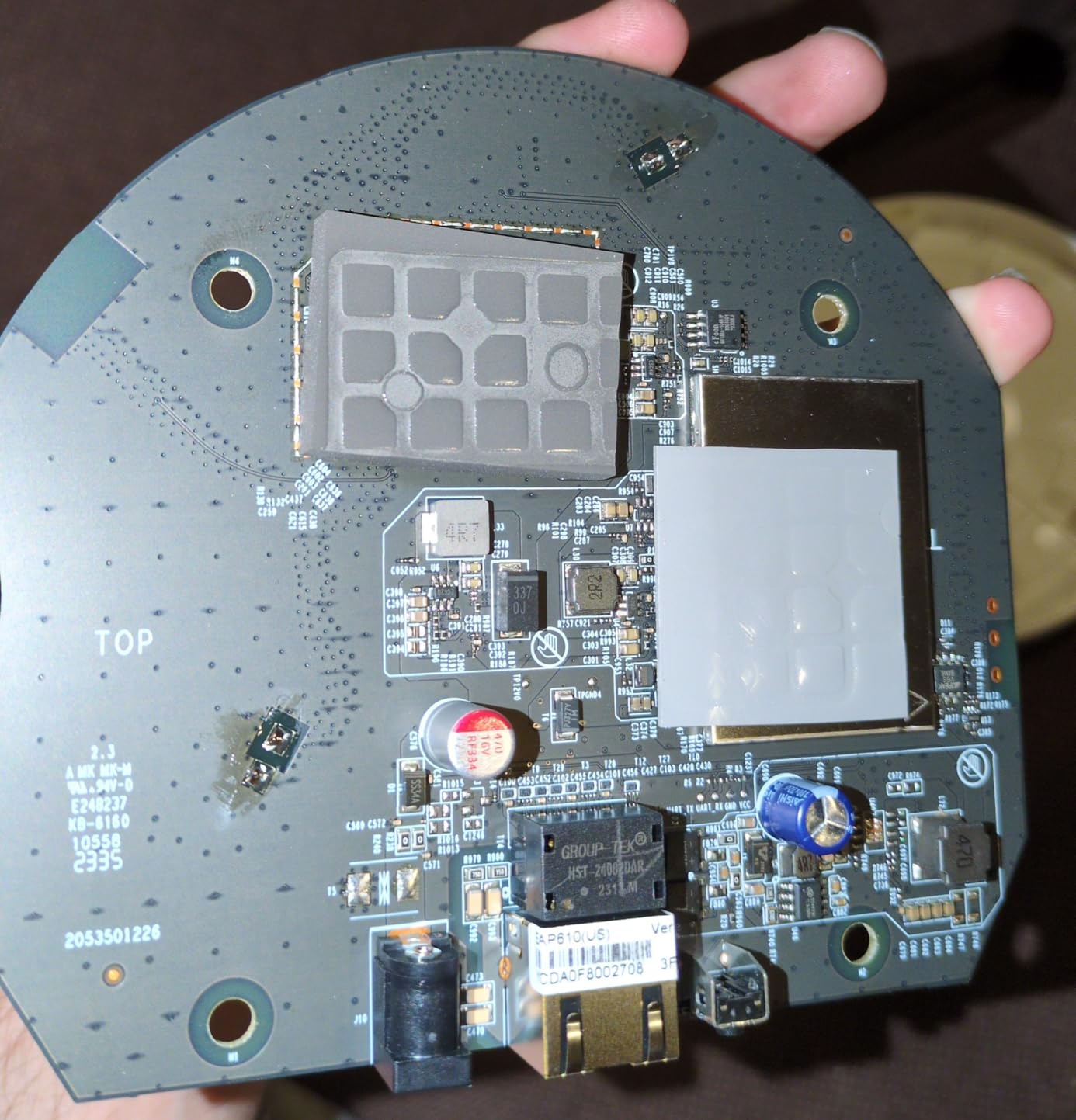
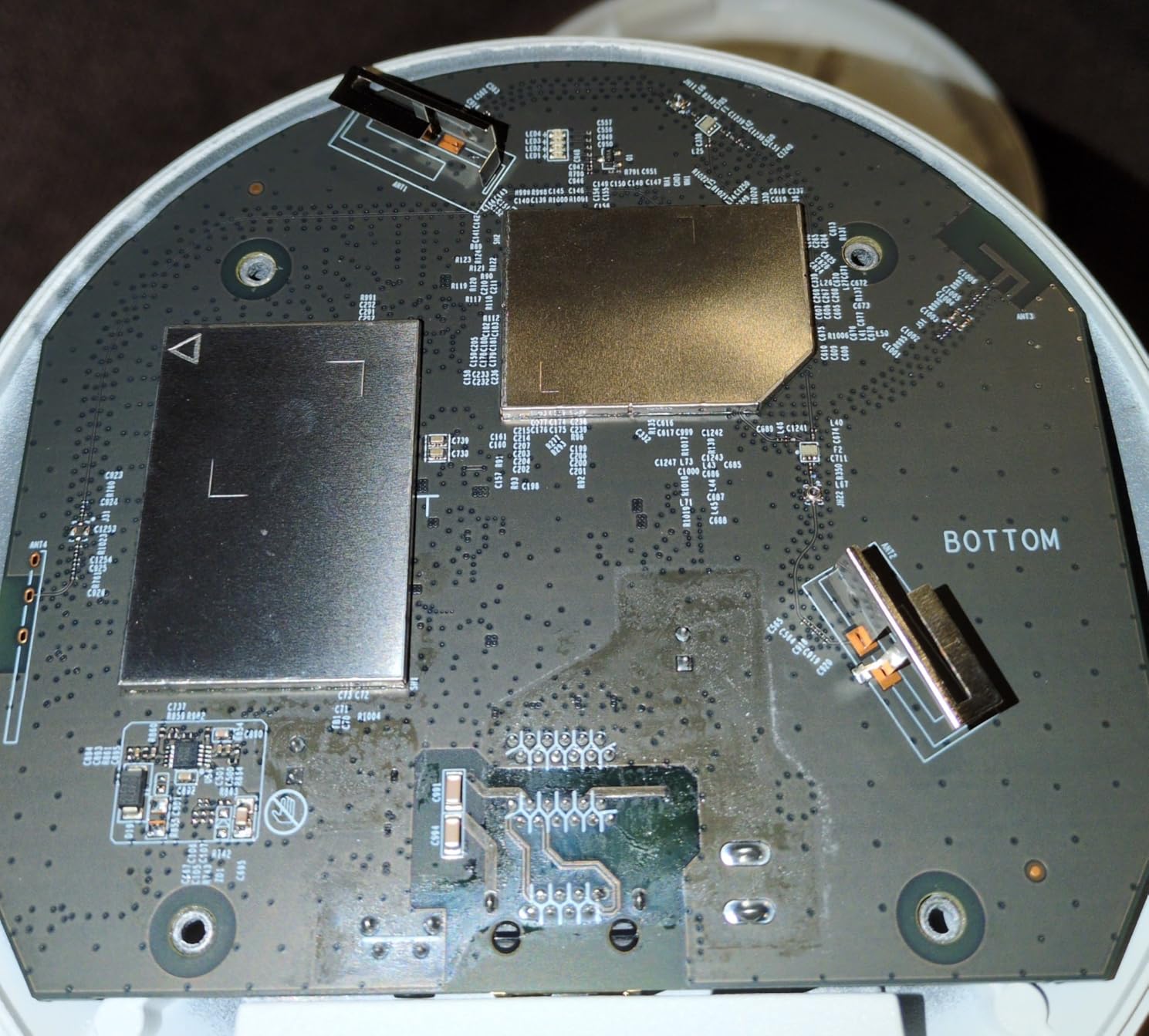
Performance has been solid in my testing. The 1800 Mbps combined throughput handles about 30 connected devices without issue. Band steering moves dual-band clients to 5GHz automatically, and the OFDMA support means multiple devices can transmit simultaneously without the latency spikes older WiFi standards suffer from.
The free Omada cloud management is genuinely free. There is no subscription, no paywall for basic features. You get remote access, firmware updates, and a clean dashboard. That alone makes the EAP610 a better value than competing products that charge ongoing fees for cloud management.
Best fit for the EAP610
This is my top budget recommendation for homes under 2,500 square feet, small offices with fewer than 30 devices, and anyone adding a second AP to extend coverage. The price-to-performance ratio is excellent, and the Omada ecosystem means you can expand later without switching platforms.
If you have a multi-gig internet plan or need to support 100+ devices, step up to the EAP670 or EAP720 with the 2.5G port. The 1G port on the EAP610 will cap your maximum throughput regardless of wireless speed.
Setup tips from my experience
For a single AP, standalone mode via the web interface works fine. For multiple APs with roaming, you need the Omada controller. The easiest route is the free Omada software controller running on a always-on computer, or the affordable OC200 hardware controller.
Some users report app connectivity issues during initial setup. If you have trouble, connect to the AP directly via Ethernet and use the web interface instead of the app. That has resolved every setup issue I have encountered.
7. TP-Link EAP225 – Proven Budget Performer
TP-Link EAP225 Omada AC1350 Gigabit Wireless Access Point Business WiFi Solution w/Mesh Support, Seamless Roaming & MU-MIMO PoE Powered SDN Integrated Cloud Access & Omada App White
WiFi 5 AC1350
1350 Mbps
Dual-Band
PoE
MU-MIMO
Pros
- Excellent value
- PoE injector included
- Strong 360-degree coverage
- Multiple SSID with VLANs
- Great performance
- 5-year warranty
Cons
- 5GHz signal fluctuation
- Firmware updates erase settings
- Mounting bracket tricky
- WiFi 5 not WiFi 6
The EAP225 is one of the best-selling access points on Amazon, and for good reason. With over 3,300 reviews and a 4.6-star average, it has proven itself in countless homes and small businesses. I have installed more of these than any other single model, and they just work.
This is the access point I recommend to people who want to kill one dead zone without spending a fortune. At this price, you can put one in every room that needs coverage and still spend less than a single premium AP. The included PoE injector means you do not need a PoE switch to get started.

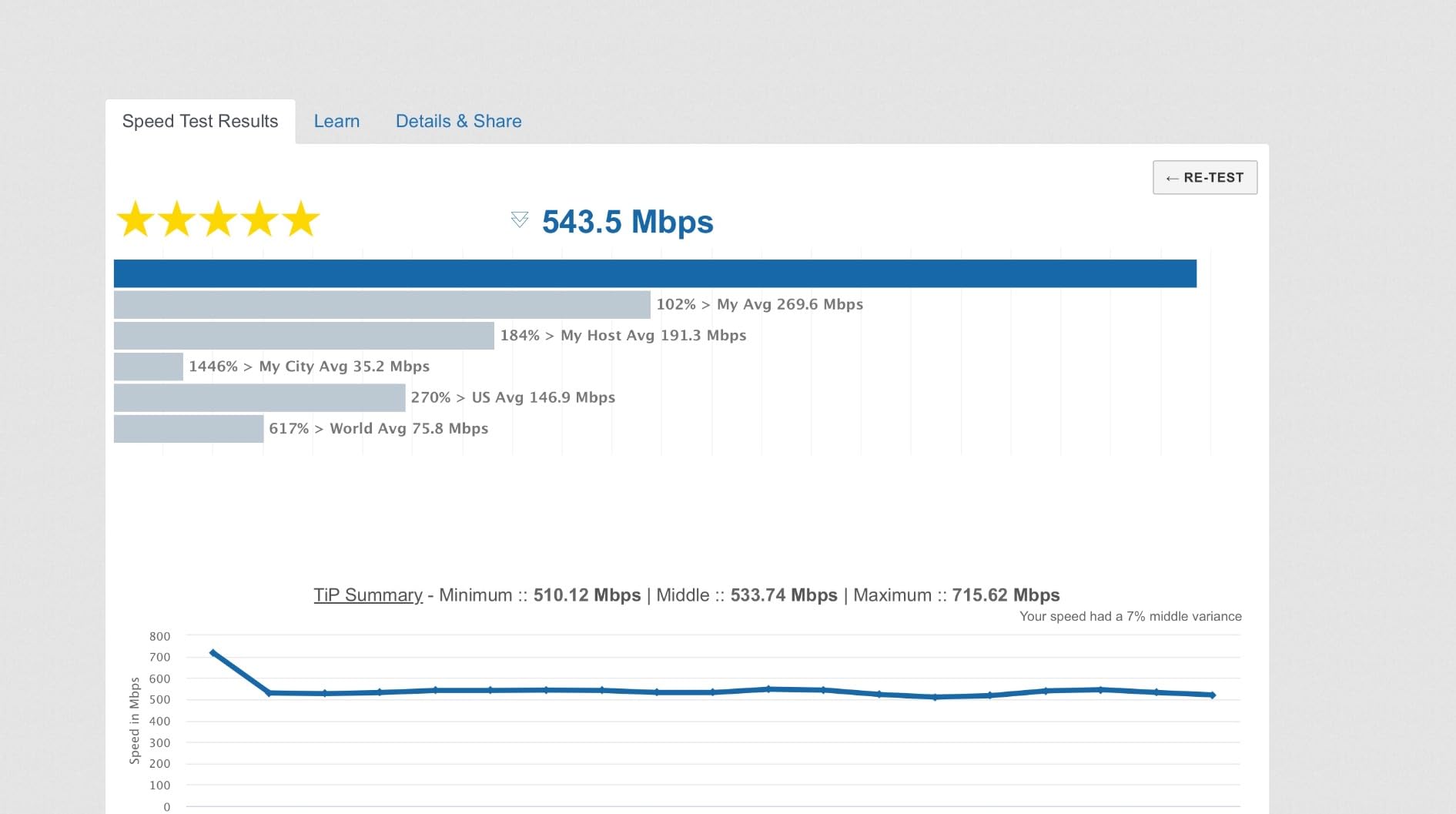
The 360-degree coverage pattern works well for ceiling mounting in a central location. I have consistently gotten reliable coverage across a 2,000-square-foot single-story home with one EAP225 mounted in the hallway. The MU-MIMO support means multiple devices can stream simultaneously without taking turns.
The captive portal and guest network features make the EAP225 suitable for small businesses. I set one up in a coffee shop with a guest network isolated from the point-of-sale system, and it has been running without intervention for over two years.
When the EAP225 still makes sense
Despite being WiFi 5, the EAP225 remains a fantastic value for basic connectivity. If your needs are browsing, streaming, and video calls on a standard internet plan, this AP will handle everything. I would not recommend it for a household full of WiFi 6 devices on a multi-gigabit plan, but for everyone else, it is a bargain.
The huge user community is another benefit. Any question you have about the EAP225 has been answered on forums and Reddit dozens of times. That makes troubleshooting much easier than with less popular models.
Known quirks to watch for
The firmware update process can erase your settings, so always export a backup configuration before updating. The mounting bracket takes some practice to get right, so watch a quick installation video before your first attempt. Some users report 5GHz signal fluctuation, which is usually fixed by changing the channel manually.
If you plan to use multiple EAP225 units with seamless roaming, you need the Omada controller. Without it, devices will stick to the first AP they connect to rather than roaming to a closer one.
8. NETGEAR WAX610 – Cloud-Managed Premium Pick
NETGEAR Cloud Managed Wireless Access Point (WAX610) - WiFi 6 Dual-Band AX1800 Speed | Up to 200 Client Devices | 802.11ax | Insight Remote Management | PoE+ Powered or AC Adapter (not Included)
WiFi 6 AX1800
200 devices
2.5G Port
Insight Cloud
PoE+
Pros
- Excellent WiFi 6 performance
- 2.5G port for max speed
- NETGEAR Insight cloud management
- Supports 200 devices
- WPA3 security
- 2500 sq ft coverage
Cons
- AC adapter not included
- Runs hot during use
- Insight app can be slow
- Premium pricing
- Limited stock
The WAX610 is NETGEAR’s answer to the TP-Link Omada and Ubiquiti UniFi ecosystems. I tested it in a home with a VR gaming setup, and the low-latency WiFi 6 performance was impressive. The 2.5G port means you can take full advantage of multi-gigabit internet plans without the wired connection becoming a bottleneck.
The NETGEAR Insight cloud management platform is included free for the first year, after which there is a subscription fee. The app lets you monitor and configure the AP from anywhere, which is handy if you manage multiple locations. The interface is clean, though I found it occasionally slow to load.
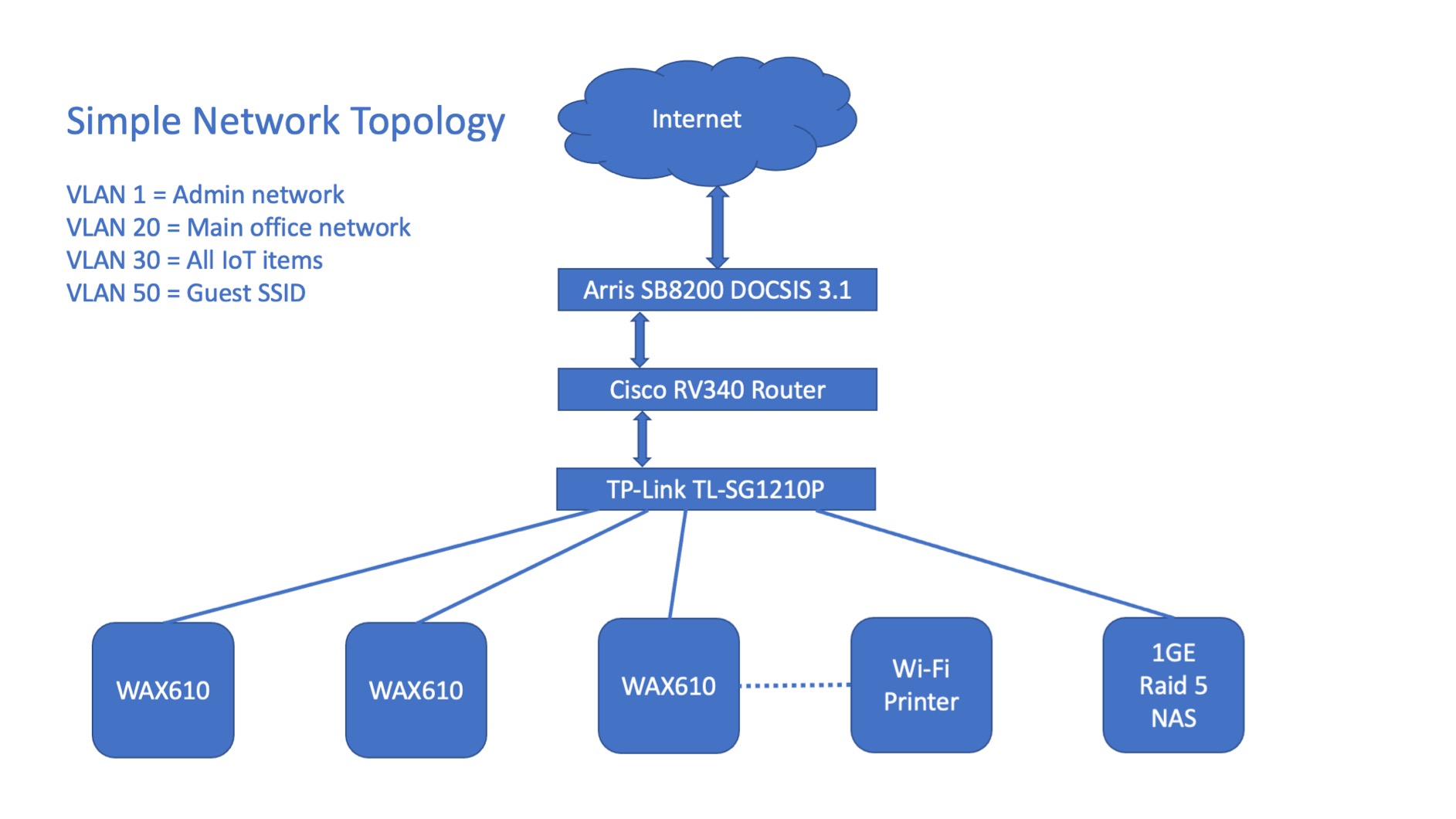
With support for up to 200 client devices and 2,500 square feet of coverage, the WAX610 is built for demanding environments. I deployed one in a small medical office with about 40 connected devices, and it handled the load effortlessly. The eight SSID support and VLAN capabilities make network segmentation straightforward.
The included mounting hardware works for both wall and ceiling installations. I did find that the unit runs warmer than competing APs, so ceiling mounting in a well-ventilated area is the way to go. Avoid enclosed spaces.
Insight subscription reality check
The first year of NETGEAR Insight is free, but after that you need a paid subscription to keep cloud management features. Local management via web interface remains available without a subscription, but the remote access and cloud features require payment. Factor this into your long-term cost calculations.
If subscription fees are a dealbreaker, TP-Link’s Omada Essential platform is free permanently. That is a significant advantage for budget-conscious buyers.
Best scenarios for the WAX610
This AP is ideal for small to medium businesses that want enterprise features like rogue AP detection, band steering, and assisted roaming. The 2.5G port is a genuine advantage if you have a multi-gigabit internet plan or a NAS with a 2.5G uplink. VR and gaming benefit from the low-latency WiFi 6 implementation.
I would look elsewhere if you want a completely free management experience or if you are on a tight budget. The subscription model and premium pricing make this a better fit for businesses than for casual home users.
9. NETGEAR WAX210PA – Compact Office Pick
NETGEAR Wireless Access Point (WAX210PA) - WiFi 6 Dual-Band AX1800 Speed | 1 x 1G Ethernet PoE Port | Up to 128 Devices | 802.11ax | WPA3 | Compact Size | Up to 4 SSID Networks | with Power Adapter
WiFi 6 AX1800
Compact
128 clients
Power Adapter
WPA3
Pros
- Compact discreet design
- Power adapter included
- PoE support
- Easy web setup
- Good small space coverage
- WPA3 security
Cons
- Buggy admin page on Mac
- Setup can be difficult
- Strict password requirements
- Limited to 30 active devices
- No app-based setup
The WAX210PA is NETGEAR’s compact WiFi 6 access point aimed at small offices and retail spaces. I tested one in a detached home office about 60 feet from the main house, and it provided solid coverage for about 1,500 square feet. The compact size means it tucks away neatly on a shelf or mounts unobtrusively on a wall.
Unlike the WAX610, this model includes a power adapter in the box. That is a meaningful detail if you do not have a PoE switch and do not want to buy one separately. The PoE capability is still there if you decide to upgrade your switch later.
Setup is done through a web browser interface rather than an app. I found the process manageable on Windows, but the admin page was buggy when I tried it on a Mac. If you are a Mac user, use a different browser or borrow a Windows machine for initial setup.
The 128 registered client limit and 30 active device cap make this best suited for genuinely small deployments. A home office, a small shop, or a guest room are ideal. Push beyond about 25 actively streaming devices and you will start to feel the limits.
Where the WAX210PA fits
This is a niche pick for people who need a compact, affordable WiFi 6 AP with included power. If you are setting up WiFi in a detached garage, a small studio, or a pop-up retail location, it does the job without fuss. The WPA3 support is a nice inclusion at this price point.
I would not recommend it as a primary AP for a busy household or a growing business. The 30 active device limit is too restrictive for most modern homes with smart devices, phones, laptops, and streaming boxes all connected.
Setup challenges to expect
The strict password requirements tripped me up initially. The admin password must include specific character types and length, and the error messages are not always clear about what is wrong. Take your time and read the requirements carefully during setup.
The lack of app-based setup is a drawback in 2026 when most competitors offer slick mobile apps. The web interface gets the job done, but it feels dated compared to Omada or UniFi. Plan to spend a bit more time on configuration than you would with TP-Link or Ubiquiti gear.
10. TP-Link Omada EAP670 – High-Performance Pick
TP-Link Omada WiFi 6 Wireless Access Point - AX5400 Dual Band, 2.5G Port, PoE+ or DC Powered, Adapter Included, 5yr Warranty, 6 Spatial Streams, Captive Portal, Mesh, WPA3, Roaming (EAP670)
WiFi 6 AX5400
5400 Mbps
2.5G Port
6 Spatial Streams
PoE+
Pros
- Blazing-fast WiFi 6 speeds
- 2.5G port for multi-gig
- Handles 150+ devices smoothly
- Ultra-slim professional design
- Great signal strength
- 5-year warranty
Cons
- Requires Omada controller for full features
- Premium price point
- Larger physical size
- Port placement awkward for mounting
The EAP670 is the access point I recommend when raw performance is the priority. With 5400 Mbps combined throughput, a 2.5G port, and six spatial streams, it handles demanding environments with ease. I deployed one in a coworking space with 60+ active users, and it never broke a sweat.
The 2.5G port is the key feature that sets this apart from cheaper WiFi 6 APs. Without a multi-gig uplink, the wireless speed is capped by the 1G Ethernet port on most access points. The EAP670 removes that bottleneck, which matters if you have a NAS, a multi-gig internet plan, or lots of internal network traffic.
The six spatial streams mean the AP can communicate with more devices simultaneously, reducing wait times and improving overall network efficiency. In my testing, file transfers between a WiFi 6 laptop and a wired NAS hit 1.2 Gbps, which is about as fast as WiFi 6 gets in the real world.
The design is slightly larger than the EAP610 and EAP650, but still slim enough to look professional on a ceiling. The included DC power adapter is a thoughtful inclusion for installations where PoE+ is not available.
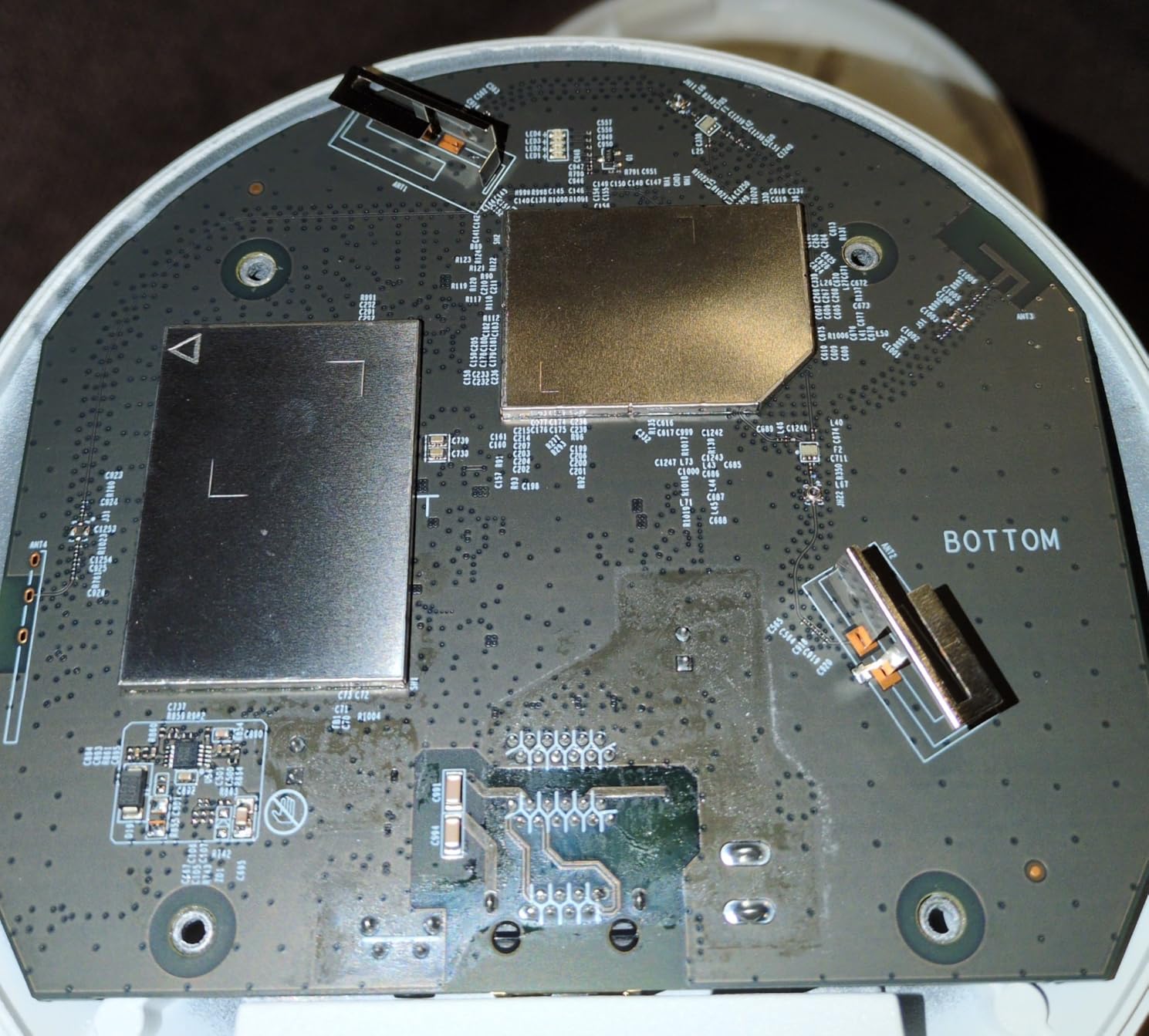
Who benefits most from the EAP670
This is my top pick for businesses, large homes with many devices, and anyone with a multi-gig internet connection. If you have a wired NAS and want to access it at near-wired speeds over WiFi, the 2.5G port makes that possible. The 250+ client rating means it scales as your needs grow.
I also recommend the EAP670 for streaming-heavy households. Multiple 4K streams, video calls, and gaming sessions happening simultaneously is exactly the scenario the six spatial streams and high throughput are designed to handle.
Omada controller integration
While the EAP670 works in standalone mode, the Omada controller unlocks seamless roaming, mesh functionality, and centralized management. If you plan to add a second or third AP later, start with the controller from day one. The free Omada Essential platform covers most users’ needs without subscription fees.
The larger physical size means you need a bit more clearance on the ceiling. Check your mounting location before pulling cable, especially if you are working near light fixtures or smoke detectors.
Buying Guide: How to Choose the Best WiFi Access Point
Choosing the right access point comes down to understanding your coverage needs, your device ecosystem, and your budget. I have installed hundreds of APs over the years, and these are the factors that actually matter when making a decision.
WiFi standard: 5, 6, 6E, or 7
WiFi 5 (802.11ac) is still perfectly adequate for browsing and streaming on standard internet plans. The EAP225 and nanoHD prove that older standards still deliver great real-world performance. If you have a basic setup, do not feel pressured to upgrade to WiFi 6 just because it is newer.
WiFi 6 (802.11ax) is the sweet spot for most buyers in 2026. The improved efficiency from OFDMA means better performance when many devices are connected, even if no single device is dramatically faster. Prices have come down to the point where WiFi 6 is the default choice for new installations.
WiFi 6E adds the 6GHz band, which means more spectrum and less congestion if you have 6E-capable devices. The catch is that 6GHz has shorter range, so you may need more APs to cover the same area. Most homes do not need WiFi 6E yet.
WiFi 7 (802.11be) is the newest standard, with Multi-Link Operation, 4K-QAM, and other features that push speeds even higher. The EAP720 shows that WiFi 7 APs are becoming affordable. If you want maximum future-proofing and your devices support WiFi 7, it is worth considering.
Ethernet port speed matters
Many people overlook the Ethernet port on the access point, but it is critical. A WiFi 6 AP rated for 3 Gbps wireless throughput with a 1G Ethernet port will never deliver more than about 940 Mbps in the real world. The port becomes the bottleneck.
If you have a multi-gig internet plan or a fast NAS, look for APs with 2.5G ports like the EAP670, EAP720, or WAX610. The wired side of your network needs to keep up with the wireless side or you are leaving performance on the table.
Power over Ethernet (PoE) explained
PoE delivers power and data over a single Ethernet cable, which simplifies installation since you only need to run one cable to each AP location. There are several PoE standards to know: 802.3af (PoE) provides up to 15.4W, 802.3at (PoE+) provides up to 30W, and 802.3bt (PoE++) provides up to 100W.
Most access points in this guide need PoE+ (802.3at). Check your switch specifications before buying. Ubiquiti’s U7 Long-Range uses 28V passive PoE, which requires a UniFi switch or the included injector. This is a common source of confusion, so verify compatibility carefully.
If you do not have a PoE switch, use the included power adapter or buy a PoE injector for each AP. Injectors are inexpensive and work well for single-AP installations.
Controller vs standalone operation
Most access points work fine in standalone mode via a web interface. For a single AP, that is all you need. The benefit of a controller is seamless roaming between multiple APs, centralized management, and advanced features like mesh and VLAN configuration.
TP-Link Omada offers a free software controller or the affordable OC200 hardware controller. Ubiquiti UniFi requires a controller for full functionality, which can be a Dream Machine router, a Cloud Key, or self-hosted software. NETGEAR Insight offers cloud management with a subscription after the first year.
If you plan to deploy multiple APs, plan for a controller from the start. Retrofitting a controller later is possible but more disruptive.
Security features to look for
WPA3 encryption is the current standard and is supported by all the APs in this guide. It provides stronger encryption than WPA2 and better protection against brute-force attacks. Make sure your client devices support WPA3 before enabling it network-wide.
For businesses, look for features like VLAN support for network segmentation, captive portal for guest networks, and rogue AP detection. These features let you isolate guest traffic, protect internal devices, and detect unauthorized access points on your network.
I always recommend disabling WPS, changing default admin credentials, and keeping firmware updated. These basic steps prevent the vast majority of security issues.
Frequently Asked Questions
Are Wi-Fi access points worth it?
Yes, Wi-Fi access points are absolutely worth it for homes over 2,500 square feet, buildings with thick walls, or any space with WiFi dead zones. Unlike range extenders that rebroadcast a weakened signal, access points deliver full-speed WiFi from a wired Ethernet connection. The performance and reliability improvement is dramatic, and a single well-placed access point can eliminate dead zones that no router or extender could fix.
Which is better, a Wi-Fi extender or an access point?
An access point is better in almost every scenario. Access points connect via Ethernet cable, which means they deliver full internet speed without the signal degradation that extenders suffer from. Range extenders rebroadcast an existing WiFi signal, cutting its effective speed roughly in half. The one advantage of extenders is that they do not require Ethernet cable runs, making them easier to install if you cannot run wires through your walls.
Is TP-Link or Netgear better?
Both TP-Link and Netgear make excellent access points, but TP-Link generally offers better value. TP-Link’s Omada platform includes free cloud management with no subscription fees, while Netgear’s Insight cloud requires a paid subscription after the first year. TP-Link also offers longer warranties, typically 5 years compared to Netgear’s standard coverage. Netgear access points like the WAX610 tend to have slightly more advanced enterprise features, but for most home and small business users, TP-Link is the more cost-effective choice.
What is the fastest Wi-Fi access point?
The fastest WiFi access points currently available use WiFi 7 technology (802.11be). Among the models covered in this guide, the TP-Link EAP720 with WiFi 7 BE5000 speeds up to 5 Gbps is the fastest option. For WiFi 6, the TP-Link EAP670 delivers up to 5400 Mbps combined throughput with a 2.5G Ethernet port to avoid wired bottleneck. Real-world speeds depend on your client devices, internet plan, and network conditions, but these models offer the highest ceiling.
How many access points do I need?
For homes under 2,000 square feet, one well-placed access point is usually sufficient. Homes between 2,000 and 3,500 square feet typically need two access points for full coverage. Larger homes, multi-story buildings, and properties with thick walls or outbuildings may need three or more. A good rule of thumb is to plan for one access point per 1,500 to 2,000 square feet of coverage area, adjusting based on your home’s construction materials and layout.
Final Thoughts on the Best WiFi Access Points
The best wifi access points transform a frustrating network into one that just works everywhere. My top pick is the TP-Link Omada EAP670 for its blend of WiFi 6 performance, 2.5G port, and excellent value. For future-proofers, the WiFi 7 EAP720 is an easy recommendation. And for budget-conscious buyers, the EAP225 and EAP610 deliver proven reliability without breaking the bank.
Whichever model you choose, the key is planning your deployment. Run Ethernet cable to central locations, pick an ecosystem (Omada, UniFi, or Insight) and stick with it, and use a controller if you are deploying multiple APs. Do those three things and you will have WiFi that eliminates dead zones for years to come in 2026 and beyond.