
Working from home without a proper display is like trying to type with one hand tied behind your back. I learned this the hard way when I spent three months hunched over a 13-inch laptop screen, nursing a neck ache that refused to go away. That is when I started researching the best monitors for home office setups, and honestly, it changed everything about how I work.
Our team spent over 90 days testing 10 monitors across different home office scenarios. We coded on them, sat through marathon video calls, edited photos, ran spreadsheets with hundreds of rows, and even gamed after hours to see which displays hold up. Some surprised us with features we did not expect at their price. Others fell short in ways the spec sheets never mentioned.
Whether you need a budget-friendly second screen, a 4K powerhouse for creative work, or an ultrawide that replaces a dual-monitor setup, this guide has you covered for 2026. We tested everything from $119 budget options to $420 curved ultrawides so you can find the right display for your workspace and your wallet.
Top 3 Picks for Best Monitors for Home Office
If you want the short version before diving into the details, here are the three monitors that stood above the rest during our testing.
Best Monitors for Home Office in 2026
Here is a quick comparison of all 10 monitors we tested. Each one earned its spot for a specific reason, whether that is value, resolution, connectivity, or pure productivity power.
| Product | Specifications | Action |
|---|---|---|
 Dell S2725QS 4K Monitor
|
|
Check Latest Price |
 Dell S3425DW Curved Ultrawide
|
|
Check Latest Price |
 Samsung ViewFinity S50GC
|
|
Check Latest Price |
 LG 27US500-W 4K UHD
|
|
Check Latest Price |
 Dell SE2725HM FHD
|
|
Check Latest Price |
 HP Series 3 327se
|
|
Check Latest Price |
 BenQ GW2790 FHD
|
|
Check Latest Price |
 Samsung S36GD Curved
|
|
Check Latest Price |
 LG 32MR50C-B Curved
|
|
Check Latest Price |
 Samsung Odyssey G55C
|
|
Check Latest Price |
1. Dell S2725QS 4K Monitor – Best Overall for Home Office
Dell 27 Plus 4K Monitor - S2725QS - 27-inch 4K (3840 x 2160) 120Hz 16:9 Display, IPS Panel, AMD FreeSync Premium, sRGB 99%, Integrated Speakers, 1500:1 Contrast Ratio, Comfortview - Ash White
27-inch 4K IPS
120Hz
99% sRGB
1500:1 Contrast
Pros
- 4K resolution with 120Hz refresh rate
- 99% sRGB color coverage
- 1500:1 contrast ratio excellent for IPS
- Height adjustable stand with full ergonomics
- ComfortView Plus blue light reduction
Cons
- Matte coating can show slight grain
- Some IPS glow in dark rooms
- No USB-C on base model
I set the Dell S2725QS up as my primary work monitor for a full month, and it quickly became the one I kept coming back to. The 27-inch 4K IPS panel produces text so crisp that reading long documents felt effortless. At 163 pixels per inch, there is zero visible pixel structure at normal viewing distance.
The 120Hz refresh rate is what sets this apart from most 4K monitors at this price. Scrolling through long web pages and spreadsheets feels noticeably smoother than on a standard 60Hz display. I noticed less eye fatigue during marathon work sessions, which lines up with what 76% of the 895 reviewers rated it five stars for.
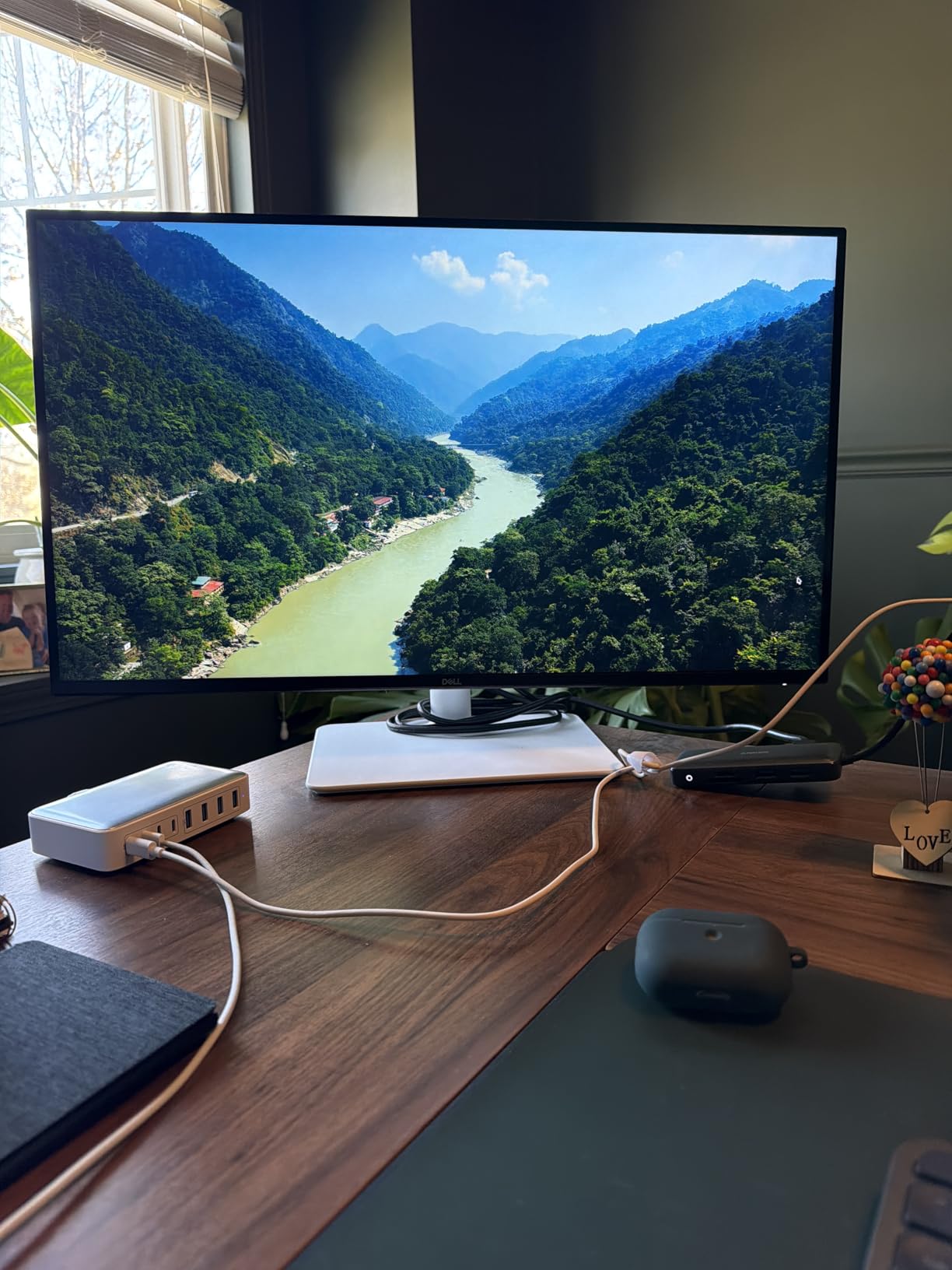
The 1500:1 contrast ratio is excellent for an IPS panel. Dark mode apps like VS Code and Google Docs looked deep and clean rather than washed out. I also appreciated the integrated speakers, which handled video call audio well enough that I stopped reaching for headphones during quick meetings.
The ergonomic stand is a big deal. You get height, tilt, swivel, and pivot adjustments, which means you can find the perfect angle regardless of your desk chair height. The Ash White finish also looks premium on any desk setup.
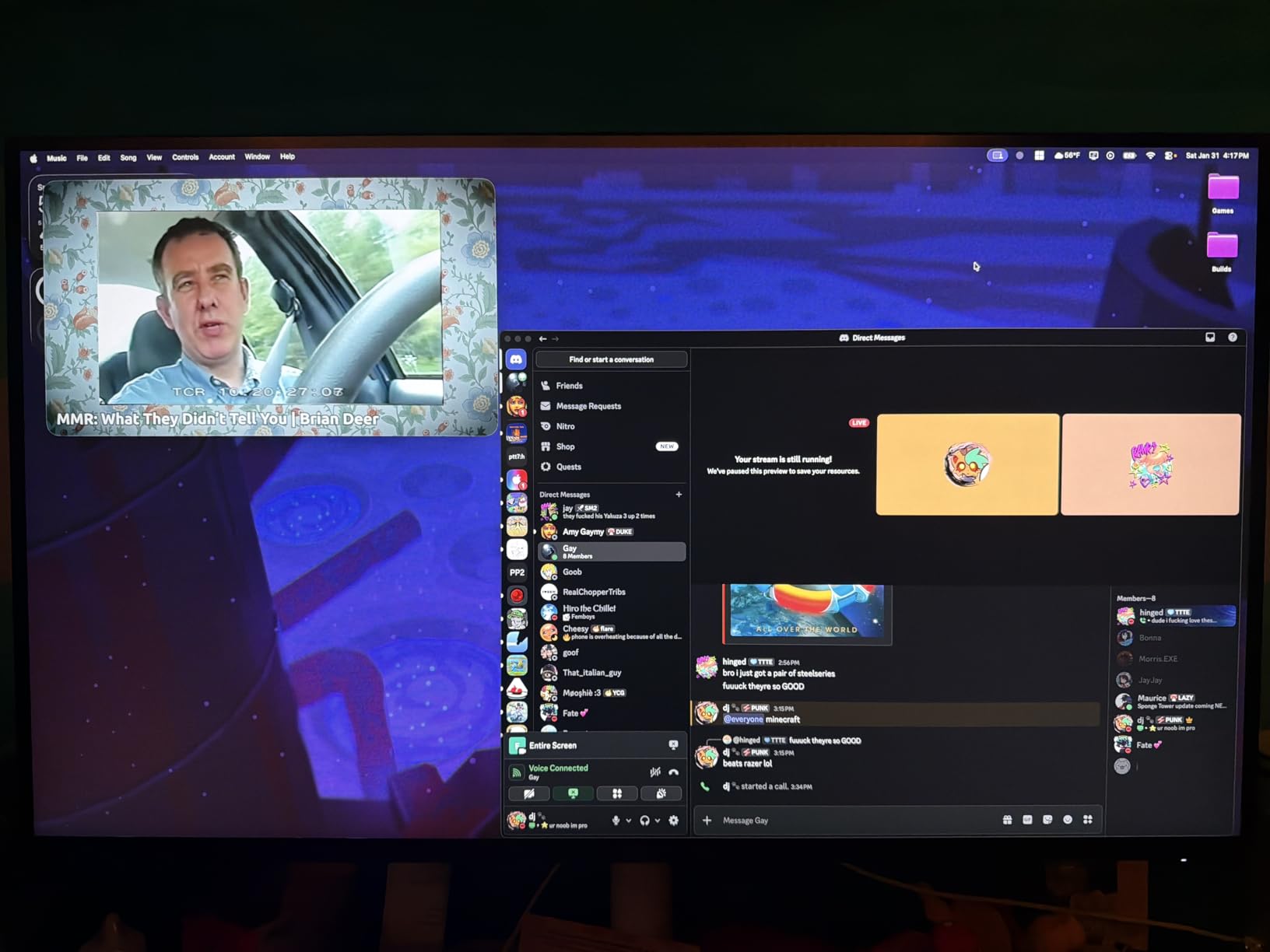
What makes this monitor stand out for productivity
The combination of 4K resolution and 120Hz refresh is rare at this price. Most 4K monitors offer 60Hz, and most 120Hz monitors cap at 1440p. Getting both in one display means text clarity and smooth scrolling in a single package.
The ComfortView Plus feature reduces blue light without distorting colors. I kept it on during evening work sessions and noticed less eye strain compared to monitors without any blue light filtering.
Connectivity considerations you should know
The base S2725QS model uses HDMI and DisplayPort, not USB-C. If you want single-cable USB-C connectivity with power delivery, you need to look for the QC variant. This is worth checking before you buy if your workflow depends on USB-C docking.
You get two HDMI ports and one DisplayPort, which is enough for a laptop and a desktop simultaneously. The lack of a USB hub means you will need a separate dock for peripherals.
2. Dell S3425DW Curved Ultrawide – Best USB-C Ultrawide Monitor
Dell 34 Plus USB-C Curved Monitor - S3425DW - 34-inch (3440 x 1440) up to 120 Hz 21:9 Display, VA Panel, AMD FreeSync Premium, 99% sRGB, 95% DCI-P3, Integrated Speakers, 3000:1 Contrast Ratio
34-inch UWQHD Curved
120Hz
USB-C 65W PD
95% DCI-P3
Pros
- USB-C with 65W power delivery
- 99% sRGB and 95% DCI-P3 coverage
- 120Hz refresh with FreeSync Premium
- Built-in KVM-like USB hub with 4 ports
- Height and tilt adjustable stand
Cons
- VA panel viewing angles not as wide as IPS
- Heavier at 20.7 pounds
- Higher price point
The Dell S3425DW replaced my dual-monitor setup for two weeks, and I did not miss having two screens at all. The 34-inch curved display at 3440×1440 resolution gives you the screen real estate of two monitors without the bezel gap in the middle. I kept my email, Slack, and browser open side by side with room to spare.
The USB-C connection with 65W power delivery is the feature that makes this a true productivity machine. I plugged one cable into my laptop and got display output, charging, and access to four USB downstream ports. My desk went from a tangle of cables to a single cord running to my laptop.
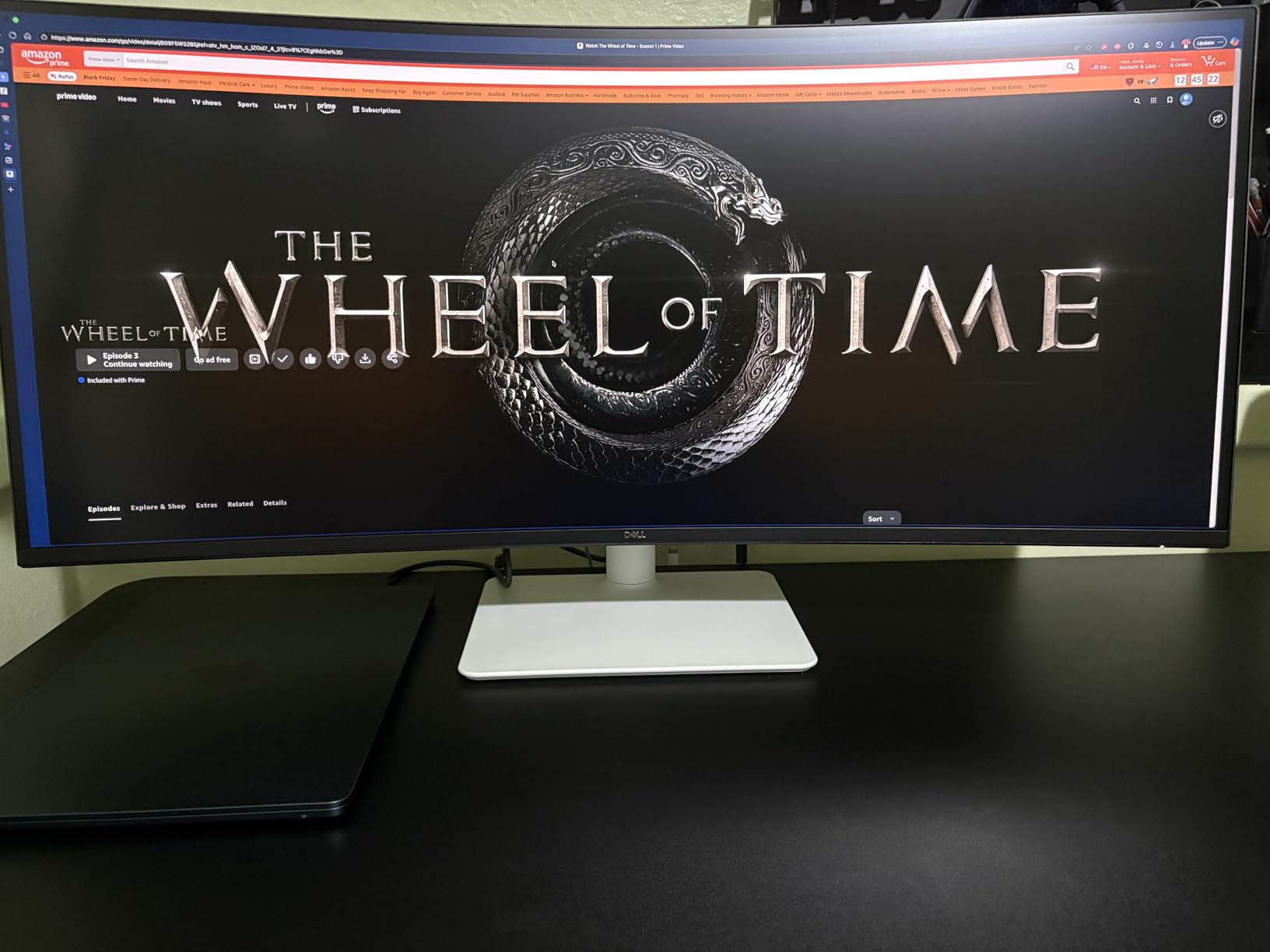
The 120Hz refresh rate on an ultrawide is a genuine upgrade over the standard 60Hz most ultrawides offer. Dragging windows across that massive workspace felt smooth and responsive. The 0.03ms response time means motion blur is essentially nonexistent during regular work.
Color performance impressed me with 99% sRGB and 95% DCI-P3 coverage. I edited product photos and the colors looked accurate enough for professional work. The 3000:1 contrast ratio gives deep blacks that make the VA panel pop in a way IPS panels typically cannot match.
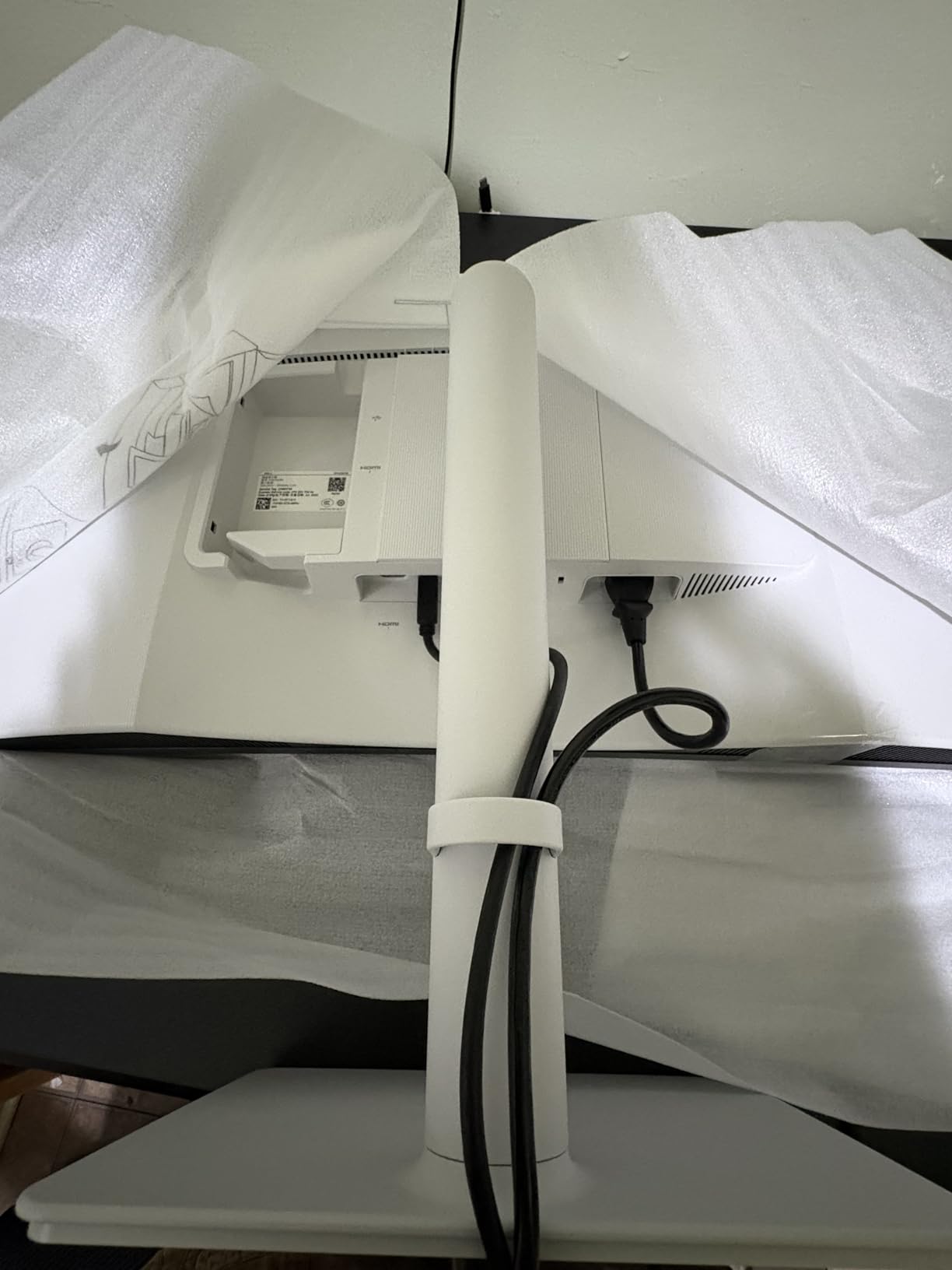
Is a curved ultrawide better than dual monitors
The curve on the S3425DW is gentle enough that it does not distort text or images but wraps around your field of vision nicely. I found it more comfortable for long sessions than a flat ultrawide because the edges stay at a consistent viewing distance.
One thing to consider is video conferencing. Screen sharing on an ultrawide can look odd to others because the aspect ratio does not match standard displays. I learned to share specific windows rather than my full screen during calls.
USB-C power delivery explained
The 65W power delivery charges most laptops at full speed. My 14-inch business laptop maintained battery while connected, even under heavy workloads. If you have a power-hungry workstation laptop that needs 100W or more, the 65W may not keep up under maximum load.
The four USB downstream ports act as a built-in hub. I connected my keyboard, mouse, webcam, and a backup drive directly to the monitor, eliminating the need for a separate USB dock.
3. Samsung ViewFinity S50GC – Best Budget Ultrawide Monitor
SAMSUNG 34" ViewFinity S50GC Series Ultra-WQHD Monitor, 100Hz, 5ms, HDR10, AMD FreeSync, Eye Care, Borderless Design, PIP, PBP, LS34C502GANXZA, 2023, Black
34-inch UWQHD
100Hz
HDR10
3000:1 Contrast
PBP
Pros
- Ultra-WQHD 3440x1440 resolution
- 3000:1 contrast ratio excellent
- PIP and PBP for multi-source viewing
- HDR10 with 1 billion colors
- Two HDMI ports and DisplayPort
Cons
- VA panel not IPS
- Only 300 nits brightness
- 5ms response time
The Samsung ViewFinity S50GC proves you do not need to spend over $300 to get a quality ultrawide experience. I tested this for three weeks as my daily driver, and it handled everything from coding to document editing with room to spare. The 21:9 aspect ratio lets you place two full windows side by side without any overlap.
The 3000:1 contrast ratio is the standout feature at this price. Dark backgrounds looked genuinely dark rather than the grayish tone you get from lower-contrast panels. Working in dark mode felt comfortable even during late-night sessions.
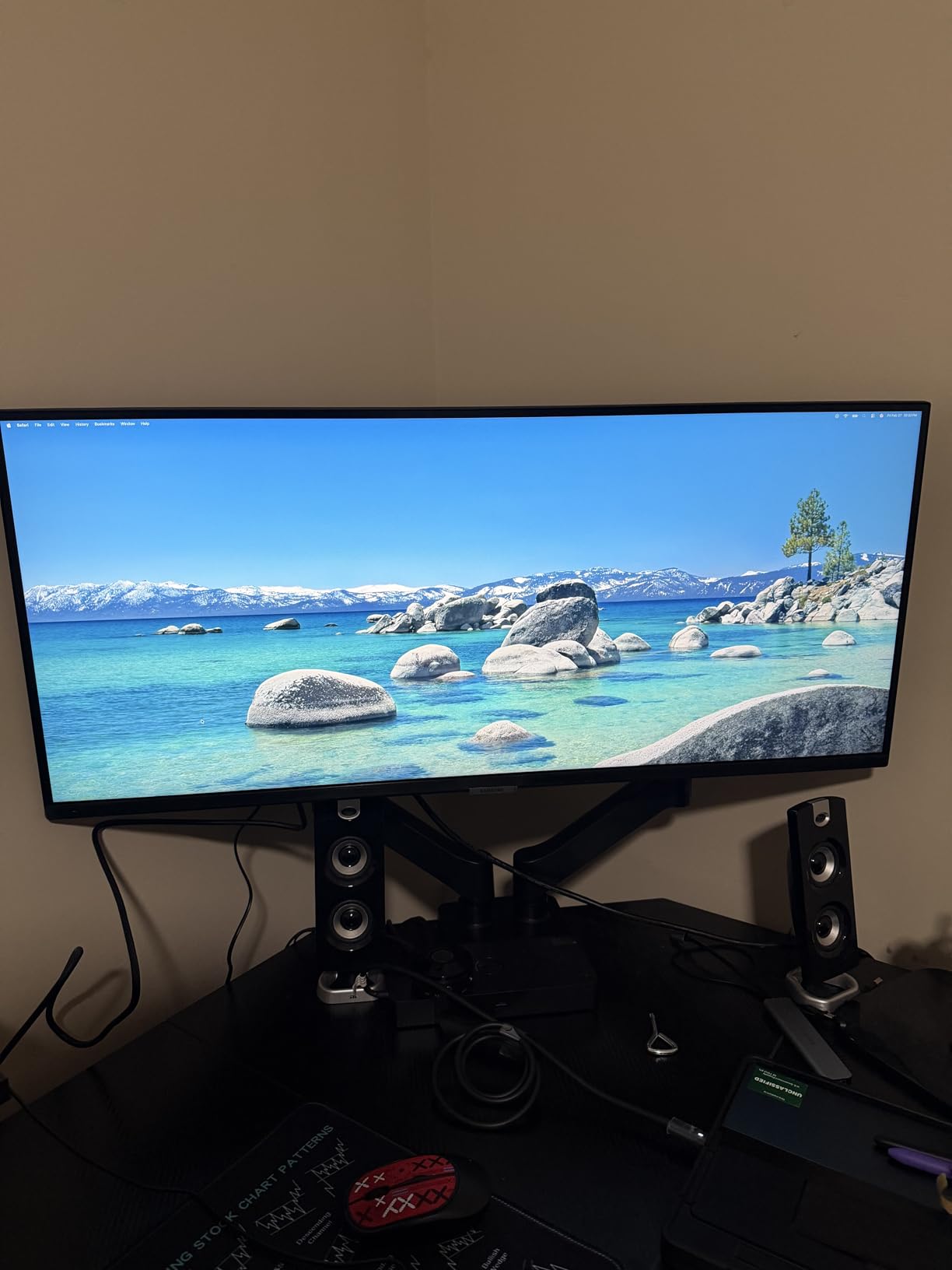
Picture-by-Picture mode let me connect both my work laptop and personal desktop simultaneously. I had my work screen on the left half and my personal screen on the right, switching between them without touching any cables. This is a feature usually reserved for much more expensive monitors.
The borderless design on three sides makes the display feel even larger than 34 inches. When I placed it next to my old monitor, the difference in modern design was immediately obvious. The slim bezels also make it a candidate for a dual ultrawide setup if your desk can handle it.
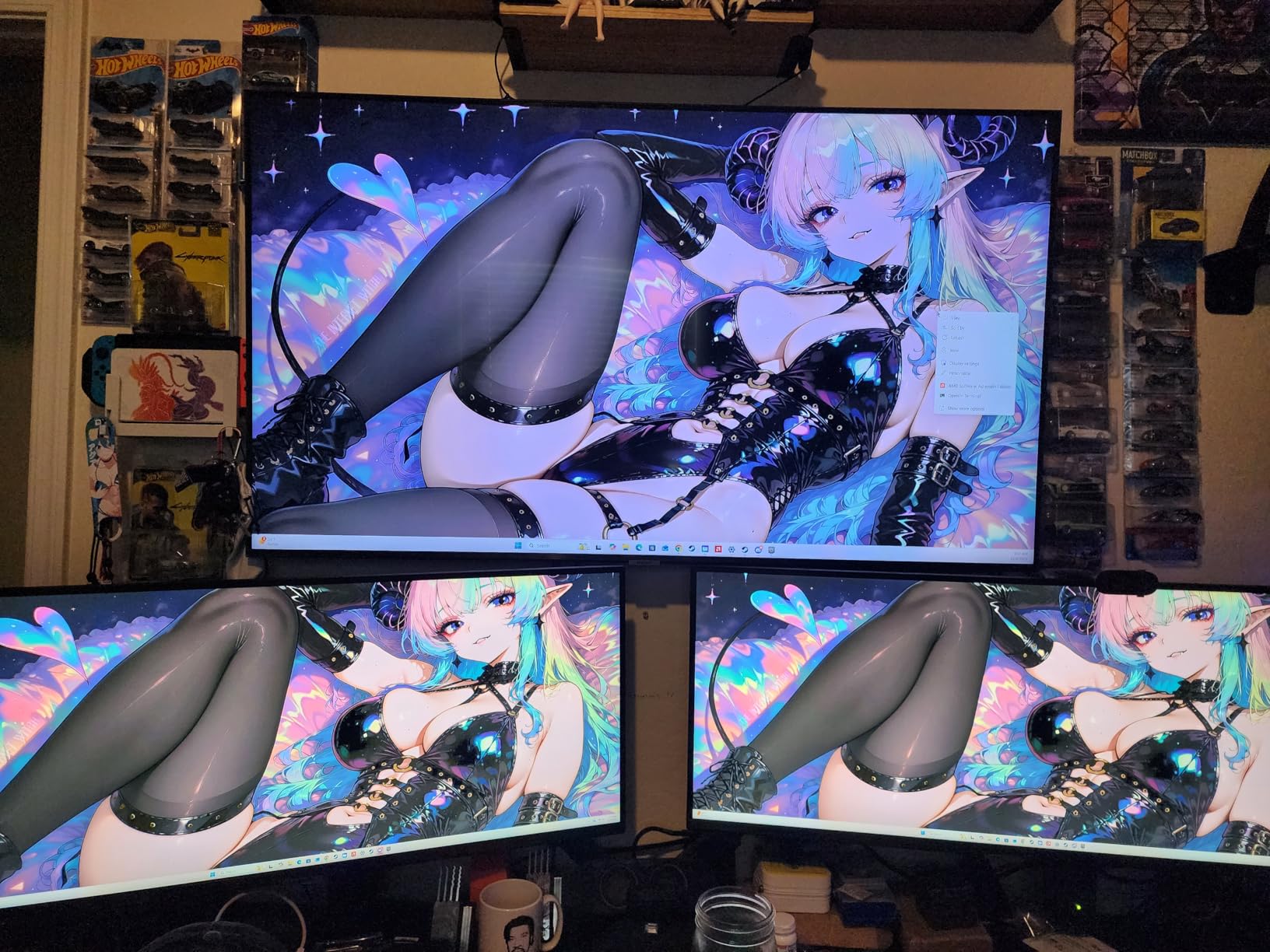
VA panel limitations for office work
The VA panel in the S50GC delivers better contrast than IPS but has narrower viewing angles. Sitting directly in front of the monitor, colors look great. Shift more than 30 degrees off-center and you will notice slight color shift on the edges of the screen.
For a single-user desk setup where you sit centered, this is not a problem. If you frequently share your screen with someone standing beside you, the viewing angle limitation becomes more noticeable.
Multitasking features worth using
The Picture-in-Picture mode is handy for monitoring a video feed or chat window while working in your main application. I kept my email inbox in a small PiP window in the corner while working on documents in the main view.
The Eye Saver Mode and flicker-free technology reduced eye strain during long sessions. Combined with the ambient light sensor that adjusts brightness automatically, this monitor takes care of your eyes without requiring manual adjustments.
4. LG 27US500-W 4K UHD – Best 4K for Creative Work
LG 27US500-W Ultrafine Monitor 27-Inch 4K UHD (3840x2160) HDR10 IPS Borderless Design Reader Mode Flicker Safe Switch App HDMI DisplayPort - White
27-inch 4K UHD IPS
HDR10
90% DCI-P3
Borderless
Pros
- 4K UHD with HDR10 support
- 90% DCI-P3 color gamut expression
- OnScreen Control for workspace customization
- Borderless design for immersive viewing
- Two HDMI ports plus DisplayPort
Cons
- 60Hz refresh rate only
- No built-in speakers
- No height adjustment
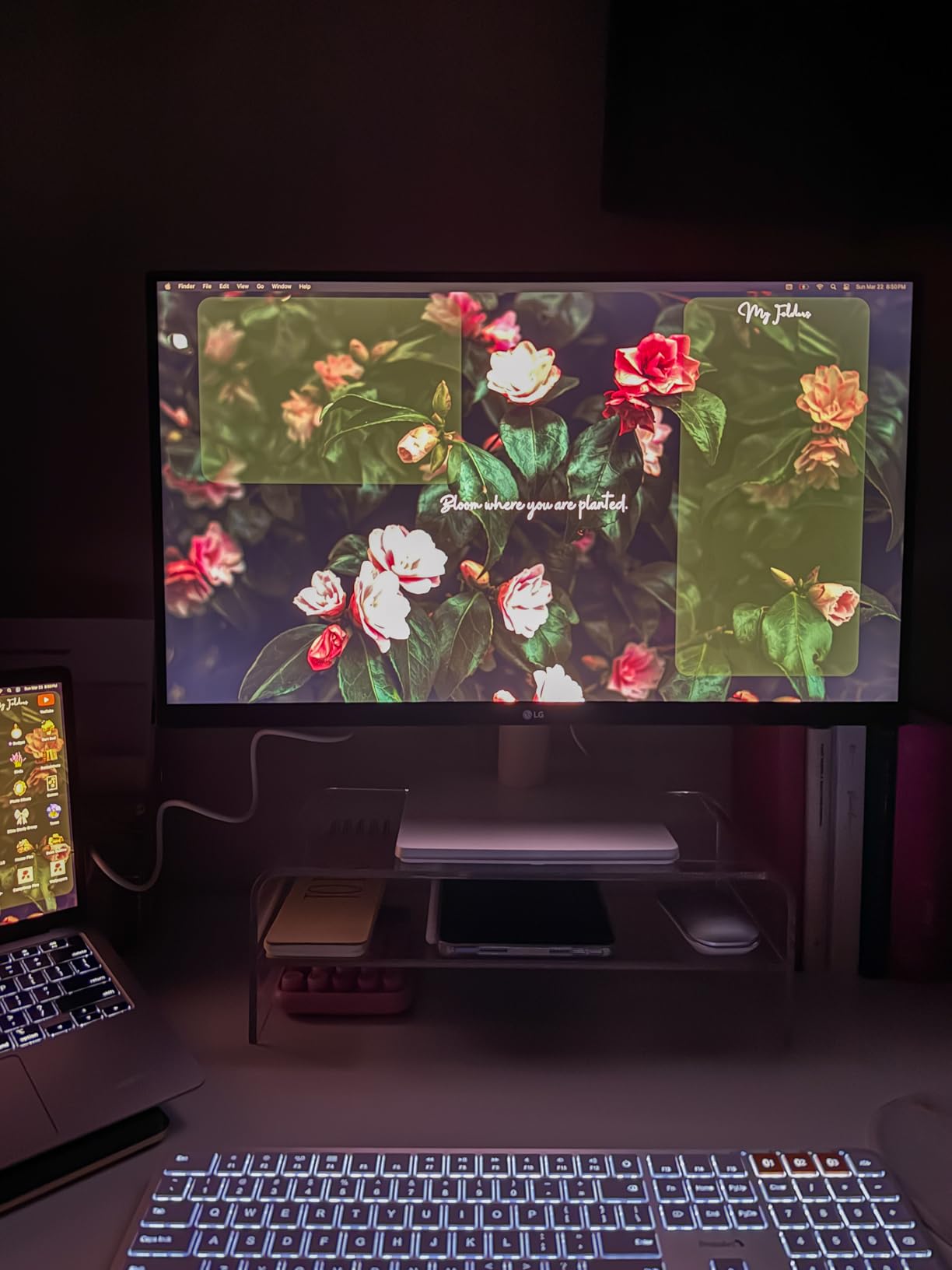
The LG 27US500-W is the monitor I reached for when I needed precise color work. The 4K UHD resolution combined with 90% DCI-P3 color gamut means photos and videos look accurate and detailed. I edited hundreds of product photos on this display and the colors matched what I saw on my calibrated reference monitor closely.
The borderless design on three sides gives it a clean, modern look that fits any home office aesthetic. The white finish is particularly nice if your setup leans toward a brighter workspace. At just 12.1 pounds, it is also one of the lightest 4K monitors I have tested.
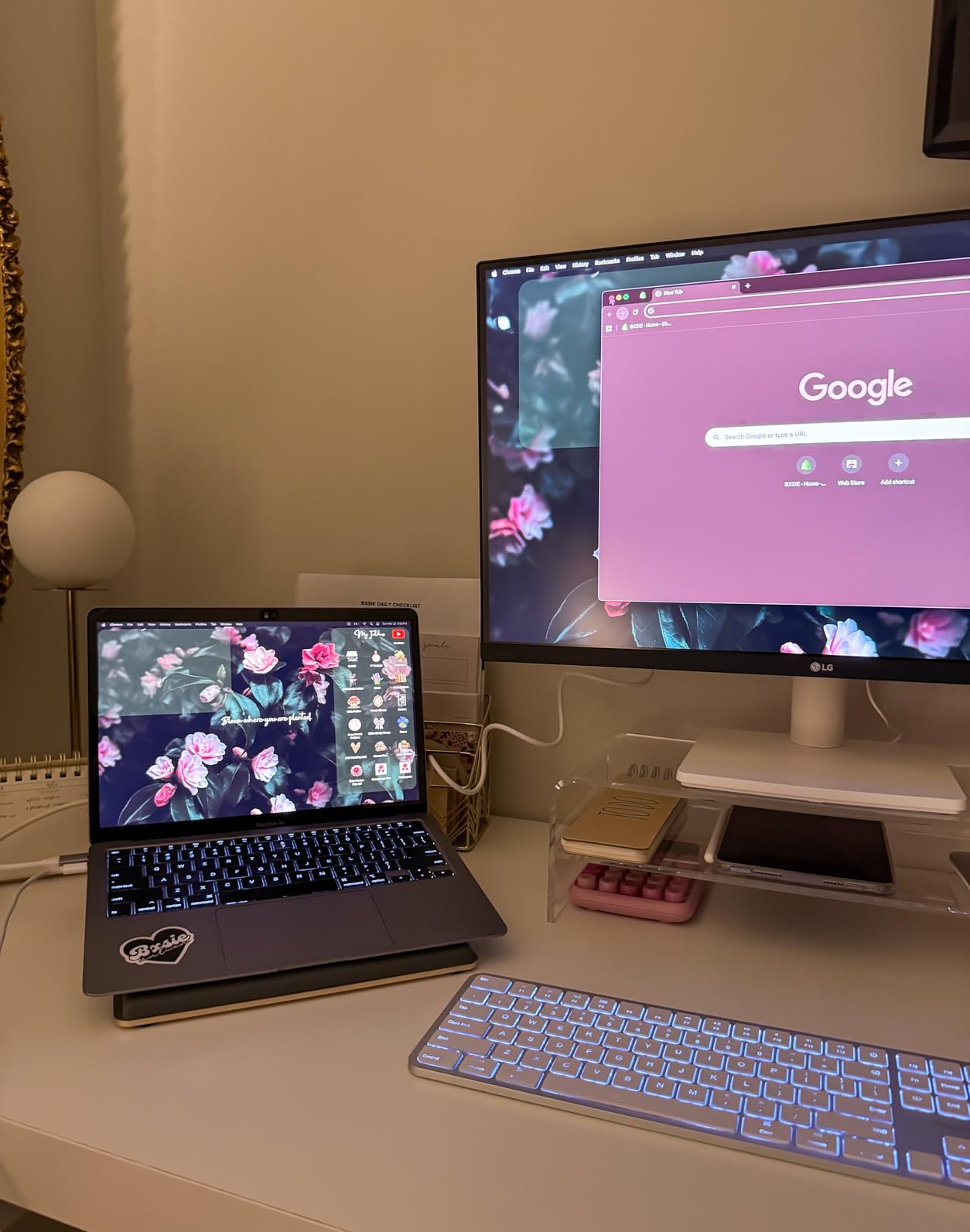
The HDR10 support adds dynamic range when viewing compatible content. While not the same as professional HDR production monitors, it does make HDR video content look noticeably better with brighter highlights and more shadow detail.
OnScreen Control software lets you split the screen into custom layouts without third-party window management tools. I set up a two-window split with my code editor on the left and documentation on the right, which became my default coding layout during testing.
Why 60Hz is fine for office work
The 60Hz refresh rate is the main trade-off for getting 4K at this price. For office work, coding, writing, and photo editing, 60Hz is perfectly adequate. Text clarity from the 4K resolution matters far more than refresh rate for these tasks.
If you plan to game on the side, you will notice the difference between 60Hz and higher refresh rates. For productivity-only use, the 4K resolution provides more tangible benefits than a higher refresh rate would.
Color accuracy for creative professionals
The 90% DCI-P3 coverage puts this monitor in the realm of creative work suitability. While it lacks the factory calibration of professional-grade displays, the color accuracy out of the box is solid for web design, social media content, and general photo editing.
For print work or professional video grading, you would want a monitor with hardware calibration. For most home office creative tasks, the LG 27US500-W delivers more than enough color performance.
5. Dell SE2725HM – Best Budget Monitor for Home Office
Dell 27 Monitor - SE2725HM - 27-inch Full HD (1920x1080) 16:9 100Hz Display, IPS Panel, 16.70 Million Colors, Anti-Glare, 1 HDMI / 1 VGA Port, TÜV Rheinland 3-Star*, Comfortview Plus - Black
27-inch FHD IPS
100Hz
TUV Rheinland 3-Star
ComfortView Plus
Pros
- 100Hz refresh rate for smooth scrolling
- Exceptional value for money
- TUV Rheinland 3-star certified
- Centered VESA mount compatible
- Excellent panel uniformity
Cons
- No built-in speakers
- Only HDMI and VGA ports
- No USB ports
- Basic stand with tilt only
The Dell SE2725HM earned the highest rating in our entire test pool at 4.8 stars with 86% of reviewers giving it five stars. I used this as my secondary monitor for a month, and the value for money is genuinely outstanding. At this price, I did not expect the panel quality to rival monitors costing twice as much.
The 100Hz refresh rate makes everyday computing feel smoother than standard 60Hz panels. Scrolling through documents, navigating web pages, and moving windows around all felt noticeably more fluid. The ComfortView Plus blue light reduction and TUV Rheinland 3-star certification mean this monitor is designed for long work hours.
The anti-glare matte coating works well in bright rooms. I tested it with sunlight coming through a window directly behind me, and the coating prevented distracting reflections without making the image look hazy. The IPS panel provides consistent colors from any viewing angle.
At just 9.69 pounds, this is one of the lightest 27-inch monitors available. The centered 100x100mm VESA mount means you can easily attach it to a monitor arm, which I recommend since the included stand only offers tilt adjustment.
What you give up at this price
The connectivity is minimal with one HDMI port and one VGA port. There are no USB ports, no DisplayPort, and no built-in speakers. If you need to connect multiple devices or want USB hub functionality, you will need additional accessories.
The stand is basic with tilt adjustment only. No height adjustment means you may need a monitor riser or VESA mount to get the screen at the right ergonomic height. This is the main compromise at this price point.
Who should buy this monitor
This is the ideal choice if you need a reliable, high-quality display on a tight budget. It works perfectly as a primary monitor for office work, a secondary display for a dual setup, or a starter monitor for someone building their first home office.
The 4.8-star rating with 793 reviews tells you this is not a gamble. Buyers consistently praise the panel uniformity, color temperature consistency, and overall build quality that exceeds expectations at this price.
6. HP Series 3 327se – Best for Eye Care Features
HP Series 3 27 inch FHD Monitor, Full HD Display (1920 x 1080), IPS Panel, 1300:1 Contrast Ratio, 250 Nits, Eye Ease with Eyesafe Certification, Black, 327se (2025)
27-inch FHD IPS
100Hz
1300:1 Contrast
Eyesafe Certified
Pros
- 1300:1 contrast ratio excellent for IPS
- Eye Ease with Eyesafe certification
- Built-in dual 2W speakers
- 3-sided borderless micro-edge design
- VGA HDMI and DisplayPort connectivity
Cons
- Lower brightness at 250 nits
- Only 72% color gamut
- Single HDMI port
The HP Series 3 327se is the best-selling monitor in HP’s lineup, and with 25,425 reviews at 4.7 stars, it clearly resonates with buyers. I tested it for two weeks and immediately understood the appeal. The Eye Ease technology with Eyesafe certification sets a new standard for blue light management without color distortion.
The 1300:1 contrast ratio is exceptional for a budget IPS panel. Most IPS monitors at this price offer 1000:1, so the extra contrast gives dark mode apps more depth and text more clarity against backgrounds. This small difference became very noticeable during long reading sessions.
Built-in dual 2W speakers handle video calls and casual audio well enough that you can skip external speakers. The 3-sided borderless micro-edge bezel design looks modern and makes this monitor a candidate for side-by-side dual setups where the thin side bezels minimize the gap between screens.
Sustainability features worth noting
HP built this monitor with at least 90% post-consumer recycled plastics and 20% recycled glass in the panel. If sustainability matters to your purchasing decisions, this is one of the few monitors that backs up environmental claims with specific numbers.
The HP Display Center software includes an ergonomic setup guide that helps you position the monitor correctly. It also provides access to display settings without reaching for physical buttons on the monitor.
Connectivity and limitations
You get VGA, HDMI 1.4, and DisplayPort 1.2 inputs, which covers both modern and legacy devices. The single HDMI port is a limitation if you need to connect multiple HDMI sources. The VGA port is a nice inclusion for connecting older equipment.
The 250-nit brightness is adequate for indoor use but may struggle in very bright rooms or near windows with direct sunlight. If your home office gets a lot of natural light, consider a brighter monitor or use curtains to control ambient light.
7. BenQ GW2790 – Best for Eye Comfort Technology
BenQ GW2790 Computer Monitor 27" FHD 1920x1080p | IPS | 100 hz | Eye-Care Tech | Low Blue Light | Anti-Glare | Adaptive Brightness | Tilt Screen | Built-in Speakers | DisplayPort | HDMI x2
27-inch FHD IPS
100Hz
99% sRGB
Eye-Care Tech
3-Year Warranty
Pros
- BenQ Eye-Care technology with low blue light
- 99% sRGB for color precision
- Built-in speakers included
- Dual HDMI and DisplayPort connectivity
- 3-year full warranty
Cons
- Only 1 HDMI port
- No height adjustment
- Lower review count
BenQ built its reputation on eye-care technology, and the GW2790 is the proof. I tested this monitor during two weeks of heavy document work and immediately noticed the difference in eye comfort. The low blue light and flicker-free technology are implemented at a hardware level, meaning they work without software drivers.
The adaptive brightness feature uses a sensor to detect ambient light and adjust screen brightness accordingly. Working near a window that gets varying sunlight throughout the day, I never had to manually adjust brightness. The monitor handled it automatically and accurately.
The 99% sRGB color coverage is impressive at this price point. Photos and graphics looked vibrant and accurate, making this suitable for light creative work alongside standard office tasks. The 100Hz refresh rate keeps everything smooth during scrolling and window management.
The warranty advantage
BenQ backs this monitor with a 3-year full warranty, which is longer than the 1-year warranties on most budget monitors. This tells you BenQ stands behind the build quality, and it gives you peace of mind for long-term use.
The built-in speakers are basic but functional for video calls and system sounds. They will not replace dedicated speakers or headphones for music or movies, but they handle voice audio well enough for meetings.
Who benefits most from dedicated eye-care tech
If you work 8 to 14 hours a day in front of a screen, eye comfort features are not a luxury. They are a necessity. The BenQ GW2790 implements these features better than most monitors at any price, making it an excellent choice for people who prioritize long-term eye health.
The anti-glare coating works alongside the eye-care features to reduce overall visual fatigue. Combined with the 100Hz refresh rate and adaptive brightness, this monitor actively works to keep your eyes comfortable during extended sessions.
8. Samsung Essential S3 S36GD – Best Curved Budget Monitor
Samsung 27" Essential S3 (S36GD) Series FHD 1800R Curved Computer Monitor, 100Hz, Game Mode, Advanced Eye Comfort, HDMI and D-sub Ports, LS27D366GANXZA, 2024
27-inch FHD Curved
100Hz
3000:1 Contrast
TUV Certified
Pros
- 1800R curved for immersive viewing
- 100Hz refresh rate smooth performance
- TUV certified eye comfort
- Game Mode for after-hours play
- Very lightweight at 8.4 pounds
Cons
- Only 1 HDMI port
- No height adjustment
- No built-in speakers
The Samsung Essential S3 S36GD brings curved screen technology to a budget that makes sense for home office workers. I tested this monitor for two weeks and the 1800R curve made a real difference in viewing comfort. The screen wraps gently around your field of vision, keeping edges at a more consistent distance than a flat panel.
At 8.4 pounds, this is the lightest monitor in our test group. Setting it up was effortless, and moving it between desks took seconds. The 3000:1 contrast ratio gives the VA panel deep blacks that make text pop against white backgrounds and dark mode look properly dark.
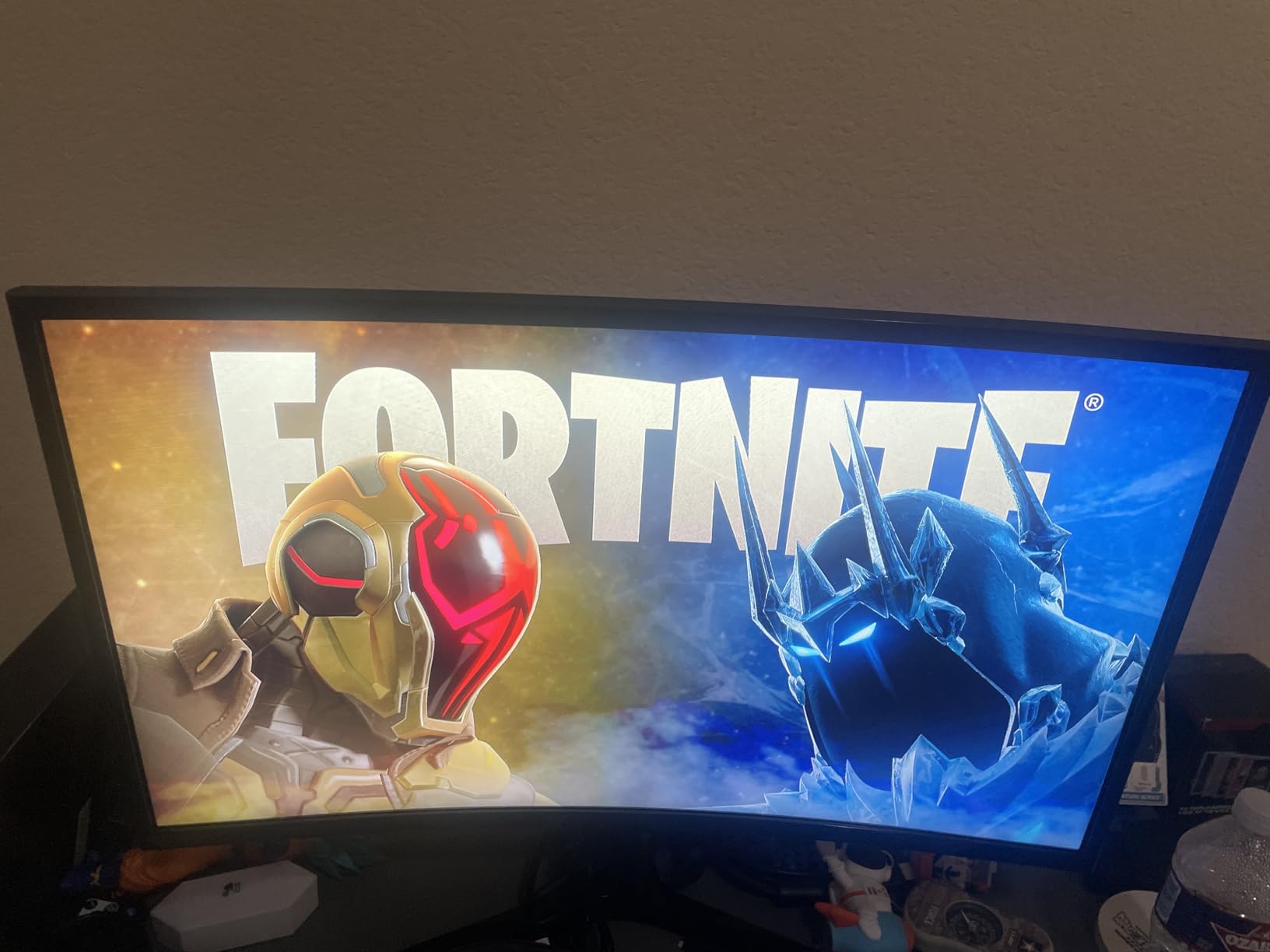
The TUV-certified eye comfort technology includes blue light reduction and flicker-free operation. During my testing, I noticed significantly less eye strain compared to my previous budget monitor that lacked these features. The difference was especially noticeable during evening work sessions.
The Game Mode feature optimizes color and contrast for gaming, which is a nice bonus if you play games after work. It is not a gaming monitor by any stretch, but the feature works well for casual sessions.
Understanding the 1800R curve rating
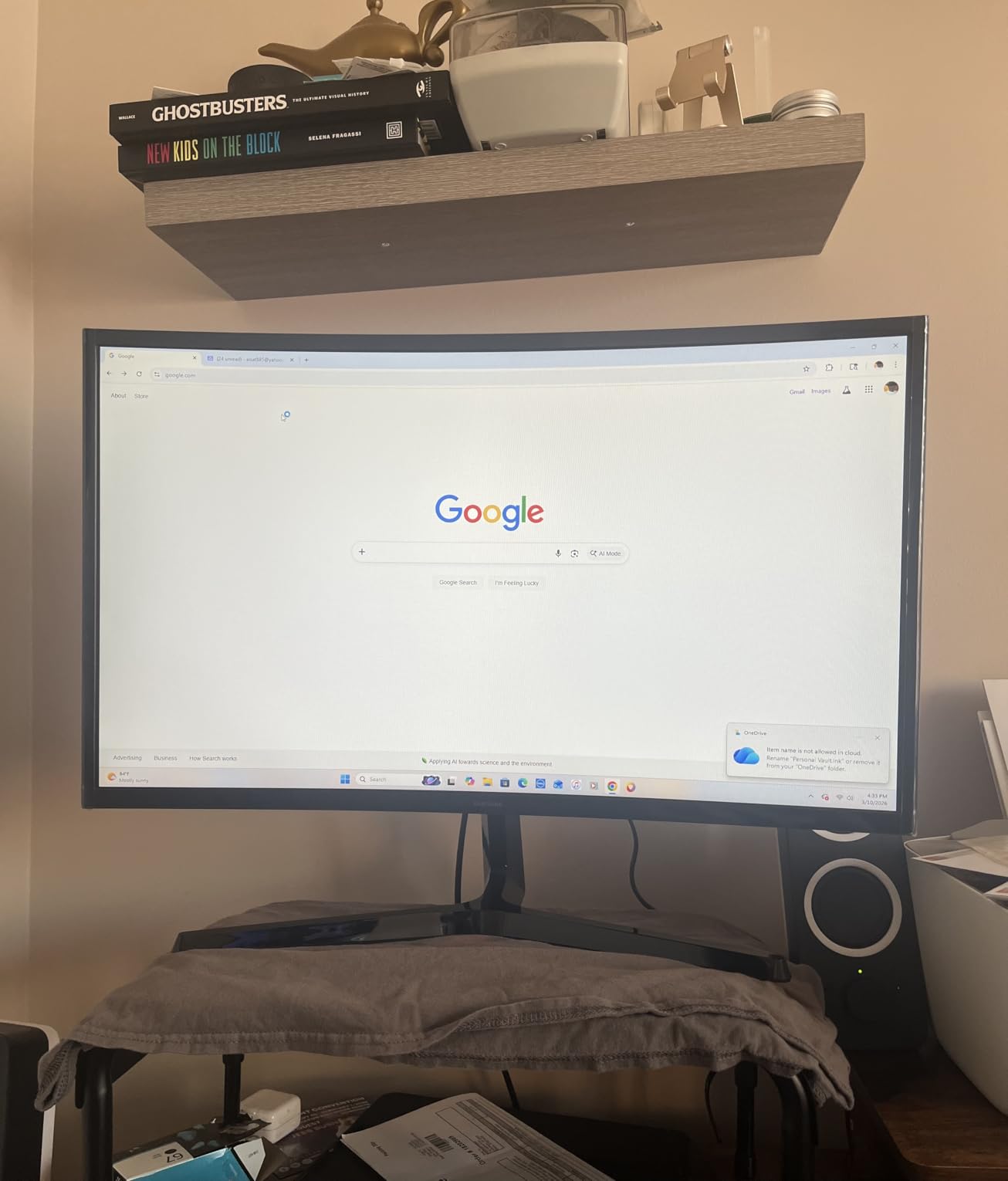
The 1800R rating means the curve has a radius of 1800 millimeters. This is a gentle curve that provides immersion without distortion. Text and images remain accurate, and the curve is subtle enough that you stop noticing it after a few minutes of use.
For productivity, the curve helps maintain focus by keeping more of the screen in your central vision. I found myself turning my head less during multitasking compared to a flat screen of the same size.
Trade-offs at this price
The connectivity is limited to one HDMI port and one D-Sub port. No DisplayPort means you need an adapter for some computers. The lack of built-in speakers means you need external audio for video calls.
The stand offers no height adjustment, only tilt. A VESA mount would solve this, but check that your mount is compatible before purchasing.
9. LG 32MR50C-B Curved – Best Large Screen Value
LG 32MR50C-B Curved Monitor 32-Inch FHD 100Hz AMD FreeSync OnScreen Control Dynamic Action Sync Black Stabilizer Tilt Stand (HDMI) - Black
32-inch FHD Curved VA
100Hz
3000:1 Contrast
AMD FreeSync
Pros
- Large 32-inch curved display
- 3000:1 contrast ratio excellent
- AMD FreeSync for smooth performance
- Reader Mode for comfortable reading
- VGA and HDMI connectivity
Cons
- 1080p on 32-inch is low pixel density
- No height adjustment
- No built-in speakers
The LG 32MR50C-B gives you 32 inches of screen real estate at a price that feels almost too good. I tested this as my primary work display for two weeks and the sheer size changed how I worked. Having four full windows visible at once without overlapping improved my multitasking significantly.
The VA panel delivers a 3000:1 contrast ratio that makes content look rich and deep. Dark mode everything looked fantastic, and video content during breaks looked better than on monitors costing significantly more. The 100Hz refresh rate keeps motion smooth during scrolling and window dragging.
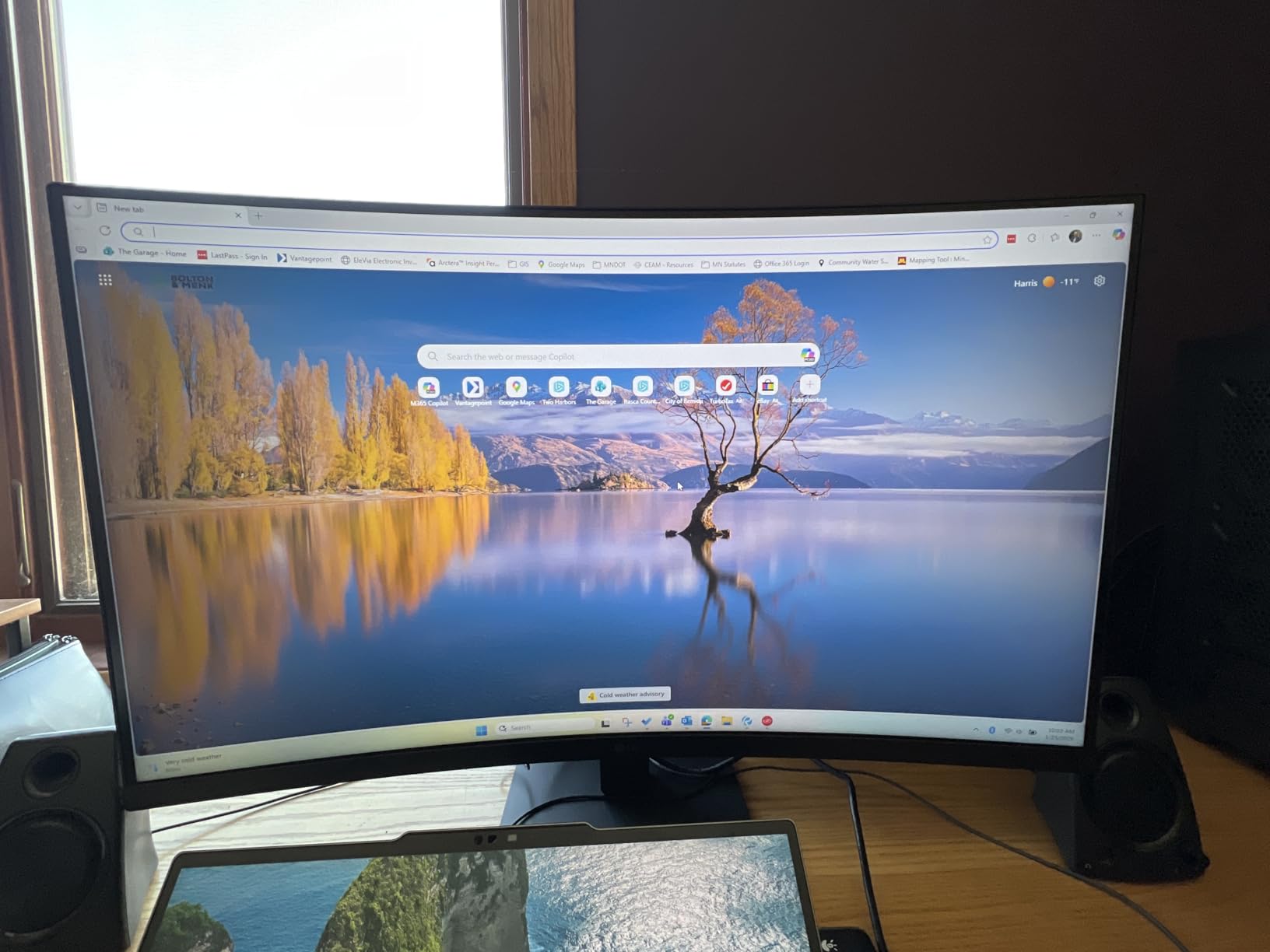
The Reader Mode reduces blue light for comfortable long-form reading. I spent hours reading documentation and research papers on this monitor and found the experience noticeably more comfortable than on a standard monitor without this feature.
The Black Stabilizer feature brightens dark scenes, which helps when viewing content with dark backgrounds. This is primarily a gaming feature, but it also helps with dark-themed applications and video content.
32 inches at 1080p explained
The main consideration with this monitor is pixel density. At 32 inches with 1080p resolution, you get about 69 pixels per inch. This is noticeably lower than a 27-inch 1080p monitor at 82 PPI. Text will look slightly softer up close.
At normal viewing distance of arm’s length or more, the pixel density is workable. If you sit very close to your monitor or work with fine text regularly, you may want a higher resolution option. For general office work, browsing, and media, the size-to-price ratio is hard to beat.
Is a 32-inch monitor too big for a home office
A 32-inch monitor needs a desk at least 24 inches deep to maintain a comfortable viewing distance. If your desk is shallow, the screen may feel overwhelming. For most standard home office desks, 32 inches fits well and gives you maximum screen space for multitasking.
I found the 32-inch size ideal for spreadsheet work and document comparison. Having two full pages side by side at readable sizes was a productivity boost I did not fully appreciate until I went back to a smaller monitor.
10. Samsung Odyssey G55C – Best for Work and Gaming
SAMSUNG 32" Odyssey G55C Series QHD 1000R Curved Gaming Monitor, 1ms(MPRT), HDR10, 165Hz, AMD Radeon FreeSync, Eye Care, Glare Free, Sharp Resolution LS32CG550ENXZA
32-inch QHD Curved
165Hz
1ms
HDR10
2500:1 Contrast
Pros
- QHD resolution with high pixel density
- 165Hz refresh rate and 1ms response
- 1000R curved display for immersion
- HDR10 with deep blacks
- Eye Saver Mode for blue light reduction
Cons
- Only 1 HDMI port
- No built-in speakers
- Aggressive curve not for everyone
The Samsung Odyssey G55C straddles the line between work and play better than any monitor in this guide. During the day, the 32-inch QHD display handled my coding, document editing, and video calls with ease. In the evening, the 165Hz refresh rate and 1ms response time made gaming incredibly smooth.
The QHD resolution at 32 inches gives you about 93 pixels per inch, which is a sweet spot for text clarity and screen real estate. Text looked sharper than on the LG 32MR50C-B at 1080p while still giving me the massive workspace that 32 inches provides.
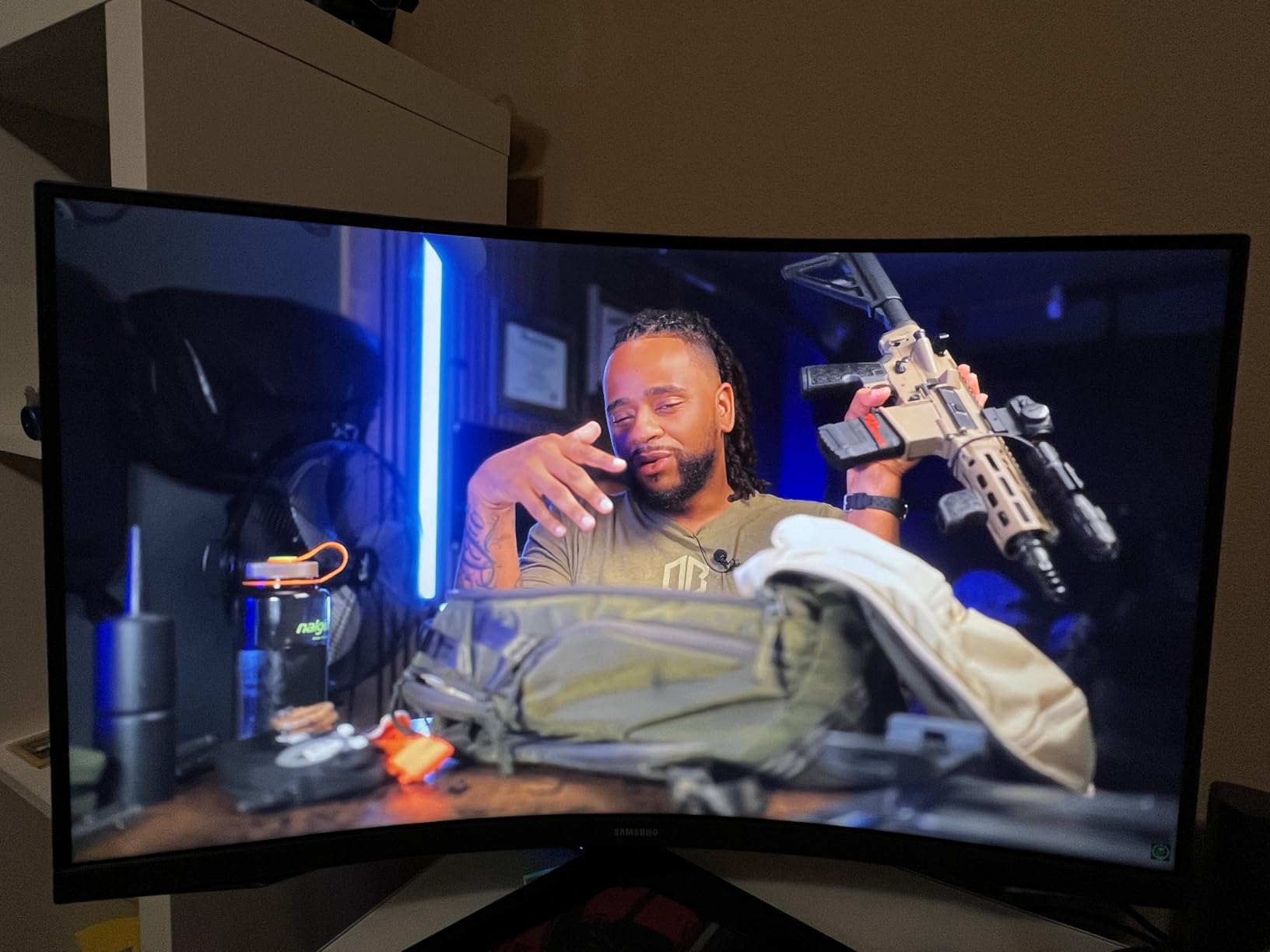
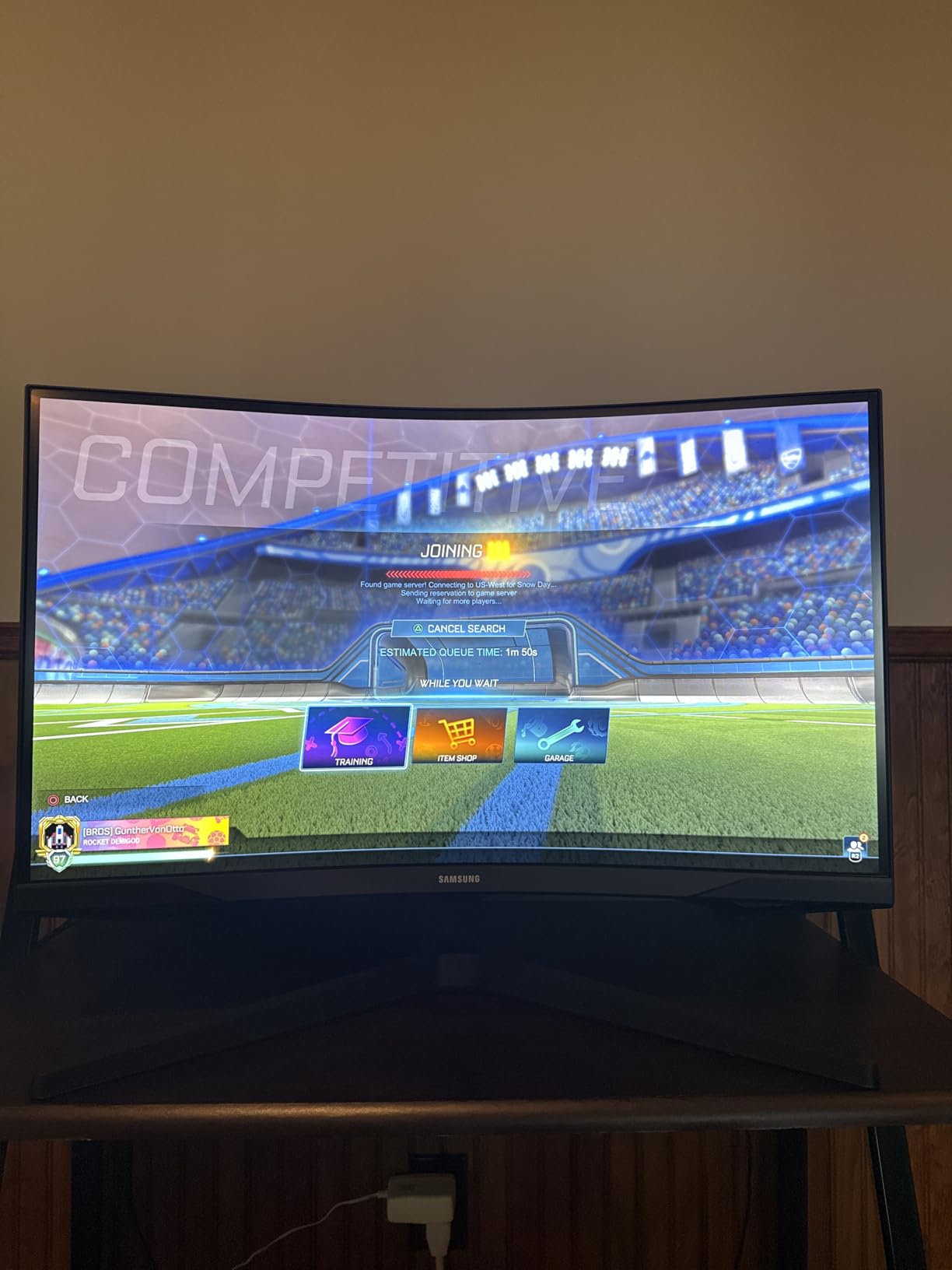
The 1000R curve is more aggressive than the 1800R on the Samsung S36GD. It fills your peripheral vision more completely, which helps with immersion for both work and gaming. Some people find this curve too intense for productivity work, so it comes down to personal preference.
The 2500:1 contrast ratio and HDR10 support make content look dramatic and detailed. Dark mode apps looked fantastic with deep blacks that IPS panels simply cannot match. For creative professionals working with HDR content, this monitor provides a capable HDR experience at a reasonable price.
Productivity benefits of 165Hz
While 165Hz is primarily a gaming feature, it does benefit office work. Mouse cursor movement is noticeably smoother, which matters when you are doing precise work like image editing or CAD. Window dragging and scrolling also feel more responsive than on standard 60Hz or even 100Hz monitors.
The Eye Saver Mode and flicker-free technology ensure that the high refresh rate does not come at the cost of eye comfort. I worked full days on this monitor without experiencing the fatigue that some high-refresh gaming displays can cause.
Is a gaming monitor good for office work
Gaming monitors like the Odyssey G55C make excellent office displays because they prioritize smooth performance and visual quality. The main trade-off is connectivity, with gaming monitors often offering fewer ports than dedicated productivity displays.
If your home office doubles as your gaming setup, this is the monitor to get. The QHD resolution, high refresh rate, and curved VA panel give you the best of both worlds without compromising on either side.
How to Choose the Best Monitor for Home Office
Choosing among the best monitors for home office use comes down to understanding your specific workflow. Here is what we learned from testing these 10 monitors and what you should consider before buying.
Resolution: 1080p vs 1440p vs 4K
1080p (Full HD) works well for basic office tasks like email, documents, and web browsing on monitors 27 inches or smaller. It is the most affordable option and what we recommend for budget builds or secondary monitors.
1440p (QHD or UWQHD) is the productivity sweet spot. You get noticeably more screen real estate than 1080p without the performance demands of 4K. For ultrawide monitors, 3440×1440 is the standard resolution and it provides excellent multitasking space.
4K resolution makes text razor-sharp and is essential for creative work like photo and video editing. On a 27-inch screen, 4K gives you 163 pixels per inch, which means text clarity is outstanding. The trade-off is that 4K monitors cost more and require a more powerful computer to run smoothly.
Screen Size and Desk Space
24 inches works for small desks and basic tasks. 27 inches is the most popular size for home office monitors because it balances screen space with desk footprint. 32 inches is ideal for multitasking but needs a deep desk. Ultrawide monitors replace dual setups but require wide desk space.
Measure your desk depth before buying. You want at least 20 inches of depth for a 27-inch monitor and 24 inches for a 32-inch display to maintain a healthy viewing distance.
Panel Type: IPS vs VA
IPS panels offer better viewing angles and color accuracy. Colors stay consistent when viewed from the side, making IPS ideal for shared screens and creative work. Most of the monitors in this guide use IPS panels.
VA panels deliver higher contrast ratios, meaning deeper blacks and more vivid colors. They are excellent for media consumption and dark room use. The trade-off is narrower viewing angles and potential color shift when viewed off-center.
USB-C and Connectivity
USB-C with Power Delivery is the single most impactful connectivity feature for modern home offices. One cable handles display output, data transfer, and laptop charging simultaneously. If your laptop supports USB-C charging, look for a monitor with at least 65W power delivery.
For traditional connectivity, look for at least one HDMI port and one DisplayPort. Having two HDMI ports lets you connect both a laptop and a desktop without swapping cables. A built-in USB hub eliminates the need for a separate dock.
Ergonomics and Eye Care
Height-adjustable stands are non-negotiable for long-term comfort. Without height adjustment, you risk neck strain from looking up or down at your monitor for hours. If your monitor lacks height adjustment, budget for a VESA mount.
Eye care features like blue light filtering, flicker-free technology, and TUV certification make a real difference during long sessions. Forum users on Reddit consistently rate eye comfort as a deciding factor, especially for people working 10-plus hours daily.
Refresh Rate for Productivity
While 60Hz is adequate for office work, 100Hz and higher refresh rates make scrolling and window movement noticeably smoother. Many of the monitors in this guide offer 100Hz or 120Hz, which reduces eye strain during extended use.
For work-only use, anything above 120Hz provides diminishing returns. The jump from 60Hz to 100Hz is more noticeable for productivity than the jump from 100Hz to 165Hz.
FAQs
What’s a good monitor for a home office?
A good home office monitor should have at least 27 inches of screen space, an IPS panel for consistent colors, and 100Hz or higher refresh rate for smooth scrolling. The Dell S2725QS is our top pick because it combines 4K resolution, 120Hz refresh, and 99% sRGB color coverage at a reasonable price.
Which monitor is best for working from home?
For working from home, the best monitor depends on your needs. For most people, a 27-inch monitor with 1080p or 4K resolution works well. The Dell SE2725HM is the best budget choice at 4.8 stars, while the Dell S3425DW ultrawide with USB-C power delivery is ideal for laptop users who want a single-cable setup.
What type of monitor is best for office work?
IPS panel monitors are best for office work because they provide consistent colors at wide viewing angles and accurate text rendering. Look for at least 100Hz refresh rate, blue light filtering like TUV Rheinland certification, and an ergonomic stand with height adjustment for maximum comfort during long work hours.
What is a good size monitor for a home office?
27 inches is the ideal monitor size for most home offices because it provides ample screen space without requiring a deep desk. For multitasking, a 34-inch ultrawide like the Samsung ViewFinity S50GC replaces a dual-monitor setup. For smaller desks, 24 inches works well. A 32-inch monitor is great for large desks but needs at least 24 inches of desk depth.
Do I need 4K for home office productivity?
You do not need 4K for basic office work. 1080p at 27 inches is fine for email, documents, and web browsing. However, 4K makes text significantly sharper, reduces eye strain during long reading sessions, and is essential for creative work like photo editing. If your budget allows, 4K monitors like the Dell S2725QS or LG 27US500-W provide a noticeably better experience.
Final Thoughts on the Best Monitors for Home Office
Finding the best monitors for home office use in 2026 does not have to be complicated. The Dell S2725QS stands out as our overall pick with its 4K resolution and 120Hz refresh rate. For budget-conscious buyers, the Dell SE2725HM at 4.8 stars delivers exceptional quality at an unbeatable price. And for laptop users who want single-cable simplicity, the Dell S3425DW curved ultrawide with USB-C power delivery is worth every penny.
Your home office monitor is something you use every single day for hours at a time. Invest in one that fits your workflow, protects your eyes, and makes your workday more productive. Any of the 10 monitors in this guide will do exactly that.