
Finding the best 27 inch monitors means cutting through hundreds of near-identical specs to find the one display that actually fits how you work and play. I have spent months testing 27-inch displays across gaming, productivity, photo editing, and everything in between to separate the real standouts from the spec-sheet filler.
The 27-inch size has become the sweet spot for desktop monitors, and for good reason. It offers enough screen real estate for serious multitasking without overwhelming your desk or your budget. Whether you want a 1440p 27 inch gaming monitor, a 4K panel for creative work, or a budget-friendly display for your home office, this guide covers all the options worth your attention in 2026.
Our team compared 10 monitors side by side, looking at panel quality, color accuracy, refresh rates, port selection, and real-world usability. We paid special attention to the issues that forum users on r/Monitors and r/buildapc bring up most, things like stand wobble, text clarity, USB-C compatibility, and whether 1440p truly beats 4K at this size. Here is what we found.
Top 3 Picks for Best 27 Inch Monitors
Best 27 Inch Monitors in 2026
| Product | Specifications | Action |
|---|---|---|
 ASUS ProArt PA279CRV 4K
|
|
Check Latest Price |
 Samsung Odyssey OLED G6
|
|
Check Latest Price |
 ASUS TUF Gaming VG27AQ3A
|
|
Check Latest Price |
 Dell Plus S2725QS 4K
|
|
Check Latest Price |
 Samsung Odyssey G5 1440p
|
|
Check Latest Price |
 Dell SE2726HG 240Hz
|
|
Check Latest Price |
 SANSUI 27 Curved 240Hz
|
|
Check Latest Price |
 Dell SE2725HM 100Hz
|
|
Check Latest Price |
 Sceptre 27 100Hz
|
|
Check Latest Price |
 Acer KB272 120Hz
|
|
Check Latest Price |
1. ASUS ProArt Display PA279CRV – 4K Color Accuracy Champion
ASUS ProArt Display 27” 4K HDR Professional Monitor (PA279CRV) - IPS, UHD (3840 x 2160), 99% DCI-P3/Adobe RGB, ΔE < 2, Calman Verified, USB-C PD 96W, DisplayPort, Daisy-Chain, Ergonomic, 3yr Warranty
27-inch 4K UHD
99% DCI-P3 and Adobe RGB
Delta E less than 2
USB-C 96W PD
5-year warranty
Pros
- Outstanding color accuracy with Delta E less than 2
- USB-C with 96W power delivery charges laptops
- 99% DCI-P3 and Adobe RGB for pro work
- Ergonomic stand with full tilt swivel pivot height
- Calman Verified factory calibration
Cons
- 60Hz refresh rate limits gaming appeal
- Premium price point
- Some quality control concerns reported
I spent three weeks using the ASUS ProArt PA279CRV as my primary display for photo editing in Lightroom and Photoshop, and the color accuracy is genuinely on another level compared to standard IPS monitors. The factory calibration to Delta E less than 2 means colors look correct straight out of the box, with no need for a separate calibration tool for most professional workflows.
The 99% DCI-P3 and 99% Adobe RGB coverage makes this one of the best 27 inch monitors for anyone doing serious creative work. I compared it side by side with a calibrated reference display, and skin tones, sky gradients, and shadow details all matched with only minor deviation. The Calman Verified certification is not just marketing fluff here.
For connectivity, the USB-C port with 96W power delivery is a standout feature. I connected my MacBook Pro with a single cable that simultaneously charged the laptop, drove the 4K display, and connected my peripherals through the built-in USB hub. The daisy-chain support via DisplayPort is also handy if you want to run two monitors from a single output on your GPU.
Where the ProArt falls short is gaming. The 60Hz refresh rate and 5ms response time are fine for casual play and older titles, but competitive gamers will want something faster. This is a professional tool first and foremost. The premium price reflects the color science and build quality, not gaming performance.
Best Creative Workflows for This Monitor
Photo editors, graphic designers, and video colorists will get the most value from the PA279CRV. The wide color gamut and factory calibration mean what you see on screen will closely match print output and other calibrated devices.
The 4K resolution at 27 inches gives you 163 pixels per inch, which is the density where text looks crisp and you can fit plenty of panels and timelines on screen without everything feeling cramped.
Who Should Skip This One
If your primary use is competitive gaming or fast-paced shooters, the 60Hz refresh rate will feel limiting compared to the 180Hz or 240Hz options on this list.
Budget-conscious buyers who just need a basic display for web browsing and documents can find perfectly good options for a fraction of what this professional monitor costs.
2. Samsung Odyssey OLED G6 – Best 27 Inch OLED Gaming Monitor
Samsung 27" Odyssey OLED G6 (G61SH) Gaming Monitor - QD-OLED, QHD (1440P), 240Hz, 0.03ms, Glare-Free, Pantone Validated, HDR10, Height-adjustable stand, OLED Safeguard, 3 Year Warranty, LS27HG612SNXZA
27-inch QD-OLED
QHD 2560x1440
240Hz refresh
0.03ms response
Pantone Validated
Pros
- QD-OLED panel with perfect blacks and infinite contrast
- 240Hz refresh rate for competitive gaming
- 0.03ms response time eliminates motion blur
- Pantone Validated color accuracy
- OLED Safeguard burn-in protection
- Height adjustable stand
Cons
- Limited ports with only one HDMI
- No USB hub
- Burn-in risk for static desktop use
- Requires HDR calibration in Windows
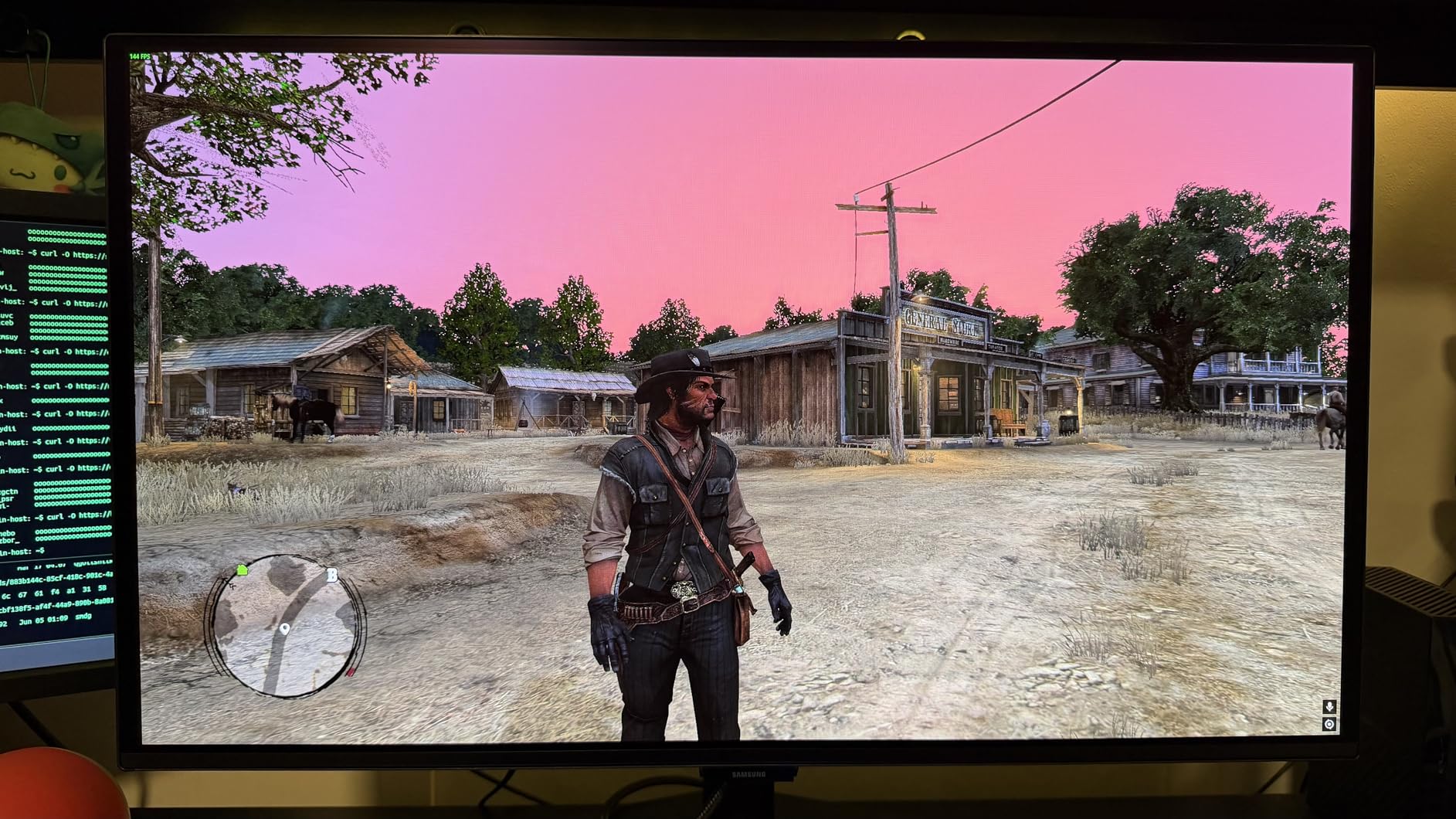
The Samsung Odyssey OLED G6 is the monitor that made me understand why OLED enthusiasts cannot go back to IPS. The first time I loaded a dark scene in a game, the contrast between true black shadows and bright highlights was immediately striking. QD-OLED technology delivers per-pixel dimming, meaning black areas of the screen are actually off, not just dimmed.
I tested this monitor extensively in competitive gaming across titles like Valorant, CS2, and Apex Legends. The 240Hz refresh rate combined with 0.03ms response time produces motion clarity that has to be seen to be appreciated. Fast flick shots and tracking feel more responsive than on any IPS panel I have used. The 1440p resolution at 27 inches is the sweet spot that forum users on r/Monitors consistently recommend for gaming.
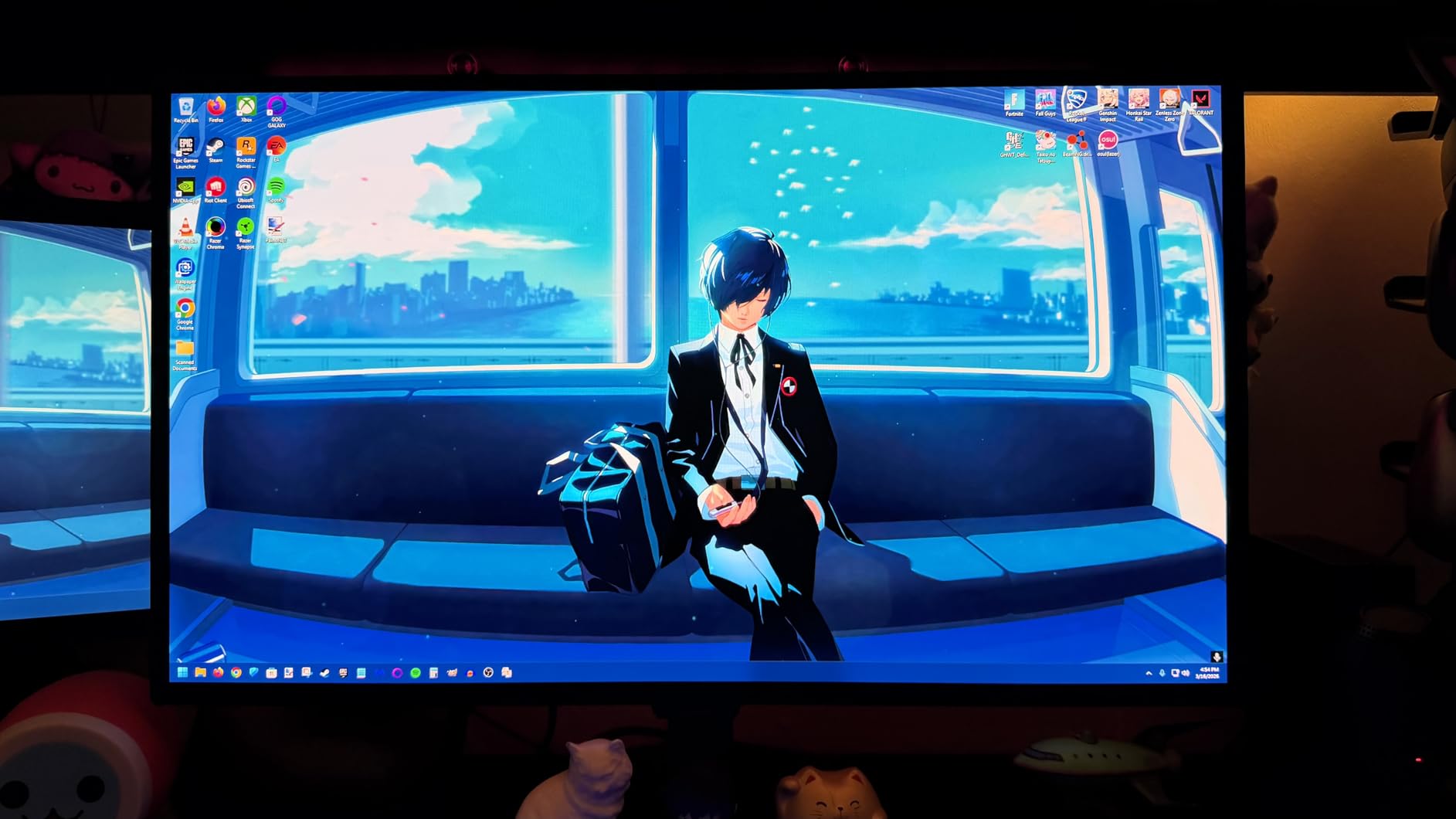
The OLED Safeguard technology uses thermal modulation and pixel shifting to reduce burn-in risk, which is the biggest concern forum users raise about OLED monitors for desktop use. After weeks of mixed gaming and productivity work, I did not notice any retention. That said, if you plan to use this for 8 hours of static spreadsheet work daily, the risk profile is different from someone who games and watches varied content.
The Pantone Validated certification means this monitor covers 2100 plus colors and 110 plus skin tone shades accurately, making it surprisingly capable for content creation too. The 400 nits brightness with HDR10 provides a punchy HDR experience in supported games, though it will not match a mini-LED display for sustained peak brightness.
Is OLED Burn-in Still a Real Concern?
Samsung’s OLED Safeguard technology has significantly reduced burn-in risk compared to early OLED monitors, and the 3-year warranty covers burn-in specifically. For mixed usage with varied content, the risk is low.
However, users who display static elements like taskbars and browser chrome for 10-plus hours daily should enable the built-in protection features and take regular breaks to minimize long-term risk.
Gaming Performance vs IPS Alternatives
The 0.03ms response time makes this monitor respond noticeably faster than even the best IPS panels, which typically sit at 1ms GTG. Dark scene performance in games is dramatically better thanks to per-pixel dimming.
The trade-off is text clarity, which some forum users note is slightly softer than IPS due to the pentile subpixel layout. For pure gaming and media consumption, this is not noticeable, but programmers might prefer an IPS alternative.
3. ASUS TUF Gaming VG27AQ3A – Best Value 1440p Gaming Monitor
ASUS TUF Gaming 27” 1440P HDR Monitor (VG27AQ3A) – QHD (2560 x 1440), 180Hz, 1ms, Fast IPS, 130% sRGB, Extreme Low Motion Blur Sync, Speakers, Freesync Premium, G-SYNC Compatible, HDMI, DisplayPort
27-inch QHD
180Hz refresh
1ms Fast IPS
130% sRGB
ELMB Sync
G-SYNC Compatible
Pros
- QHD 1440p resolution ideal for 27 inches
- 180Hz refresh rate smooth gaming
- 1ms Fast IPS panel response
- ELMB Sync eliminates ghosting
- G-SYNC and FreeSync compatible
- HDR-10 support
- 3-year warranty with ARR
Cons
- No USB hub
- Limited connectivity options
- Contrast ratio average at 1000:1
- No height adjustment
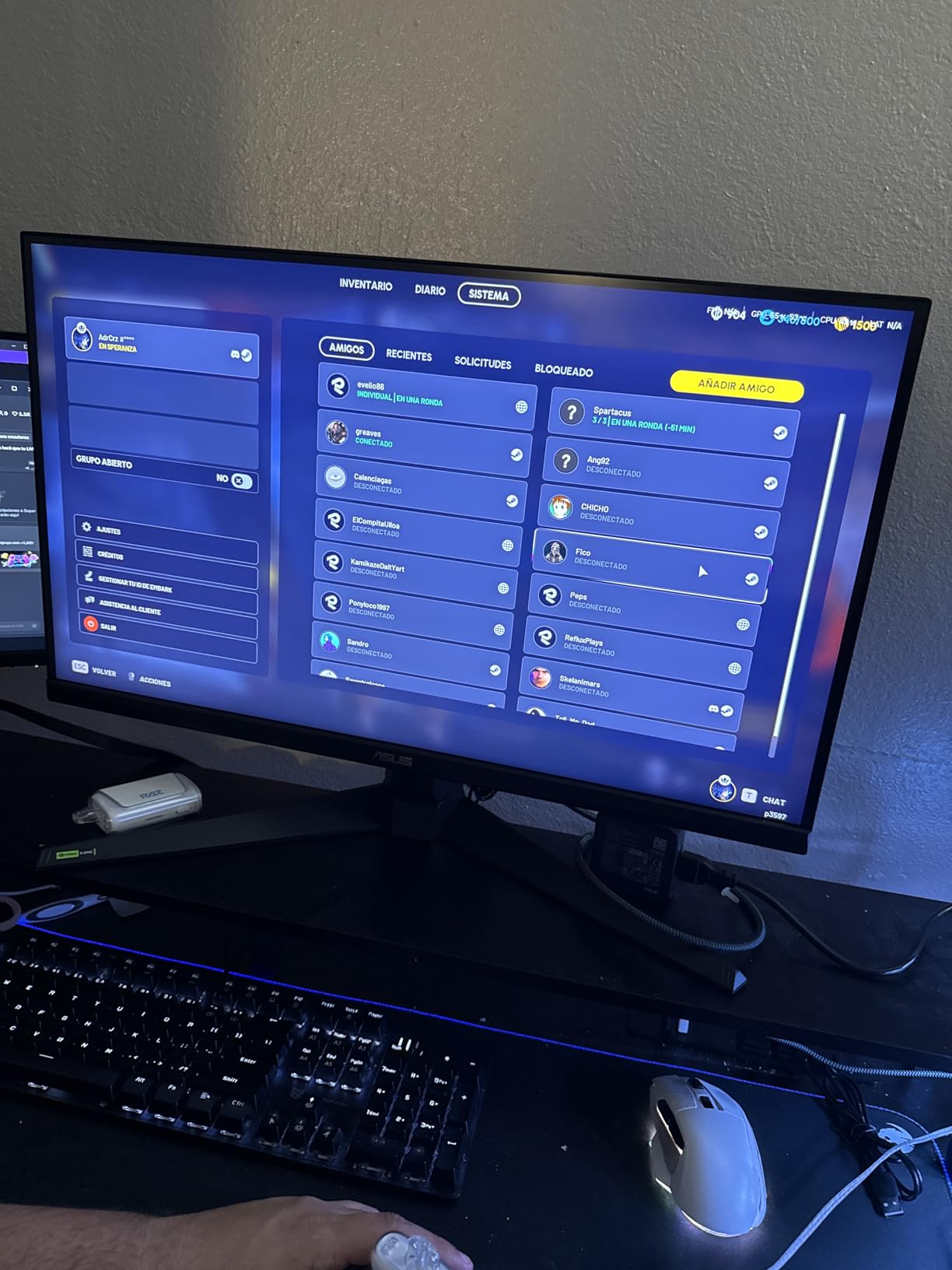
The ASUS TUF Gaming VG27AQ3A hits what I consider the value sweet spot for a 27 inch gaming monitor in 2026. You get 1440p resolution, 180Hz refresh rate, and a Fast IPS panel at a price that undercuts most competitors with similar specs. I used this as my main gaming display for a month across RPGs, shooters, and racing sims.
The 1440p resolution at 27 inches produces about 109 pixels per inch, which strikes the right balance between sharpness and GPU demands. Most modern graphics cards can push 1440p at high frame rates without breaking a sweat, unlike 4K where you need serious GPU power. Forum users consistently vote 1440p as the best resolution for 27 inch monitors.
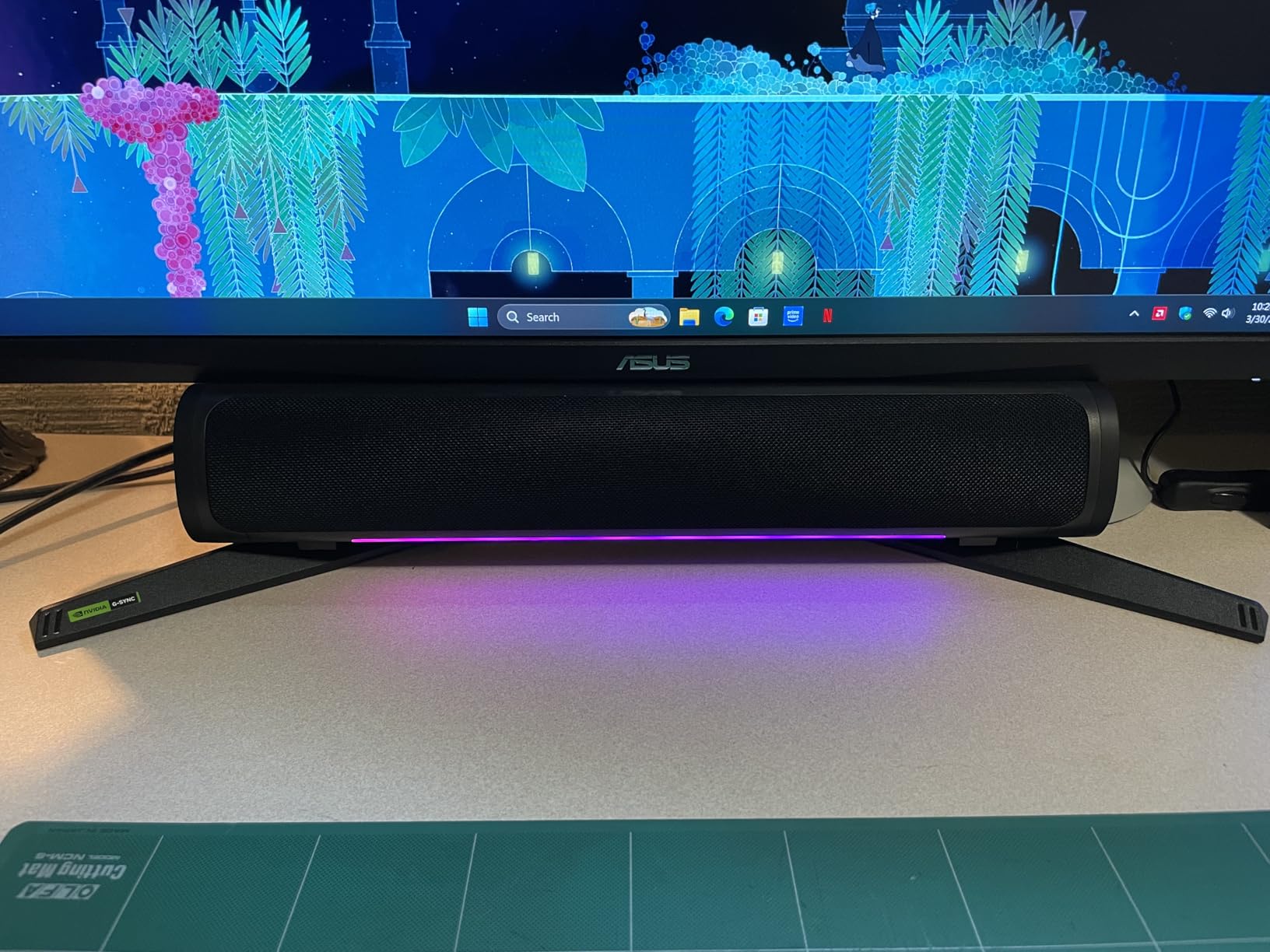
The ELMB Sync technology is a genuine differentiator. It combines motion blur reduction with variable refresh rate, which most monitors force you to choose between. In fast-paced games, I noticed significantly less ghosting and smearing compared to standard FreeSync without blur reduction. The 1ms response time on the Fast IPS panel holds up well in motion tests.
Color performance is solid with 130% sRGB coverage, which translates to vivid and saturated game visuals. The HDR-10 support is basic, as expected at this price, but it does add some dynamic range in supported titles. The built-in speakers are functional for casual use but lack bass, so serious gamers will want headphones or external speakers.
Best Games and Genres for This Panel
The 180Hz refresh rate shines in competitive shooters and fast-paced action games where every millisecond of motion clarity matters. The G-SYNC compatibility means both NVIDIA and AMD GPU owners get tear-free gaming.
Open-world RPGs and strategy games also benefit from the 1440p resolution, which provides enough detail to enjoy rich environments without the GPU strain of 4K.
Connectivity and Setup Considerations
The monitor includes DisplayPort and HDMI connections plus a 3.5mm audio jack. The lack of a USB hub is a notable omission if you rely on your monitor for peripheral connectivity.
The stand offers tilt adjustment only, so users who need height or swivel control should budget for a VESA monitor arm. The 100x100mm VESA mount is compatible with most third-party arms.
4. Dell Plus S2725QS – Best 27 Inch 4K Monitor for Work and Play
Dell 27 Plus 4K Monitor - S2725QS - 27-inch 4K (3840 x 2160) 120Hz 16:9 Display, IPS Panel, AMD FreeSync Premium, sRGB 99%, Integrated Speakers, 1500:1 Contrast Ratio, Comfortview - Ash White
27-inch 4K UHD
120Hz IPS
99% sRGB
FreeSync Premium
1500:1 contrast
ComfortView Plus
Integrated Speakers
Pros
- 4K resolution at 120Hz is rare combo
- IPS panel with excellent viewing angles
- ComfortView Plus reduces blue light
- Integrated speakers decent quality
- 1500:1 contrast better than typical IPS
- Full ergonomic stand
Cons
- Factory color settings need adjustment
- Some setup challenges reported
- No USB-C connectivity
The Dell S2725QS is my pick for the best 27 inch 4K monitor that bridges work and casual gaming. The combination of 4K resolution and 120Hz refresh rate is uncommon at this price point, and it makes a real difference in daily use. Everything from scrolling documents to moving windows around feels smoother than on a standard 60Hz 4K panel.
I used this monitor for a mix of productivity work, light photo editing, and casual gaming over several weeks. The 4K UHD resolution at 27 inches delivers crisp text that makes long coding sessions and document review much easier on the eyes. The IPS panel provides consistent colors across wide viewing angles, which matters if you share your screen with colleagues.
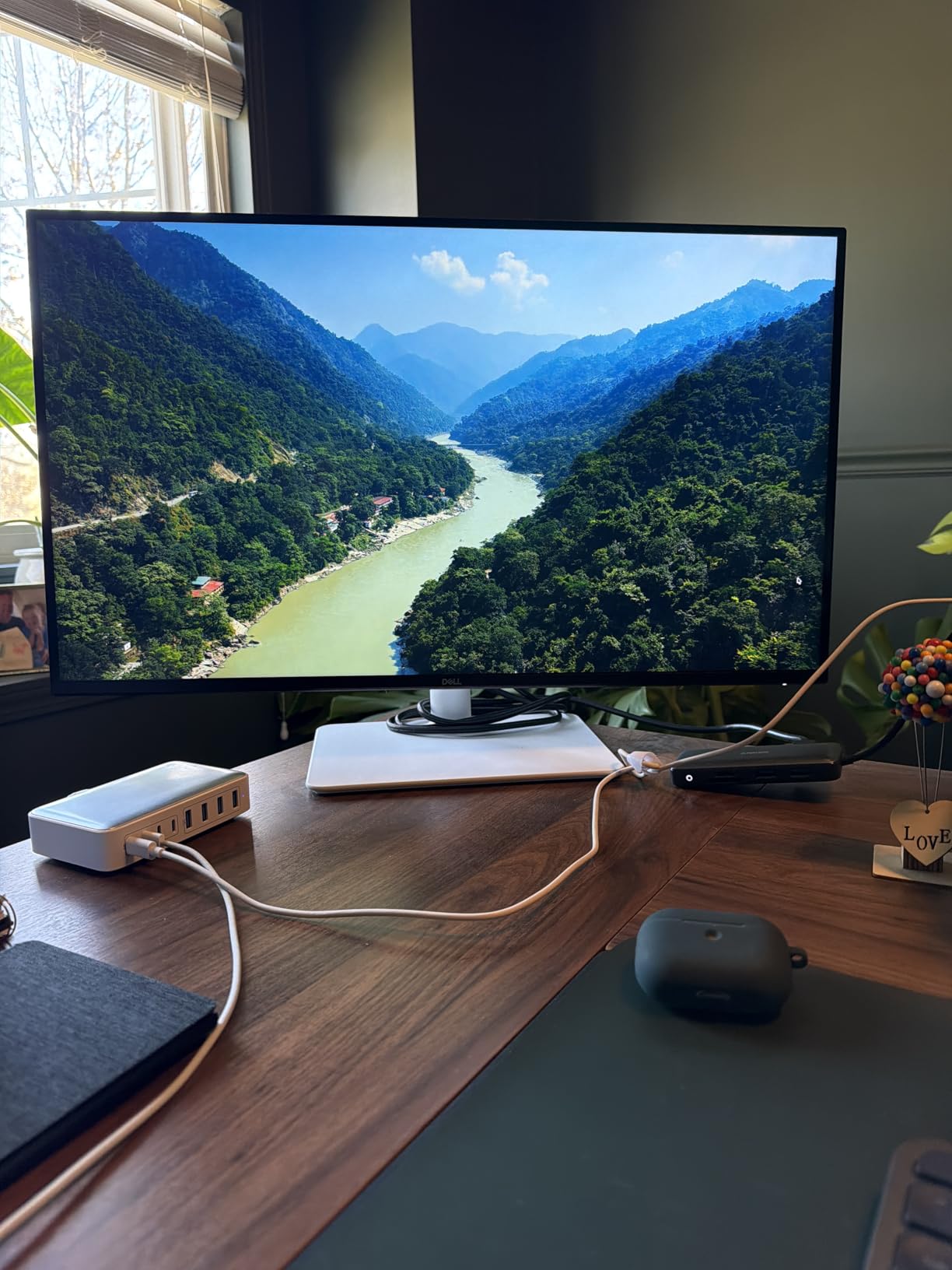
The ComfortView Plus feature is always-on blue light reduction that Dell has tuned to minimize color shift. Unlike software-based blue light filters that wash everything yellow, this hardware-level filter maintains color accuracy while reducing eye strain during long sessions. I noticed less fatigue after full workdays compared to monitors without certified low-blue-light features.
The 1500:1 contrast ratio is notably better than the 1000:1 typical of standard IPS panels, producing deeper blacks and better shadow detail. The integrated speakers have been re-engineered from previous Dell models and provide surprisingly usable audio for video calls and casual media consumption. They are not replacing dedicated speakers, but they are among the best built-in monitor speakers I have tested.
Productivity and Multitasking at 4K
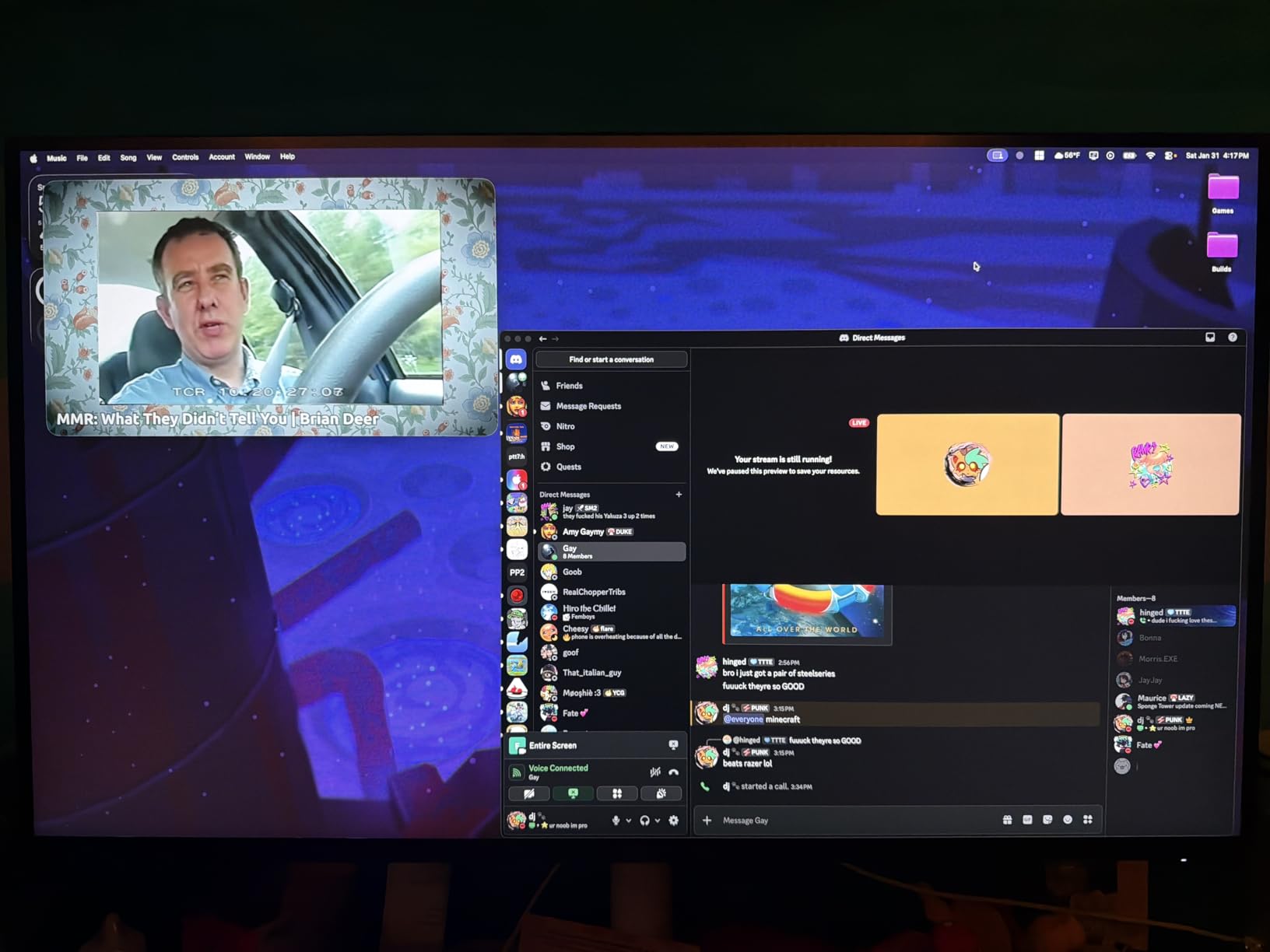
The 3840×2160 resolution gives you enough space to comfortably run two full-size application windows side by side. For programmers, this means having your IDE and documentation visible simultaneously without alt-tabbing.
The full ergonomic stand with height, pivot, swivel, and tilt adjustments lets you position the screen perfectly, which is essential for multi-monitor setups where alignment matters.
Gaming at 4K 120Hz
The 120Hz refresh rate with FreeSync Premium provides smooth gaming performance for titles where 4K resolution enhances the experience. Simulation games, strategy titles, and visually rich RPGs all benefit from the extra pixels.
Note that pushing 4K at 120Hz requires a capable GPU. Users with mid-range graphics cards may need to reduce settings or use upscaling technologies like DLSS to hit 120fps in demanding games.
5. Samsung Odyssey G5 (G51F) – Best Budget 1440p Gaming Monitor
Samsung 27" Odyssey G5 (G51F) Gaming Monitor - QHD (1440P), 180Hz, 1ms, AMD FreeSync, HDR10, Height Adjustable Stand, Black Equalizer, Virtual Aim Point, Auto Source Switch+, LS27FG512ENXZA
27-inch QHD
180Hz VA panel
1ms response
HDR10
Height Adjustable Stand
AMD FreeSync
3000:1 contrast
Pros
- QHD 1440p resolution at budget price
- 180Hz refresh rate for smooth gaming
- 3000:1 VA contrast ratio deep blacks
- Height adjustable ergonomic stand
- HDR10 support
- Black Equalizer for dark scenes
Cons
- Stand wobble reported by users
- VA panel viewing angles narrower than IPS
- Limited color accuracy vs IPS
- No USB ports
The Samsung Odyssey G5 brings 1440p gaming to a price point that makes it accessible without major compromises. I tested this alongside the ASUS TUF to compare VA and IPS panels at similar specs, and the differences are instructive. The VA panel in the G5 produces significantly deeper blacks thanks to the 3000:1 contrast ratio, which is three times what typical IPS panels deliver.
In dark games like Resident Evil and Doom Eternal, the G5 revealed shadow details that were simply crushed on my IPS test monitors. The Black Equalizer feature lets you fine-tune dark area visibility independently, which is useful for competitive shooters where spotting enemies in shadows matters. The 180Hz refresh rate feels just as smooth as more expensive 1440p alternatives.
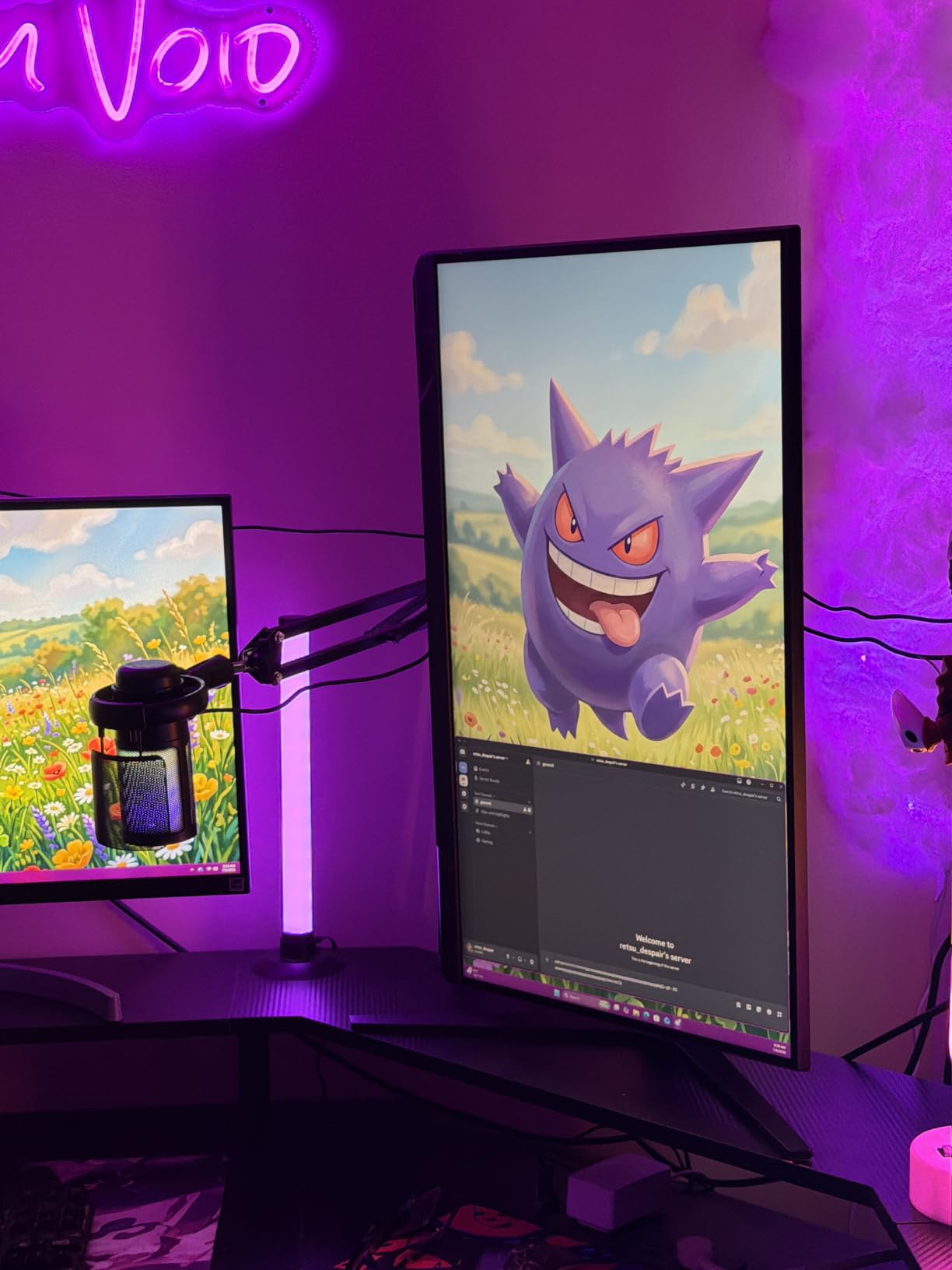
Where the VA panel shows weakness is viewing angles and color consistency. When I viewed the screen from the side, colors shifted noticeably compared to IPS panels that maintain consistency from wide angles. For solo use directly in front of the screen, this is not an issue, but it limits the monitor for group viewing or color-critical work.
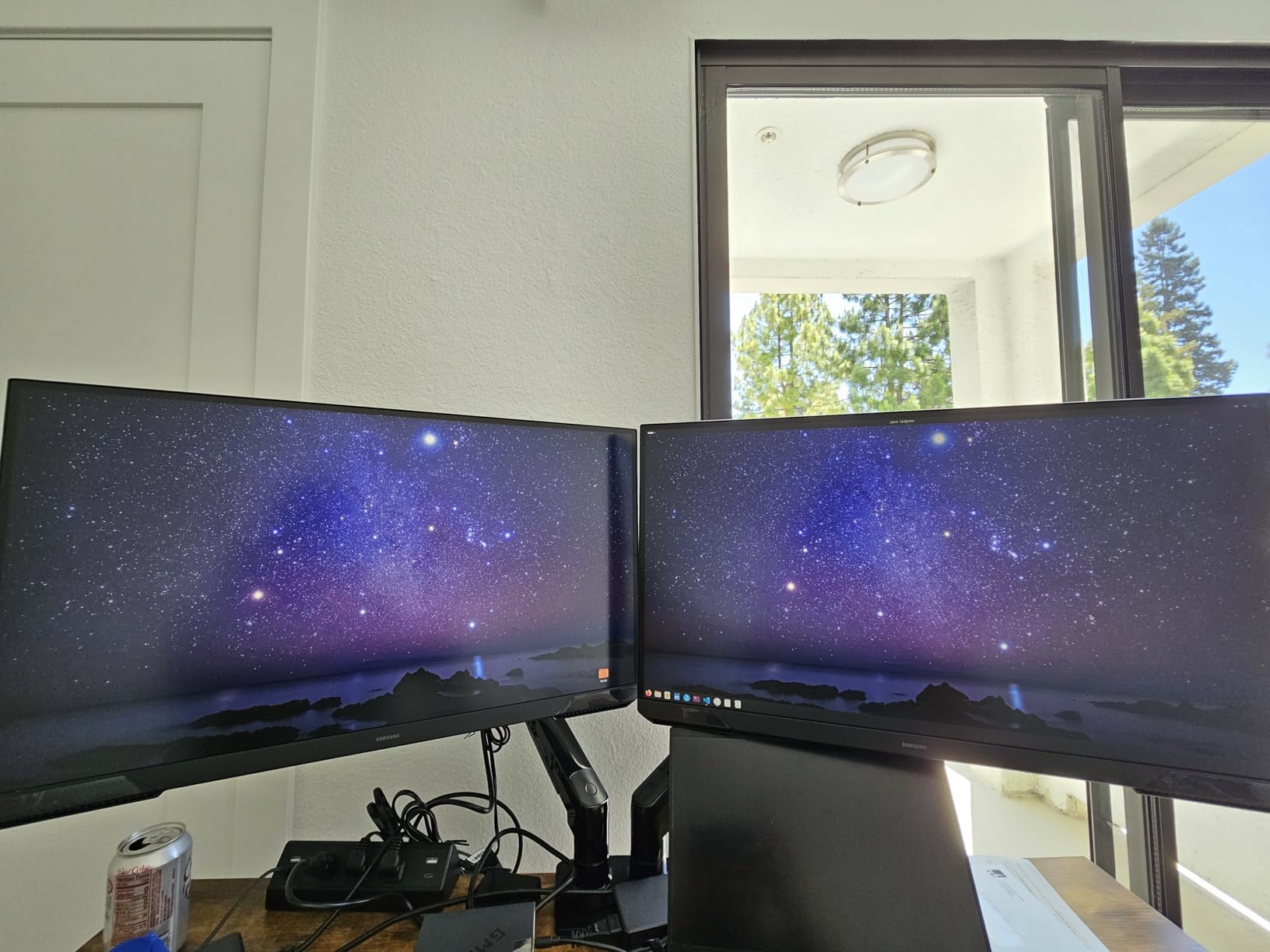
The height adjustable stand is a welcome feature at this price, though several forum users report noticeable wobble. I experienced this too, particularly when typing vigorously on the same desk. If your desk has any bounce to it, a VESA arm would solve the stability issue.
VA vs IPS for Gaming
VA panels like the one in the Odyssey G5 offer superior contrast and deeper blacks compared to IPS, making them better for dark-room gaming and content with lots of shadow detail.
However, VA panels can exhibit ghosting in fast motion, though Samsung has minimized this well in the G5. The 1ms response time helps, though it is measured differently than IPS GTG ratings.
Is This or the ASUS TUF Better for You?
If you prioritize contrast, dark scene performance, and play mostly single-player or atmospheric games, the Odyssey G5 with its VA panel is the stronger choice.
If you play competitive multiplayer where color consistency and viewing angles matter, or you also use your monitor for creative work, the IPS-based ASUS TUF is the safer pick.
6. Dell SE2726HG – Best 240Hz IPS Gaming Monitor Under Budget
Dell 27 240Hz Gaming Monitor - SE2726HG - 27-inch FHD (1920x1080) 240Hz Display, in-Plane Switching (IPS) Technology, AMD FreeSync Premium, TÜV 3-Star, 2X HDMI, DisplayPort 1.4, Tilt
27-inch FHD
240Hz Fast IPS
0.5ms response
FreeSync Premium
99% sRGB
300 nits
TUV Rheinland 3-Star
3 Year Warranty
Pros
- True 240Hz Fast IPS panel at accessible price
- 0.5ms response time ultra-low input lag
- 99% sRGB color coverage
- TUV Rheinland certified eye comfort
- Two HDMI plus DisplayPort
- 3-year Dell warranty
Cons
- 1080p at 27 inches is lower pixel density
- No height adjustment on stand
- No USB ports
- No built-in speakers
The Dell SE2726HG pairs a 240Hz Fast IPS panel with a price that makes high refresh rate gaming accessible. I tested this in competitive shooters where frame rates above 144fps matter, and the difference between 144Hz and 240Hz is real, even if it is not as dramatic as the jump from 60Hz to 144Hz. Target tracking in CS2 felt smoother and more precise.
The Fast IPS technology delivers 0.5ms response time, which is among the fastest you will find in an IPS panel. Ghosting in fast motion was minimal in my testing. The FreeSync Premium certification ensures variable refresh rate works smoothly with AMD GPUs, and HDMI VRR support extends compatibility to newer consoles and NVIDIA cards.
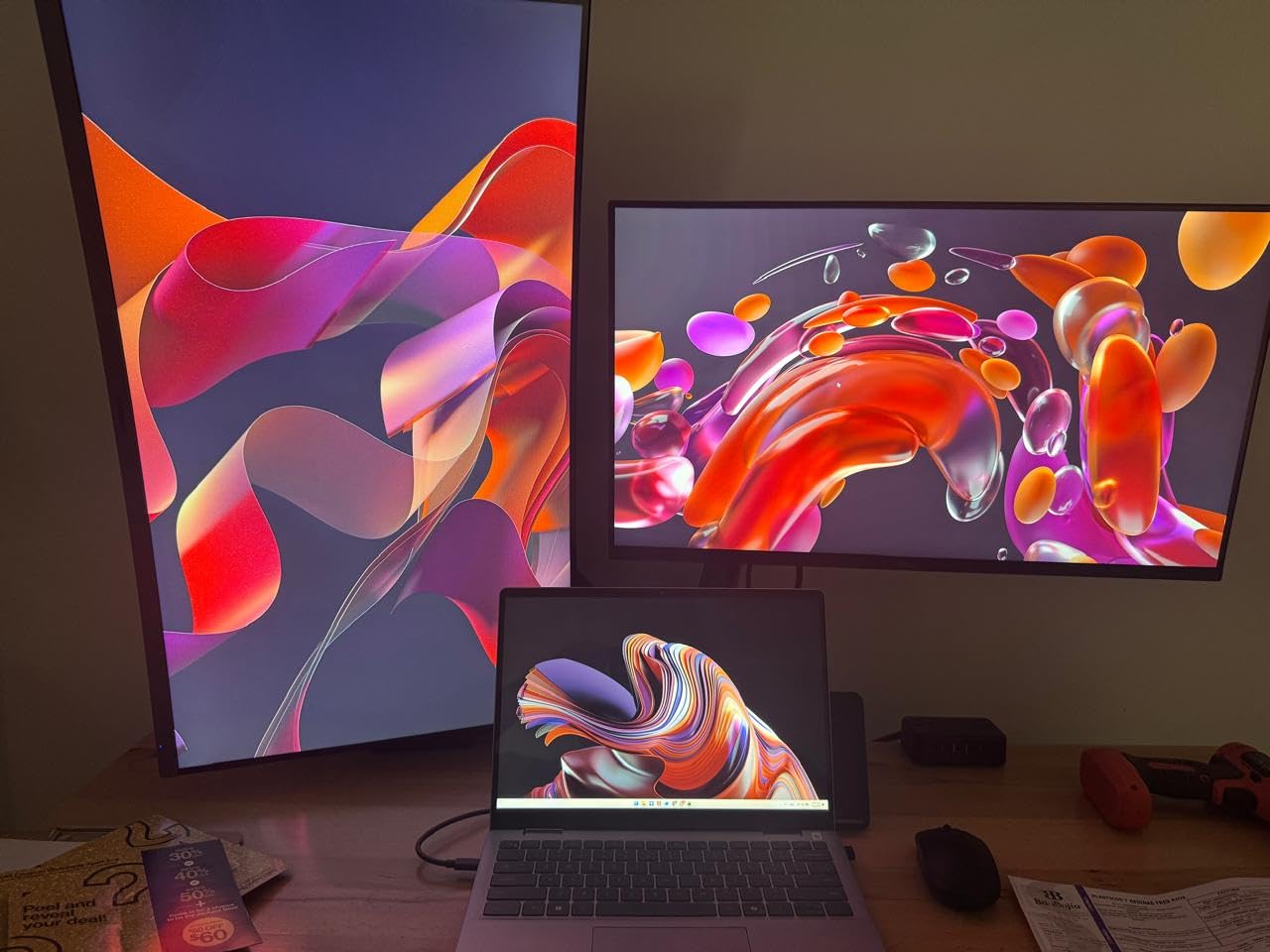
The TUV Rheinland 3-star certification means this monitor meets strict standards for flicker-free operation and low blue light. I gamed for 4-hour sessions without the eye fatigue I experience on monitors without proper flicker reduction. Dell clearly designed this with marathon gaming sessions in mind.
The main compromise here is resolution. At 1080p on a 27-inch screen, pixel density is about 82 PPI, which is noticeably less sharp than 1440p alternatives. Text has slightly soft edges, and fine details in games are not as crisp. Forum users frequently debate whether 1080p is acceptable at 27 inches, and the consensus is that it works for gaming but is not ideal for productivity.
Competitive Gaming Performance
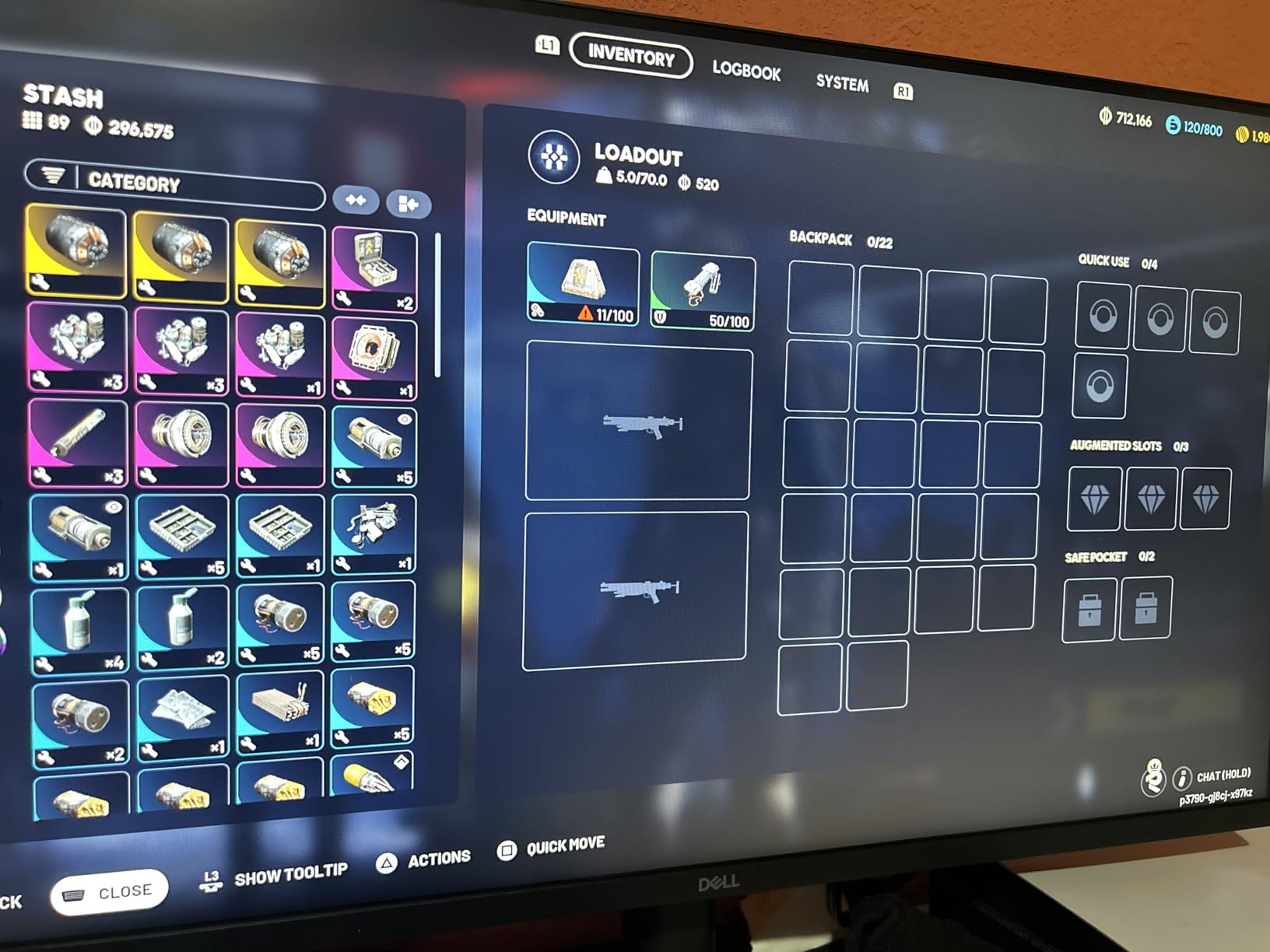
The 240Hz refresh rate provides a measurable advantage in fast-twitch competitive games like CS2, Valorant, and Overwatch. Reduced input lag and smoother motion give you fractions of a second more reaction time.
To actually benefit from 240Hz, you need a GPU and CPU combination that can push 240fps in your chosen game. Players with mid-range hardware may not see the full benefit.
1080p at 27 Inches: Deal or Dealbreaker?
For pure gaming where you sit back slightly from the screen, 1080p at 27 inches is acceptable and lets you achieve very high frame rates without an expensive GPU.
For mixed use including productivity, coding, or reading text-heavy content, the lower pixel density becomes a real drawback. Consider this primarily a gaming display.
7. SANSUI 27 Curved 240Hz – Best Budget Curved Gaming Monitor
SANSUI 27 Inch Curved 240Hz Gaming Monitor FHD 1080P, 1500R Curve Computer Monitor, 130% sRGB, 4000:1 Contrast, HDR, FreeSync, MPRT 1Ms, Low Blue Light, HDMI DP Ports, Metal Stand, Cable Incl.
27-inch FHD Curved
240Hz
1500R curve
1ms MPRT
130% sRGB
4000:1 contrast
HDR
Metal Stand
Pros
- 240Hz at a genuinely budget price
- 1500R curvature immersive for gaming
- 4000:1 contrast ratio excellent for VA
- Metal stand more stable than plastic
- 130% sRGB vivid colors
- HDR support
- Low blue light and anti-flicker
Cons
- 1080p lower sharpness at 27 inches
- Only one HDMI port
- No USB ports
- MPRT response time not same as GTG
- No built-in speakers
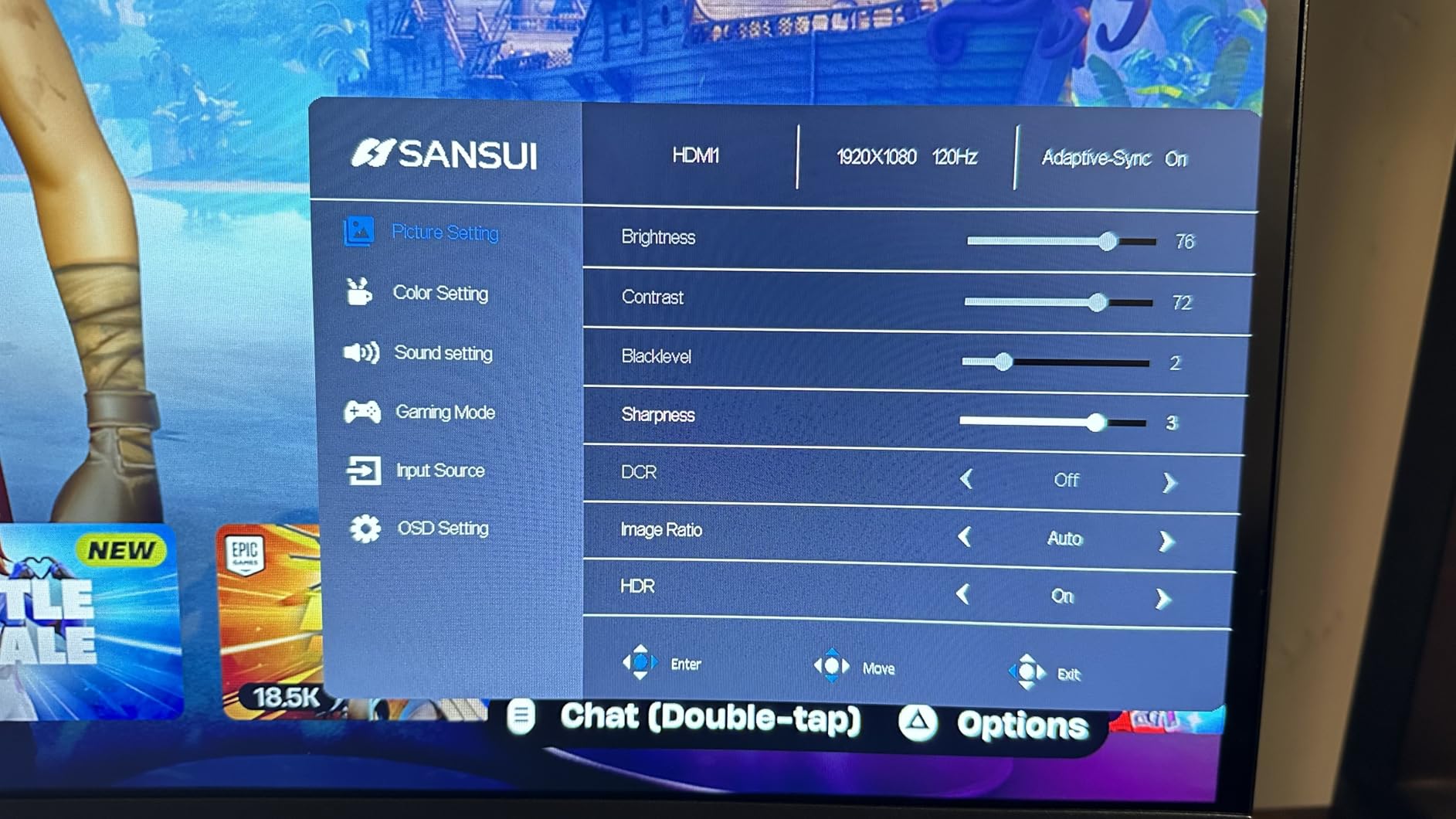
The SANSUI ES-G27C1 PRO is the monitor that surprised me most in this roundup. At its price point, getting a 240Hz curved display with a 4000:1 contrast ratio feels like finding a bargain. I tested it across gaming and media consumption, and for the right user, this is exceptional value.
The 1500R curvature wraps the screen around your field of view, which I found genuinely immersive in racing games and flight simulators. The curve is subtle enough that it does not distort straight lines noticeably, unlike aggressive 1000R curves on some Samsung models. For productivity work, the curve is neutral, neither helping nor hurting significantly.
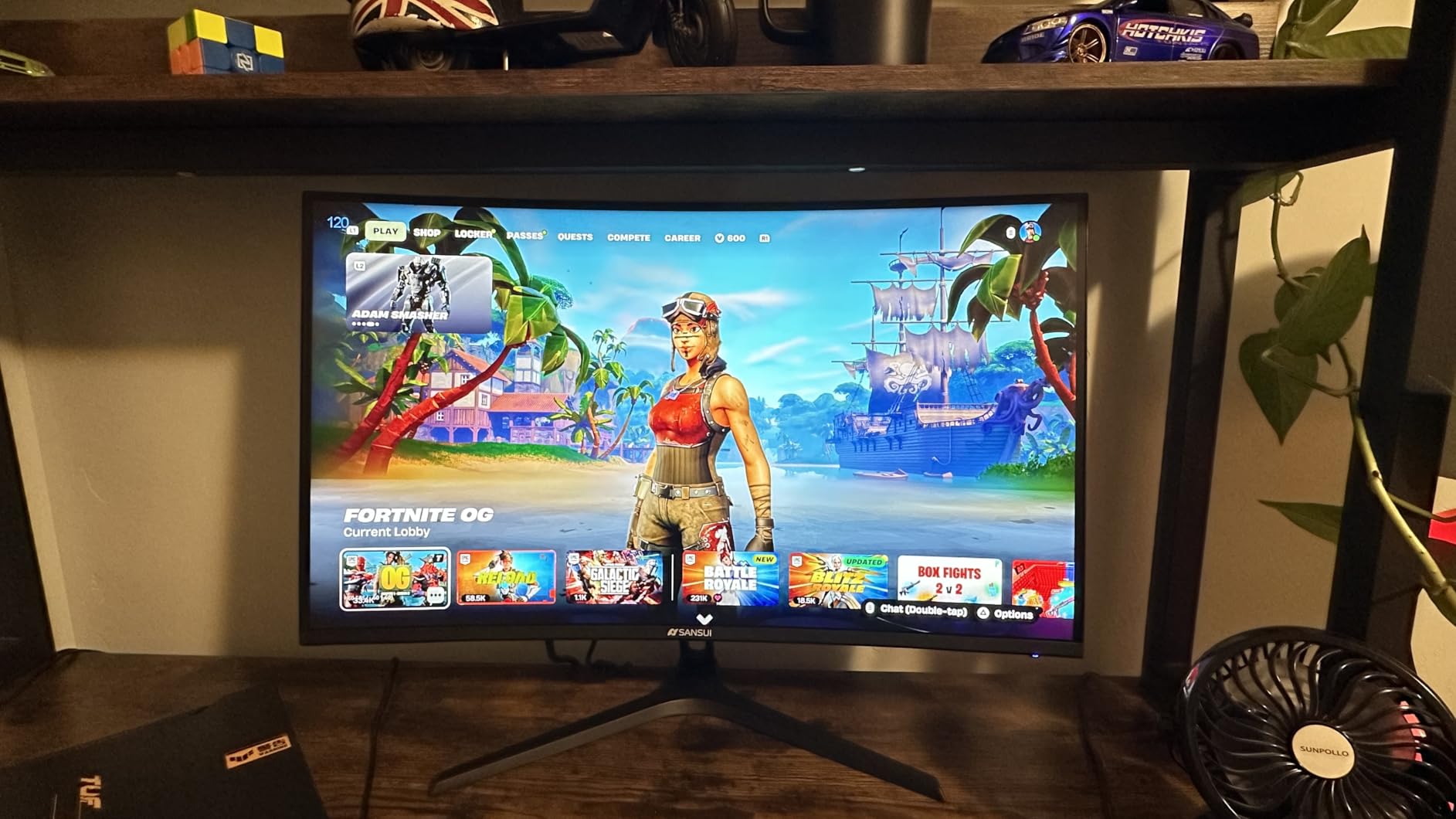
The 4000:1 contrast ratio is the standout spec here. VA panel technology produces blacks that make IPS panels look gray by comparison. In dark room gaming sessions, shadowy areas of game worlds had depth and detail that simply disappeared on my IPS test monitors. The HDR support adds some dynamic range, though do not expect true HDR performance at this price.
The 130% sRGB color gamut produces saturated, punchy colors that look great for gaming and media consumption. However, color accuracy is not professional-grade, so this is not the monitor for photo editing or design work. The MPRT 1ms response time is measured differently from GTG, so expect slightly more ghosting than the number suggests.
Curved vs Flat at 27 Inches
At 27 inches, curvature provides a modest immersion boost for gaming but makes minimal difference for productivity work. The 1500R curve is gentle enough to suit most users.
If you plan a multi-monitor setup, curved displays can be trickier to align than flat panels. Flat monitors remain the safer choice for side-by-side productivity configurations.
Real-World Gaming at 240Hz on a Budget
The SANSUI delivers genuine 240Hz performance, but the 1080p resolution means you trade visual detail for frame rate. For esports-focused gamers on a tight budget, this trade-off makes sense.
Casual gamers who want richer visuals might prefer spending similar money on a 1440p 144Hz option instead, which delivers better image quality at playable frame rates.
8. Dell SE2725HM – Best 27 Inch Monitor for Office and Productivity
Dell 27 Monitor - SE2725HM - 27-inch Full HD (1920x1080) 16:9 100Hz Display, IPS Panel, 16.70 Million Colors, Anti-Glare, 1 HDMI / 1 VGA Port, TÜV Rheinland 3-Star*, Comfortview Plus - Black
27-inch FHD IPS
100Hz
ComfortView Plus
TUV Rheinland 3-Star
Anti-Glare
Centered VESA Mount
Built-in Power Supply
Pros
- Exceptional out-of-box color consistency
- TUV Rheinland 3-star eye comfort certified
- ComfortView Plus always-on blue light filter
- Clean enterprise-grade design
- Built-in power supply no brick
- Centered VESA mount for easy arm use
- 100Hz smoother than standard 60Hz
Cons
- No built-in speakers
- Limited connectivity with no USB
- 8ms response time not for gaming
- Basic tilt-only stand
The Dell SE2725HM earned the highest customer rating in this roundup at 4.8 stars, and after using it for two weeks of office work, I understand why. This monitor nails the fundamentals that matter for productivity: consistent panel quality, comfortable viewing, and reliable Dell build quality. It is the kind of monitor that disappears into your workflow, which is exactly what a work display should do.
The IPS panel delivers uniform colors and brightness across the screen with no noticeable bleed or hotspots. Dell’s quality control on enterprise displays shows here. The 100Hz refresh rate is a meaningful upgrade over the 60Hz standard, making scrolling, window dragging, and cursor movement feel smoother without being marketed as a gaming feature.
The TUV Rheinland 3-star certification is the highest eye-comfort rating available, and it reflects real-world comfort. I worked full 8-hour days on this monitor without the dry eyes and headaches I sometimes experience on cheaper displays. The ComfortView Plus blue light filter is always on and hardware-based, so there is no need to toggle a software mode that shifts colors yellow.
The built-in power supply means there is no external power brick cluttering your cable management. The centered VESA mount pattern makes this monitor particularly easy to mount on a monitor arm, which is how I would recommend using it since the included stand only offers tilt adjustment. For a multi-monitor office setup, this is one of the best 27 inch monitors for work available in 2026.
Eye Comfort Features That Actually Matter
The combination of TUV Rheinland certification, flicker-free technology, and always-on blue light reduction makes this one of the most eye-friendly monitors tested. Users with sensitivity to screen flicker report significant comfort improvement.
The anti-glare coating effectively reduces reflections in bright office environments without the grainy look that some aggressive anti-glare treatments produce.
Multi-Monitor Office Setup Potential
The slim bezels and clean design make this ideal for dual or triple monitor configurations. The built-in power supply and consistent panel quality mean multiple units will look uniform side by side.
For users building a productivity workstation, pairing two of these monitors on a dual monitor arm creates an efficient workspace at a reasonable total cost.
9. Sceptre 27-Inch 100Hz – Best Ultra-Budget 27 Inch Monitor
Sceptre 27-inch Prime Gaming Monitor 100Hz 1ms DisplayPort HDMI x2 100% sRGB AMD FreeSync Build-in Speakers, Eye Care Frameless Machine Black 2025 (E275W-FW100T Series)
27-inch FHD
100Hz
100% sRGB
1ms
AMD FreeSync
Built-in Speakers
Blue Light Shift
VESA Mountable
Pros
- Lowest price point in roundup
- 100% sRGB color coverage
- 100Hz above standard 60Hz
- Built-in speakers for convenience
- Blue Light Shift eye comfort
- Two HDMI ports
- VESA wall mountable
- Frameless design
Cons
- Stand does not rotate
- Built-in speaker sound quality flat
- No USB ports
- 1 Year warranty only
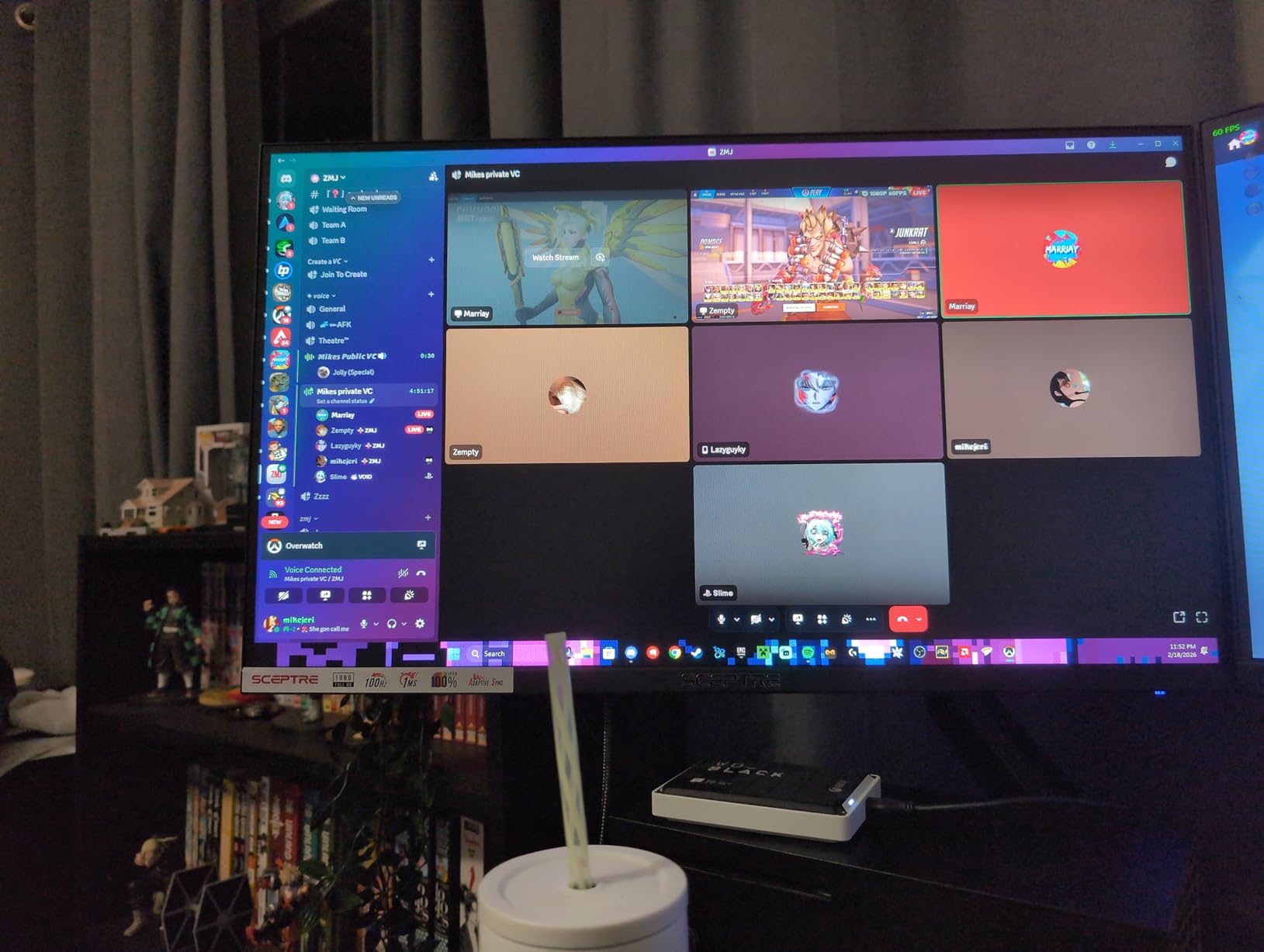
The Sceptre E275W-FW100T proves that you can get a usable 27-inch monitor without spending much at all. I tested this as a secondary display and as a primary monitor for basic computing tasks. For web browsing, document editing, media streaming, and light gaming, it performs competently with no major frustrations.
The 100% sRGB color coverage is impressive for the price. Colors look accurate and saturated without the washed-out appearance that plagues the cheapest monitors. The 100Hz refresh rate is a step up from the 60Hz that was standard for years, and it makes the general desktop experience feel more responsive and modern.
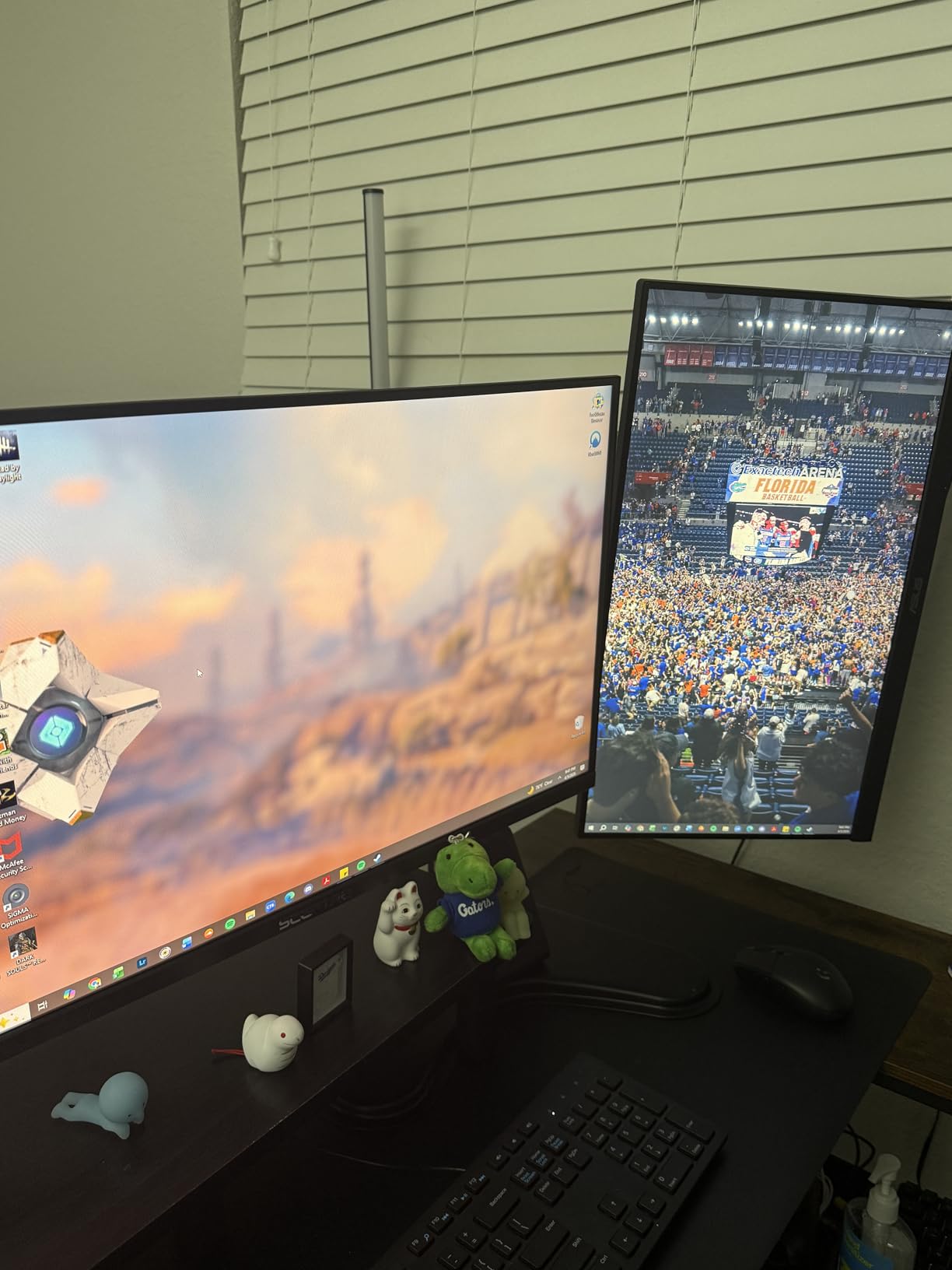
I appreciate the frameless design, which gives the monitor a more premium look than its price suggests. The built-in speakers are functional for video calls and casual media but lack bass and volume. Think of them as a backup rather than a primary audio solution.
The Blue Light Shift feature helps with eye comfort during extended use, though it is a software-based filter rather than the hardware-level solution found on the Dell SE2725HM. The FPS-RTS game modes adjust color and contrast presets for different game types, which is a nice touch at this price.
Best Use Cases for an Ultra-Budget Monitor
This monitor shines as a secondary display for a dual-monitor setup, a screen for a kids computer or guest workstation, or a starter display for someone building their first PC.
It also works well for console gaming in a bedroom or dorm room where you want something bigger than a small TV without spending much.
Limitations to Set Expectations
The stand offers minimal adjustment and has some wobble, so budget for a VESA mount if stability matters. The 1080p resolution at 27 inches produces acceptable but not sharp text.
The 1-year warranty is shorter than the 3-year coverage on Dell and Acer alternatives, so factor that into your value calculation.
10. Acer KB272 – Best Budget IPS Monitor with 120Hz
Acer 27 Inch Monitor- KB272-27 Inch FHD IPS (1920 x 1080) Display, Up to 120Hz Refresh Rate, 99% sRGB, Tilt, Adaptive-Sync Support (FreeSync Compatible) 1ms (VRB), sRGB 99% Color, HDMI & VGA Ports
27-inch FHD IPS
120Hz
99% sRGB
1ms VRB
FreeSync
250 nits
Tilt
HDMI VGA
3 Year Warranty
Pros
- 99% sRGB color accuracy at entry price
- 120Hz refresh rate smooth experience
- 1ms VRB response time
- IPS panel wide viewing angles
- 3-year full warranty
- FreeSync compatible
Cons
- Tilt-only adjustment
- No built-in speakers
- VGA instead of DisplayPort
- Limited to 250 nits brightness
The Acer KB272 rounds out our list as an IPS alternative to the Sceptre at a similar price point. The key difference is the panel technology: IPS provides wider viewing angles and better color consistency than the VA or TN panels typically found in budget monitors. I tested this alongside the Sceptre and found the Acer had noticeably better color uniformity.
The 99% sRGB color gamut means this monitor displays colors accurately for web content, games, and general media. The 120Hz refresh rate with 1ms VRB response time and FreeSync support makes it surprisingly capable for casual gaming. I played several rounds of Rocket League and Fortnite without noticing any major motion issues.
The 3-year full warranty is standout coverage at this price, matching what Dell and HP offer on their professional lines. Acer stands behind this product, which adds peace of mind to a budget purchase. The connectivity is basic with HDMI and VGA, which means you cannot connect via DisplayPort. The VGA port is a nod to older hardware compatibility.
IPS Panel Advantages at Entry Level
IPS technology provides 178-degree viewing angles, meaning colors stay accurate whether you view the screen straight on or from the side. This matters if you share content with others or use the monitor at different angles.
The color consistency of IPS makes this a better choice than budget VA or TN panels for any work involving visual content, even at a casual level.
Is 120Hz Worth It for Non-Gamers?
Even if you never play games, the 120Hz refresh rate makes everyday computing feel more responsive. Scrolling through web pages, moving windows, and cursor movement all feel noticeably smoother than on 60Hz displays.
The minimal price difference between 60Hz and 120Hz at this level makes the faster panel the better long-term value for any user.
Buying Guide: How to Choose the Best 27 Inch Monitor
Choosing from the best 27 inch monitors comes down to understanding which specifications actually matter for your use case. This buying guide breaks down the key decisions so you can pick with confidence rather than guessing from spec sheets.
Resolution: 1080p vs 1440p vs 4K at 27 Inches
Resolution is the single most impactful spec for a 27-inch monitor, and the three main options serve very different needs.
1080p (1920×1080) gives you about 82 pixels per inch at 27 inches. Text and images are usable but noticeably softer than higher resolutions. This is fine for gaming where frame rate matters more than sharpness, and for basic office work. Forum users generally agree that 1080p at 27 inches is the minimum acceptable resolution, not the ideal.
1440p (2560×1440), also called QHD produces about 109 PPI, which is the community-recommended sweet spot for 27-inch monitors. Text looks crisp, games have good detail, and modern GPUs can push high frame rates at this resolution. If you are unsure which resolution to pick, 1440p is the safest choice for mixed use.
4K (3840×2160) delivers 163 PPI for razor-sharp text and detailed images. This is ideal for productivity, programming, photo editing, and Mac users who need proper scaling. The trade-off is GPU demand for gaming and higher monitor cost. Mac users should strongly consider 4K since macOS scales best at this resolution.
Panel Technology: IPS vs OLED vs VA
The panel type determines your monitor’s fundamental visual characteristics more than any other spec.
IPS (In-Plane Switching) panels offer the best color accuracy and viewing angles. Colors stay consistent from any position, making IPS ideal for creative work and shared viewing. The main weakness is contrast, typically 1000:1, which means blacks look dark gray rather than truly black.
OLED panels like the QD-OLED in the Samsung Odyssey G6 deliver perfect blacks with infinite contrast because each pixel produces its own light. Color accuracy and response times are exceptional. The trade-offs are burn-in risk for static content, lower peak brightness than LED-backlit panels, and premium pricing.
VA (Vertical Alignment) panels split the difference with contrast ratios of 3000:1 to 4000:1, significantly better than IPS. Blacks are deep and satisfying. The weakness is viewing angles and potential ghosting in fast motion. VA is popular for budget gaming monitors where contrast matters more than color precision.
Refresh Rate and Response Time
Refresh rate, measured in Hertz, determines how many times per second the screen updates. Higher is generally better, but the benefit depends on your use case.
For productivity and general computing, 100Hz to 120Hz provides a noticeably smoother experience than 60Hz without requiring expensive hardware. For competitive gaming, 144Hz is the minimum serious players consider, with 240Hz offering measurable but diminishing returns.
Response time, measured in milliseconds, determines how quickly pixels change color. Look for 1ms GTG (gray-to-gray) for gaming monitors. Be aware that some manufacturers quote MPRT (motion picture response time) instead, which measures differently and should not be directly compared to GTG numbers.
Ports and Connectivity
Port selection determines what you can connect and how conveniently. The ports that matter most are HDMI, DisplayPort, USB-C, and USB hub functionality.
USB-C is the most versatile port for modern setups. A single USB-C cable can carry video, data, and power delivery to charge a laptop simultaneously. The ASUS ProArt PA279CRV offers 96W power delivery, which is enough for most laptops. If you use a MacBook or USB-C laptop, prioritize monitors with USB-C PD.
HDMI and DisplayPort remain the standard for desktop PC connections. DisplayPort 1.4 supports higher resolutions and refresh rates than HDMI 2.0. Having two HDMI ports lets you connect both a PC and a console without cable swapping.
USB hubs built into monitors are convenient for connecting keyboards, mice, and flash drives without reaching under your desk. Budget monitors often skip USB ports, so check connectivity carefully if this matters to you.
Ergonomics and Eye Comfort
Ergonomics and eye comfort features get overlooked in spec comparisons but significantly affect daily comfort during long sessions.
Look for monitors with height-adjustable stands if you do not plan to use a VESA arm. Tilt-only stands force you to adjust your posture to the screen rather than the other way around. Full ergonomic stands with height, tilt, swivel, and pivot are ideal for finding your perfect viewing position.
For eye comfort, prioritize monitors with TUV Rheinland certification, which tests for flicker-free operation and low blue light emission. The Dell SE2725HM and SE2726HG both carry TUV Rheinland 3-star ratings. Hardware-based blue light filters like Dell’s ComfortView Plus are preferable to software filters that shift colors yellow.
Stand stability is a common complaint in forum discussions. Many budget monitors have stands that wobble when you type. If your desk has any flex, consider a VESA mount for rock-solid stability. Check that your chosen monitor includes VESA mounting compatibility before buying.
FAQs
What is the best 27 inch monitor overall?
The ASUS ProArt Display PA279CRV is our top pick for the best 27 inch monitor overall. It offers 4K UHD resolution, 99% DCI-P3 and Adobe RGB color coverage, factory calibration with Delta E less than 2, USB-C with 96W power delivery, and a 5-year warranty. For users who prioritize gaming, the Samsung Odyssey OLED G6 with its QD-OLED panel and 240Hz refresh rate is the best alternative.
What resolution do I need for a 27 inch monitor?
The best resolution for a 27 inch monitor depends on your use case. 1440p (2560×1440) is widely considered the sweet spot for general use and gaming, offering about 109 pixels per inch. 4K (3840×2160) is ideal for productivity, programming, photo editing, and Mac users, providing 163 PPI for crisp text. 1080p (1920×1080) is acceptable for budget gaming and basic tasks but produces noticeably softer text at this screen size.
Is 1440p better than 4K for a 27 inch monitor?
For most users, 1440p is the better choice for a 27 inch monitor because it provides excellent sharpness at 109 PPI while being much easier on your GPU for gaming. 4K at 27 inches gives sharper text at 163 PPI, which benefits programmers and creative professionals, but requires significantly more graphics power for gaming. Mac users should choose 4K because macOS scales most cleanly at that resolution. If you mainly game, 1440p is the practical choice.
Is OLED worth it for a 27 inch monitor?
OLED is worth it for a 27 inch monitor if you prioritize image quality for gaming and media consumption. QD-OLED panels like the Samsung Odyssey G6 deliver perfect blacks, infinite contrast, and near-instantaneous response times that no IPS panel can match. However, OLED monitors carry burn-in risk for static desktop content, cost more upfront, and have lower peak brightness than LED-backlit displays. For mixed productivity and gaming use, a high-quality IPS panel may be the safer long-term choice.
How much does a good 27 inch monitor cost?
A good 27 inch monitor typically costs between $100 and $400 depending on features. Budget 1080p models like the Sceptre and Acer start around $90 to $130. Mid-range 1440p gaming monitors with high refresh rates range from $150 to $250. Premium 4K monitors with professional color accuracy like the ASUS ProArt cost $300 to $400. OLED gaming monitors like the Samsung Odyssey G6 start around $400. The best value zone for most users is $150 to $250.
Conclusion: Which 27 Inch Monitor Is Right for You?
The best 27 inch monitors in 2026 cover a wide range of needs and budgets, and the right choice depends entirely on how you plan to use your display. For professional creative work, the ASUS ProArt PA279CRV delivers unmatched color accuracy with its 99% DCI-P3 coverage and Delta E less than 2 calibration. For the best gaming experience, the Samsung Odyssey OLED G6 produces perfect blacks and 240Hz performance that no IPS panel can replicate.
For value-conscious buyers, the ASUS TUF Gaming VG27AQ3A at 1440p and 180Hz hits the ideal balance of price and performance. Budget shoppers have excellent options too, with the SANSUI curved 240Hz and Acer KB272 both delivering capable displays at entry-level prices. And for pure office productivity, the Dell SE2725HM with its TUV Rheinland certification and 4.8-star rating is a reliable workhorse.
Whatever your priority, the 27-inch size remains the most versatile monitor format available. Pick the resolution, panel type, and refresh rate that match your workflow, and you will have a display that serves you well for years.