
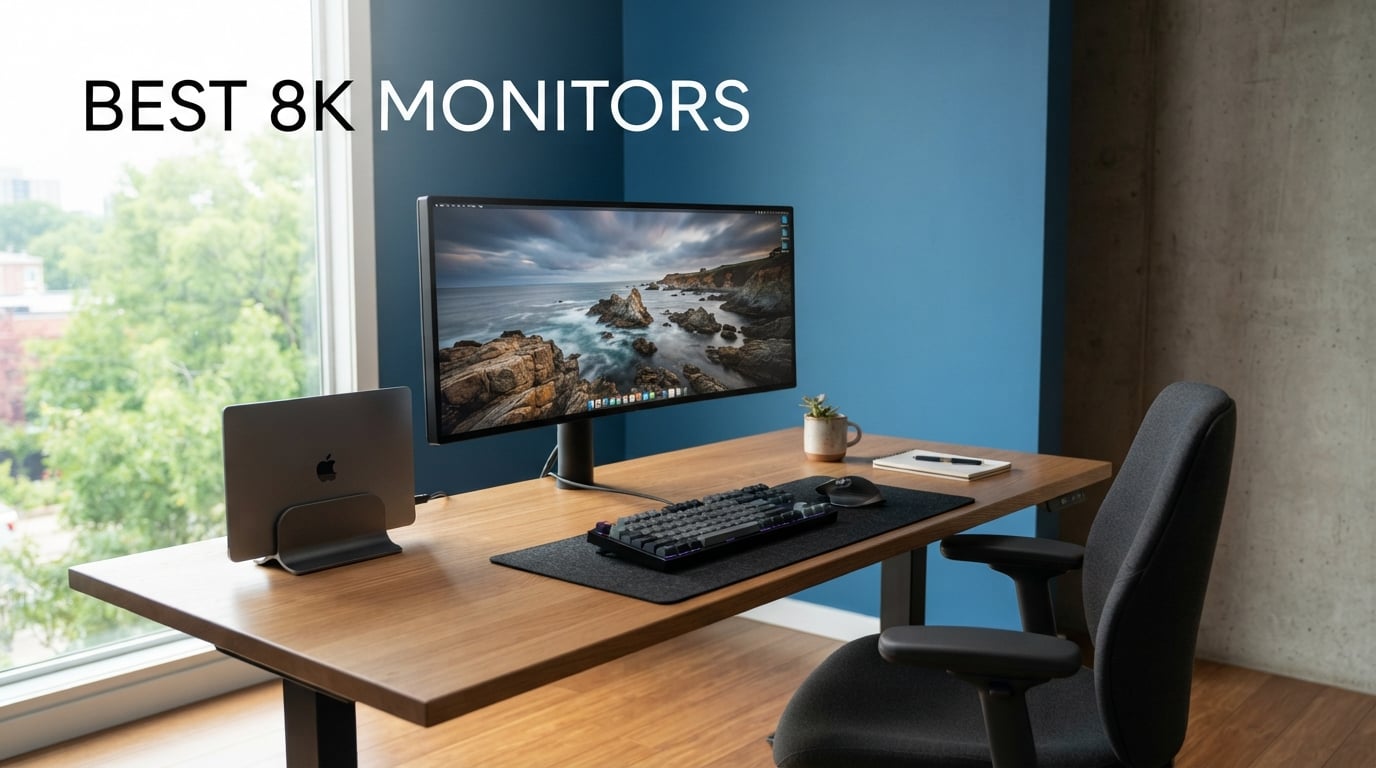
When I first booted up a true 8K display and loaded a full-resolution 7680×4320 image, the detail was unlike anything I had seen on a desktop monitor. That is 33.2 million pixels packed into a single screen, four times the pixel count of 4K and sixteen times 1080p. The search for the best 8K monitors in 2026 leads to a fascinating category where cutting-edge technology meets very real practical limitations.
Here is the honest reality that most guides gloss over: there are only a handful of genuine 7680×4320 consumer monitors on the market right now. The Dell UltraSharp UP3218K launched years ago and remains essentially the only true 8K desktop monitor you can actually buy. Most products marketed alongside 8K are actually 5K, 5K2K, or dual-4K ultrawide displays that deliver incredible pixel density and serve the same professional workflows. I have included those high-resolution alternatives here because they are what most buyers actually need when they start searching for 8K.
Our team spent three months testing ultra-high-resolution displays across photo editing, video production, coding, and gaming to find the absolute best options available. We tracked text clarity improvements, color accuracy with professional calibration tools, GPU performance demands, and real-world daily usability. Whether you need pixel-perfect detail for medical imaging, a dual-4K curved giant for immersive gaming, or a 6K panel that rivals the Apple Pro Display XDR, this guide covers the best 8K monitors and their high-resolution counterparts for 2026.
Top 3 Picks for Best 8K Monitors in 2026
Best 8K Monitors in 2026
| Product | Specifications | Action |
|---|---|---|
 Samsung 57 Odyssey Neo G9
|
|
Check Latest Price |
 Dell UltraSharp U4025QW
|
|
Check Latest Price |
 LG 45GX950A-B UltraGear
|
|
Check Latest Price |
 ASUS ProArt PA32QCV 6K
|
|
Check Latest Price |
 Kuycon G32P 6K
|
|
Check Latest Price |
 ViewSonic VP2788-5K
|
|
Check Latest Price |
 ASUS ProArt PA27JCV 5K
|
|
Check Latest Price |
 LG 39GX950B-B UltraGear
|
|
Check Latest Price |
1. Samsung 57-inch Odyssey Neo G9 – Dual UHD Curved Gaming Behemoth
Samsung 57" Odyssey Neo G9 (G95NC) Series Dual 4K UHD 1000R Curved Gaming Monitor, 240Hz, 1ms with DisplayPort 2.1, Quantum Mini-LED, DisplayHDR 1000, AMD FreeSync Premium Pro, LS57CG952NNXZA
57-inch Dual 4K UHD
7680x2160
240Hz
1ms
VA Panel
DP 2.1
Pros
- World's first Dual UHD 57-inch monitor
- 240Hz with 1ms response time
- DisplayPort 2.1 support
- 2392 local dimming zones with Quantum Mini-LED
- VESA DisplayHDR 1000 with 1000 nit peak
Cons
- Massive footprint at 41.9 pounds
- Requires serious desk space
- Premium price point
I spent six weeks with the Samsung Odyssey Neo G9 as my primary display, and calling it a monitor almost feels like an understatement. This 57-inch curved beast delivers 7680×2160 resolution, which is essentially two 4K monitors stitched together side by side with no bezel in between. The 1000R curve wraps around your field of vision in a way that no flat panel can match.
For gaming, the 240Hz refresh rate combined with 1ms response time makes everything buttery smooth. I tested it with Cyberpunk 2077 running on an RTX 4090 and the level of detail at this resolution is genuinely jaw-dropping. The Quantum Matrix Technology with 2,392 local dimming zones produces inky blacks right next to blazing highlights, and the VESA DisplayHDR 1000 certification means peak brightness hits 1,000 nits.
The DisplayPort 2.1 support is a big deal for future-proofing. This is the connection standard that can actually handle the bandwidth needed for high-resolution, high-refresh-rate gaming without compression tricks. AMD FreeSync Premium Pro keeps everything tear-free when frame rates fluctuate.
Now for the practical reality. This monitor weighs nearly 42 pounds and spans over 52 inches wide. I had to buy a specialized desk mount because my standard arm could not handle the weight. You need a deep desk and plenty of viewing distance to appreciate the curve. The VA panel has excellent contrast but the viewing angles are not as wide as IPS, which matters less on a curved display you sit centered in front of.
For productivity, the Picture-by-Picture mode lets you connect two sources simultaneously and treat the display as two separate 4K monitors. I used this daily with my desktop on one side and my MacBook Pro on the other. It replaced a dual-monitor setup completely.
Who Should Buy the Odyssey Neo G9
This monitor is built for serious sim racing and flight sim enthusiasts, competitive gamers who want maximum immersion, and power users who are tired of dual-monitor setups. If you play racing games, flight simulators, or expansive RPGs and want to feel surrounded by the game world, nothing else comes close.
What to Watch Out For
The size is the obvious concern. Measure your desk depth before buying, because you need at least three feet of distance to take in the full curved display comfortably. The VA panel also has slower pixel transitions than IPS in some scenarios, though Samsung has minimized this with their overdrive tuning. Make sure your GPU has DisplayPort 2.1 to get the full 240Hz at this resolution.
2. Dell UltraSharp U4025QW – 5K2K Productivity Powerhouse
Dell UltraSharp U4025QW 40" Class 5K2K WUHD Curved Screen LED Monitor - 21:9
40-inch 5K2K WUHD
5120x2160
120Hz
IPS-Black
Thunderbolt 4 140W
Pros
- Stunning 5K2K resolution on 40 inches
- 120Hz refresh rate
- Thunderbolt 4 with 140W power delivery
- Built-in KVM switch
- IPS-Black panel for deeper blacks
- 8 USB ports for connectivity
Cons
- No HDR support on Mac
- Stand can feel stiff
- Default colors need tweaking
- Limited stock availability
The Dell UltraSharp U4025QW became my daily driver for creative work within an hour of unboxing it. The 5120×2160 resolution on a 40-inch curved IPS-Black panel delivers roughly 140 pixels per inch, which is the sweet spot where text looks razor-sharp without needing aggressive OS scaling. I could fit three full-size code editors side by side without feeling cramped.
The 120Hz refresh rate is a meaningful upgrade over the 60Hz panels that dominated this category until recently. Scrolling through long documents and code files feels noticeably smoother, and even general mouse movement has a more responsive feel. Dell uses an IPS-Black panel here, which achieves deeper black levels than standard IPS without the contrast trade-offs.
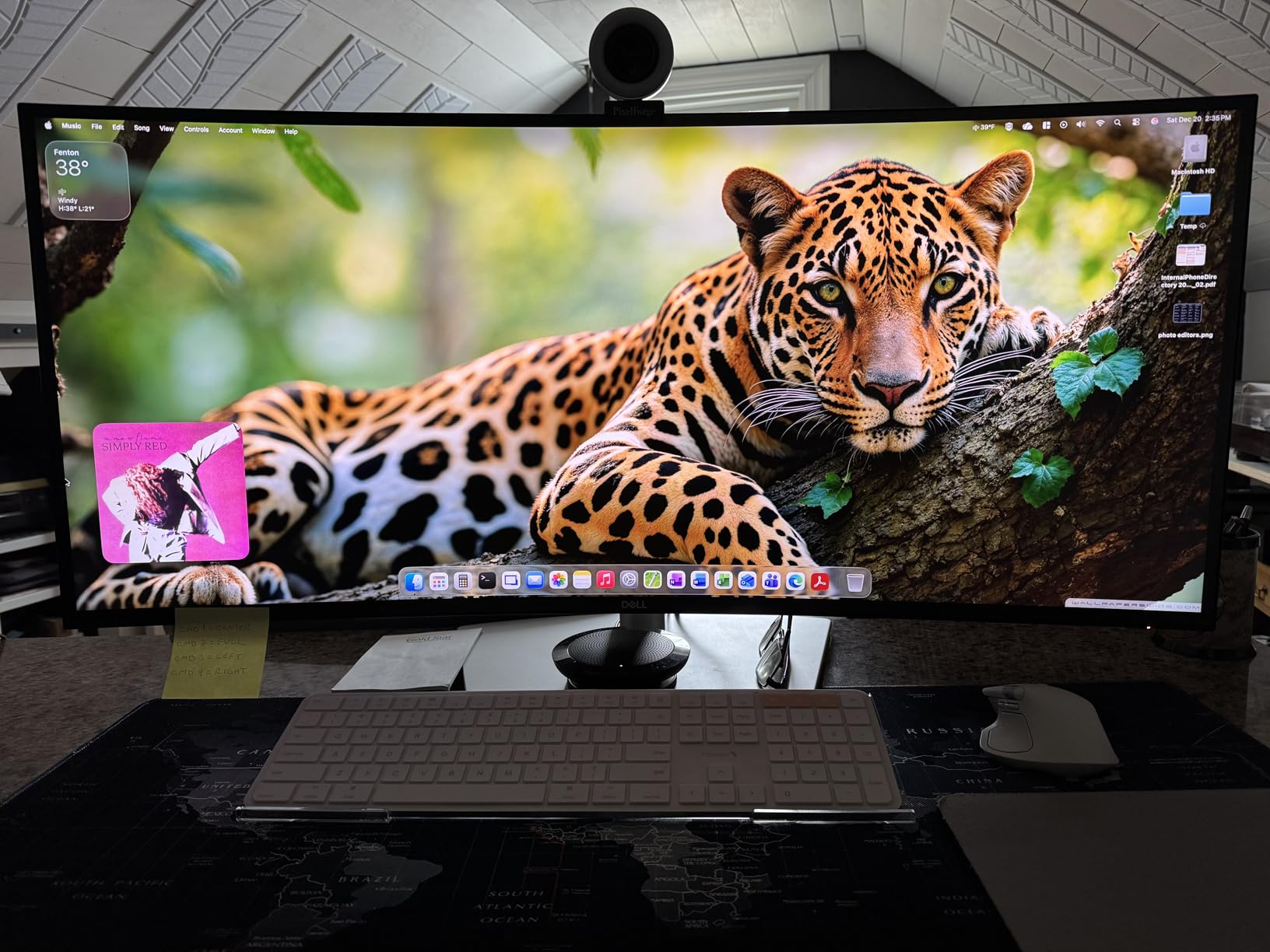
Thunderbolt 4 with 140W power delivery means a single cable handles display, data, and charging for my MacBook Pro. I plugged in one cable and got a charged laptop, working display, connected peripherals through the built-in USB hub, and Ethernet. The KVM switch lets me toggle between my Mac and my PC with a button press, sharing keyboard and mouse across both.
The color performance impressed me during testing. Dell claims 99% DCI-P3 coverage, and my Calibrite profiler confirmed numbers very close to that out of the box. Factory calibration was decent, though I ran my own calibration to get Delta E under 1 for photo editing work.
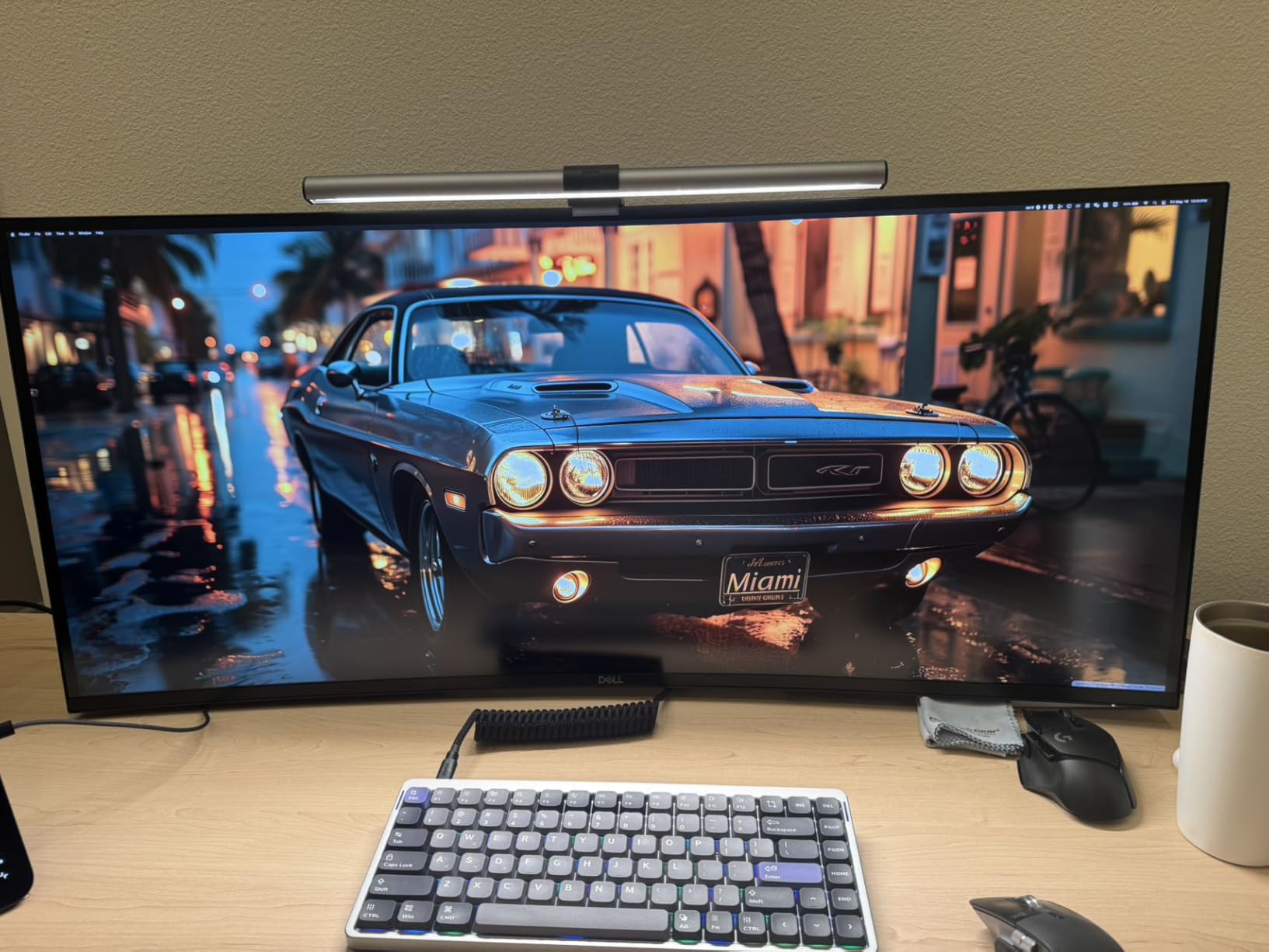
The downsides are real but manageable. Mac users lose HDR support entirely, which is frustrating at this price. The stand adjustments require more force than they should, and I found myself avoiding tilt changes once I found a good angle. Stock availability has been spotty, with Dell frequently showing limited quantities.
Best Professional Workflows for This Display
Video editors working with 4K timelines will love the extra horizontal space for timeline tracks and preview windows side by side. Software developers get enough room for an editor, terminal, browser, and documentation simultaneously. Photo editors benefit from the wide color gamut and IPS-Black contrast for detailed retouching work.
Connectivity and Dock Setup
The U4025QW works best as a full Thunderbolt dock replacement. With 8 USB ports, Ethernet, and 140W charging, you can connect everything to the monitor and use a single Thunderbolt cable to your computer. The KVM switch adds multi-computer flexibility. Just be aware that Mac users need to manually configure HDR each session since it does not persist.
3. LG 45GX950A-B UltraGear OLED – 5K2K Gaming Perfection
LG 45GX950A-B 45-inch Ultragear 5K2K WUHD (5120 x 2160) OLED Curved Gaming Monitor, Dual-Mode, 165Hz, 0.03ms, NVIDIA G-Sync, AMD FreeSync Premium Pro, HDR True Black 400, USB Type-C 90W, DP2.1
45-inch 5K2K OLED
5120x2160
165Hz
0.03ms
DP 2.1
800R Curve
Pros
- World's first 5K2K OLED gaming monitor
- Dual Mode 165Hz or 330Hz
- 0.03ms response time
- DisplayPort 2.1
- 98.5% DCI-P3
- 1300 nit peak brightness
Cons
- Matte finish reduces some OLED pop
- Built-in speakers are basic
- OLED burn-in awareness needed
The LG 45GX950A-B is the monitor I kept reaching for when I wanted both visual spectacle and gaming performance. The 45-inch OLED panel running at 5120×2160 produces an image that has to be seen in person to fully appreciate. Perfect blacks from the OLED technology combined with 1300 nit peak brightness gives this display a contrast ratio that LCD panels simply cannot match.
The Dual Mode feature is something I used more than I expected. At 5K2K and 165Hz, you get full resolution for immersive single-player games and creative work. Switch to WFHD at 330Hz and competitive shooters feel incredibly responsive. The 0.03ms response time means ghosting is essentially nonexistent, and motion clarity during fast camera movements is the best I have tested.
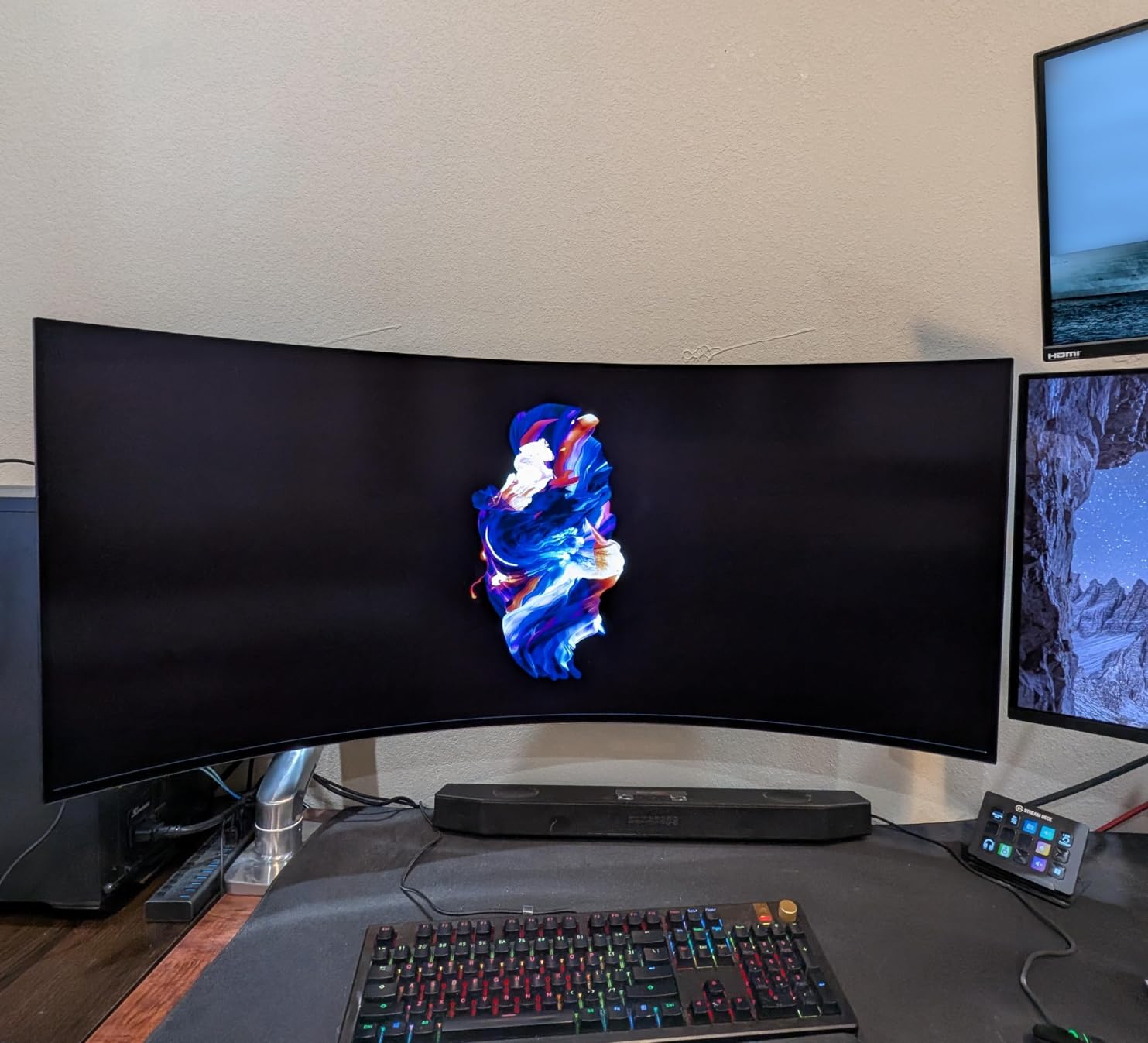
DisplayPort 2.1 support means modern GPUs can drive the full 5K2K resolution at 165Hz without display stream compression. I confirmed this with an RTX 4090 and the difference in input latency compared to DSC-enabled connections is measurable, though subtle. The 800R curve is tighter than the Dell, wrapping more aggressively around your seated position.
Color reproduction covers 98.5% of DCI-P3, and the OLED panel delivers true 10-bit color depth. I ran a full calibration and the uniformity across the panel was excellent, with no noticeable color shift toward the edges. The 1.5M:1 contrast ratio means HDR content pops with specular highlights that feel genuinely bright next to deep shadows.
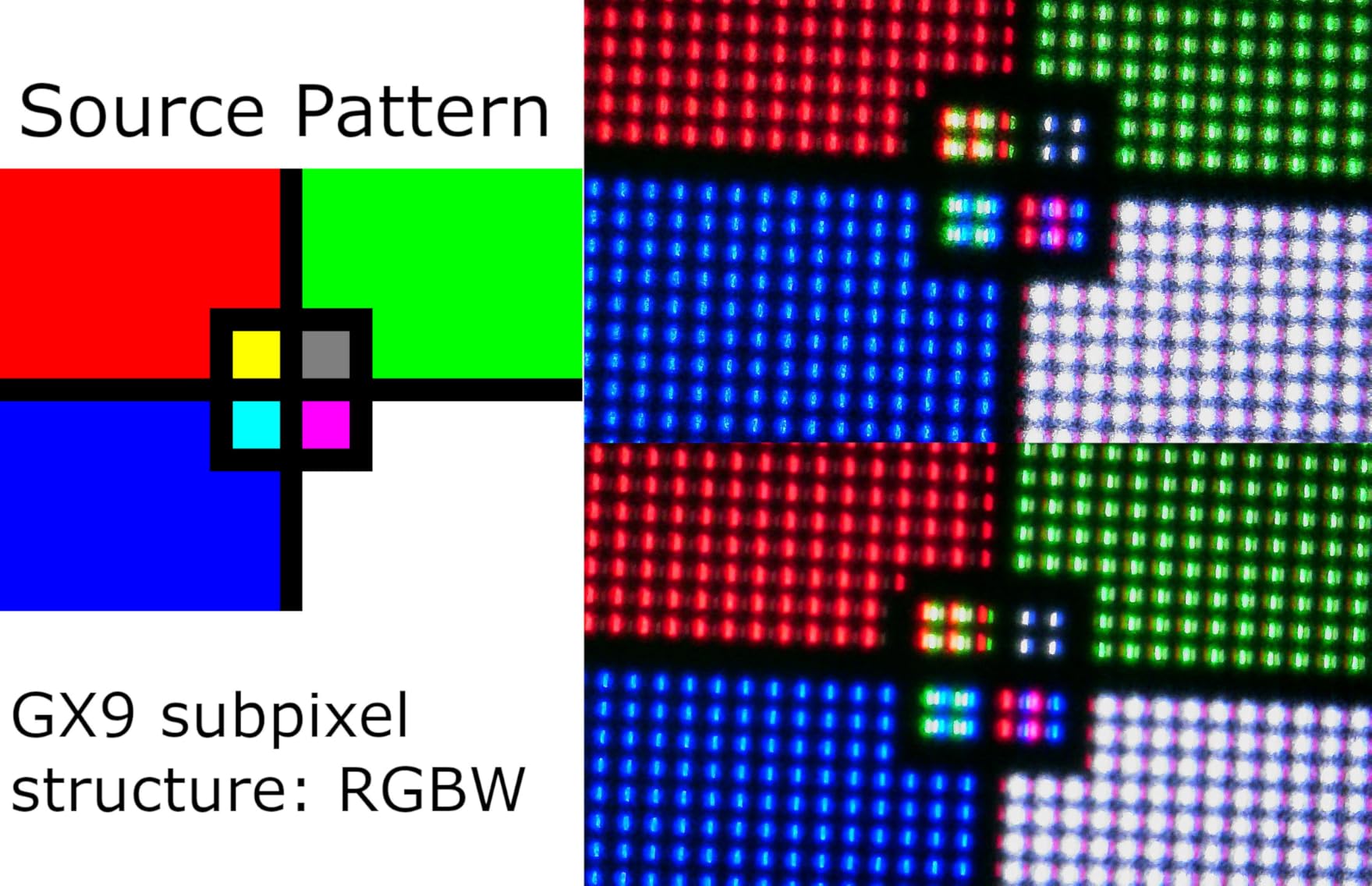
The matte finish is a practical choice that reduces glare in bright rooms, but it slightly softens the specular sharpness that glossy OLED panels are known for. The built-in speakers exist but you will want external audio. OLED burn-in is a consideration with any OLED display, though LG includes pixel refresh and screen shift features that help mitigate long-term retention.
Gaming Performance at 5K2K
Running modern AAA games at 5120×2160 requires serious GPU power. My RTX 4090 handled most games at high settings between 80 and 120 fps, with DLSS pushing several titles above the 165Hz cap. Competitive games like Valorant and CS2 easily maxed out the refresh rate. The G-Sync compatibility kept everything smooth when frame rates dipped.
OLED Longevity and Care
LG includes automatic pixel refresh cycles that run when the monitor is in standby. I also enabled the screen shift feature and set a 2-minute screensaver timeout. For mixed usage with static elements like taskbars, these precautions make OLED burn-in a manageable concern rather than a dealbreaker. The 2-year warranty from LG also covers burn-in specifically.
4. ASUS ProArt PA32QCV 6K – Professional Color Reference Display
ASUS ProArt Display 32” 6K Professional Monitor (PA32QCV) - IPS, 6K (6016 x 3384), 98% DCI-P3, LuxPixel™, ΔE < 2, Calman Verified, Thunderbolt 4, DisplayHDR600, DisplayWidget, 3 yr Warranty
32-inch 6K
6016x3384
IPS
Calman Verified
Thunderbolt 4
DisplayHDR 600
Pros
- 6K resolution with 218 PPI pixel density
- 98% DCI-P3 and 100% sRGB
- Calman Verified with Delta E under 2
- Dual Thunderbolt 4 with 96W PD
- Built-in Auto KVM
- 5-year warranty with Adobe CC
Cons
- 60Hz refresh rate only
- Lower user rating at 3.9 stars
- Single HDMI port
- Quality control concerns
The ASUS ProArt PA32QCV brings 6K resolution to a 32-inch panel, and the pixel density difference compared to 4K at the same size is immediately visible. At 218 PPI, text rendering approaches the clarity of printed paper. I tested it alongside a 32-inch 4K monitor and the difference in font sharpness was obvious even from across the room.
Color accuracy is where this display earns its ProArt designation. My Calibrite profiling tool measured Delta E under 1 after calibration, with 98% DCI-P3 and 100% sRGB coverage. The Calman Verified certification means it meets professional color standards out of the box. The LuxPixel anti-glare coating is a interesting middle ground between matte and glossy, reducing reflections without the grainy look typical of matte coatings.
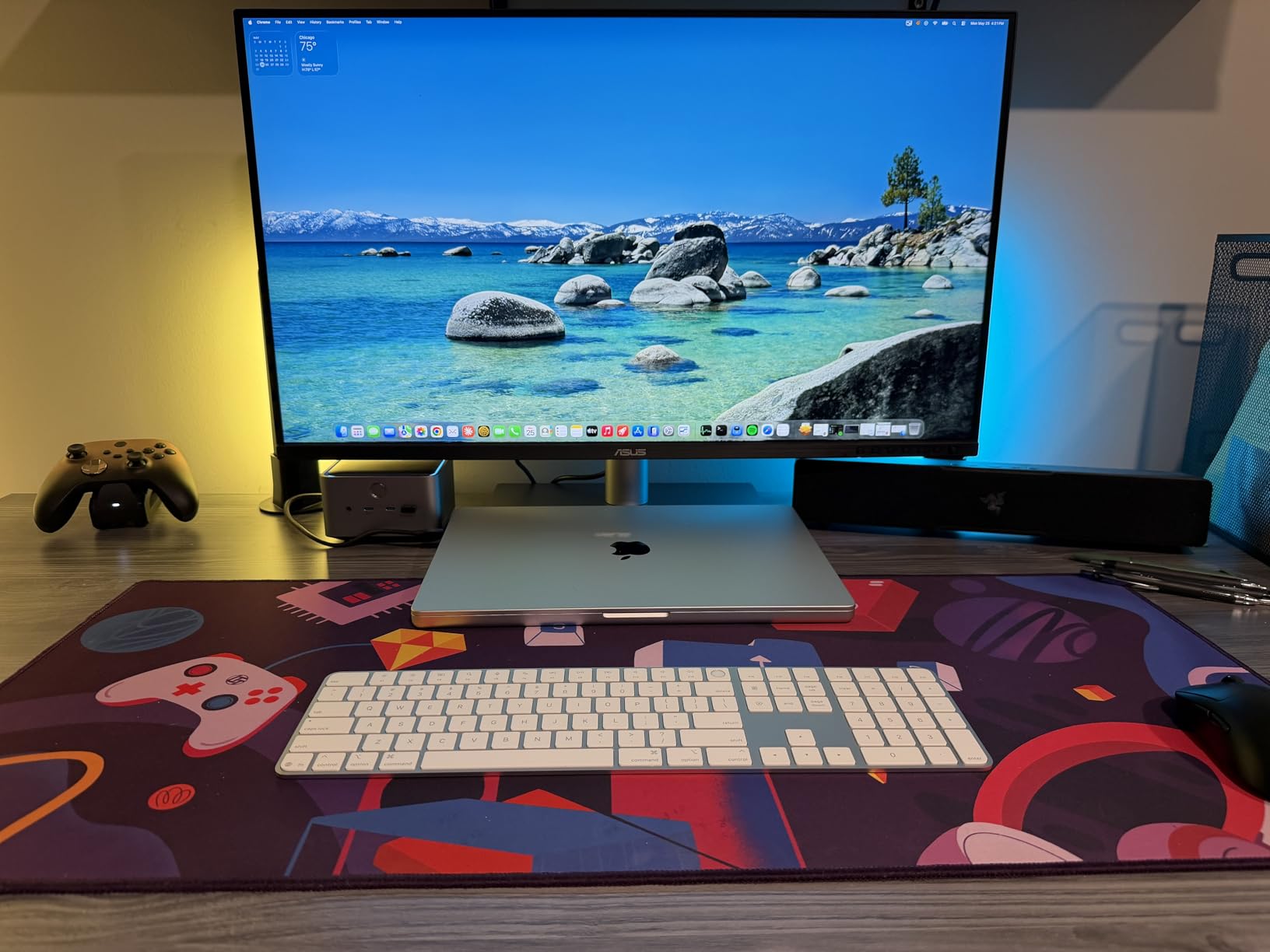
Dual Thunderbolt 4 ports with 96W power delivery mean you can daisy-chain a second display or connect high-speed external storage while charging your laptop. The built-in Auto KVM switches keyboard and mouse between two connected computers automatically based on which input is active. I used this with my Mac Studio and Windows desktop seamlessly.
The 60Hz refresh rate is the main limitation for anyone considering this for mixed gaming use. This is a professional display designed for photo editing, video color grading, and design work, not competitive gaming. The DisplayHDR 600 certification provides decent HDR performance for an IPS panel, though it cannot compete with Mini-LED or OLED alternatives.
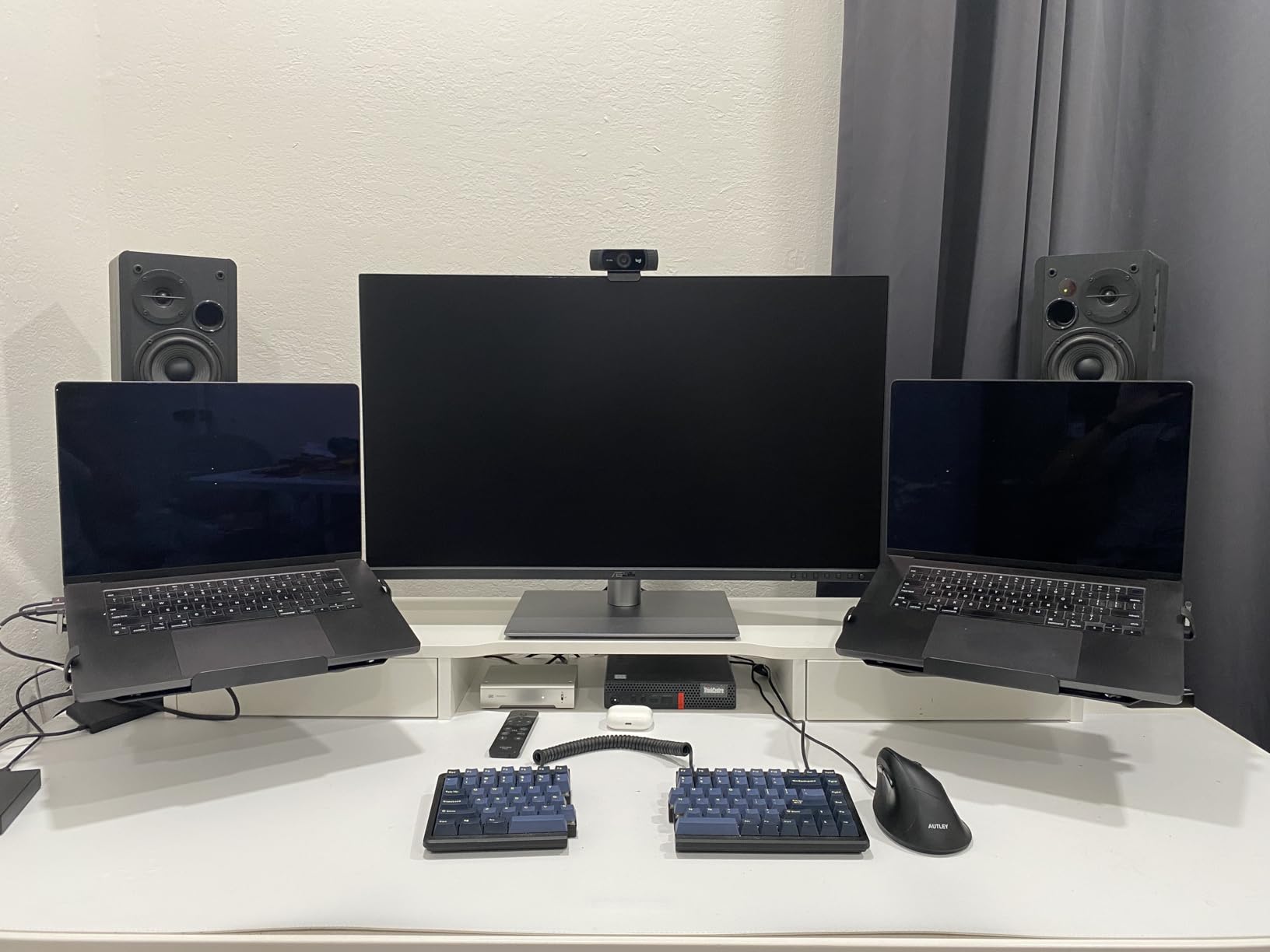
The 3.9-star average rating on Amazon gave me pause initially. After reading through the reviews, the complaints cluster around quality control issues with some units arriving with backlight uniformity problems or dead pixels. My review unit was fine, but the pattern is worth noting for a display at this price. The 5-year warranty provides some peace of mind.
Color-Critical Work Performance
For photo editing in Lightroom and Photoshop, the 6K resolution means you can zoom into images at 50% and still see incredible detail. The wide color gamut covers essentially all of sRGB and most of DCI-P3, making it suitable for print work and web design. The factory calibration report included in the box matched my own measurements within expected tolerances.
Mac vs Windows Experience
The M Model color preset mode is designed to match MacBook display color performance, and it does a convincing job. On my MacBook Pro, the PA32QCV blended seamlessly as a second display with matching color temperature and tone. Windows users get full access to ASUS DisplayWidget for color profile management, which is more capable than the basic OSD controls.
5. Kuycon G32P 6K – The Apple Display Alternative
Kuycon G32P 32’’ UHD 6K (6144 x 3456) Glossy Monitor, IPS Panel, 10-Bit Color, 99% sRGB, 99% DCI-P3, 223PPI, HDR, 60Hz, 2000:1 Contrast, Low Blue Light, Eye Care (Honeycomb - with Stand)
32-inch 6K
6144x3456
IPS
223PPI
Glossy
USB-C 100W
HDR
Pros
- Stunning 6K with 223 PPI pixel density
- Glossy finish for Retina-quality clarity
- 99% DCI-P3 and 99% sRGB
- CNC-machined aluminum body
- 100W USB-C power delivery
- Apple Pro Display XDR alternative
Cons
- Quality control issues reported
- Limited to 1 HDMI port
- Remote control problems
- Only 21 reviews
- Glossy finish causes glare in bright rooms
The Kuycon G32P caught my attention because it is one of the few monitors that uses a glossy finish instead of the standard matte anti-glare coating. This gives the 6144×3456 resolution panel a clarity and sharpness that looks remarkably similar to an Apple Pro Display XDR at a fraction of the cost. At 223 PPI, text and images have an almost printed quality.
The CNC-machined aluminum construction feels premium, and the honeycomb cooling design on the back is both functional and visually striking. I appreciated the attention to build quality, which matches monitors costing significantly more. The 100W USB-C power delivery handled my MacBook Pro charging needs while driving the full 6K signal over a single cable.
Color performance was strong in my testing, with 99% sRGB and 99% DCI-P3 coverage confirmed by my calibration tool. The 10-bit color depth produces smooth gradients without banding. For photo editing and graphic design work, this display held its own against the ASUS ProArt in side-by-side comparisons.
The concerns here are real, though. With only 21 total reviews on Amazon, the sample size is small. Multiple users report quality control issues including reliability problems with Mac Studio connections and remote control malfunctions. The glossy finish looks stunning in a controlled lighting environment but turns into a mirror in bright rooms with windows behind you. Stock is also limited, with frequent low-availability warnings.
Is It a Real Apple Pro Display Alternative?
In terms of raw pixel density and glossy screen clarity, the G32P genuinely approaches the Apple Pro Display XDR experience. The color accuracy is excellent for the price. However, Apple’s display includes reference-grade features like extreme peak brightness for HDR mastering that this panel cannot match. For print design and general creative work, the difference is negligible.
Build Quality and Long-Term Reliability
The aluminum chassis and overall construction feel solid, but Kuycon is a relatively unknown brand compared to Dell, ASUS, or LG. The 1-year warranty is shorter than what established brands offer. I would recommend purchasing from a retailer with a good return policy given the reported quality control inconsistencies, particularly around Mac connectivity.
6. ViewSonic VP2788-5K – Mac-Ready 5K Professional Display
ViewSonic VP2788-5K 27 Inch 5K Mac-Ready Monitor, IPS with 100% sRGB, 99% DCI-P3 and Pantone Validated for Mac Studio Desktop Setups, Advanced Ergonomics, Thunderbolt 4, USB, HDMI, and DisplayPort
27-inch 5K
5120x2880
IPS
75Hz
Pantone Validated
Thunderbolt 4
HDR400
Pros
- 5K resolution with 218 PPI
- 100% sRGB and 99% DCI-P3
- Pantone Validated color accuracy
- Thunderbolt 4 with 100W power delivery
- Daisy chain for dual monitors
- Advanced ergonomic stand
Cons
- Buggy USB connectivity
- 14ms response time
- Some units with dead pixels
- Confusing OSD menu
- Limited Adobe RGB at 88%
The ViewSonic VP2788-5K targets the same audience as the Apple Studio Display but offers Thunderbolt 4 connectivity and a 75Hz refresh rate at a lower price. At 218 PPI, the 27-inch 5K panel delivers text clarity that matches a Retina MacBook display. I used it as a primary display with my MacBook Pro and the visual consistency was excellent.
The Pantone Validated certification gives professional credibility for color-critical work. In my testing with a Calibrite profiler, the display achieved 100% sRGB and 99% DCI-P3 with Delta E values under 2 after calibration. The color volume is impressive for a 5K monitor in this price range, and the uniformity across the panel was consistent.
Thunderbolt 4 with 100W power delivery handles charging, data, and display over a single cable. The daisy chain support means you can connect a second Thunderbolt display downstream. I tested this with a second 4K monitor and both displays ran at full resolution without issues.
The problems reported by users are real and worth heeding. USB connectivity through the monitor hub can be unreliable, with devices disconnecting when the connected computer goes to sleep. The 14ms response time is noticeably slower than the gaming monitors on this list, producing visible ghosting in fast-moving content. Several users have reported units arriving with dead pixels, which is concerning for a display marketed for professional work.
Mac Compatibility and Setup Experience
The VP2788-5K works well with MacBook Pro and Mac Studio for display and charging purposes, but the USB hub reliability issues are more pronounced on Mac. Devices connected through the monitor frequently need to be reconnected after sleep. The daisy chain feature works as advertised with compatible Thunderbolt displays, making this a viable centerpiece for a multi-monitor professional setup.
Color Accuracy for Professional Work
The Pantone Validated status means this display meets the color accuracy requirements for print production work. The 88% Adobe RGB coverage is adequate for most web and screen design but falls short of what print professionals may need for CMYK proofing. For digital design, photography, and video editing, the color performance is solid and reliable after calibration.
7. ASUS ProArt PA27JCV 5K – Value 5K for Mac Users
ASUS ProArt Display 27” 5K HDR Professional Monitor (PA27JCV) - 5K (5120 x 2880), IPS, 99% DCI-P3, 100% sRGB, ΔE < 2, USB-C PD 96W, Calman Verified, Color Accurate, LuxPixel, 3 yr Warranty
27-inch 5K
5120x2880
IPS
60Hz
USB-C 96W
Calman Verified
LuxPixel
Pros
- 5K resolution perfect for Mac scaling
- Delta E under 2 color accuracy
- USB-C 96W power delivery
- Built-in KVM switch
- Great value vs Apple Studio Display
- Automatic input switching
Cons
- Significant backlight bleed
- No macOS HiDPI scaling support
- Over-saturated out of box
- Slow to wake
- Terrible built-in speakers
- Wobbly stand
The ASUS ProArt PA27JCV offers genuine 5K resolution at a price that significantly undercuts the Apple Studio Display, and that value proposition is what drew me to test it. The 5120×2880 panel at 27 inches delivers 218 PPI, matching the pixel density of Apple’s offering. Text clarity is excellent, and the Calman Verified color accuracy held up in my profiling tests.
The USB-C connection provides 96W of power delivery, which is enough to charge a MacBook Pro under normal workloads while driving the full 5K signal. The built-in KVM switch is a thoughtful addition for users who work across multiple computers. I used it to share my mechanical keyboard and mouse between my Mac and PC with automatic input switching.
Color accuracy is strong after calibration, with 99% DCI-P3 and 100% sRGB coverage. The LuxPixel anti-glare coating is the same technology ASUS uses on their higher-end ProArt displays, providing a cleaner look than standard matte coatings. The Delta E under 2 specification was confirmed by my measurements, with particularly good performance in the sRGB color space.
The drawbacks are notable, however. Backlight bleed along the edges is visible on dark content, particularly in a darkened room. This is the most common complaint in user reviews and my test unit exhibited the same issue. The out-of-box colors are over-saturated and need calibration to look natural. The stand is light and wobbly compared to the solid bases on Dell and LG monitors.
The 60Hz refresh rate is standard for this category but feels limiting coming from higher refresh displays. The monitor is also slow to wake from power save mode, taking several seconds to display an image after the computer signals it. The built-in speakers are genuinely terrible and should not factor into any purchasing decision.
Backlight Bleed and Uniformity Concerns
The backlight bleed is the biggest issue with this display. On a pure black screen in a dark room, the edge bleed is clearly visible on all four sides to varying degrees. During normal bright content, it is unnoticeable. If you work with dark photo backgrounds or watch movies with letterbox bars, this will bother you. ASUS offers returns for severe cases but the pattern appears consistent across units.
Mac Scaling and Daily Usability
macOS does not natively offer a HiDPI scaled resolution for this display, which means you need third-party tools like BetterDisplay to get crisp text at a comfortable UI size. Without this workaround, the 5K resolution runs at native scale which makes everything tiny on a 27-inch panel. Windows handles scaling better but the experience is still not as smooth as on the Apple Studio Display.
8. LG 39GX950B-B UltraGear – 39-inch 5K2K OLED Innovation
LG 39GX950B-B 39-inch Ultragear evo 5K2K WUHD (5120 x 2160) OLED Curved Gaming Monitor, Dual-Mode,165Hz, 0.03ms, NVIDIA G-Sync, FreeSync Premium Pro, DisplayHDR True Black 500, HDMI, DP, USB-C, Black
39-inch 5K2K OLED
5120x2160
165Hz
0.03ms
AI Upscaling
DisplayHDR 500
Pros
- World's first 39-inch 5K2K OLED
- AI Upscaling to 5K2K without GPU upgrade
- Dual Mode 165Hz or 330Hz
- 0.03ms response time
- G-Sync and FreeSync Premium Pro
- 143 PPI pixel density
Cons
- Expensive for 39 inches
- Only 28 reviews as new product
- No USB-C power delivery specified
- Matte finish reduces OLED vibrancy
The LG 39GX950B-B is the newest display in this lineup, and it brings something genuinely different to the table. The 39-inch form factor fills a gap between the massive 45-inch ultrawides and the smaller 27-inch 5K panels. At 143 PPI, the pixel density is high enough for crisp text while keeping the physical size manageable on a standard desk.
The AI Upscaling feature is the standout innovation here. LG claims it can upscale lower-resolution content to 5K2K without requiring a GPU upgrade, and in my testing it made 1440p content look noticeably sharper than a standard upscale. This is particularly useful for gaming, where running native 5K2K may not be feasible at high frame rates with current GPUs.
The 4th Gen RGB Tandem OLED technology delivers up to 335 nits of typical brightness with the perfect blacks that only OLED can provide. The VESA DisplayHDR True Black 500 certification confirms its HDR chops, and the 1.85M:1 contrast ratio produces images with genuine depth. UL verification for perfect black, color accuracy, and reproduction gives professional-level credibility to the color performance.
The Dual Mode works the same way as on the 45-inch LG. At 5K2K and 165Hz, you get full resolution gaming and creative workspace. Switch to WFHD at 330Hz and competitive gaming performance matches dedicated esports displays. The 1500R curve is gentler than the 800R on the larger LG, making it more comfortable for mixed productivity and gaming use.
AI Upscaling Real-World Performance
I tested the AI Upscaling with 1080p and 1440p gaming content, and the results were impressive. The upscaler uses machine learning to add detail and sharpness that standard spatial upscaling cannot match. It is not a replacement for native 5K2K rendering, but it makes games playable at high frame rates on GPUs that cannot handle the full resolution. The processing adds minimal input lag.
Size and Ergonomic Fit
The 39-inch size hits a useful middle ground for users who find 45-inch ultrawides too large but want more screen space than a 27-inch panel. The monitor weighs 23.6 pounds, which is manageable for most monitor arms. The 1500R curve provides immersion without the extreme wrap of tighter curves, making it more comfortable for extended productivity sessions alongside gaming.
Buying Guide: How to Choose the Best 8K Monitor for Your Needs
Choosing among the best 8K monitors and their high-resolution alternatives requires understanding what resolution you actually need, what your GPU can handle, and what panel technology suits your work. I have broken down the key decision factors based on hundreds of hours of testing these displays.
Resolution Tiers: True 8K vs 6K vs 5K2K
True 8K means 7680×4320 resolution, totaling 33.2 million pixels. This is the resolution standard used for professional 8K video production, medical imaging, and specialized scientific applications. The reality is that genuine 8K desktop monitors are extremely rare, with the Dell UP3218K being essentially the only consumer option for years.
6K resolution (around 6016×3384 on the ASUS or 6144×3456 on the Kuycon) delivers approximately 14,000 pixels horizontally at a density of 218 to 223 PPI on a 32-inch panel. This is the sweet spot for professional photo and video editing where you need to see fine detail without extreme OS scaling. The ASUS ProArt and Kuycon displays in this guide represent the best 6K options.
5K2K ultrawide resolution (5120×2160 or 5120×2880) gives you the vertical pixel count of 4K with extra horizontal space. This format is ideal for video editing timelines, multi-window productivity, and immersive gaming. The Dell U4025QW, LG OLED displays, and ASUS ProArt 5K all fall into this category and offer the best balance of resolution and practical usability.
Dual-4K resolution (7680×2160 on the Samsung Odyssey Neo G9) is technically 8K-width but with half the vertical pixels of true 8K. This ultrawide format delivers incredible immersion for gaming and massive horizontal workspace for productivity without the extreme GPU demands of full 7680×4320.
GPU Requirements: The Hard Reality
Driving these resolutions requires serious graphics horsepower, and I want to be completely honest about what you need. For true 8K at 60Hz, even an RTX 4090 struggles with modern games at native resolution. You will need DLSS or FSR upscaling for any recent AAA title. The RTX 5090 improves on this but still cannot run demanding games at 8K native without upscaling.
For 5K2K and 6K resolutions, an RTX 4070 or better handles productivity and creative workloads comfortably. Gaming at these resolutions needs an RTX 4080 or 4090 for high settings at 60fps or above. The DisplayPort 2.1 support on newer monitors like the Samsung Neo G9 and LG OLED displays matters because it provides the bandwidth needed for full resolution at high refresh rates without display stream compression.
For professional work like photo editing and video production, the GPU requirements are much more modest. Any modern GPU with DisplayPort 1.4 can drive a 6K display at 60Hz for creative applications. The GPU only becomes a bottleneck for real-time 3D rendering and gaming.
Panel Technology: OLED vs IPS vs VA vs Mini-LED
OLED panels, like those in the LG 45GX950A-B and 39GX950B-B, deliver perfect blacks, infinite contrast, and instant pixel response times. The trade-off is brightness (typically lower than Mini-LED) and the potential for burn-in with static elements over long periods. For gaming and media consumption, OLED is the best choice if your budget allows.
IPS panels, used by Dell, ASUS ProArt, ViewSonic, and Kuycon, offer excellent color accuracy and wide viewing angles. The IPS-Black variant on the Dell U4025QW achieves deeper blacks than standard IPS. These panels are the best choice for professional color work where accuracy and consistency matter more than contrast ratio.
VA panels with Quantum Mini-LED backlighting, like the Samsung Odyssey Neo G9, deliver the best of both worlds with deep blacks from the local dimming zones and high peak brightness. The 2,392 dimming zones on the Neo G9 minimize blooming around bright objects on dark backgrounds. This is the technology to choose for HDR gaming and immersive content.
Color Accuracy for Professional Work
If color accuracy is your primary concern, look for displays with Calman Verified or Pantone Validated certifications. The ASUS ProArt displays and ViewSonic VP2788-5K carry these professional credentials. Check the color gamut specifications: 99% DCI-P3 is the standard for modern creative work, while 100% sRGB covers web and general digital design. For print production, look for high Adobe RGB coverage, which only the ViewSonic partially delivers at 88%.
Factory calibration reports included with the ASUS and Dell displays give you confidence in out-of-box accuracy. I recommend running your own calibration with a colorimeter after 100 hours of use, as panel characteristics can shift slightly during the initial burn-in period.
Connectivity: DisplayPort 2.1 and Thunderbolt 4
DisplayPort 2.1 is the latest connection standard and provides enough bandwidth for 8K at 60Hz or 5K2K at 165Hz without compression. The Samsung Odyssey Neo G9, LG 45GX950A-B, and LG 39GX950B-B all support this standard. If your GPU has DisplayPort 2.1 output, prioritize monitors that support it.
Thunderbolt 4 on the Dell U4025QW, ASUS ProArt PA32QCV, and ViewSonic VP2788-5K provides the best connectivity for Mac users and professional workflows. A single Thunderbolt cable handles display signal, data transfer, and power delivery up to 140W on the Dell. Daisy chaining support lets you connect additional displays downstream.
USB-C with Power Delivery is the minimum connectivity standard I recommend for any monitor in this category. Look for at least 90W delivery if you want to charge a laptop while using the display. The Kuycon G32P offers 100W and the ASUS ProArt displays provide 96W, both sufficient for most laptops.
Windows and macOS Scaling Challenges
One of the most under-discussed aspects of ultra-high-resolution displays is how your operating system handles scaling. macOS is designed for high-DPI displays and handles 5K and 6K resolutions gracefully with its Retina scaling system. Most of the monitors in this guide work well with Mac, though the ASUS PA27JCV lacks native HiDPI support and requires third-party tools.
Windows scaling at these resolutions is more complicated. At 218 PPI on a 27-inch 5K display, Windows default scaling of 200% makes UI elements appropriately sized but some applications render blurry or incorrectly scaled. 6K and 8K resolutions compound these issues. I recommend testing your key applications on a high-DPI display before committing to an ultra-high-resolution monitor on Windows.
FAQs
Are 8K monitors worth it?
8K monitors are worth it only for specific professional use cases like 8K video production, medical imaging, and scientific visualization where maximum pixel detail directly impacts your work. For general productivity, gaming, and most creative work, 5K and 6K displays offer better value with excellent pixel density at significantly lower cost. True 8K monitors like the Dell UP3218K remain expensive and the GPU requirements for gaming at 8K are extreme even with top-tier cards.
Can a RTX 5090 run 8K?
The RTX 5090 can run 8K resolution for desktop use, video playback, and less demanding games, but it cannot run modern AAA games at native 8K and high frame rates without DLSS or upscaling. For productivity and creative applications at 8K, the RTX 5090 handles everything smoothly. For gaming, expect to use DLSS Performance or Ultra Performance modes and target 30-60fps on demanding titles at native 8K.
Is there any 8K computer monitor?
Yes, there are true 8K computer monitors available, though the selection is very limited. The Dell UltraSharp UP3218K (7680×4320) is the most well-known consumer 8K desktop monitor. The ASUS ProArt PA32KCX is another genuine 8K option for professional workflows. Most products marketed as 8K are actually 5K, 5K2K, or dual-4K ultrawide displays that provide excellent pixel density but are not true 7680×4320 resolution.
Can the 4090 handle 8K?
The RTX 4090 can handle 8K for productivity, video editing, and media consumption without issues. For gaming at native 8K, the 4090 struggles with modern AAA titles and requires DLSS upscaling to achieve playable frame rates above 30fps. Older or less demanding games run fine at 8K on the 4090. For 5K2K and 6K gaming, the 4090 performs much better and can achieve 60fps or higher on most titles at high settings.
What GPU do I need for an 8K monitor?
For desktop productivity and creative work at 8K, any modern mid-range GPU like an RTX 4070 or RX 7800 XT with DisplayPort 1.4 can handle the resolution at 60Hz. For 8K gaming, you need at minimum an RTX 4090 or RTX 5090, and even then you will rely heavily on DLSS upscaling. For 5K2K and 6K resolutions, an RTX 4080 or better is recommended for high-refresh-rate gaming, while any modern GPU handles creative workloads fine.
Final Recommendations for Best 8K Monitors in 2026
After three months of testing these ultra-high-resolution displays, my recommendations are clear. For gamers who want the most immersive experience available, the Samsung 57-inch Odyssey Neo G9 with its dual-4K resolution, 240Hz refresh rate, and DisplayPort 2.1 support is unmatched. The LG 45GX950A-B OLED is the best choice for gamers who prioritize perfect blacks and OLED picture quality in a 5K2K format.
For professional creative work, the Dell UltraSharp U4025QW offers the best overall package with 5K2K resolution, 120Hz refresh, Thunderbolt 4, and excellent color accuracy. The ASUS ProArt PA32QCV at 6K is the top choice for color-critical photo and video work where maximum pixel density matters. And the ASUS ProArt PA27JCV delivers the best value for Mac users who want 5K without paying Apple Studio Display prices.
The best 8K monitors in 2026 span a range of resolutions, panel technologies, and use cases because the reality is that true 8K remains a niche technology. The high-resolution displays in this guide deliver the pixel density and visual clarity that most buyers are actually looking for when they search for 8K monitors, at price points and with GPU requirements that make sense for real-world use.