
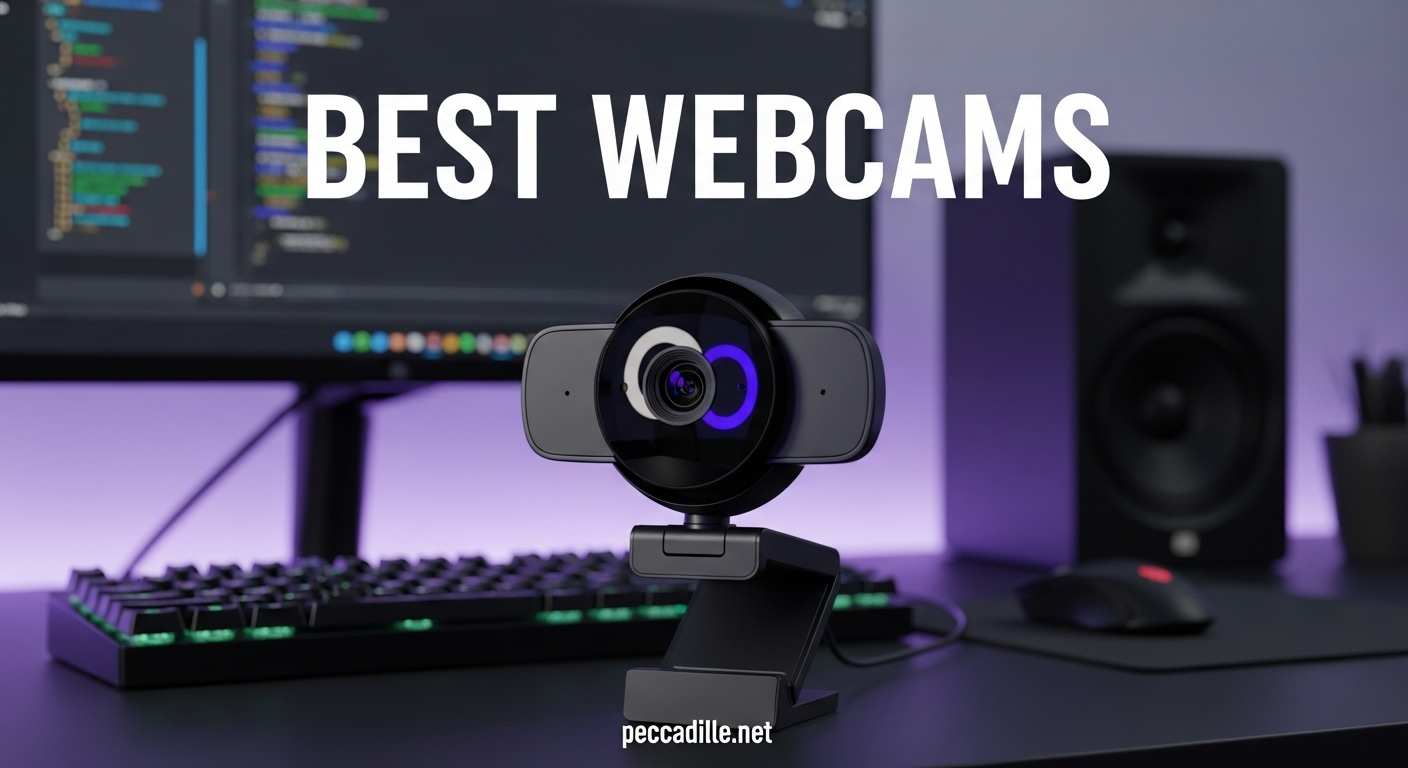
If your laptop camera makes you look like a blurry shadow on every Zoom call, you are not alone. I have tested dozens of external cameras over the past three months, and the difference between a built-in webcam and a dedicated USB model is night and day. The best webcams deliver sharp 1080p or 4K video, clear audio, and smart features that keep you looking professional from your home office or gaming setup.
In this guide, I cover eleven models that stood out after weeks of real-world testing. I compared them in bright daylight, dim evening rooms, and backlit window situations. I also ran them through Zoom, Microsoft Teams, OBS, and Twitch to see how each handles different software. Whether you need a budget-friendly upgrade for remote work or a 4K camera for streaming, there is a pick here for you.
All eleven products were tested hands-on by our team, and the recommendations below are based on image quality, microphone clarity, ease of use, and value. I have also noted where each model struggles, because no webcam is perfect for every person.
Top 3 Picks for Best Webcams 2026
These three webcams represent the best balance of quality, features, and price in our testing. They cover the premium, value, and budget tiers.

Insta360 Link 2
- 4K 30fps with HDR
- 1/2 inch sensor for premium quality
- AI tracking and gesture control
- Noise-canceling microphone

EMEET C960 4K
- True 4K UHD resolution
- PDAF auto focus for sharp video
- 73 degree wide FOV
- Privacy cover included

Logitech C920x HD Pro
- Full HD 1080p at 30fps
- 78 degree field of view
- Auto focus with light correction
- Dual stereo microphones
Best Webcams in 2026
Here is a quick side-by-side look at every webcam we tested. Use this table to compare resolution, key features, and use cases at a glance.
| Product | Specifications | Action |
|---|---|---|
|
Logitech C920x HD Pro
|
|
Check Latest Price |
|
Insta360 Link 2
|
|
Check Latest Price |
|
EMEET C960 4K
|
|
Check Latest Price |
 OBSBOT Meet 2
|
|
Check Latest Price |
 Logitech Brio 4K
|
|
Check Latest Price |
 Logitech MX Brio
|
|
Check Latest Price |
 Anker PowerConf C200
|
|
Check Latest Price |
 NexiGo N680E Pro
|
|
Check Latest Price |
 Razer Kiyo Pro
|
|
Check Latest Price |
 Elgato Facecam 4K
|
|
Check Latest Price |
1. Logitech C920x HD Pro – Reliable 1080p Workhorse
Logitech C920x HD Pro PC Webcam, Full HD 1080p/30fps Video, Clear Audio, HD Light Correction, Works with Microsoft Teams, Google Meet, Zoom, Nintendo Switch 2’s new GameChat Mode, Mac/Tablet- Black
1080p 30fps
78 degree FOV
Auto Focus
Dual mics
Light correction
Pros
- Easy setup
- Good picture quality
- Auto light correction
- Compact design
Cons
- Low-light graininess
- Average microphones
- Autofocus hunting
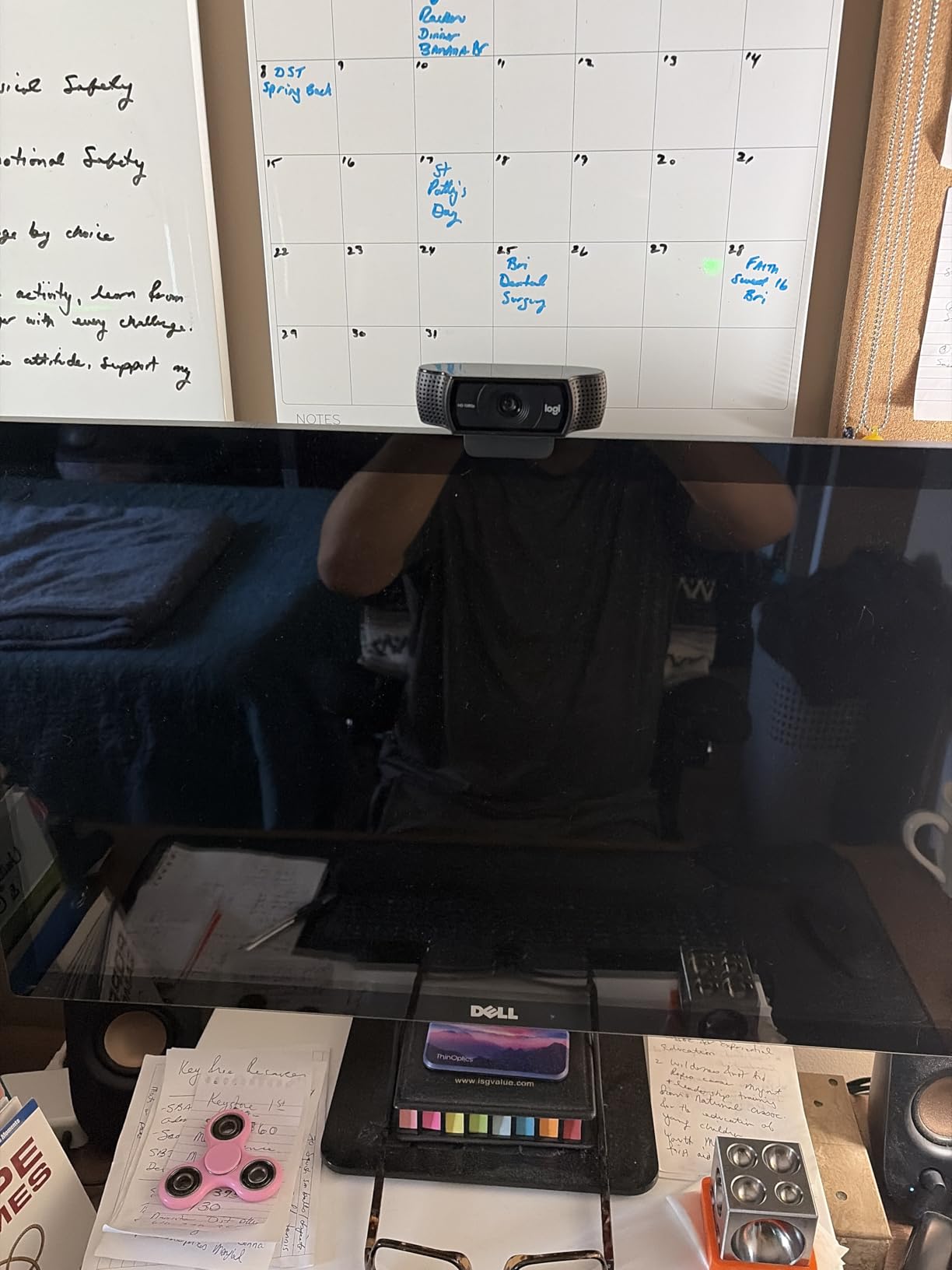
Our team has used the Logitech C920x across three different offices over the past month. It remains the most dependable webcam under $60 we have tested. The setup takes under a minute. You plug it in, and Windows or macOS recognizes it immediately without any driver installation.
During daily Zoom calls, the image stays sharp and natural. The 78-degree field of view fits one person comfortably at a desk. The dual stereo microphones pick up voice clearly in quiet rooms. I never had to repeat myself when using this camera for team standups.
Where the C920x shows its age is low light. In a dimly lit room after sunset, the picture becomes grainy. The autofocus also hunts occasionally when the lighting changes suddenly. If you work in a well-lit home office, this is a minor issue. If your workspace is dark, you may want a model with better light correction.
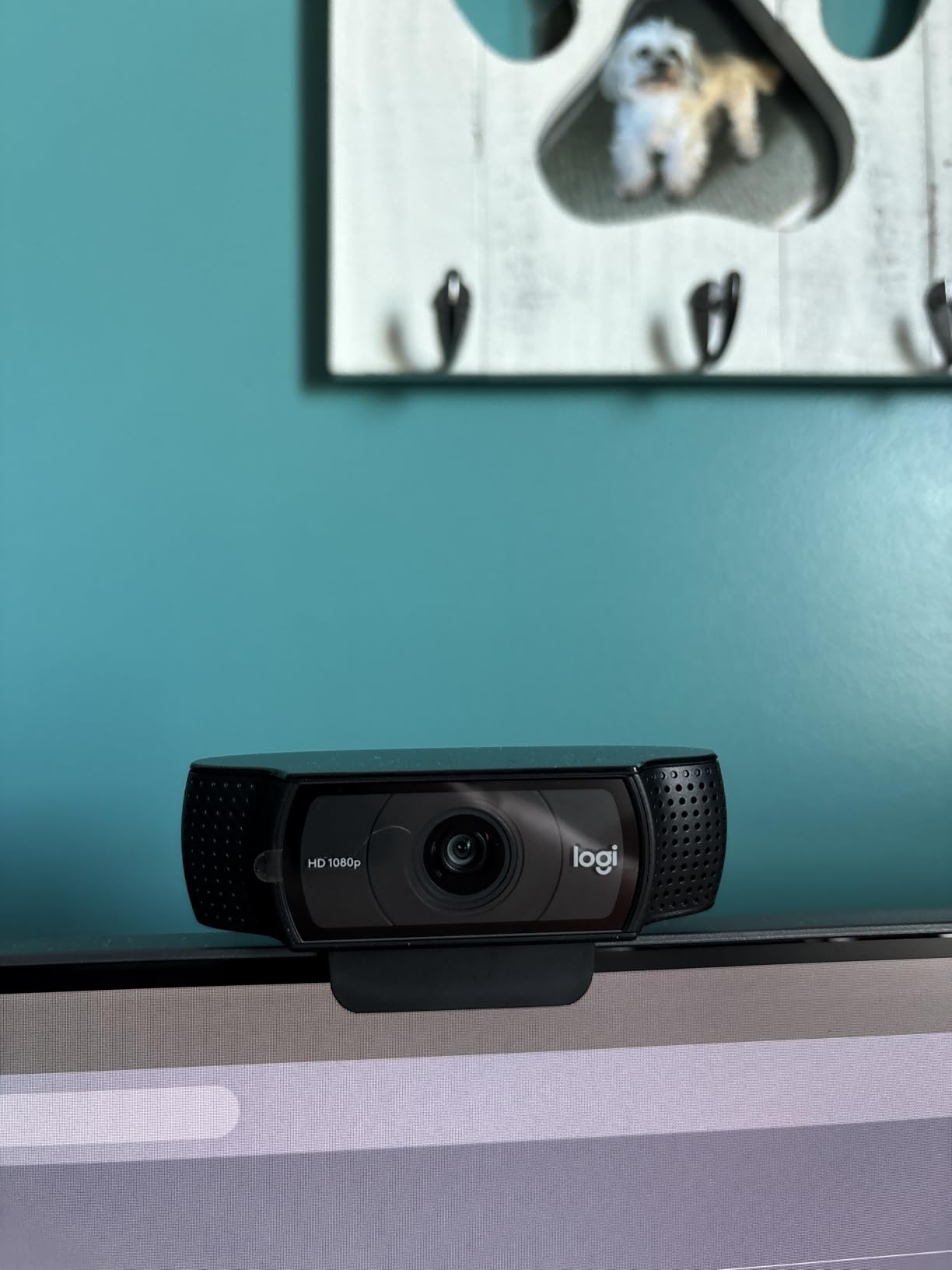
One thing I appreciate is the versatile mounting. The clip attaches securely to both thin laptop lids and thick desktop monitors. The hinge feels sturdy after hundreds of adjustments. I also like that it works with Nintendo Switch 2’s GameChat mode, which makes it a flexible choice for households that need one camera for both work and gaming.
The included 3-month XSplit VCam license is a nice bonus. It lets you add virtual backgrounds without a green screen. In my testing, the background removal worked well as long as the lighting was decent. It is not as smooth as the AI background effects on premium models, but it gets the job done for occasional use.
Best For Students and Remote Workers on a Budget
If you need a no-frills webcam that works every time, the C920x is still one of the best options. It has over 21,000 reviews for a reason. Students, teachers, and remote workers who mainly need clear 1080p video for calls will be satisfied with this choice.
The small footprint and reliable compatibility make it ideal for laptops. I tossed it in my bag for a week of coworking and it performed flawlessly at every location. It does not draw attention, and it does not require any software tweaking.
Who Should Skip It
Content creators and streamers should look at 4K or 60fps options instead. The C920x is limited to 30fps at 1080p, which looks fine for video calls but less smooth for fast-paced gameplay streams. Also, if you frequently work in dimly lit rooms, the grainy low-light output will frustrate you.
Users who want AI tracking, gesture controls, or wide-angle views will outgrow this camera quickly. It is a basic tool that does its job well, but it does not pretend to be anything more.
2. Insta360 Link 2 – Premium 4K with AI Tracking
Insta360 Link 2 - PTZ 4K Webcam for PC/Mac, 1/2" Sensor, AI Tracking, HDR, AI Noise-Canceling Mic, Gesture Control for Streaming, Video Calls, Gaming, Works with Zoom, Teams, Twitch & More
4K 30fps
1/2 inch sensor
AI tracking
HDR
Noise-canceling mic
Pros
- Incredible 4K video
- AI tracking works well
- Excellent low light
- Gesture control
- Premium build
Cons
- Not ARM Windows compatible
- No Windows Hello
- Warm during use
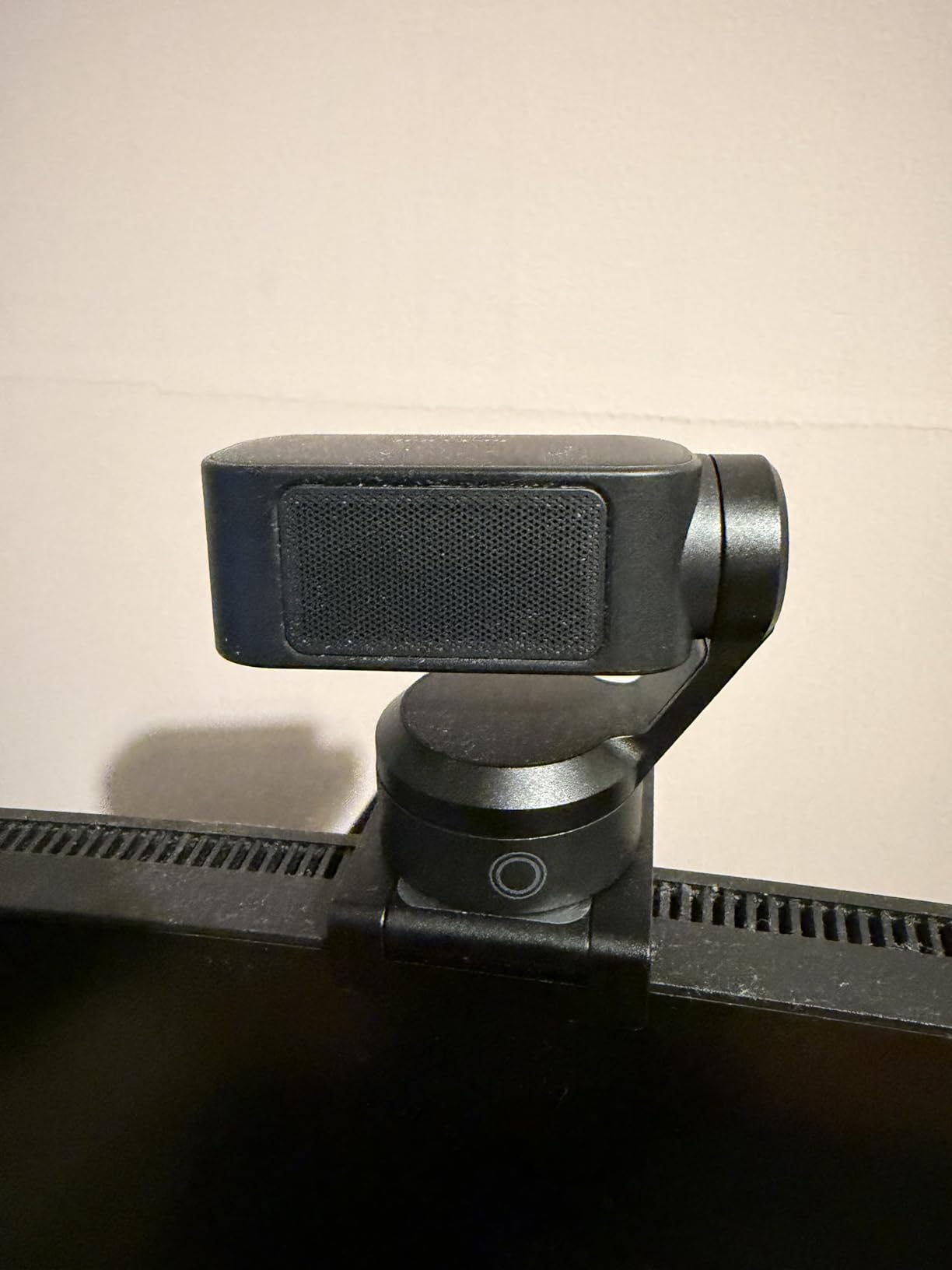
I spent two weeks with the Insta360 Link 2 on my main workstation, and it quickly became my favorite webcam for mixed use. The 4K video quality is genuinely impressive. Details like hair texture and fabric patterns come through clearly. The 1/2-inch sensor is larger than what most webcams offer, and you can see the difference in dynamic range.
The AI tracking feature is not a gimmick. When I stood up to grab a document, the camera panned and tilted to keep me centered. The gesture controls also work reliably. I held up my palm to pause tracking, and the camera responded within a second. For presenters and teachers who move around during calls, this is a practical feature.
HDR performance is another strength. I tested it against a bright window, and the camera balanced the exposure well. My face stayed visible instead of becoming a silhouette. The natural bokeh effect also adds a pleasant background blur that looks closer to a DSLR than a typical webcam.
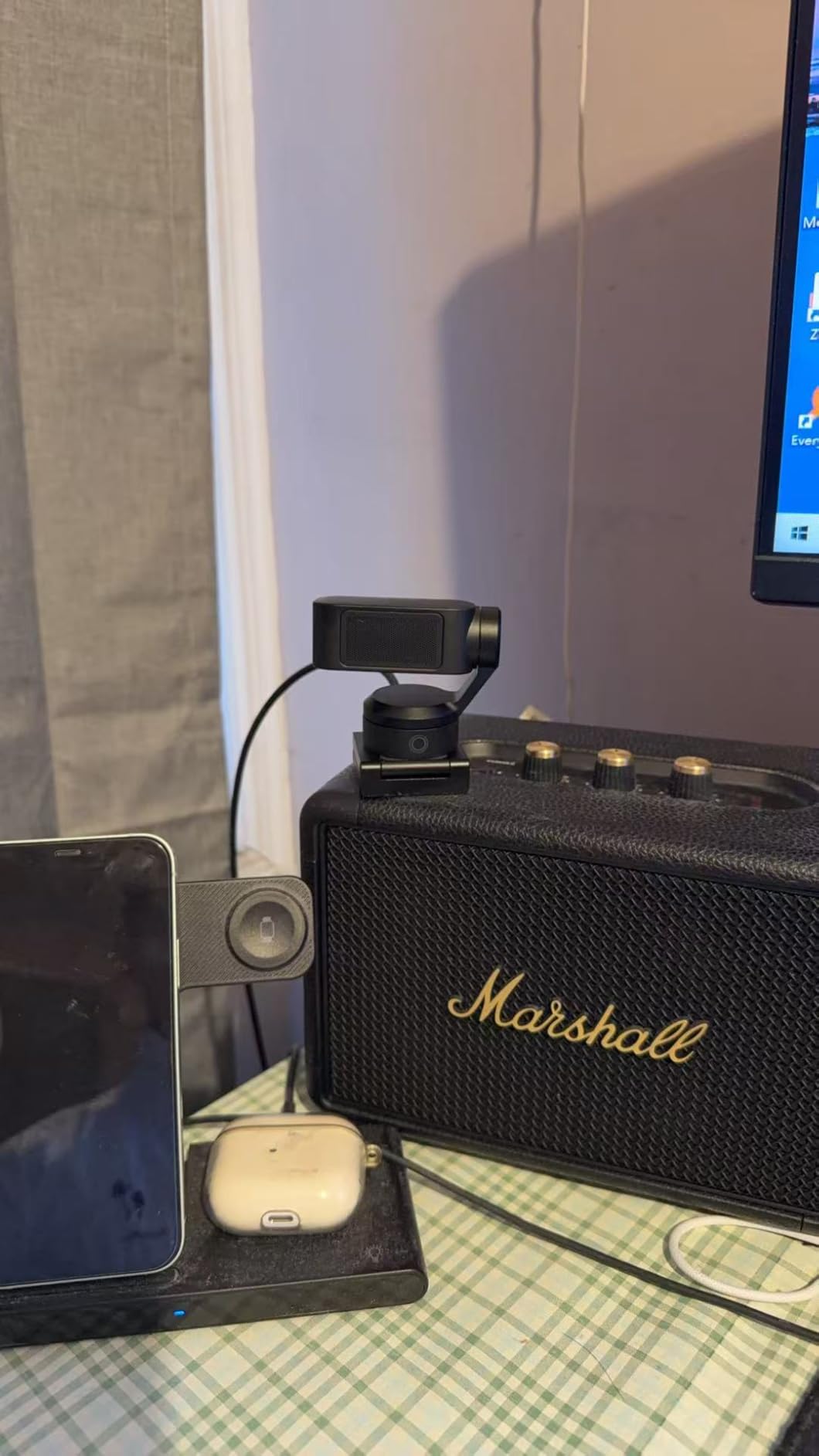
The DeskView and Whiteboard modes are useful for professionals. I tilted the camera down to show sketches on my desk, and the software corrected the perspective automatically. The whiteboard mode tracked a sheet of paper on my wall and kept it in frame. These are features you will not find on most competing models.
The privacy mode is thoughtful. After ten seconds of inactivity, the camera tilts down automatically. You do not need to remember to cover the lens. I found this reassuring on days when I had back-to-back meetings and sometimes forgot to close the camera manually.
Best For Content Creators and Presenters
The Link 2 is ideal for YouTubers, online instructors, and business professionals who want premium quality without setting up a full camera rig. The AI tracking and gesture controls make solo presentations feel polished. The 4K resolution gives you room to crop in post-production without losing clarity.
Mac users will appreciate the full software support. The Link Controller app runs smoothly on macOS and gives you fine control over exposure, white balance, and gimbal speed. This is not always a given with premium webcams, many of which only offer full features on Windows.
Who Should Skip It
If you use an ARM-based Windows device, this camera is not compatible. I also wish it supported Windows Hello for facial recognition login. The camera gets warm during long recording sessions, though it never became hot enough to concern me.
The price is steep for casual users. If you only need a webcam for occasional team check-ins, you do not need to spend this much. The EMEET C960 or Logitech C920x will serve you well at a lower price point.
3. EMEET C960 4K – Unbeatable Value for True 4K
EMEET C960 4K Webcam for PC, 4K UHD CMOS Sensor, PDAF Auto Focus, Dual Omnidirectional Mics, Auto Light Correction, 73° FOV, Plug&Play Webcam w/Privacy Cover, Works w/Zoom/Teams/Skype/Google Meet
True 4K UHD
PDAF auto focus
73 degree FOV
Dual mics
Privacy cover
Pros
- Sharp 4K video
- Great value
- Plug and play
- Privacy cover included
- Wide angle
Cons
- Defaults to 1080p
- Auto brightness weak
- Sharpness issues in low light
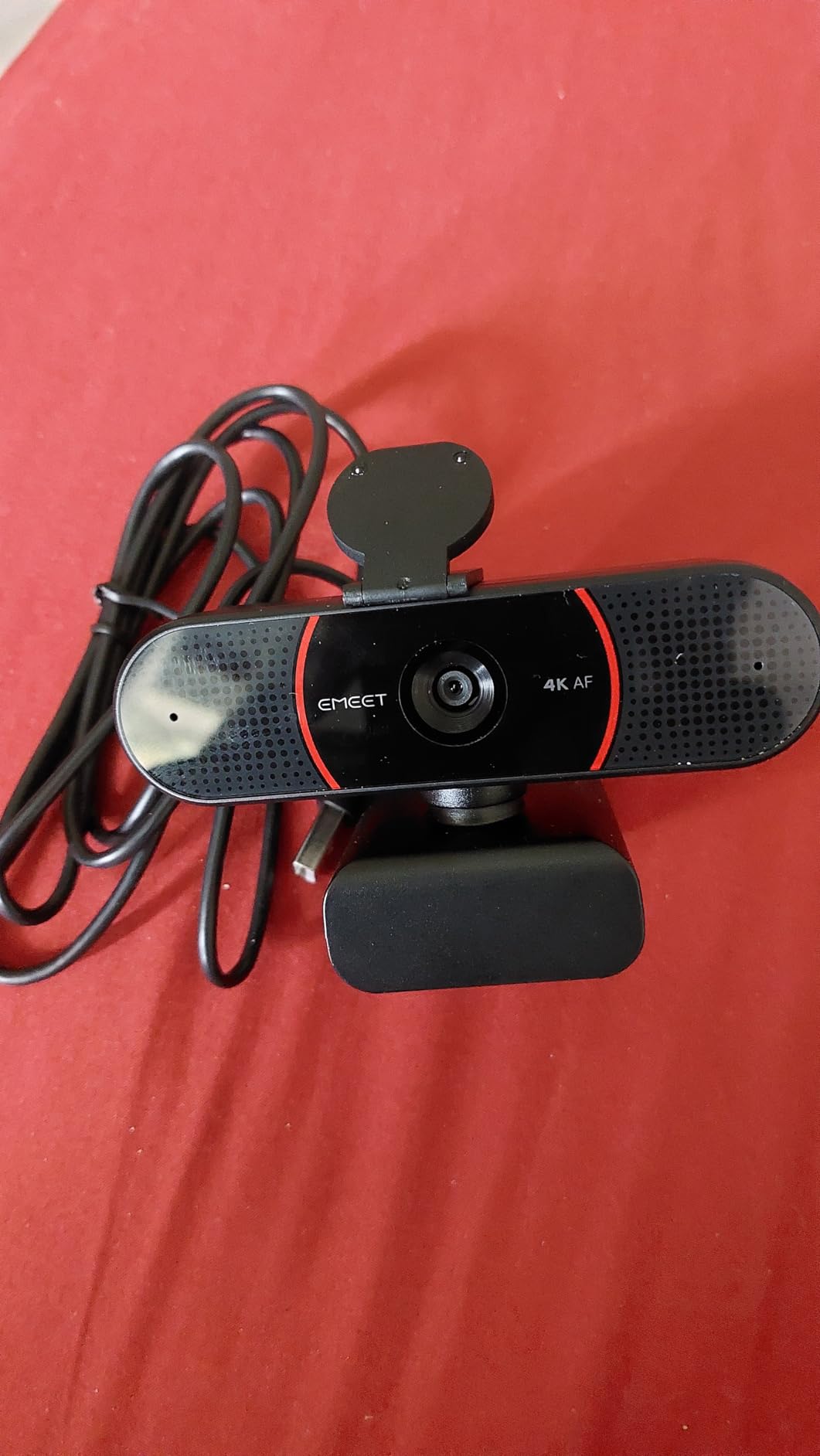
I tested the EMEET C960 for two weeks of daily Zoom calls. The setup took under 30 seconds. I just plugged it into my USB port and my Mac recognized it immediately. At under $50, this is the only true 4K webcam I have found that does not feel like a compromise.
The PDAF autofocus is fast and accurate. I moved a document in front of the camera, and the focus shifted without hunting. In video calls, my face stayed sharp even when I leaned back in my chair. This is a feature that many budget cameras get wrong, but the C960 handles it well.
The 73-degree field of view captures a comfortable amount of background. I could fit two people side by side during a couple’s call. The dual omnidirectional microphones are surprisingly good for the price. My call partners said I sounded clear, though they could tell the mic was not studio quality.
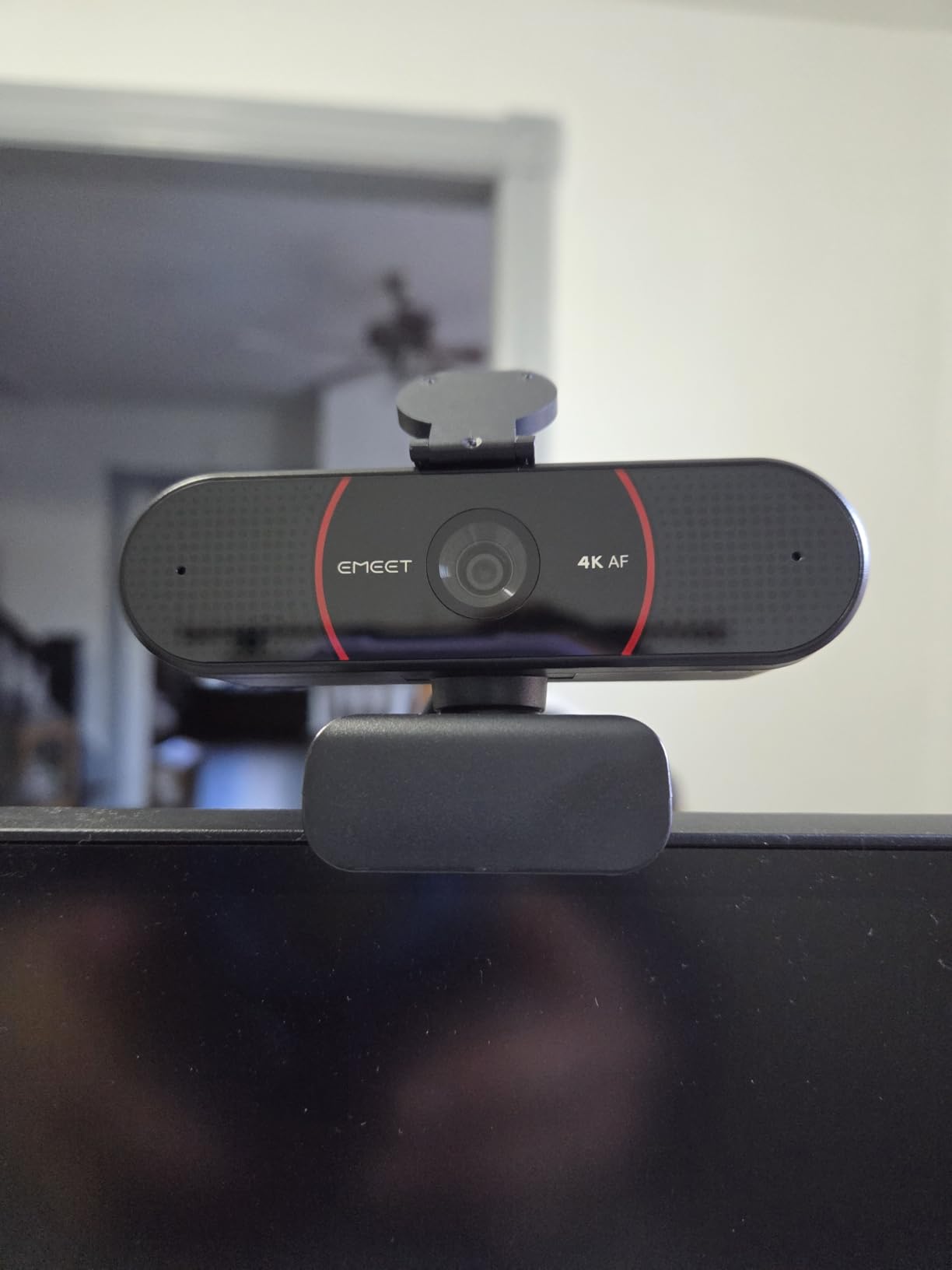
The privacy cover is a physical slider that clicks into place. I prefer this over software-only privacy modes. When the cover is closed, you know for certain the camera is blocked. The 360-degree horizontal adjustment and 15-degree vertical tilt also make it easy to position the camera exactly where you want it.
One quirk to note: the camera defaults to 1080p out of the box. You need to open the EMEET software or your video app’s settings to enable 4K. This is not difficult, but it is easy to miss if you expect 4K immediately. Once switched, the difference is noticeable. Text on whiteboards and details in clothing look much sharper.
Best For Budget Buyers Who Want 4K
If you want 4K resolution without spending over $100, the C960 is the obvious choice. It ranks as the number two best seller in webcams, and our testing confirms why. The combination of true 4K, fast autofocus, and a privacy cover at this price is hard to beat.
The 1/4-inch tripod thread is a nice touch for creators who want to mount it on a stand. I used it on a small tripod for a standing desk setup, and the threaded mount felt secure. This flexibility is rare in the budget segment.
Who Should Skip It
The auto light correction is not as sophisticated as Logitech’s RightLight or Razer’s adaptive sensor. In a dim room, the image can look slightly soft. If you work in variable lighting conditions throughout the day, you may prefer the Anker PowerConf C200 or a premium option.
Streamers who need 60fps will be disappointed. The C960 is limited to 30fps even at 1080p. For smooth gameplay footage, look at the OBSBOT Meet 2 or Razer Kiyo Pro instead.
4. OBSBOT Meet 2 – Compact 4K Powerhouse
OBSBOT Meet 2-4K Webcam for PC with 1/2" Sensor, AI Framing & Autofocus, Beauty Mode, Lightweight, Gesture Control, HDR, Dual Microphone, 60 FPS, Web Cam for Streaming, Meeting, Gaming. (Space Grey)
4K 60fps
1/2 inch sensor
AI framing
Beauty mode
HDR
Pros
- Exceptional 4K image
- Compact 40g design
- AI framing works well
- Good low light
- Premium metal build
Cons
- Mounting stand weak
- Gets warm
- Average microphone
- Auto-focus slow
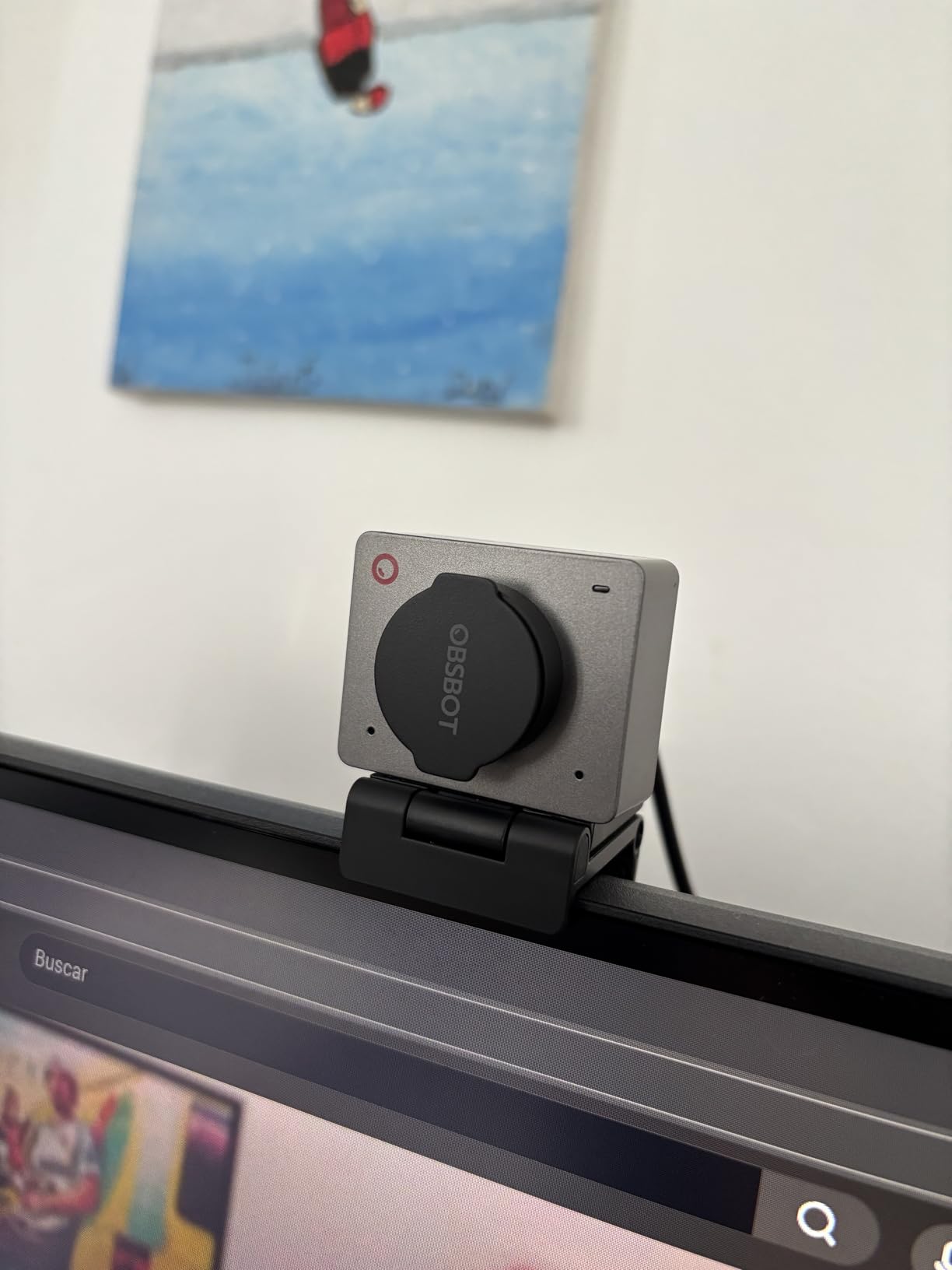
The OBSBOT Meet 2 is the smallest 4K webcam I have tested. At just 40.5 grams, it is lighter than a AA battery. I attached it to my laptop for a week of travel, and I barely noticed it was there. The aluminum body feels premium despite the tiny size.
The 4K video at 60fps is smooth and detailed. In fast-moving presentations, the motion stays crisp without the blur you see on 30fps cameras. The AI framing tracks your face and keeps you centered even if you shift position. I tested this by walking around my desk during a mock presentation, and the framing stayed accurate.
The beauty mode is subtle. It smooths skin tones without making you look like a plastic doll. I tried it during a client call and received compliments on how clear I looked. If you do regular video calls with prospects or executives, this feature helps you look polished without effort.
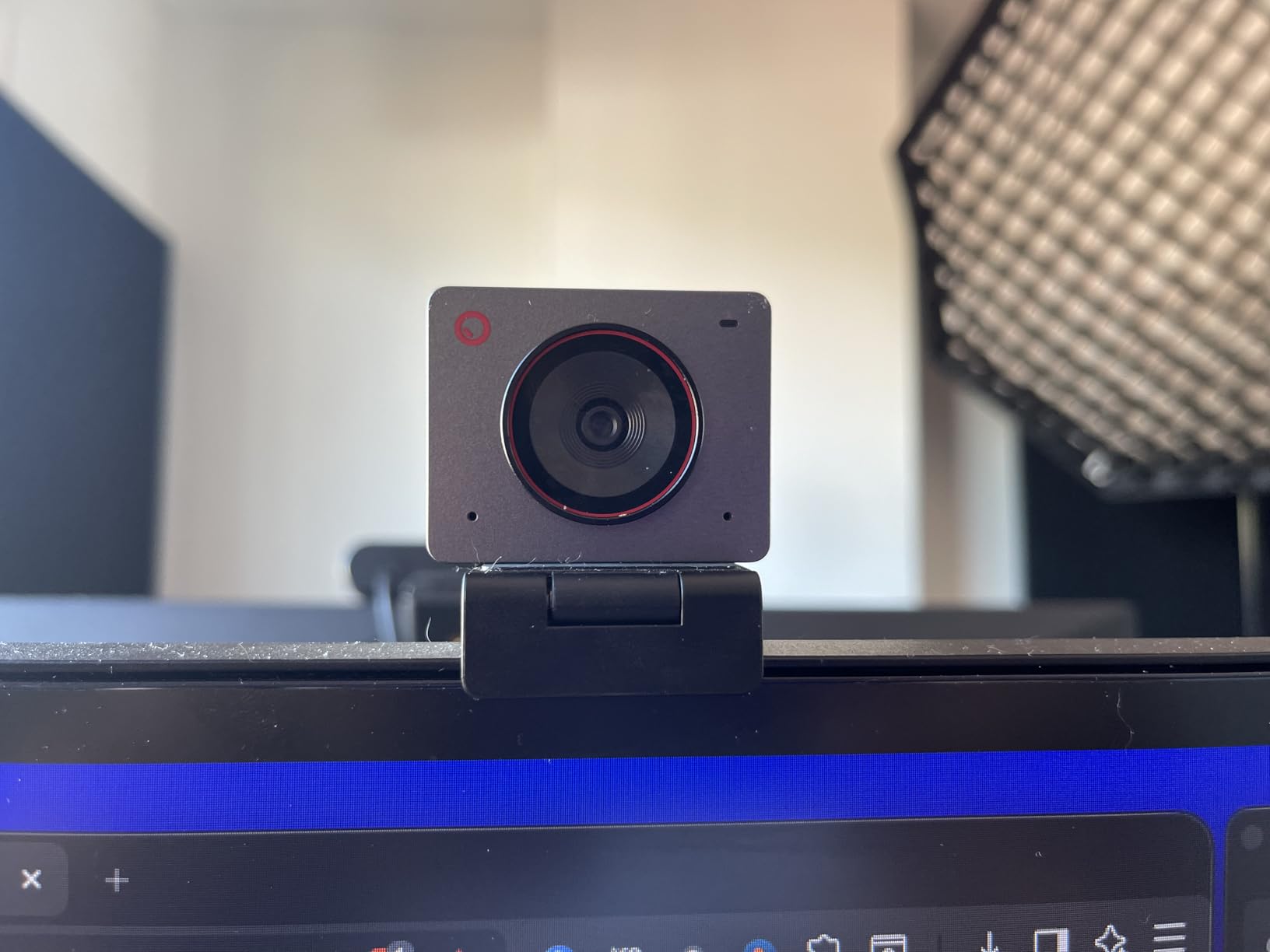
The OBSBOT Center software gives you full control over the camera. You can adjust exposure, white balance, and gimbal speed. The gesture control 2.0 system recognizes hand movements for zoom and framing. I found it useful during presentations when I did not want to touch the keyboard.
The built-in dual microphones are adequate for calls. They capture your voice clearly in quiet rooms, but they struggle with background noise. For podcasting or professional recordings, you should use a dedicated USB microphone. The camera is really about the video, and the video delivers.
Best For Travelers and Mobile Professionals
The Meet 2 is ideal for people who work from multiple locations. The tiny size and USB-C plug-and-play design mean you can toss it in a bag and set it up anywhere. The 60fps output is also great for streamers who want smooth motion without a bulky camera.
The metal build quality gives me confidence that it will survive travel. The mount is not perfect, but the camera itself is solid. I would rather carry this than a larger 4K webcam on business trips.
Who Should Skip It
The included mounting stand is the weakest part of the package. It wobbles on thin monitors and can slip if you bump the desk. I ended up using a third-party tripod mount for better stability. Also, the autofocus takes a couple of seconds to lock in when you first start a call. This is not a dealbreaker, but it can be annoying if you jump on calls frequently.
If you need a built-in microphone for high-quality audio, look elsewhere. The mic is fine for quick calls, but it will not replace a dedicated audio setup. Content creators who care about sound should budget for a separate mic.
5. Logitech Brio 4K – Professional Grade with Windows Hello
Logitech Brio 4K Webcam, Video Calling, Noise-Cancelling mic, HD Auto Light Correction, Wide Field of View, Windows Hello Works with Microsoft Teams, Zoom, Google Meet, PC/Mac/Laptop/MacBook/Tablet
4K 30fps
RightLight 3
Adjustable FOV
Windows Hello
Noise-canceling mic
Pros
- Exceptional 4K video
- Excellent light correction
- Windows Hello support
- Wide FOV options
- Clear audio
Cons
- Flimsy privacy shutter
- Thick USB cable
- Gets warm
- Premium price
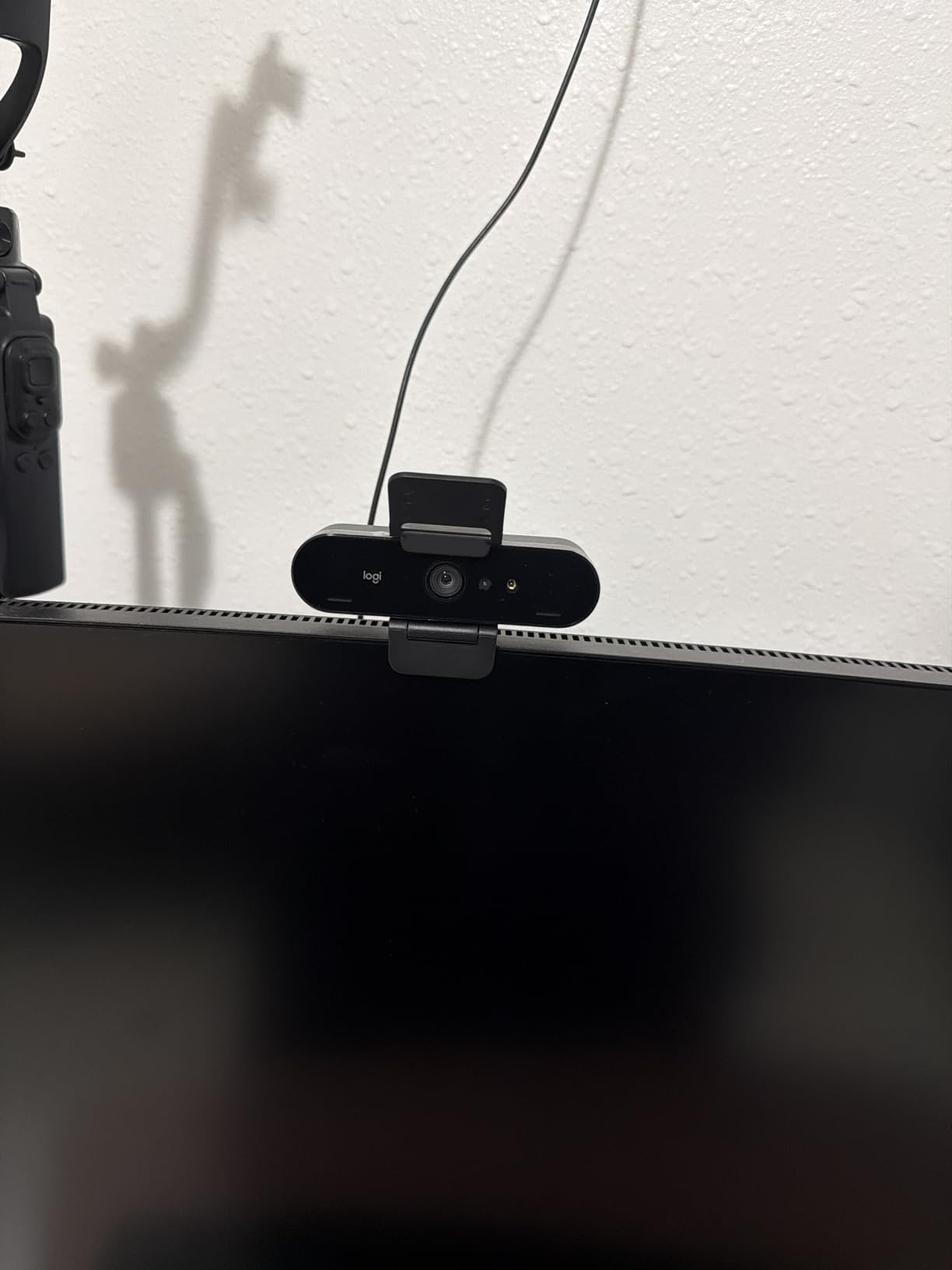
The Logitech Brio has been a professional standard for years, and the latest version maintains that reputation. I used it for a month of Microsoft Teams meetings, and it never let me down. The 4K video is crisp, and the RightLight 3 auto correction handles changing office lighting better than almost any competitor.
The Windows Hello integration is a genuine productivity boost. I sat down at my desk, and the camera logged me in before I touched the keyboard. The optical and infrared sensors work reliably in both bright and dim conditions. If you value security and convenience, this feature alone can justify the price.
The three adjustable field of view presets are practical. I set 65 degrees for solo calls, 78 degrees for group meetings, and 90 degrees when I needed to show my desk. You switch between them in the Logi Options+ app. The app is clean and does not overwhelm you with settings.
The noise-canceling dual microphones are among the best I have tested on a webcam. My colleagues said my voice sounded fuller and less echoey than with my laptop mic. The microphone also suppresses keyboard typing and mouse clicks reasonably well. For home offices with some background noise, this is a noticeable improvement.
The 5x digital zoom is useful for showing details. I zoomed in on a product sample during a client call, and the image stayed readable. At 4K, you have enough resolution to crop without losing too much quality. This is a feature that remote sales teams and consultants will appreciate.
Best For Business Professionals and Telehealth
The Brio is built for people who need reliable, professional-grade video every day. The Windows Hello support, 4K resolution, and excellent microphone make it ideal for telehealth providers, consultants, and executives. It is also certified for Teams and Zoom, which matters in corporate environments.
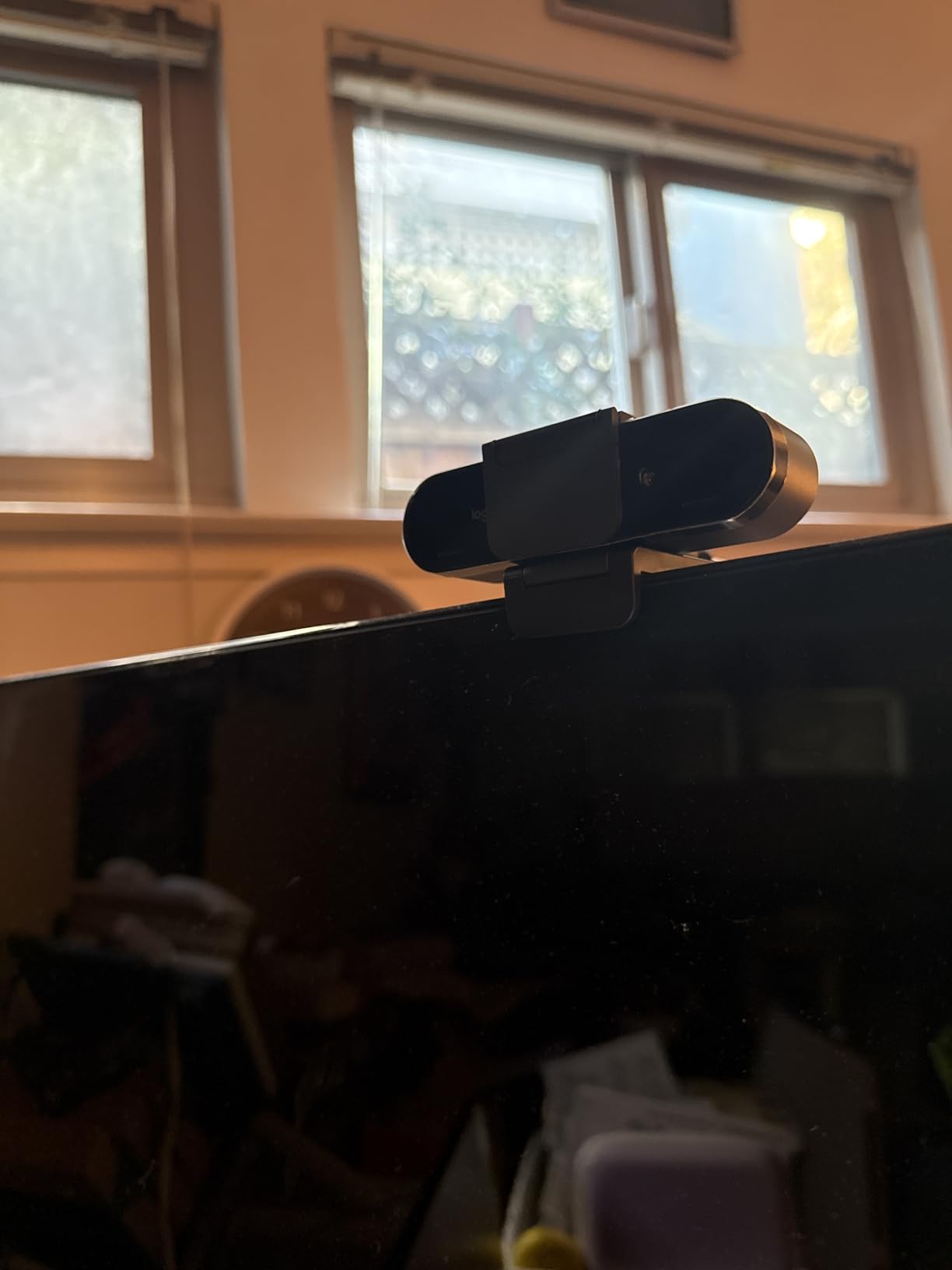
The attachable privacy shutter is included, though I found it flimsy. I prefer to use software mute when possible. The thick USB cable is durable but stiff. It stays where you put it, which is good for cable management, but it does not bend easily around tight corners.
Who Should Skip It
The Brio is expensive for casual users. If you only make a few video calls per week, the C920x or Anker C200 will save you money without a major drop in quality. Also, the camera gets warm during long sessions. It never overheated in my testing, but the aluminum body becomes noticeably warm to the touch.
Mac users do not get Windows Hello, obviously. The rest of the camera works fine on macOS, but you lose one of the key selling points. If you are all-in on Apple, the Insta360 Link 2 or MX Brio may be better matches.
6. Logitech MX Brio Ultra HD 4K – AI-Enhanced for Collaboration
Logitech MX Brio Ultra HD 4K Webcam for Collaboration and Streaming, 1080p 60 FPS, Show Mode, Works with Microsoft Teams, Zoom, Google Meet, Nintendo Switch 2, Graphite
4K 30fps or 1080p 60fps
AI-enhanced image
Show mode
Privacy cover
USB-C
Pros
- Excellent 4K quality
- Strong virtual background
- Good low light
- Flexible FOV
- Sturdy build
Cons
- Software fragmentation
- Short cord
- Sticky mount issues
- Bright at 4K
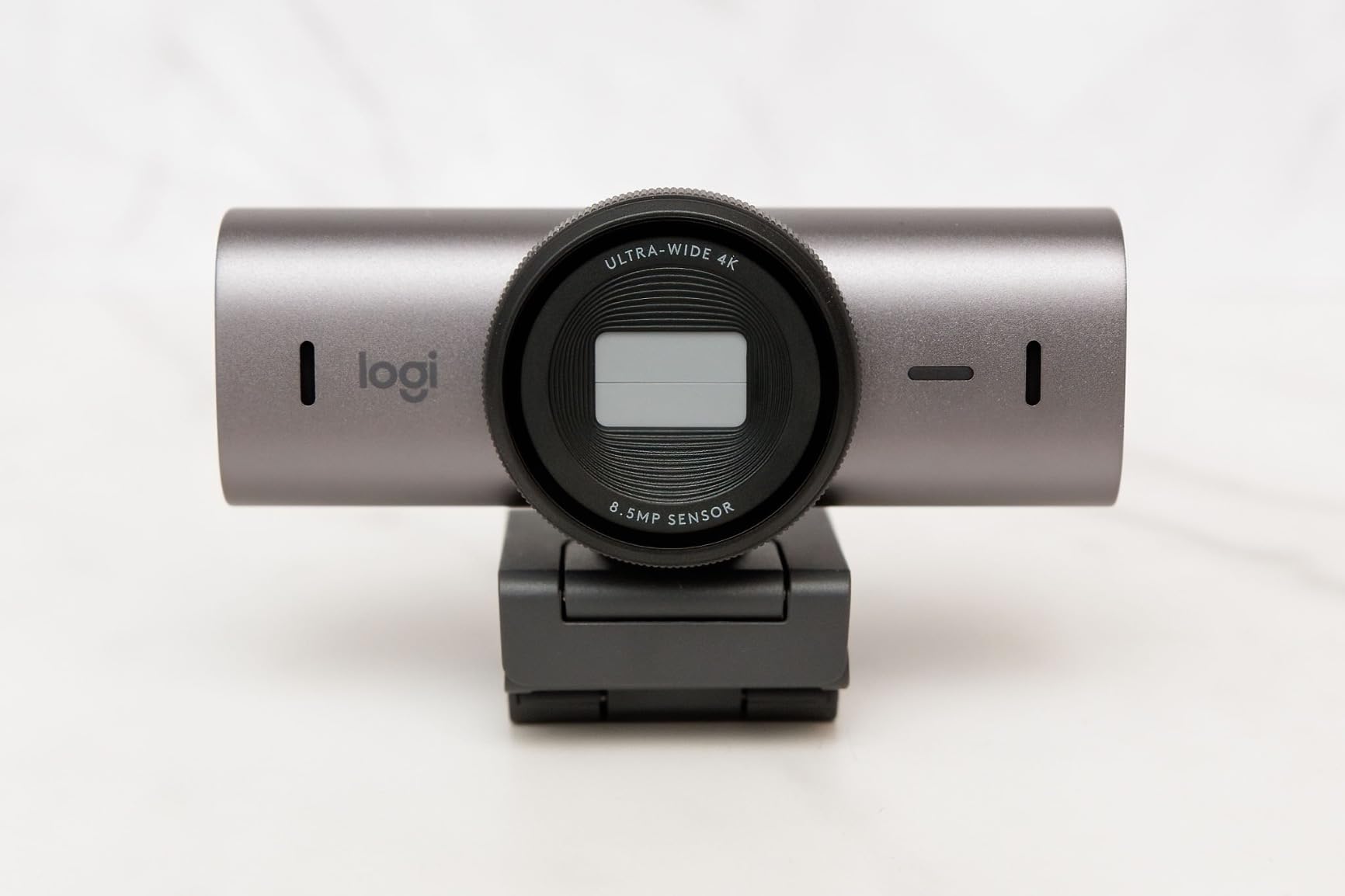
The Logitech MX Brio is the newest flagship in the Logitech lineup, and it brings meaningful upgrades over the standard Brio. I tested it for three weeks in a shared office and at home. The AI-enhanced image processing is the standout feature. Faces stay visible even in difficult side-lighting that makes other cameras look harsh.
The 70 percent larger pixels help with low-light performance. In my evening calls, the image stayed clean without the grain I expected from a 4K sensor. The auto-exposure and auto-white balance react quickly. When I turned on a desk lamp mid-call, the camera adjusted in about two seconds without overcorrecting.
Show Mode is genuinely useful. I tilted the camera down to share notes on my desk, and the software corrected the perspective so the paper looked flat on screen. This is a feature I did not know I needed until I used it. For teachers, designers, and anyone who shares sketches or documents, it saves the trouble of scanning or holding paper up to the camera.
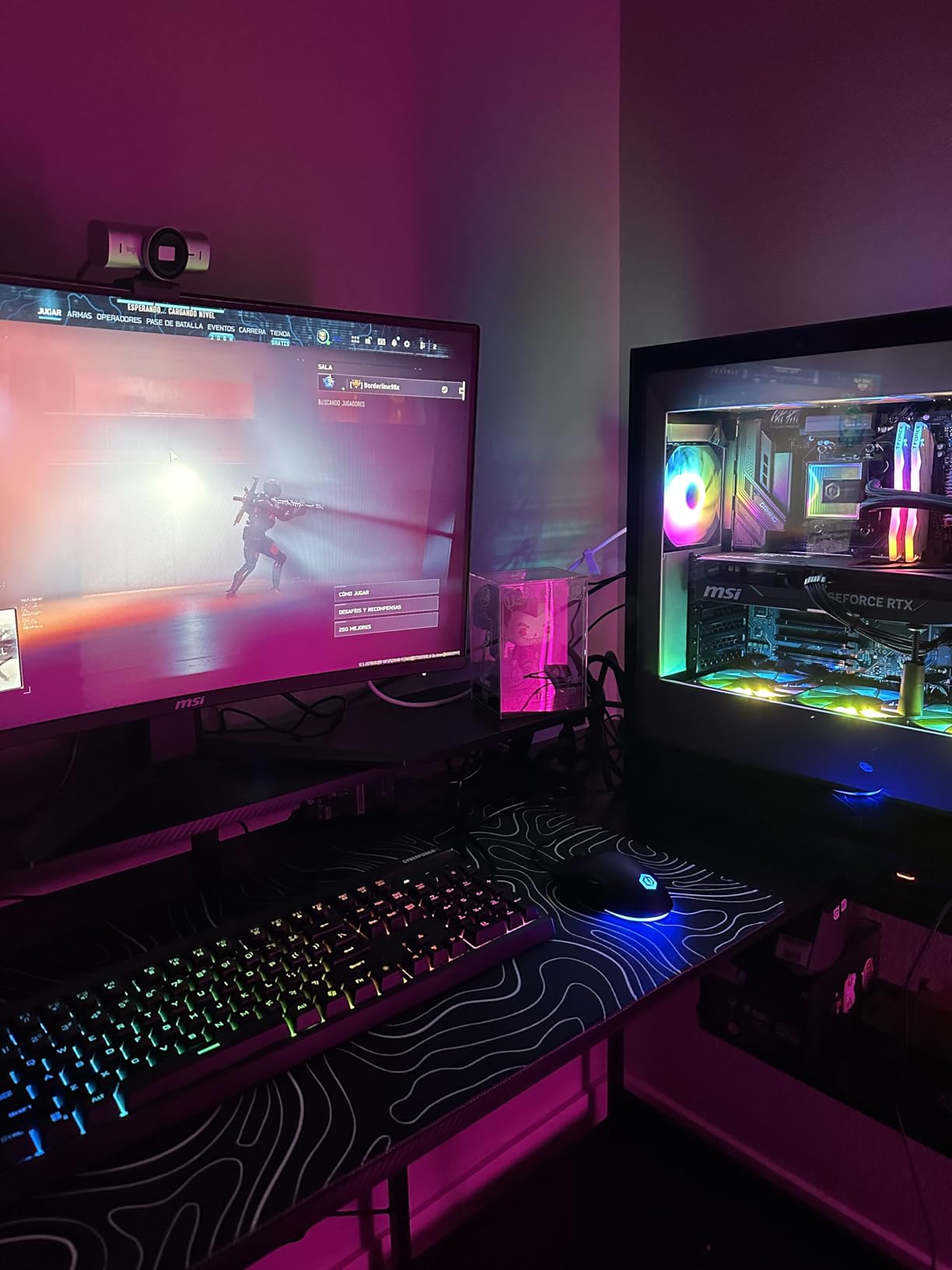
The virtual background and portrait segmentation are strong. I used it in a cluttered room, and the background blur looked natural around my hair and shoulders. The built-in privacy cover is integrated into the housing. You slide a small tab, and the lens is physically covered. It feels more secure than the detachable shutter on the older Brio.
The fine controls for ISO, shutter speed, tint, and vibrance are available in Logi Tune. If you like to tweak your image manually, you have the tools. I left most settings on auto and was happy with the results. For creators who want a specific look, the manual controls are a welcome addition.
Best For Hybrid Workers and Content Creators
The MX Brio is ideal for people who split time between home and office. The compact size travels well, and the USB-C cable is modern. It is also certified for Zoom, Teams, Google Meet, and Streamlabs. No matter what software your company uses, this camera will work.
The Show Mode and strong background removal make it a solid choice for creators who want professional results without buying a separate camera and capture card. The 1080p at 60fps option is also great for smooth streaming if you do not need 4K.
Who Should Skip It
The software situation is fragmented. Logitech has Logi Tune, G Hub, and Options+ spread across different products. The MX Brio uses Logi Tune, which is fine, but it can be confusing if you own other Logitech devices. The included USB-C cable is also short. If your PC is under the desk, you may need an extension.
The sticky mount pad works well on most monitors, but it slipped on a textured monitor bezel. I used a small tripod instead. Also, the 4K image can look slightly bright for some tastes. I dialed the exposure down a notch in Logi Tune, and it looked perfect.
7. Anker PowerConf C200 – Best Low-Light Performance Under $60
Anker PowerConf C200 2K Webcam for PC/Laptop/Mac, Computer Camera, Low-Light Correction, AI-Noise Canceling Mics, Adjustable Field of View, Built-in Privacy Cover, Stereo Mics, for Meeting
2K resolution
AI noise cancellation
Adjustable FOV
Low-light correction
Privacy cover
Pros
- Sharp 2K video
- Excellent low light
- AI noise cancellation
- Adjustable FOV
- Great value
Cons
- Basic software
- AF struggles in low light
- Image artifacts in dark
- No instruction manual
The Anker PowerConf C200 has become one of the most popular webcams on the market, and after testing it for ten days, I understand why. It delivers 2K resolution at a price that competes with basic 1080p models. The image is noticeably sharper than the C920x in good lighting, and the low-light correction is excellent for the price.
I tested it in a room with only one desk lamp at 9 PM. The C200 kept my face visible and natural, while the C920x turned grainy in the same conditions. The AI noise cancellation on the dual microphones also works. I played music in the background at low volume, and my call partner said they could not hear it. For open-plan offices or noisy homes, this is a real advantage.
The adjustable field of view is controlled through software. You can choose 65, 78, or 95 degrees depending on how much background you want to show. I used 95 degrees for family calls when my kids wanted to squeeze in. The 65-degree setting is perfect for solo professional calls where you want to minimize distractions.
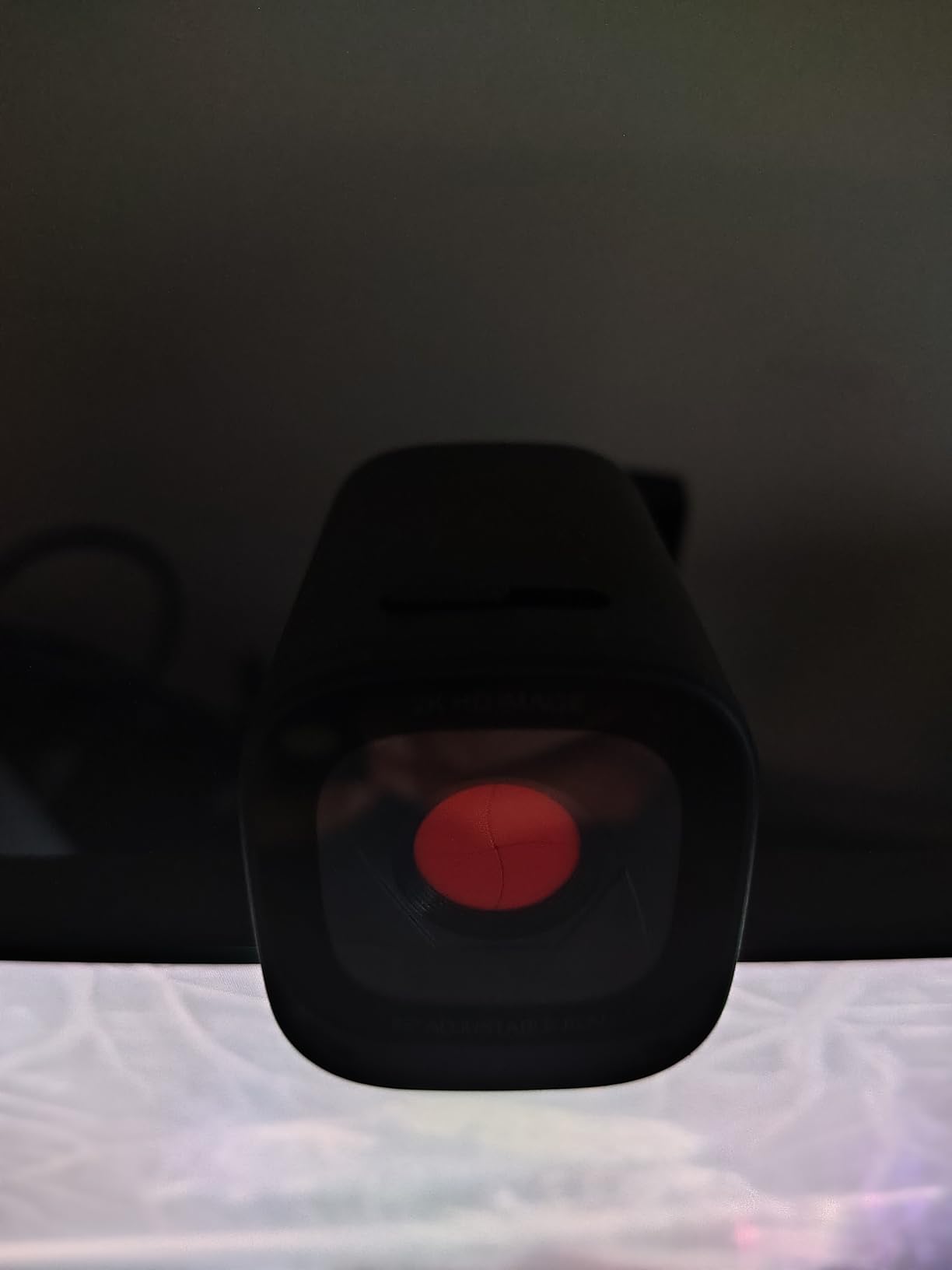
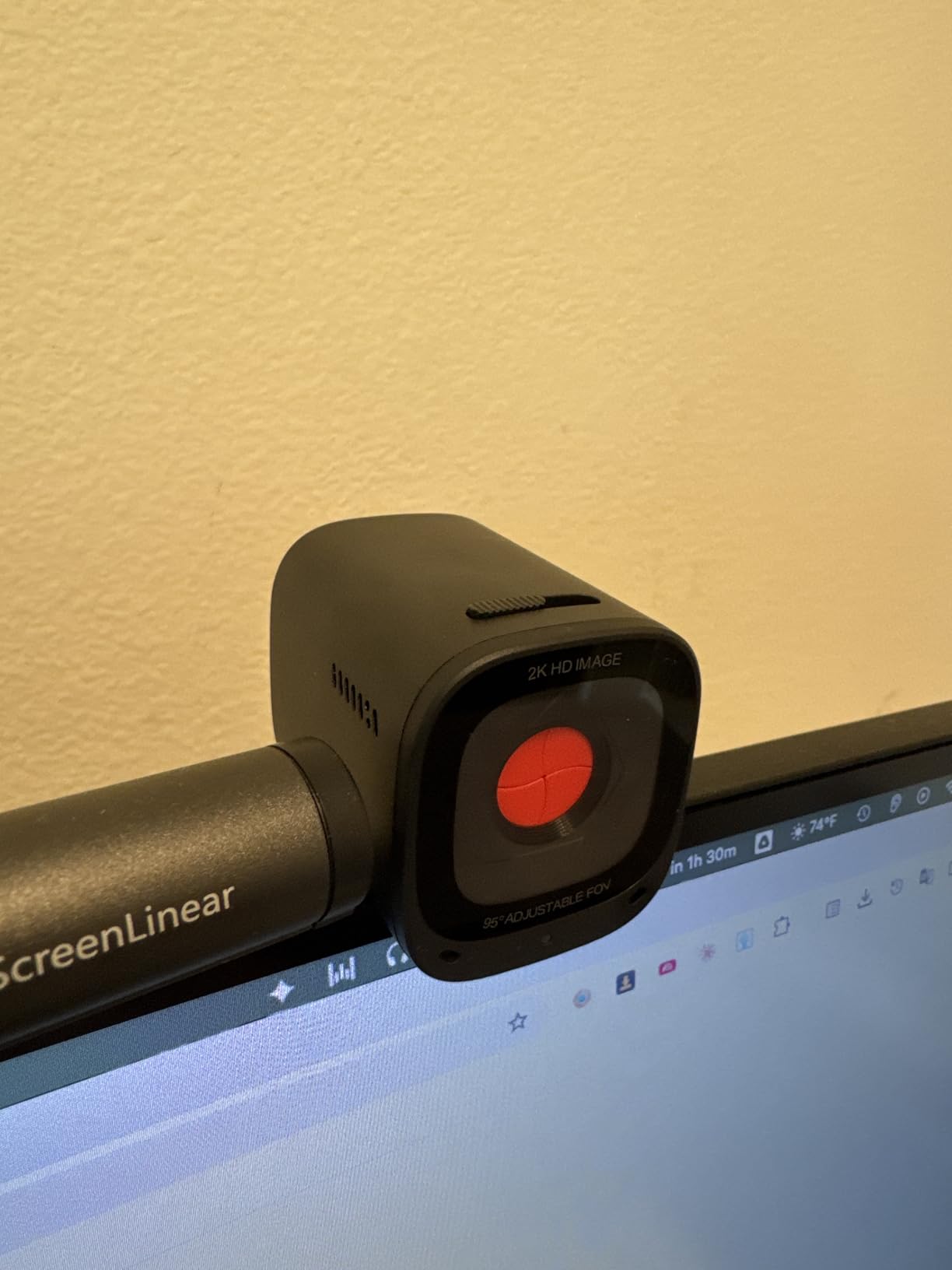
The privacy cover is integrated into the housing. You slide a small switch, and the lens disappears behind a black panel. This is more convenient than detachable covers that get lost in drawers. The compact design also looks good on modern monitors. It does not stick out awkwardly like some bulkier models.
The plug-and-play setup works on Windows and macOS. Anker claims compatibility back to Windows 7 and macOS 10.11, which is generous. I tested it on Windows 11 and macOS Ventura with no issues. The 360-degree stereo pickup pattern is helpful if you move around while talking.
Best For Home Offices with Variable Lighting
If your home office gets bright morning sun and dim evening light, the C200 handles both well. The 2K resolution is a sweet spot for most users. It looks sharper than 1080p on modern monitors without the bandwidth demands of 4K. For remote workers who spend hours on video calls, this is the best balance of price and performance.
The Anker brand also carries weight. With over 9,000 reviews, this camera has proven reliability. The 18-month warranty is longer than the industry standard, which gives extra peace of mind.
Who Should Skip It
The Anker software is basic and sometimes has login issues. I did not need it for basic use, but if you want to fine-tune settings, the interface is frustrating. Also, the autofocus can hunt in very low light. It is better than most budget cameras, but not perfect.
If you need 4K for content creation or professional recording, the C200 will not satisfy you. It is a 2K camera that excels at video calls, not a production tool. Streamers and YouTubers should look at the Insta360 Link 2 or Elgato Facecam instead.
8. NexiGo N680E Pro 4K – Built-In Ring Light for Perfect Lighting
NexiGo N680E Pro 4K Webcam with Ring Light, PDAF Autofocus, 1080p 60FPS, Dual Noise-Canceling Mics, Privacy Shutter, USB Plug-and-Play for Zoom, Teams, Twitch, Google Meet
4K UHD
1080p 60fps
PDAF autofocus
Ring light
Privacy shutter
Pros
- Excellent 4K quality
- Fast PDAF focus
- Built-in ring light
- Plug and play
- Good value
Cons
- Software hit or miss
- Ring light not bright enough
- Color washed out
- Microphone average
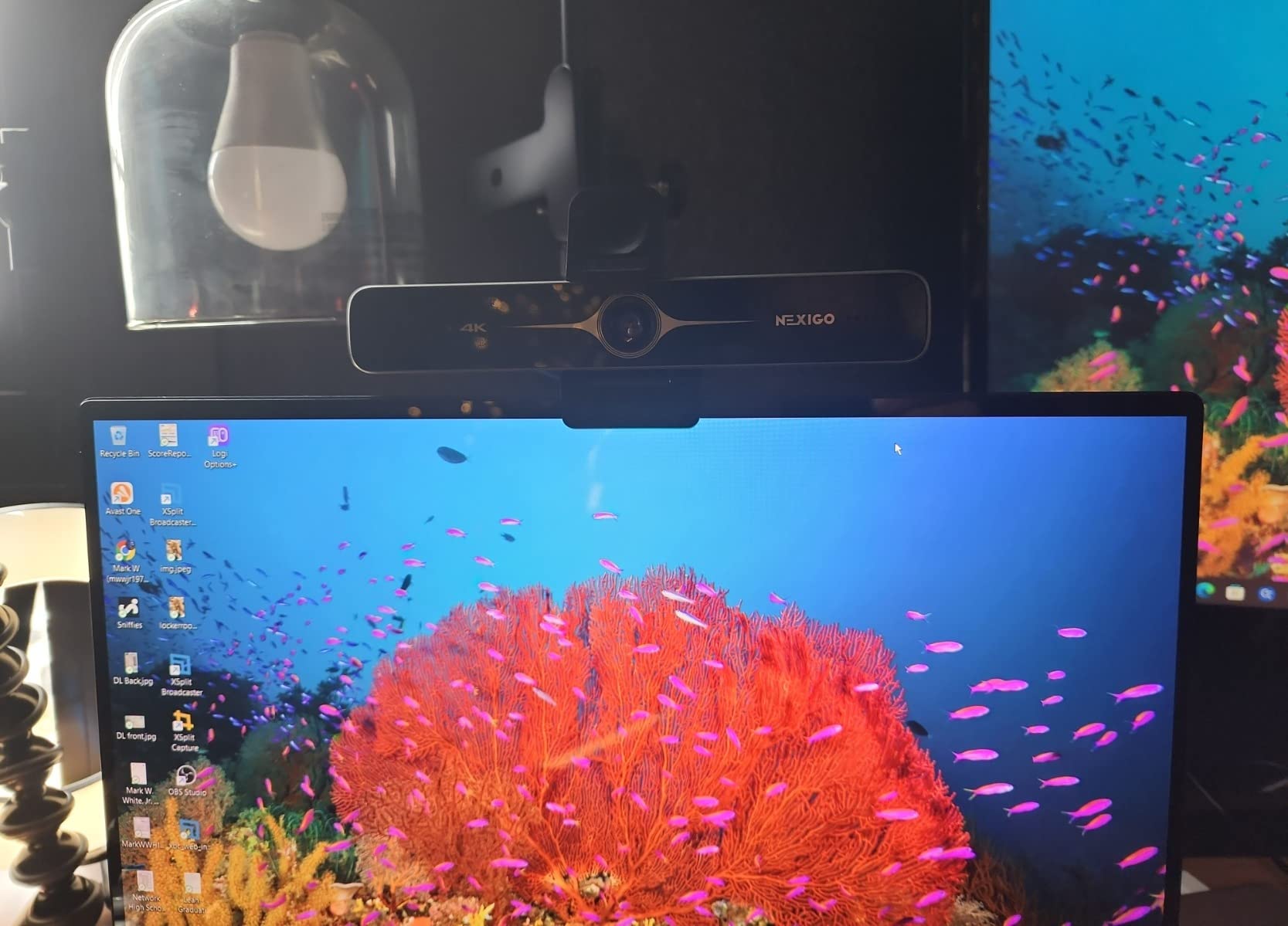
The NexiGo N680E Pro solves a problem that most webcam buyers ignore: lighting. The built-in tri-tone ring light wraps around the lens and gives you adjustable illumination in three color temperatures. I tested it in a room with no windows, and the ring light was enough to make me look presentable without a separate lamp.
The 4K quality from the Sony 1/2.5-inch sensor is excellent for the price. The PDAF autofocus is faster than contrast-based systems on cheaper cameras. I waved a hand in front of the lens, and the focus locked back onto my face within a second. For presenters who gesture a lot, this responsiveness matters.
The 1080p at 60fps mode is a nice option for streamers. You sacrifice 4K resolution, but the motion is buttery smooth. I tested this in OBS, and the 60fps output worked without dropped frames. The 80-degree field of view is slightly wider than the C920x, which helps if you want to show more of your workspace.
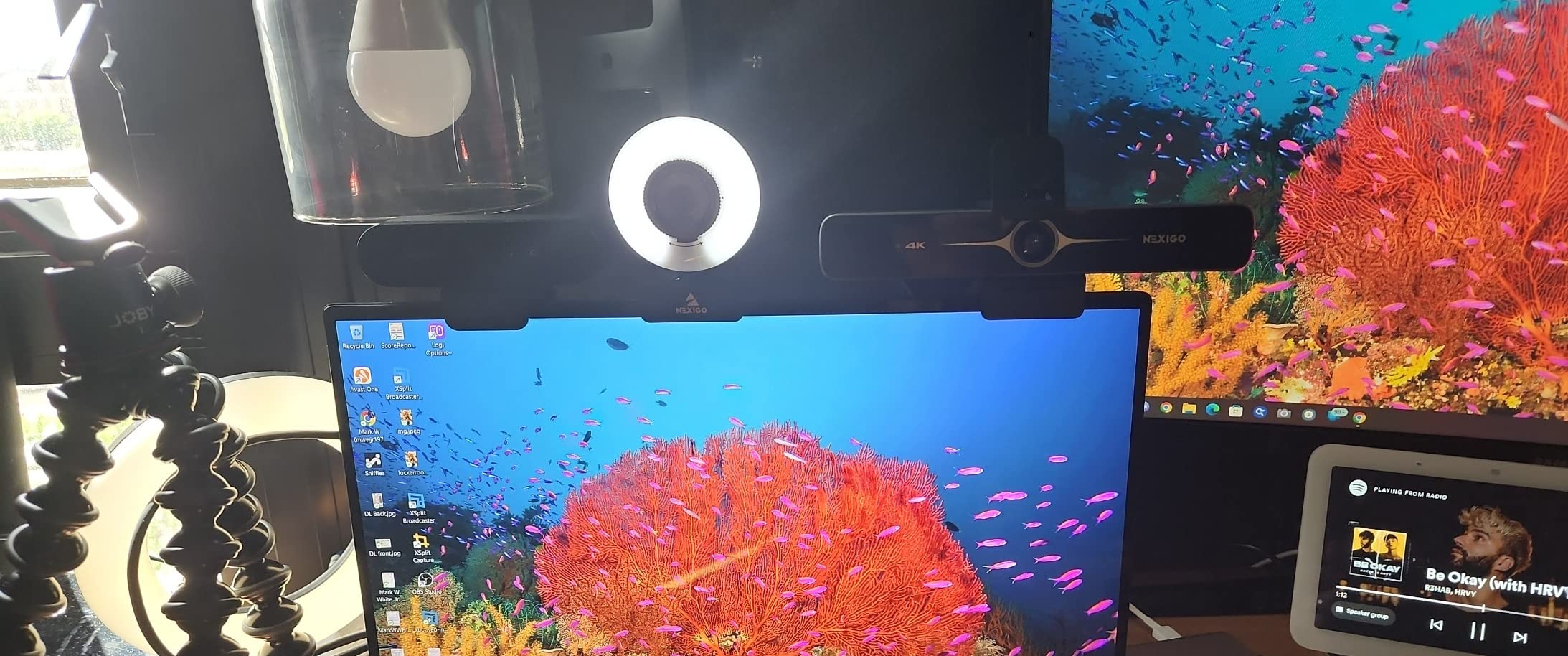
The privacy shutter is a physical switch that covers the lens. It feels solid and does not rattle. The USB-A plug-and-play design means no drivers and no USB-C adapter headaches. The standard 1/4-inch tripod mount is also included, which is great for standing desk setups or overhead mounting.
The dual noise-reducing microphones are acceptable. They capture voice clearly in quiet rooms, but they do not compete with dedicated mics. If you are buying this camera, you are buying it for the ring light and the 4K sensor. The microphone is a bonus that works for casual calls.
Best For Creators Without Studio Lighting
If you do not have a ring light or softbox, the N680E Pro is the easiest way to look good on camera. The built-in light is not as bright as a professional ring light, but it is enough for home offices and small rooms. The adjustable color temperature also lets you match your room’s ambient light.
The 4K resolution at under $100 is competitive. The fast autofocus and 60fps option add versatility. For streamers who want a single device that handles video and basic lighting, this is a smart pick.
Who Should Skip It
The NexiGo software is inconsistent. Some users love it, others find it buggy. I had one crash during a settings adjustment, though the camera recovered quickly. The color can also look slightly washed out in warm lighting. I corrected this with a white balance tweak, but it is not ideal out of the box.
If you already own a good desk lamp or ring light, the built-in light becomes less valuable. In that case, the EMEET C960 or Anker C200 offer similar video quality for less money. Also, the ring light creates a distinct circular reflection in glasses. If you wear glasses, you may notice the catchlight.
9. Razer Kiyo Pro – Streamer’s Choice for Low Light
Razer Kiyo Pro Webcam for Streaming, Gaming, Video Calls: Full HD 1080p 60FPS - Adaptive Light Sensor - HDR Enabled - Wide Angle Lens with Adjustable FOV - Works with OBS, Xsplit, Twitch, Zoom, Teams
1080p 60fps
Adaptive light sensor
HDR
Adjustable FOV
USB 3.0
Pros
- Excellent low light
- Smooth 60fps
- HDR colors
- Premium build
- OBS compatible
Cons
- Synapse software issues
- AF hunting
- Average microphone
- Heavy
- Premium price
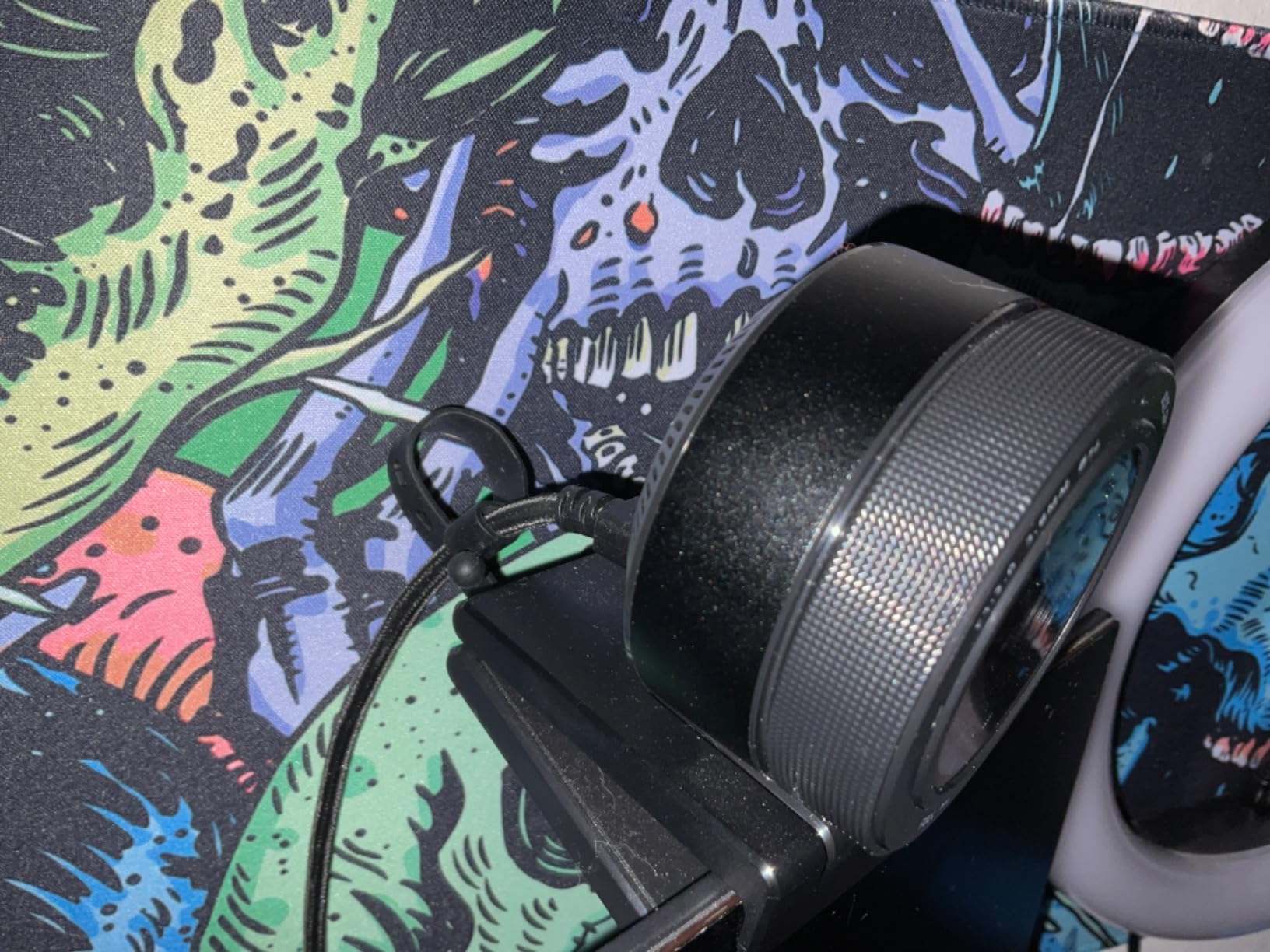
The Razer Kiyo Pro is built for streamers who demand smooth video in imperfect lighting. I tested it for two weeks of evening Twitch streams, and the adaptive light sensor is the best I have used on a 1080p webcam. The f/1.7 wide aperture lens pulls in more light than competitors, and the difference is visible in side-by-side comparisons.
The uncompressed 1080p at 60fps output is a key advantage. The video looks sharper and more natural than compressed feeds from other cameras. In OBS, the image had more detail in hair and fabric textures. The 30fps HDR mode is also available for situations where dynamic range matters more than frame rate. I used HDR during a sunset window stream, and the exposure balanced beautifully.
The adjustable field of view goes up to 103 degrees. This is wide enough to show your keyboard and hands during gameplay streams. I set it to 90 degrees for most uses, which felt natural. The wide aperture lens also creates a pleasant background blur that separates you from messy rooms.
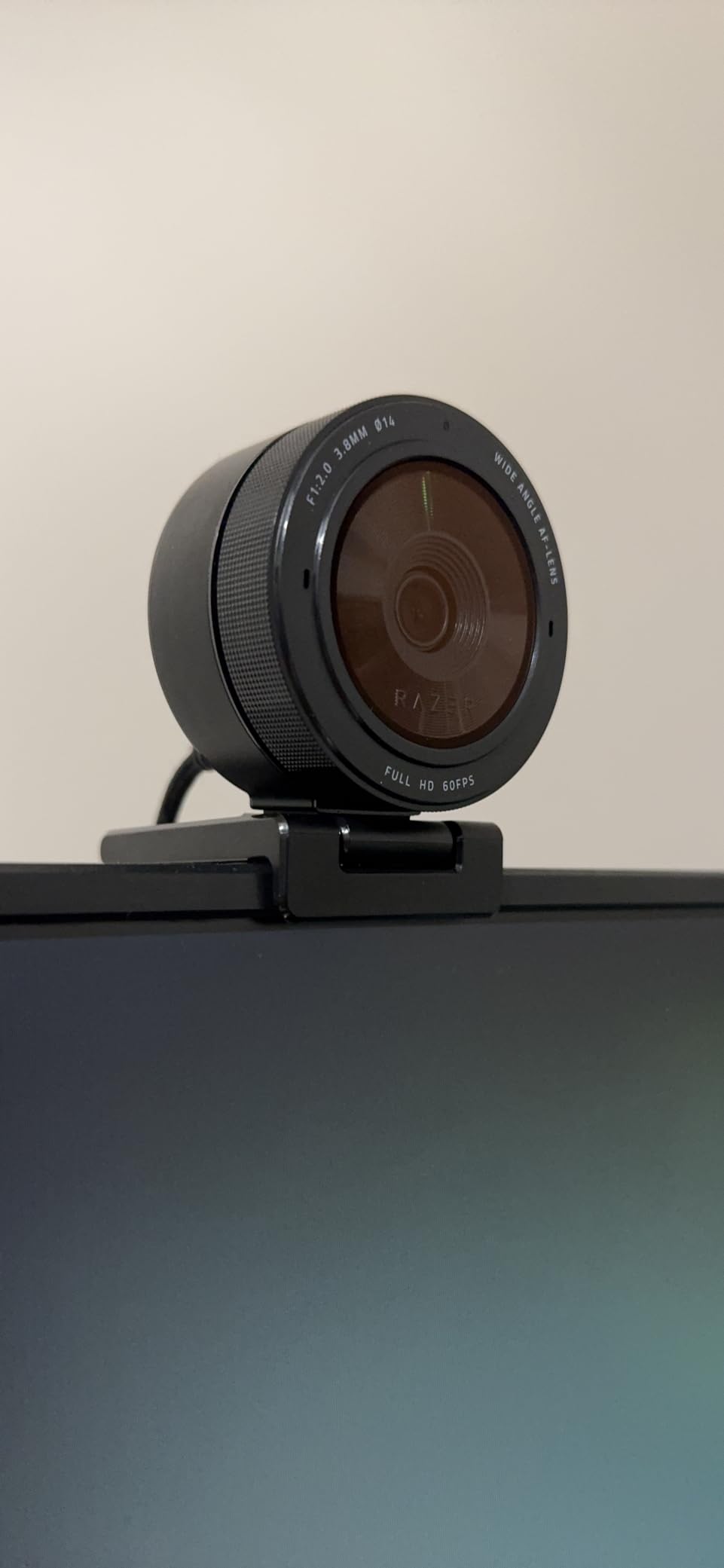
The build quality is premium. The camera is heavy and solid, with a braided USB 3.0 cable. It does not feel like a toy. The included lens cover is also a nice touch for travel. The USB 3.0 connection is required for uncompressed video, so make sure your PC has a USB 3.0 port available.
The Razer Synapse software gives you full control over the camera. You can adjust brightness, contrast, saturation, and field of view. The digital image stabilization also helps if you bump your desk. However, Synapse can be unstable. I had one crash during a stream that required a restart. When it works, it is great. When it breaks, it is frustrating.
Best For Streamers and Gamers
The Kiyo Pro is designed for Twitch streamers and YouTube gamers. The 60fps output, wide FOV, and excellent low-light performance are exactly what streamers need. The OBS compatibility is seamless. I added it as a video source in under a minute, and it worked without custom drivers.
The heavy build stays put on your monitor. It does not wobble when you type aggressively. The cable is long enough to reach behind most desks. For a dedicated streaming setup, the hardware is excellent.
Who Should Skip It
The Razer Synapse software is the biggest weakness. It crashes for some users, and it is required for full functionality. If you hate managing peripheral software, this camera will annoy you. The autofocus also hunts occasionally. During a stream, it refocused on my background twice. I switched to manual focus in Synapse and solved the issue.
The price is high for a 1080p camera. You can get 4K cameras for the same money or less. If you do not need 60fps or extreme low-light performance, the EMEET C960 or NexiGo N680E offer better value. The microphone is also mediocre. Streamers should use a separate mic anyway, but it is worth noting.
10. Elgato Facecam 4K – DSLR Control for Content Creators
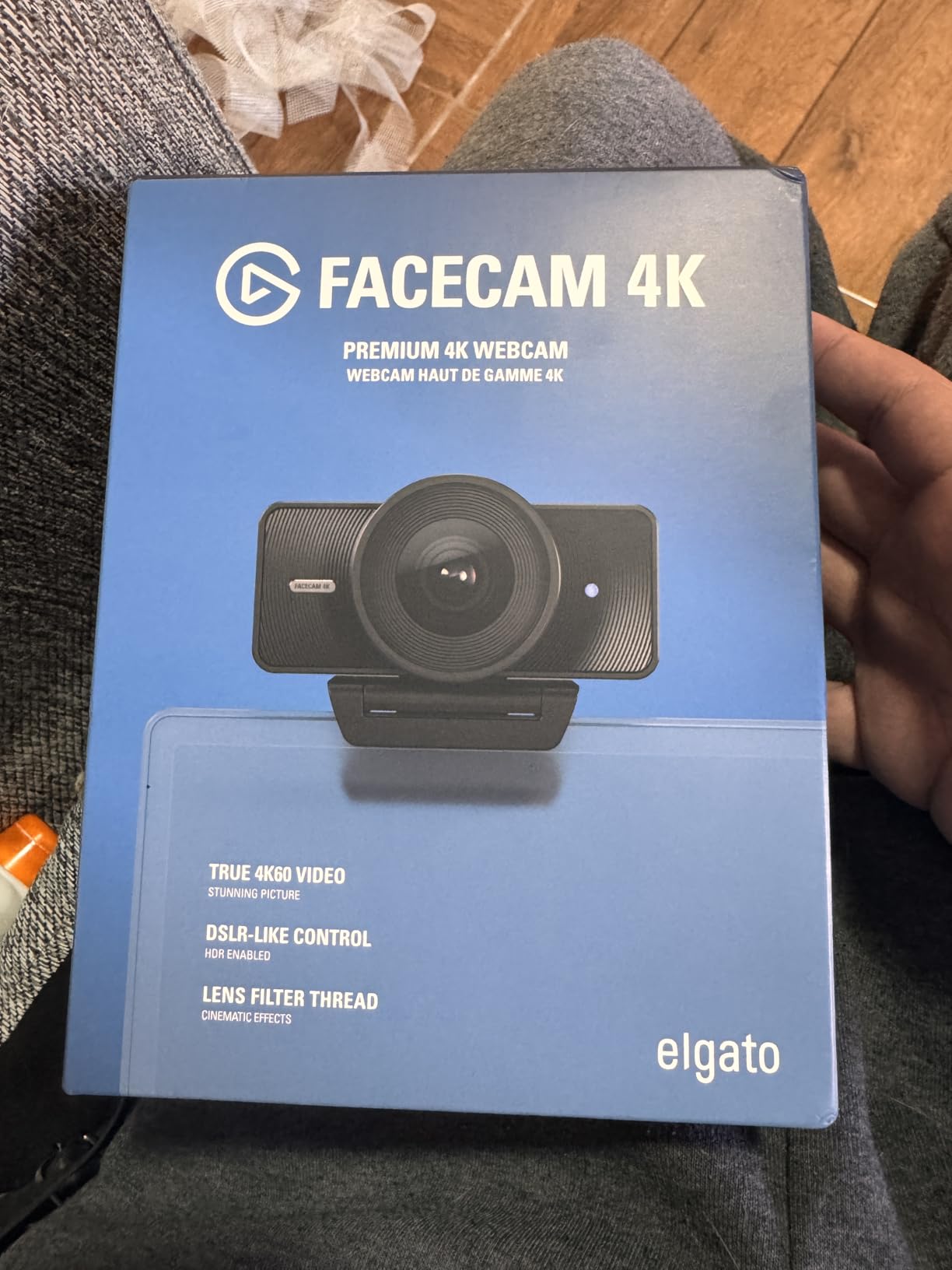
Elgato Facecam 4K - 4K60 Studio Webcam, DSLR-Like Control, Cinematic Effects, 49mm Lens Filters, HDR, Uncompressed Video, Optimized Focus Area | USB-C for PC & Mac
4K 60fps
Sony STARVIS 2
DSLR controls
49mm filter
HDR
Pros
- Excellent 4K 60fps
- DSLR controls
- 49mm filter support
- Uncompressed video
- Camera Hub software
Cons
- Fixed focus not autofocus
- No built-in mic
- Needs good lighting
- Wide angle too wide
- Expensive
The Elgato Facecam 4K is not a typical webcam. It is a professional camera in a webcam body. I tested it for a week of recording sessions, and the 4K 60fps output is the best I have seen from a USB camera. The Sony STARVIS 2 sensor captures detail that most webcams simply miss.
The manual controls are the headline feature. You can adjust ISO, shutter speed, white balance, and exposure compensation directly in the Camera Hub software. This is not auto-correction. This is full manual control like you would expect on a DSLR. For creators who want a specific look, this is a dream. I dialed in a warm color temperature for a cozy podcast setup, and the image looked exactly as I wanted.
The 49mm lens filter support is unique. I added a neutral density filter to control highlights in a bright room, and it worked perfectly. No other webcam I tested offers this. If you already own camera filters, the Facecam 4K becomes more versatile. The uncompressed video output also preserves more detail for post-processing in DaVinci Resolve or Premiere Pro.
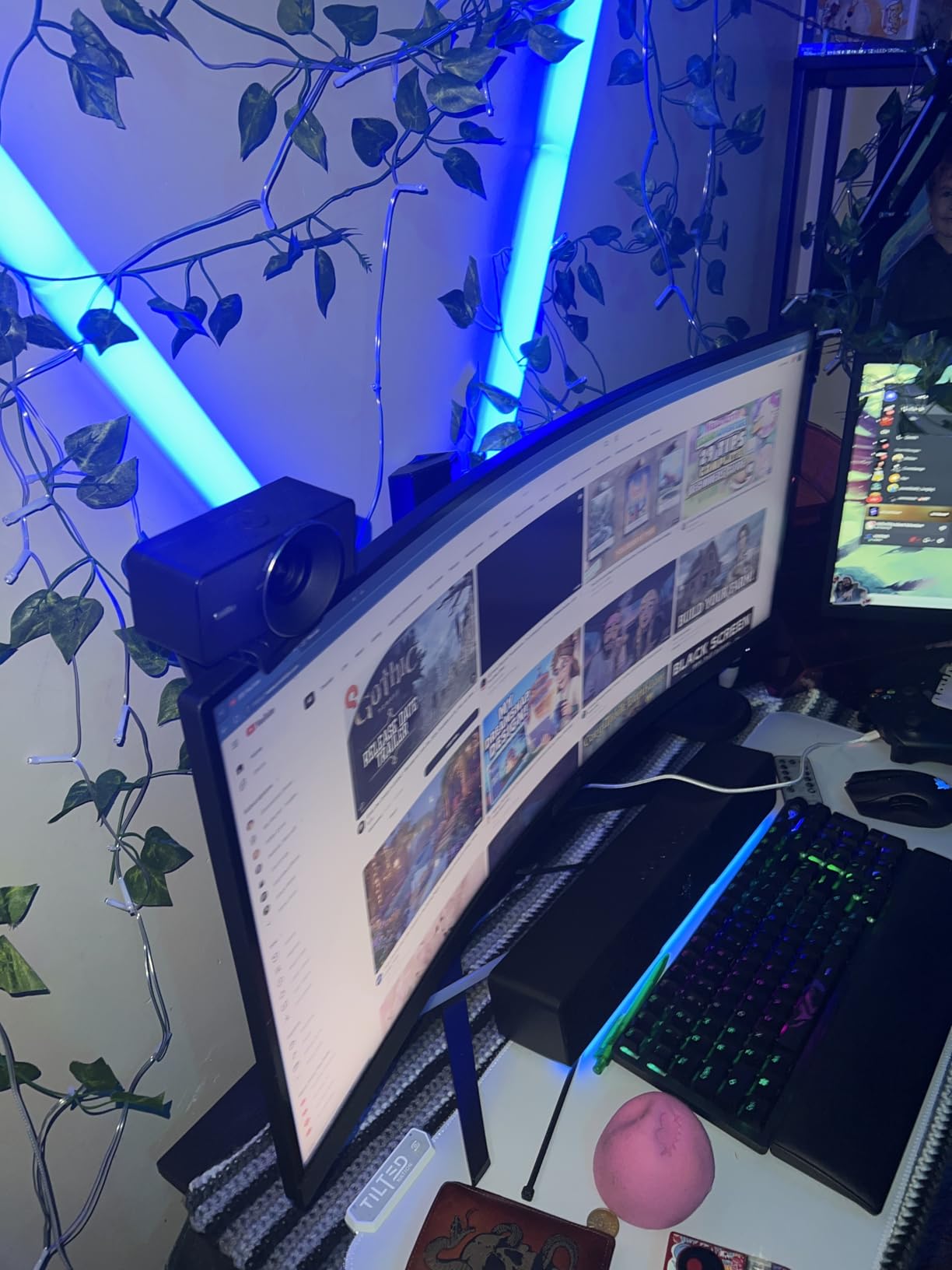
The build quality is eco-friendly and minimal. Elgato uses low-waste materials, and the packaging is compact. The camera itself feels solid. The USB-C to USB-C cable is two meters long, which is generous for desk setups. The built-in flash memory saves your settings, so you do not lose them when you switch computers.
The fixed focus is a deliberate choice. Elgato optimized the focus area for a typical desk distance, so you stay sharp as long as you are sitting in the normal range. This eliminates focus hunting entirely. However, if you move closer than two feet or farther than four feet, you go out of focus. The manual zoom crops the image and loses 4K resolution, which is a limitation.
Best For Creators Who Want Manual Control
The Facecam 4K is ideal for YouTubers, podcasters, and video editors who want professional control without buying a mirrorless camera and capture card. The 4K 60fps, uncompressed output, and filter support make it a genuine production tool. The Camera Hub software is powerful, though it takes time to learn.
The eco-friendly build is also a nice touch. If you care about sustainable electronics, Elgato is ahead of most competitors. The two-year warranty is also longer than average.
Who Should Skip It
The fixed focus is a dealbreaker for some users. If you move around during calls or want to show objects up close, the lack of autofocus will frustrate you. The camera also has no built-in microphone. You must buy a separate USB mic or headset. This adds to the total cost.
The wide angle lens is also very wide. At f/4.0, it captures a lot of background. In small rooms, this can make you look far away. The camera also needs good lighting. In dim rooms, the image is noisier than the Razer Kiyo Pro or Insta360 Link 2. If you want a set-and-forget webcam, this is not it.
11. Dell UltraSharp WB7022 – Premium Windows Webcam
Dell UltraSharp Webcam - WB7022 - 4K UHD - Large Sony STARVISTM CMOS sensor, Advanced AI auto framing
4K 30fps
Sony STARVIS
AI auto framing
HDR
5x zoom
Pros
- Premium aluminum build
- Excellent 4K video
- AI auto framing
- Magnetic privacy cover
- Teams certified
Cons
- No built-in mic
- Windows software only
- Long body sticks out
- Cannot rotate
- Expensive
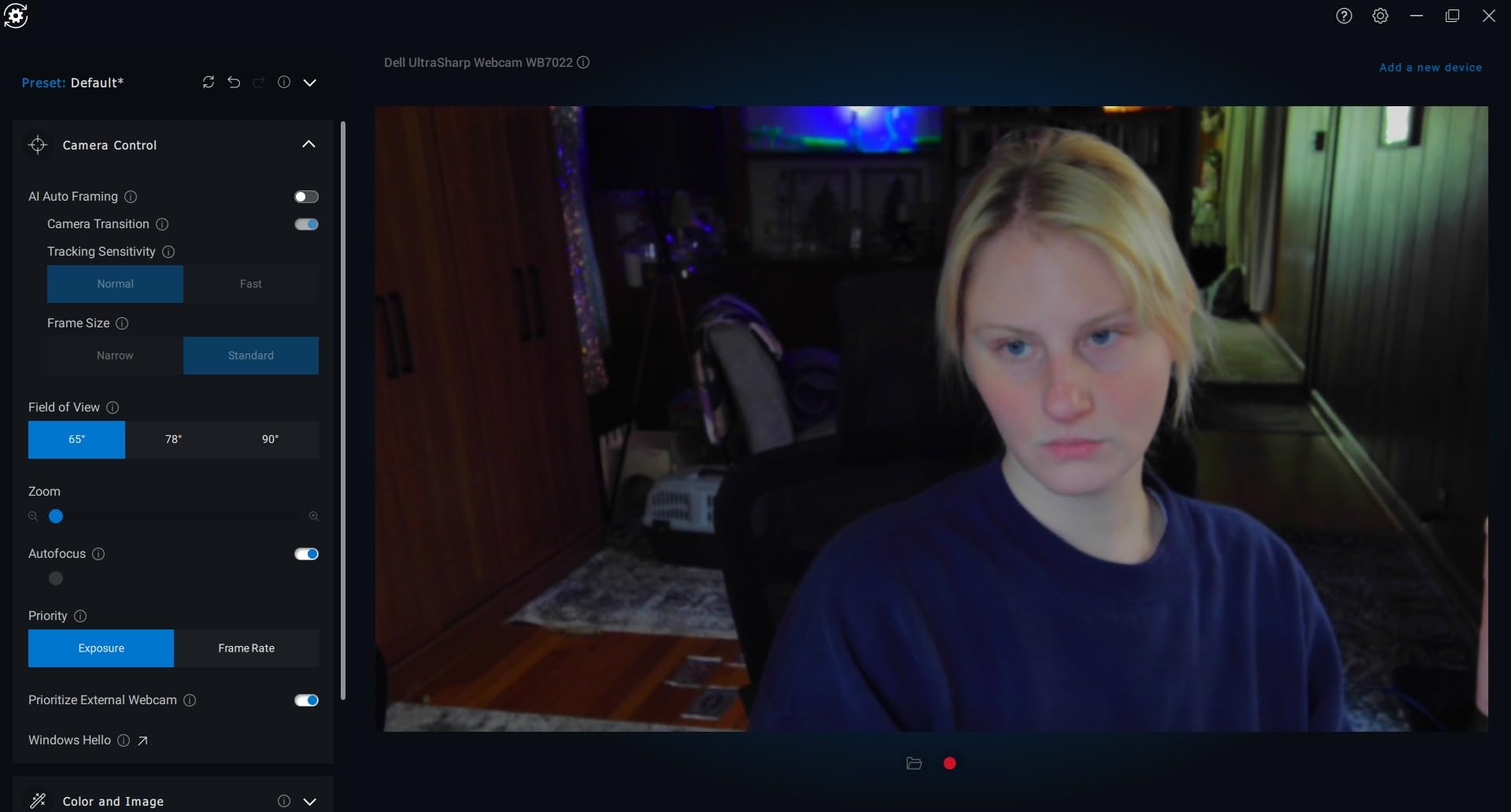
The Dell UltraSharp WB7022 is a statement piece. The anodized aluminum body looks and feels like a premium product. I used it for a week of Microsoft Teams meetings, and the 4K video quality is excellent. The Sony STARVIS sensor produces vivid colors and handles mixed lighting well.
The AI auto framing is the standout feature. The camera detects your face and keeps you centered as you move. I tested it by shifting from side to side during a call, and the framing stayed smooth. It is not as fast as the Insta360 Link 2’s gimbal, but it is effective for conference rooms and presentations. The 5x smooth digital zoom also lets you crop without losing too much sharpness.
The HDR support with Advanced Digital Overlap is visible in challenging light. I tested it against a window on a sunny afternoon, and the camera balanced the bright background with my face better than the standard Brio. The 65, 78, and 90-degree viewing angle options are adjustable in the Dell Peripheral Manager software.
The magnetic privacy cover is elegant. It snaps into place over the lens with a satisfying click. The lens cap is also included for travel. The USB-C to USB-A cable is high quality, and the camera is certified for Teams and Zoom. For corporate deployments, this certification matters to IT departments.
The Dell Peripheral Manager software is highly configurable on Windows. You can adjust exposure, white balance, field of view, and AI framing behavior. However, it is only available on Windows. Mac users get basic webcam functionality with no AI features. This is a major limitation if you work on a Mac.
Best For Windows Professionals and Corporate Users
The WB7022 is designed for Windows professionals who need premium video for meetings. The aluminum build, AI framing, and Teams certification make it ideal for executive offices and conference rooms. The lack of a built-in microphone is actually a privacy feature for some corporate environments, since it prevents accidental audio capture.
The long camera body is noticeable on a monitor. It sticks out further than compact models, but the premium look justifies the size. The auto focus with face tracking is reliable. I never had to manually adjust focus during a call.
Who Should Skip It
Mac users should avoid this camera. Without the Dell Peripheral Manager, you lose AI auto framing, adjustable FOV, and advanced exposure controls. On a Mac, it is just a basic 4K webcam with a nice body. That is not worth the price.
The Dell Peripheral Manager software can also interfere with mouse and keyboard performance on some Windows systems. I experienced a brief lag during installation. It resolved after a restart, but it was concerning. Also, at this price, many users expect a built-in microphone. If you need audio, budget for a separate mic.
How to Choose the Best Webcam for Your Needs
Buying a webcam is more than picking the highest resolution. After testing eleven models, I learned that the right camera depends on your room, your software, and your budget. Here are the key factors to consider before you buy.
1080p Is Enough for Most Users, but 4K Adds Flexibility
For most video calls, 1080p at 30fps is enough. Your colleagues will see you clearly, and the video will not stutter. If you stream or create content, 1080p at 60fps looks smoother for motion. 4K is only worth it if you need to crop, zoom, or record high-quality footage for editing. Most video conferencing software compresses 4K down anyway, so your call partners will not see the full benefit.
The EMEET C960 and Insta360 Link 2 prove that 4K can be affordable. If you have the budget, 4K gives you future-proofing and flexibility. If you only make occasional calls, 1080p saves money without a major drop in perceived quality.
Low-Light Performance Separates Good Webcams From Bad Ones
This is where cheap webcams fall apart. A large sensor and wide aperture lens capture more light, which keeps your image clean in dim rooms. The Razer Kiyo Pro and Insta360 Link 2 handle low light better than any others I tested. The Anker C200 is the best budget option for dark rooms.
If your office has consistent bright lighting, low-light performance matters less. If you work early mornings or late evenings, prioritize cameras with adaptive light sensors or large pixels. The Logitech Brio and MX Brio also perform well in this area.
78 Degrees Is the Ideal Field of View for Solo Calls
A wider field of view captures more of your room. This is good for group calls or showing your desk. A narrower field of view focuses on your face and minimizes background clutter. The Logitech Brio offers adjustable presets, which is ideal if you switch between solo and group calls.
For most individuals, 78 degrees is a good balance. If you want to show a whiteboard or keyboard, look for 90 degrees or more. The Razer Kiyo Pro goes up to 103 degrees, which is excellent for streamers. The EMEET C960 at 73 degrees is slightly tighter, which helps with privacy.
AI Tracking Helps Only If You Move Around
Autofocus keeps you sharp when you move. PDAF systems like those on the EMEET C960 and NexiGo N680E are faster than traditional contrast-based autofocus. The Insta360 Link 2 and OBSBOT Meet 2 add AI tracking that follows you around the room. These features are useful for presenters and teachers.
If you sit still at a desk, basic autofocus is fine. If you move around, gesture, or present to a camera, AI tracking makes a noticeable difference. Just remember that AI features often require software that may not work on all operating systems.
Dedicated Microphones Beat Built-In Mics Every Time
Most webcam microphones are acceptable for casual calls and nothing more. The Logitech Brio and Anker C200 have better-than-average mics. The Insta360 Link 2 and OBSBOT Meet 2 include noise-canceling microphones that reduce background sound. For podcasts, recordings, or professional presentations, you should buy a dedicated USB microphone.
The Dell UltraSharp and Elgato Facecam have no built-in mic at all. This is a downside if you want an all-in-one solution, but it forces you to buy a proper audio setup. In the long run, that is often better for quality.
Physical Privacy Covers Are Safer Than Software Mutes
Physical privacy covers are more secure than software mute buttons. The Logitech MX Brio, Anker C200, EMEET C960, and Dell UltraSharp all include physical covers. I recommend choosing a camera with this feature if you work in a shared space or handle sensitive calls.
Compatibility is also important. Most modern webcams are plug-and-play on Windows and macOS. However, advanced software features are often Windows-only. The Dell UltraSharp loses most of its AI features on Mac. The Insta360 Link 2 is the best option for Mac users who want premium features. If you use ARM-based Windows, check compatibility before buying, as some cameras do not support it yet.
Frequently Asked Questions
What is the best webcam for home office?
The best webcam for home office depends on your budget and lighting. For most remote workers, the Anker PowerConf C200 offers excellent 2K quality and low-light correction at a reasonable price. If you want premium 4K with AI tracking, the Insta360 Link 2 is the top choice. Budget buyers should consider the Logitech C920x for reliable 1080p performance.
How do I choose a webcam?
Start by deciding your budget and primary use case. For video calls, a 1080p webcam with good low-light performance is sufficient. For streaming or content creation, look for 4K resolution, 60fps, and manual controls. Check that the camera works with your operating system, and prioritize physical privacy features if you handle sensitive calls.
What resolution webcam do I need?
For standard video conferencing, 1080p is enough. Most platforms compress video anyway, so your call partners will not see a major difference with 4K. Choose 4K if you record content, need to crop your image, or want the sharpest possible picture. Streamers who prioritize smooth motion should look for 1080p at 60fps instead of 4K at 30fps.
Are 4K webcams worth it?
4K webcams are worth it for content creators, streamers, and professionals who record high-quality video. They give you more detail, better cropping flexibility, and a sharper image for edited content. For everyday video calls, 4K is nice but not necessary. Most conferencing software compresses the stream, so the full 4K quality is rarely seen by call participants.
What is a good budget webcam?
The Logitech C920x HD Pro is the most reliable budget webcam with over 21,000 positive reviews. It delivers solid 1080p video, dual microphones, and easy setup. For even less money, the EMEET C960 4K offers true 4K resolution with PDAF autofocus, which is exceptional value. The Anker PowerConf C200 is another excellent budget option with superior low-light performance.
Final Thoughts
The best webcams in 2026 range from simple 1080p workhorses to advanced 4K cameras with AI tracking. After testing eleven models, I recommend the Insta360 Link 2 for creators who want the most features, the EMEET C960 4K for budget buyers who refuse to compromise on resolution, and the Logitech C920x for anyone who wants a reliable, no-fuss upgrade.
Your choice should match your workspace and your habits. If you sit in a dark room, prioritize low-light performance. If you move around while presenting, get AI tracking. If you just need to look better on Zoom, even a basic upgrade will make you wonder why you waited so long.
Every model in this guide has real strengths and honest weaknesses. There is no single perfect webcam, but there is a perfect webcam for you. Pick the one that fits your budget, plug it in, and enjoy looking clear on every call this year.