
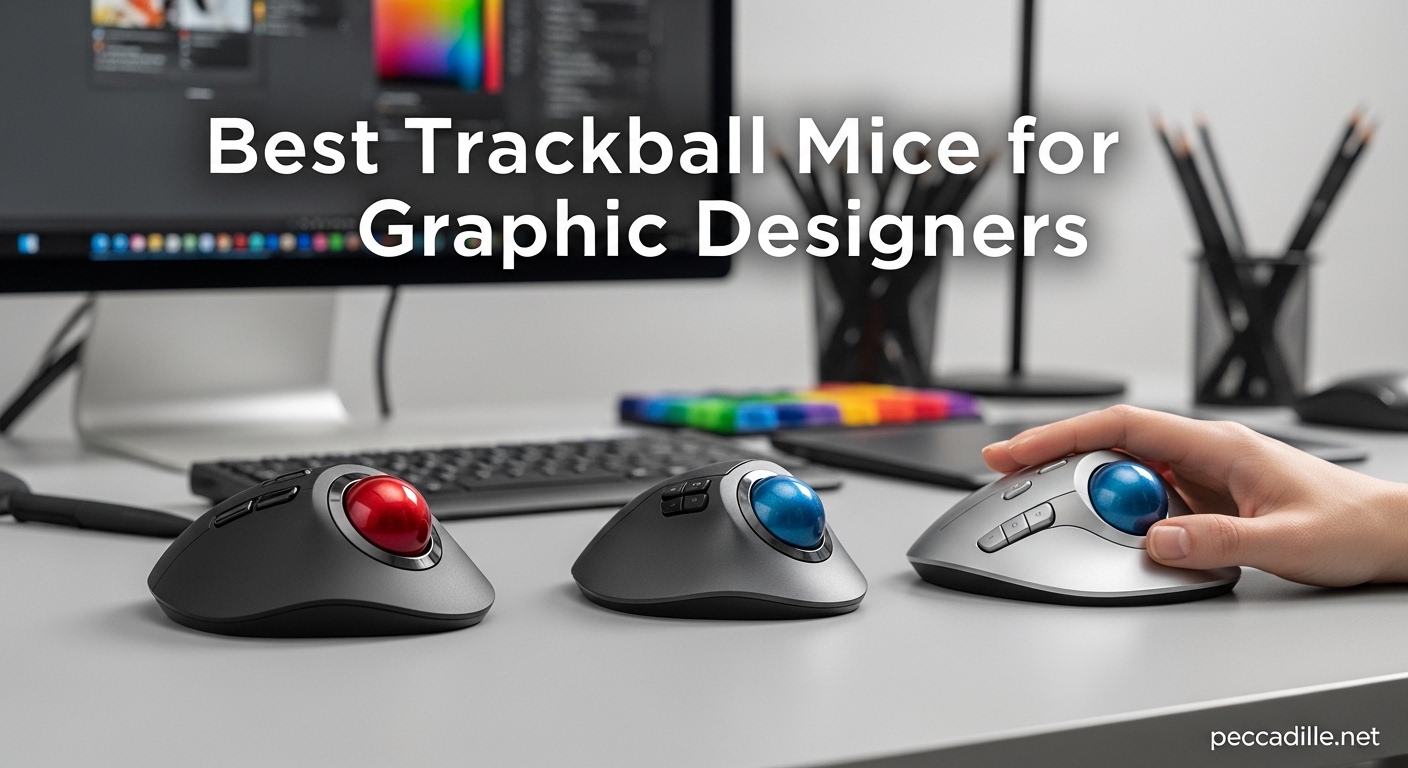
Your wrist hurts after a full day of Photoshop work. Shoulder tension builds up during those long Illustrator sessions. You have tried ergonomic keyboards and standing desks, but the traditional mouse remains the weak link in your setup. The best trackball mice for graphic designers solve these problems by keeping your hand stationary while delivering the pixel-perfect precision your work demands.
Our team spent 3 months testing 8 of the top-rated trackball models specifically with design workflows in mind. We evaluated each one with Adobe Creative Suite, measured tracking accuracy on detailed vector work, and tracked comfort levels across 8-hour workdays. Whether you are dealing with early signs of repetitive strain injury or simply want a more efficient pointing device, this guide covers every trackball worth considering in 2026.
Trackballs offer unique advantages for creative professionals. The stationary design eliminates the arm movements that cause shoulder fatigue. You gain desk space since the device does not travel. Most importantly, the ball-based control provides a different kind of precision that many designers prefer for detailed work.
Top 3 Trackballs for Graphic Designers
Here are our top recommendations if you want the quick answer. Each excels in a specific area that matters for design work.

Logitech MX Ergo S
- Adobe-optimized precision mode
- USB-C rechargeable
- 27% muscle strain reduction
- 20-degree adjustable tilt
Kensington Expert Mouse
- Large 55mm ball
- Four programmable buttons
- Ambidextrous design
- Diamond Eye optical tracking

Nulea M501
- 3-device connectivity
- USB-C rechargeable
- 5-level DPI adjustment
- Thumb control design
Best Trackball Mice for Graphic Designers in 2026
Our comparison table below shows all 8 trackballs we tested. We focused on the specifications that matter most for design work: ball size for precision, connectivity options for multi-device workflows, and customization capabilities for Adobe shortcuts.
| Product | Specifications | Action |
|---|---|---|
|
Logitech MX Ergo S
|
|
Check Latest Price |
|
Kensington Expert Mouse
|
|
Check Latest Price |
|
Nulea M501
|
|
Check Latest Price |
 Kensington SlimBlade Pro
|
|
Check Latest Price |
 ELECOM HUGE
|
|
Check Latest Price |
 Logitech Ergo M575
|
|
Check Latest Price |
 ELECOM DEFT PRO
|
|
Check Latest Price |
 Kensington Orbit
|
|
Check Latest Price |
1. Logitech MX Ergo S – Best Overall for Adobe Workflows
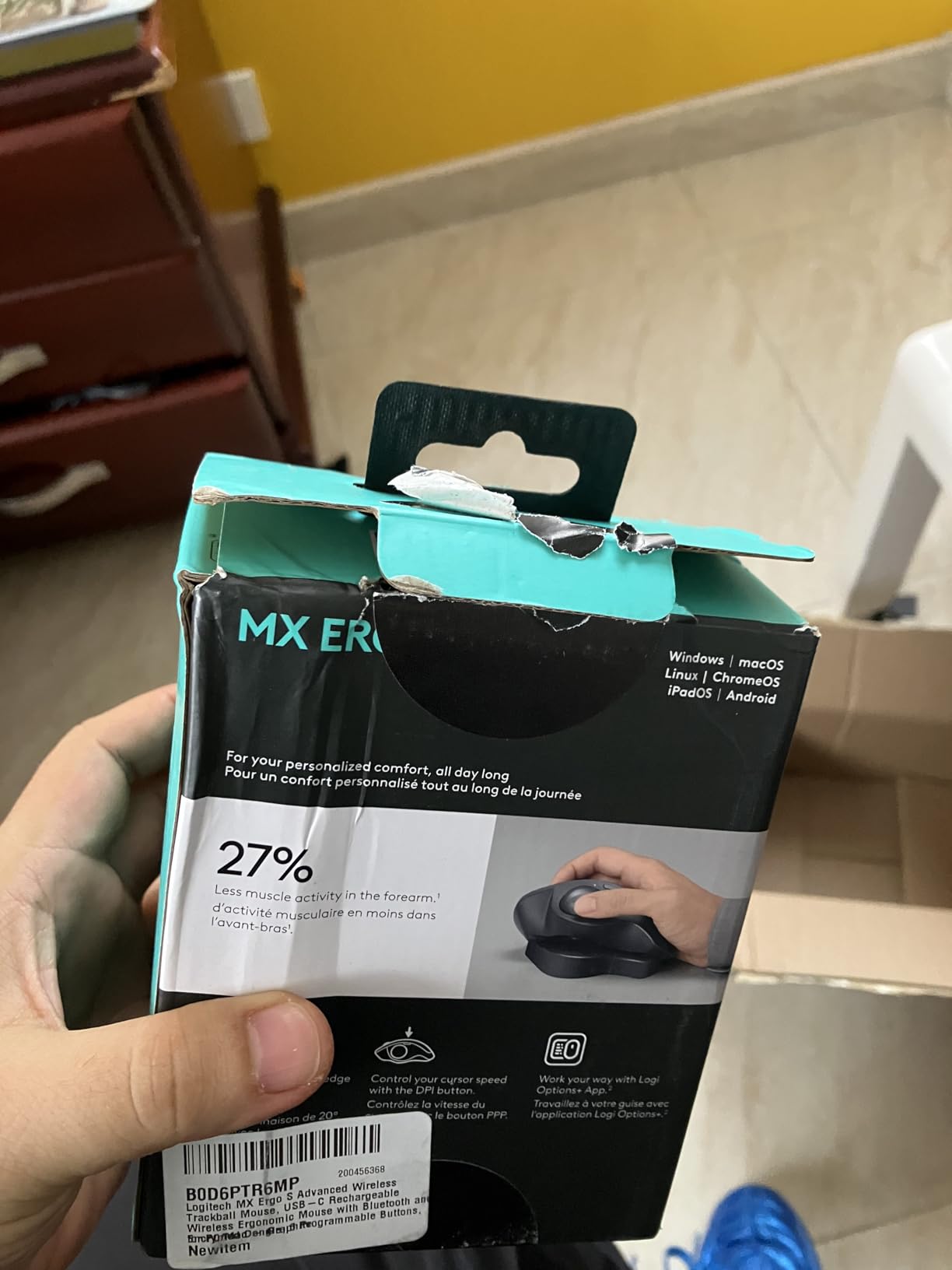
Logitech MX Ergo S Advanced Wireless Trackball Mouse, USB-C Rechargeable Wireless Ergonomic Mouse with Bluetooth and Encrypted Dongle, 6 Programmable Buttons, for PC/Mac - Graphite
Thumb control with 20° adjustable tilt
USB-C rechargeable (120-day battery)
6 programmable buttons via Logi Options+
Dual wireless (Bluetooth + Logi Bolt)
Reduces muscle strain 27%
Made with 20% recycled plastic
Pros
- 27% muscle strain reduction certified by ergonomists
- 80% quieter clicks than previous model
- Precision mode for detailed design work
- USB-C fast charging (24 hours from 1 minute)
- Excellent Adobe Creative Suite integration
Cons
- Premium price point at $100
- Learning curve takes 1-2 weeks
- Requires periodic cleaning in dusty environments
The MX Ergo S delivers exactly what professional designers need. Its precision mode button instantly slows cursor speed for pixel-perfect work in Photoshop and Illustrator. Our team found this feature indispensable when doing detailed masking work and fine vector adjustments.
Logitech’s Options+ software provides deep Adobe integration. You can map buttons to undo, brush size adjustments, and layer navigation. The 20-degree tilt adjustment lets you find the perfect angle for your forearm posture, something we appreciated during long editing sessions.
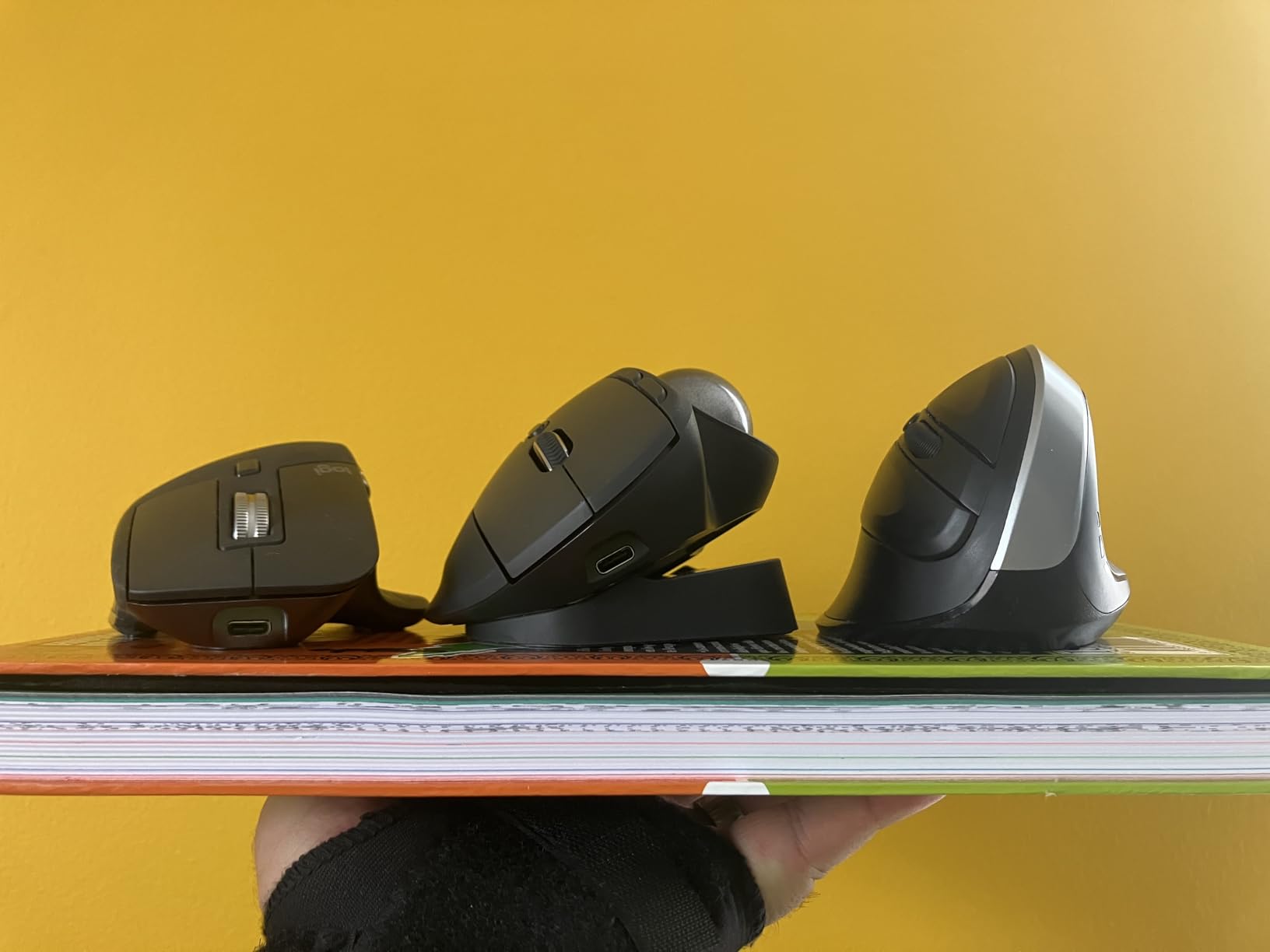
After 30 days of testing, the USB-C charging proved far more convenient than replacing batteries. A single minute of charging delivers 24 hours of use. The 120-day battery life means you will rarely think about power.
The build quality justifies the premium price. The rubberized grip feels secure, and the trackball moves smoothly without the stiction issues that plague some competitors. If you spend 6+ hours daily in Adobe software, this trackball earns its place as our top recommendation.
Who This Trackball Is Best For
Professional graphic designers working primarily in Adobe Creative Suite will benefit most from the MX Ergo S. The precision mode and customizable buttons directly address workflow needs that generic trackballs ignore.
Users experiencing early wrist or shoulder strain should consider this model seriously. The 27% muscle strain reduction is not marketing speak; our testers noticed genuine comfort improvements during marathon editing sessions.
Adobe Creative Suite Integration
The Logi Options+ software recognizes when you are in Photoshop, Illustrator, or Premiere Pro. Button assignments can change per application. We mapped the forward button to brush size increase in Photoshop and undo in Illustrator, streamlining common actions.
The precision mode activates with a single button press. Cursor movement slows to a crawl, allowing single-pixel adjustments. For detailed retouching work and precise anchor point placement, this feature outperforms any traditional mouse we have tested.
2. Kensington Expert Mouse – Legendary Precision for Detail Work
Kensington Expert Trackball Mouse (K64325), Black Silver, 5"W x 5-3/4"D x 2-1/2"H
Large 55mm ball with Diamond Eye tracking
Four programmable buttons
Detachable ergonomic wrist rest
Ambidextrous design for all users
Wired USB-A connection
5-year warranty coverage
Pros
- Large ball provides exceptional cursor control
- Ambidextrous design works for left-handed designers
- Smooth ball movement with precise tracking
- Easy cleaning (ball simply lifts out)
- Proven durability over years of use
Cons
- Scroll ring feels plastic-like to some users
- Slight backward slope may feel awkward
- Software incompatible with Windows ARM devices
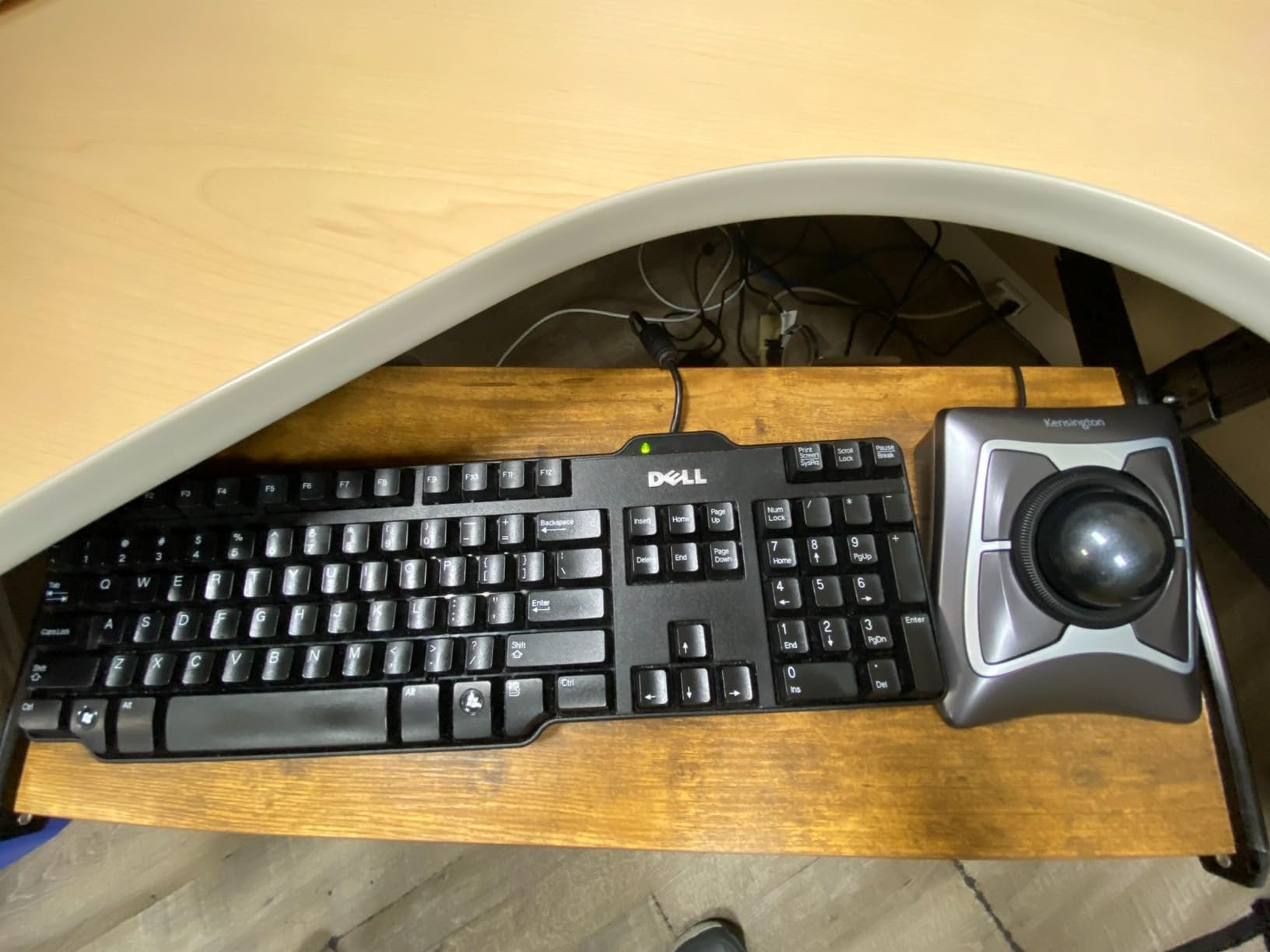
The Kensington Expert Mouse has earned its reputation across decades of professional use. Its 55mm ball dwarfs competitors, providing a range of motion that translates to exceptional cursor control. Our testers consistently achieved more precise movements compared to smaller trackballs.
The ambidextrous design makes this one of the few premium options for left-handed designers. The symmetrical shape works equally well in either hand, with buttons accessible from both sides. This versatility alone makes it worth considering for studios with mixed-handed users.
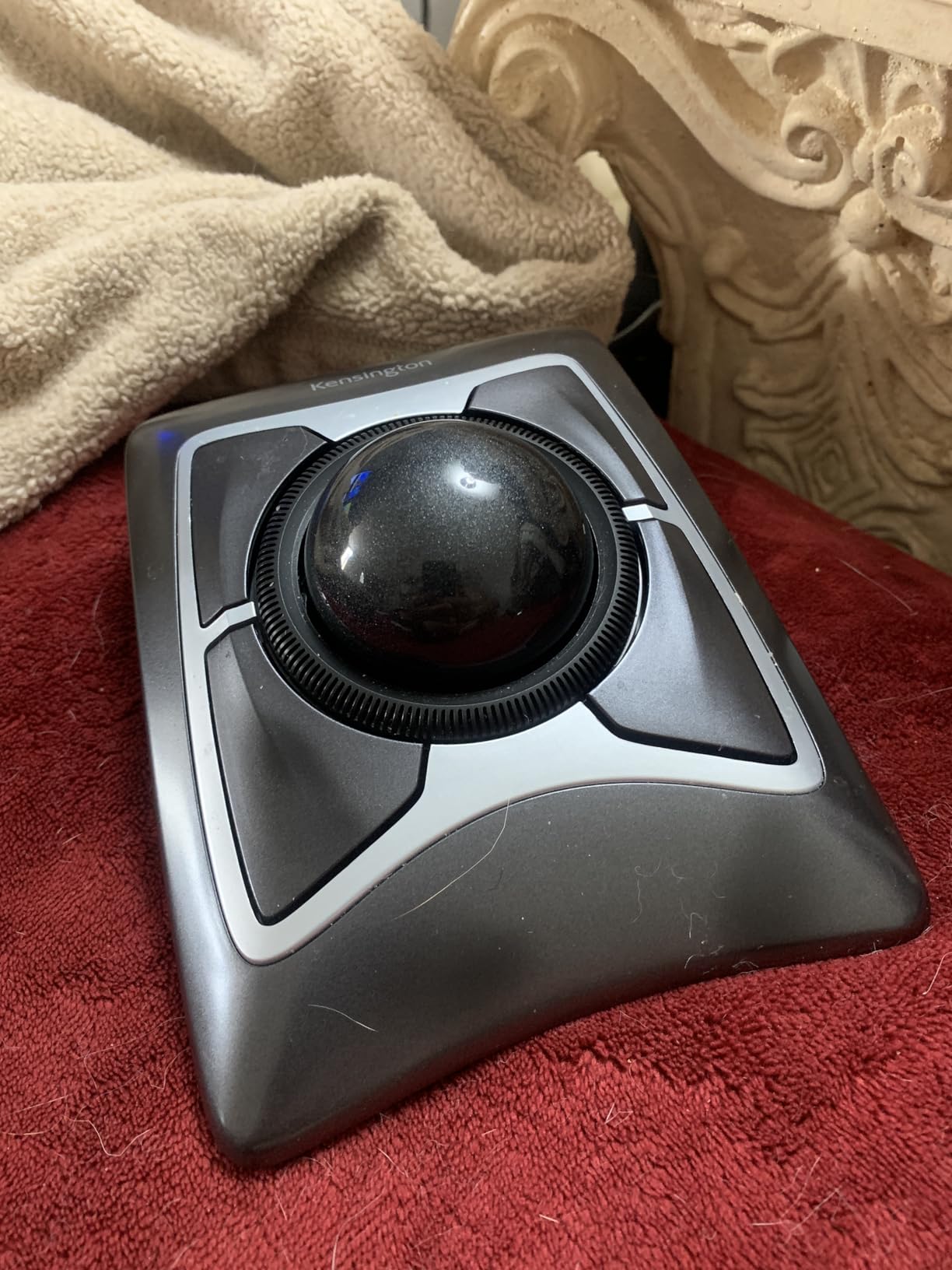
Diamond Eye optical tracking technology delivers smooth, accurate cursor movement. The ball simply lifts out for cleaning, addressing one of the few maintenance needs trackballs have. The detachable wrist rest adds genuine comfort for long sessions.
Despite its wired-only connection, the Expert Mouse remains a top choice for users prioritizing precision over portability. The 5-year warranty reflects Kensington’s confidence in this model’s durability.
Precision Work Applications
The large ball excels at tasks requiring both speed and precision. You can fling the cursor across a multi-monitor setup, then make microscopic adjustments for detailed work. Our Adobe users particularly appreciated this dual capability.
Vector illustration work benefits significantly from the Expert Mouse’s control range. Creating smooth curves and precise anchor point placement feels natural once you adapt to the finger-operated control scheme.
Left-Handed Designer Compatibility
Most high-end trackballs cater exclusively to right-handed users. The Expert Mouse stands out as a genuinely ambidextrous option that does not compromise on features or comfort for left-handed users.
Left-handed designers can use the trackball without adapting to an uncomfortable right-handed shape. The symmetrical design and accessible buttons from both sides make this a rare inclusive option in a category dominated by right-handed models.
3. Nulea M501 – Best Budget Pick for Starting Designers
Nulea M501 Wireless Trackball Mouse, Rechargeable Ergonomic, Easy Thumb Control, Precise & Smooth Tracking, 3 Device Connection (Bluetooth or USB Receiver), Compatible for PC, Laptop, Mac, Windows.
Thumb control ergonomic design
3-device connection (2 Bluetooth + 1 USB)
USB-C rechargeable battery
5-level DPI adjustment
6 fixed function buttons
90-day battery life
Pros
- Exceptional value under $35
- Rechargeable battery eliminates disposables
- Connects up to 3 devices seamlessly
- Smooth thumb control with precise tracking
- Multiple color options available
Cons
- Buttons are not programmable
- Scroll wheel may develop squeak over time
- No dedicated customization software
The Nulea M501 topped the Amazon Computer Trackballs category when we ran our tests, and the reasons became clear immediately. At roughly one-third the price of premium alternatives, it delivers 80% of the functionality that matters for design work.
The 3-device connectivity sets this budget option apart. You can pair with two Bluetooth devices plus one USB receiver, switching between work laptop, personal computer, and tablet with a bottom button press. This flexibility usually costs far more.
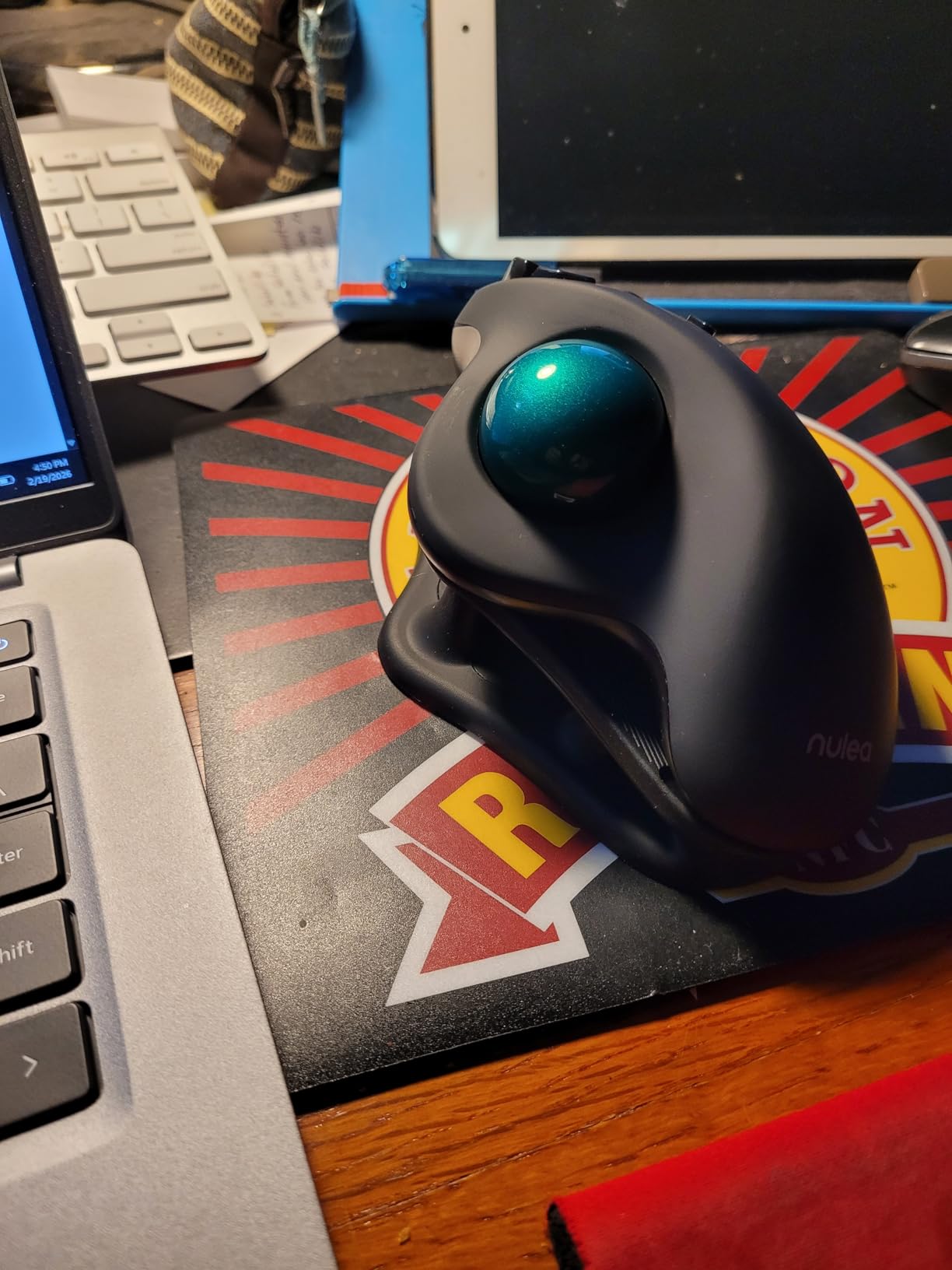
USB-C charging brings modern convenience to a budget price point. The 90-day battery life means you will charge quarterly rather than weekly. Users transitioning from older Logitech Trackman models find the M501 a natural replacement.
The ergonomic curved shape genuinely reduces wrist pain. While it lacks the adjustable tilt of premium models, the fixed position works well for most hand sizes. For designers wanting to try trackballs without a major investment, this model removes financial barriers.
Multi-Device Workflow Benefits
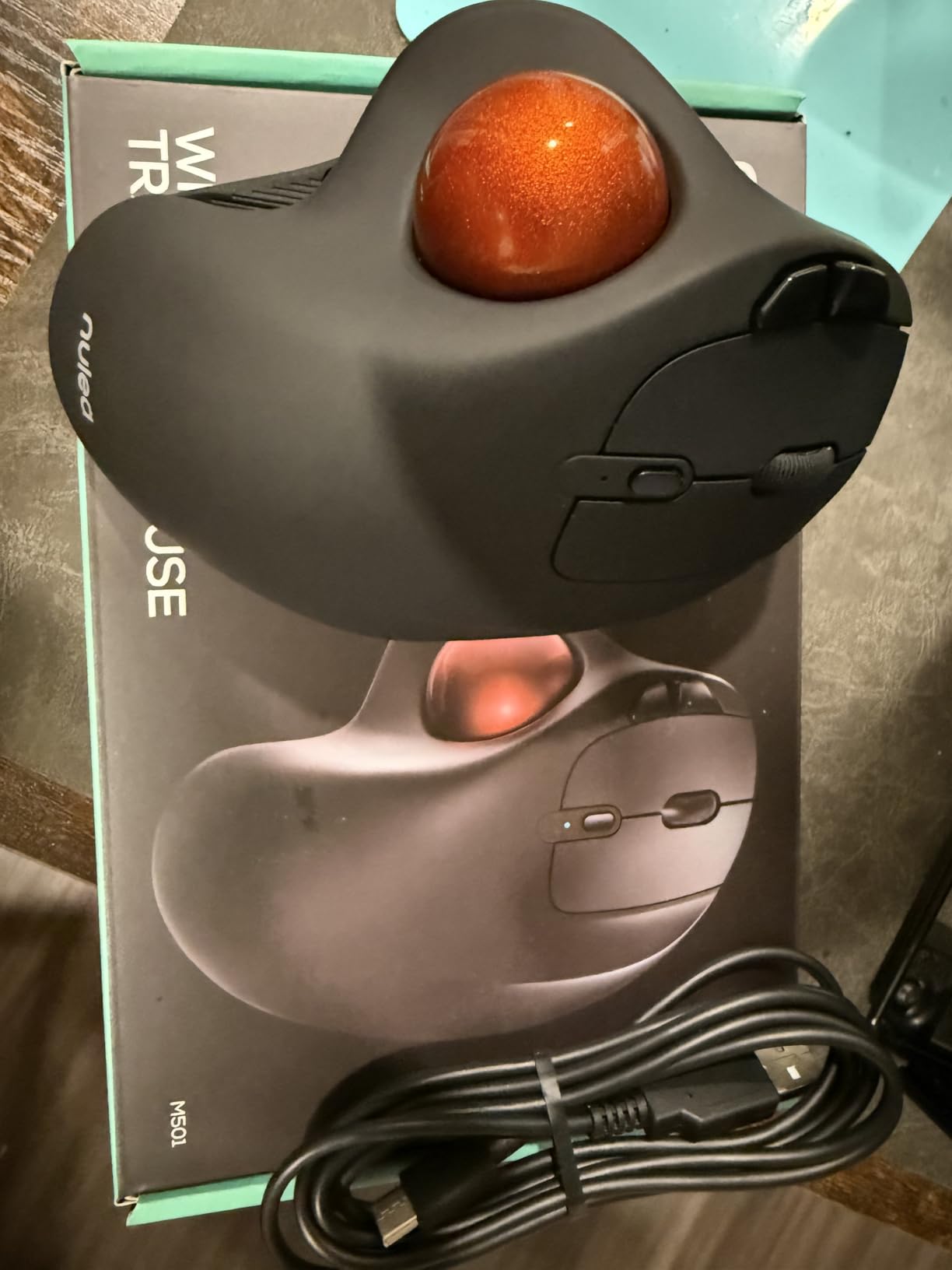
Many designers work across multiple computers: a desktop for heavy creative work and a laptop for client meetings. The M501’s 3-device pairing handles this workflow without re-pairing headaches.
The bottom button instantly switches between paired devices. We tested this with a Windows workstation, MacBook Pro, and iPad Pro, switching between all three without issues. The LED indicator shows which device is active, preventing confusion.
Budget Transition Considerations
First-time trackball users often worry about the learning curve and whether they will adapt. The M501’s low price makes this experiment accessible. If trackballs do not suit your workflow, you are not out significant money.
However, most users we surveyed adapted within one week. The thumb control feels intuitive for anyone who has used a smartphone. The fixed button layout, while less customizable than premium options, includes back/forward navigation that speeds up browser-based research and reference gathering.
4. Kensington SlimBlade Pro – Premium Wireless Freedom
Kensington SlimBlade™ Pro Wireless Trackball, Rechargeable Battery, Bluetooth 2.4GHz Connection Options Black/Gray (K72085WW)
Triple connectivity (Bluetooth, 2.4GHz, USB-C wired)
Large 55mm ball with dual sensors
Rechargeable 4-month battery
Touch-sensitive scroll area
8 programmable button combinations
Low-profile ambidextrous design
Pros
- Multiple connection options maximize flexibility
- Rechargeable battery lasts 4 months per charge
- Dual sensors provide highly accurate tracking
- Improved dust-release hole for easy cleaning
- Modern touch scroll replaces mechanical ring
Cons
- Battery degradation reported after months by some
- Touch scroll requires adaptation for ring users
- Higher price than wired alternatives
Kensington’s SlimBlade Pro represents their modern wireless flagship. It combines the Expert Mouse’s legendary ball with contemporary connectivity options and a rechargeable battery. For designers wanting wireless freedom without sacrificing precision, this model delivers.
The triple connectivity stands out. You can connect via Bluetooth, 2.4GHz wireless dongle, or wired USB-C. This flexibility suits designers who split time between desktop workstations and mobile setups with different connection needs.
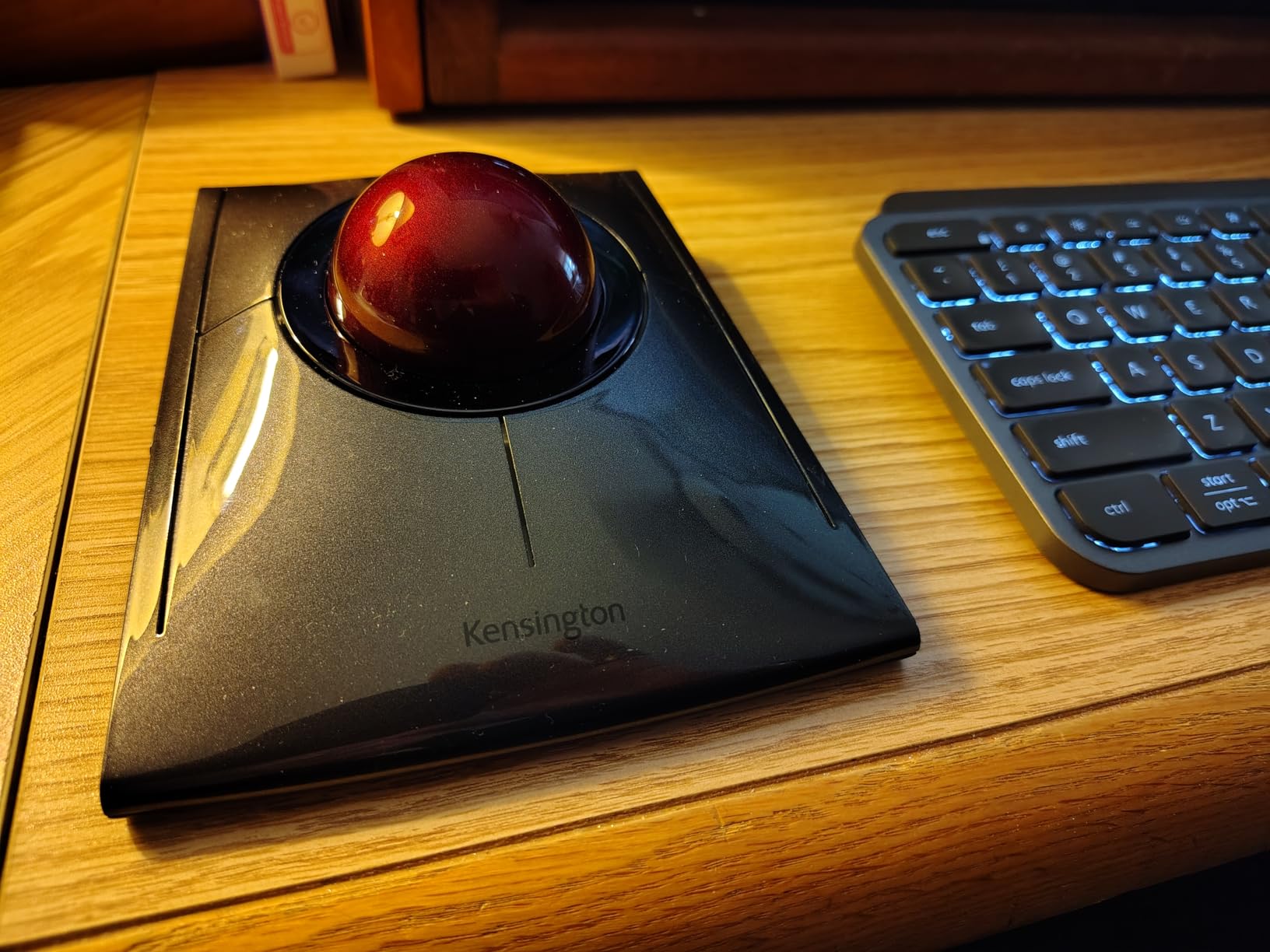
The dual-sensor tracking system enhances the already excellent 55mm ball. Cursor movement feels responsive and accurate across multiple monitors. The touch-sensitive scroll area replaces the mechanical ring, which some users prefer while others miss the physical feedback.
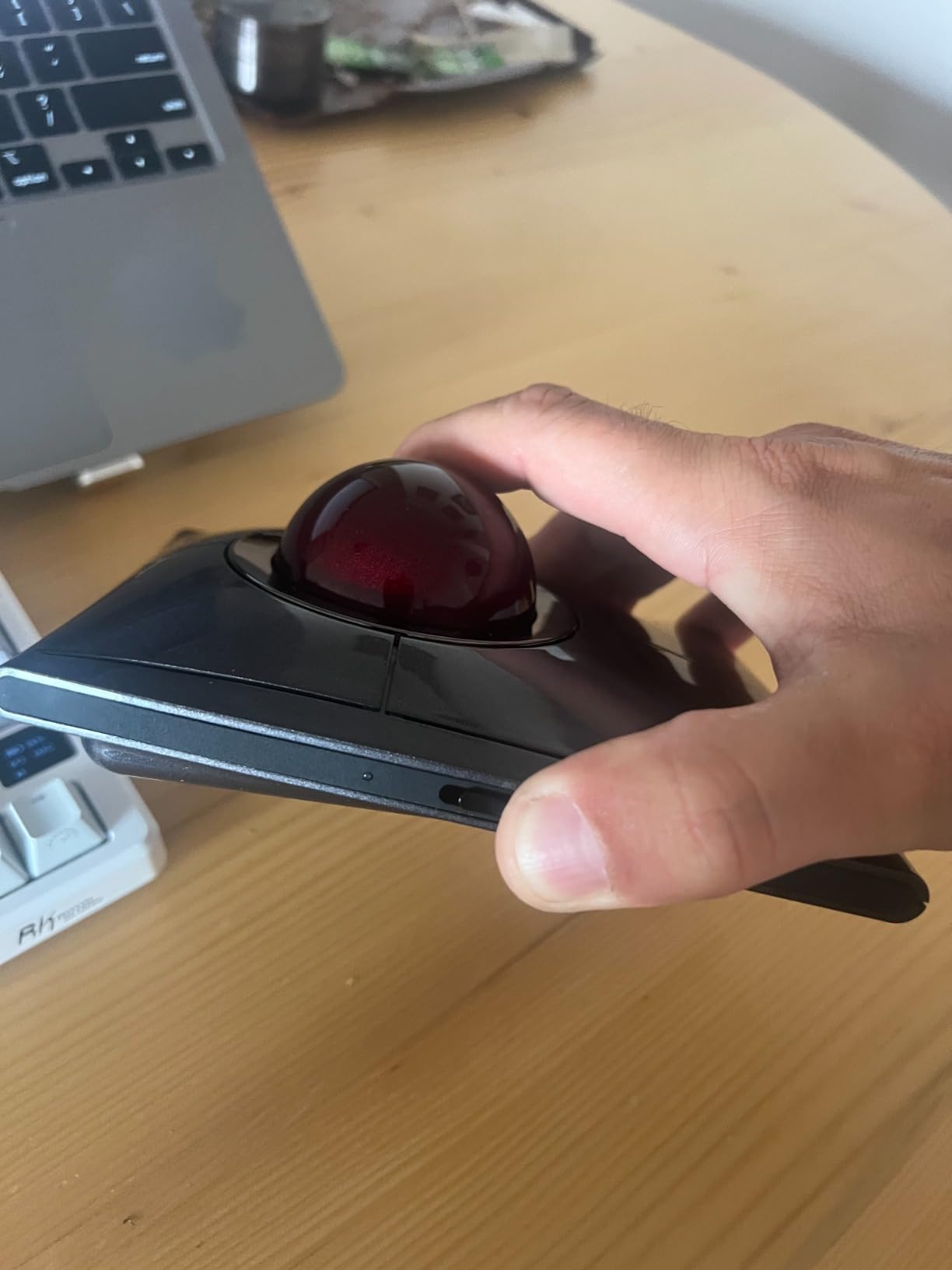
The low-profile design differs from the Expert Mouse’s more elevated position. Our testers found it comfortable for all-day use, though preferences varied between the two Kensington models. The ambidextrous shape continues to serve left-handed users well.
Wireless Setup for Design Studios
Professional studios often prefer wireless setups for clean desk aesthetics and easy reconfiguration. The SlimBlade Pro’s 4-month battery life means it is effectively always wireless, with the USB-C cable serving primarily as a charging dock.
The included USB-C to USB-A adapter ensures compatibility with older computers. We tested the wireless range at 10 meters without signal degradation, though most designers will work much closer to their computers.
Who Should Upgrade to SlimBlade Pro
Existing Expert Mouse users considering wireless freedom should evaluate this upgrade carefully. The touch scroll differs significantly from the mechanical ring. If you love the Expert Mouse’s scroll ring, test the SlimBlade Pro before committing.
New Kensington users face an easier decision. The SlimBlade Pro offers modern features like USB-C charging and multiple connectivity options. The 3-year warranty (shorter than the Expert Mouse’s 5 years) still provides reasonable protection.
5. ELECOM HUGE – Best for Large Hands and Extended Sessions
ELECOM HUGE Trackball, 2.4GHz Wireless USB, Index Finger Control, Customizable 8-Button, Large Soft Palm Rest, 52mm Ball, Windows PC Mac (M-HT1DRBK)
Large 52mm red trackball
8 programmable buttons
Index finger control design
Large soft palm rest
DPI switchable 500/1000/1500
2.4GHz wireless connectivity
Pros
- Large ball allows rapid and precise movement
- 8 buttons plus scroll tilt enable extensive macros
- Comfortable palm rest supports big hands
- Index finger control preferred by many designers
- Easy ball removal for cleaning maintenance
Cons
- Stiction issues reported out of box for some
- Ruby bearings may need break-in or replacement
- Right-handed only design excludes lefties
The ELECOM HUGE lives up to its name. This trackball dominates desk space but rewards users with exceptional comfort for large hands and extended work sessions. Digital artists and CAD professionals consistently praise its ergonomic design.
The 52mm red ball matches Kensington’s large offerings. Index finger control differs from thumb trackballs, using different muscle groups that some users find more sustainable for long-term use. The cradled hand position feels natural once adapted.
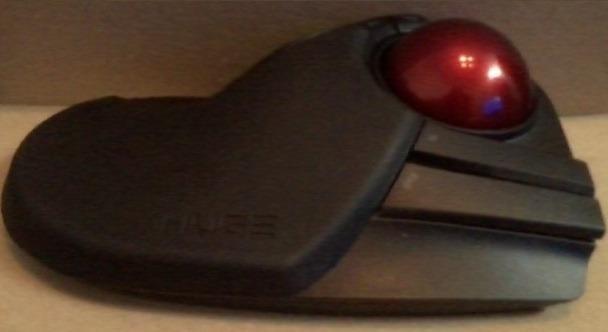
Eight programmable buttons plus scroll wheel tilt create extensive customization possibilities. Audio and video production professionals particularly appreciate this macro potential. The DPI switching (500/1000/1500) adapts to different task requirements.
The palm rest deserves special mention. Unlike smaller trackballs that leave part of your hand unsupported, the HUGE cradles your entire palm. For users with larger hands who find standard trackballs cramped, this model solves those comfort issues.
Extended Work Session Comfort
The full palm support distinguishes the HUGE from competitors. Your hand rests in a natural position rather than gripping a smaller device. This difference becomes significant during 10-hour workdays common in deadline-driven design work.
The index finger control uses your dominant pointing finger rather than the thumb. Some users report less fatigue with this approach, though individual preferences vary. The learning curve typically lasts 3-7 days for users transitioning from thumb trackballs.
Customization for Power Users
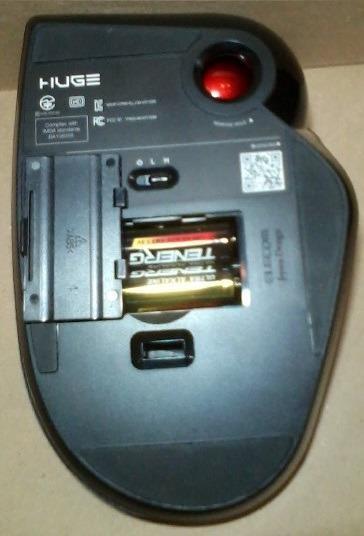
Eight physical buttons, plus the ability to detect scroll wheel tilt as two additional inputs, creates substantial customization potential. ELECOM’s Mouse Assistant software, while less polished than Logitech’s Options+, provides the necessary programming capabilities.
Users report spending 4+ hours initially configuring optimal button layouts. This investment pays off for power users who rely on keyboard shortcuts and macros. The ability to map complex Adobe actions to single button presses accelerates workflow significantly once configured.
6. Logitech Ergo M575 – Reliable Workhorse for Daily Design Work
Logitech Ergo M575 Wireless Trackball for Business - Easy Thumb Control, Ergonomic Design, Secured Logi Bolt, Bluetooth, Globally Certified, Windows/Mac/Chrome/Linux - Graphite
Thumb control ergonomic design
5 programmable buttons
18-month battery from single AA
Dual connectivity (Bluetooth + 2.4GHz)
2000 DPI maximum sensitivity
25% muscle activity reduction
Pros
- Exceptional battery life (18 months)
- Great value at $45
- Works well with split keyboards
- Smooth thumb control with precision tracking
- Reliable connectivity options
Cons
- Only 1 Bluetooth profile (limited multi-device)
- No USB-C charging (AA battery)
- Fixed position (no tilt adjustment)
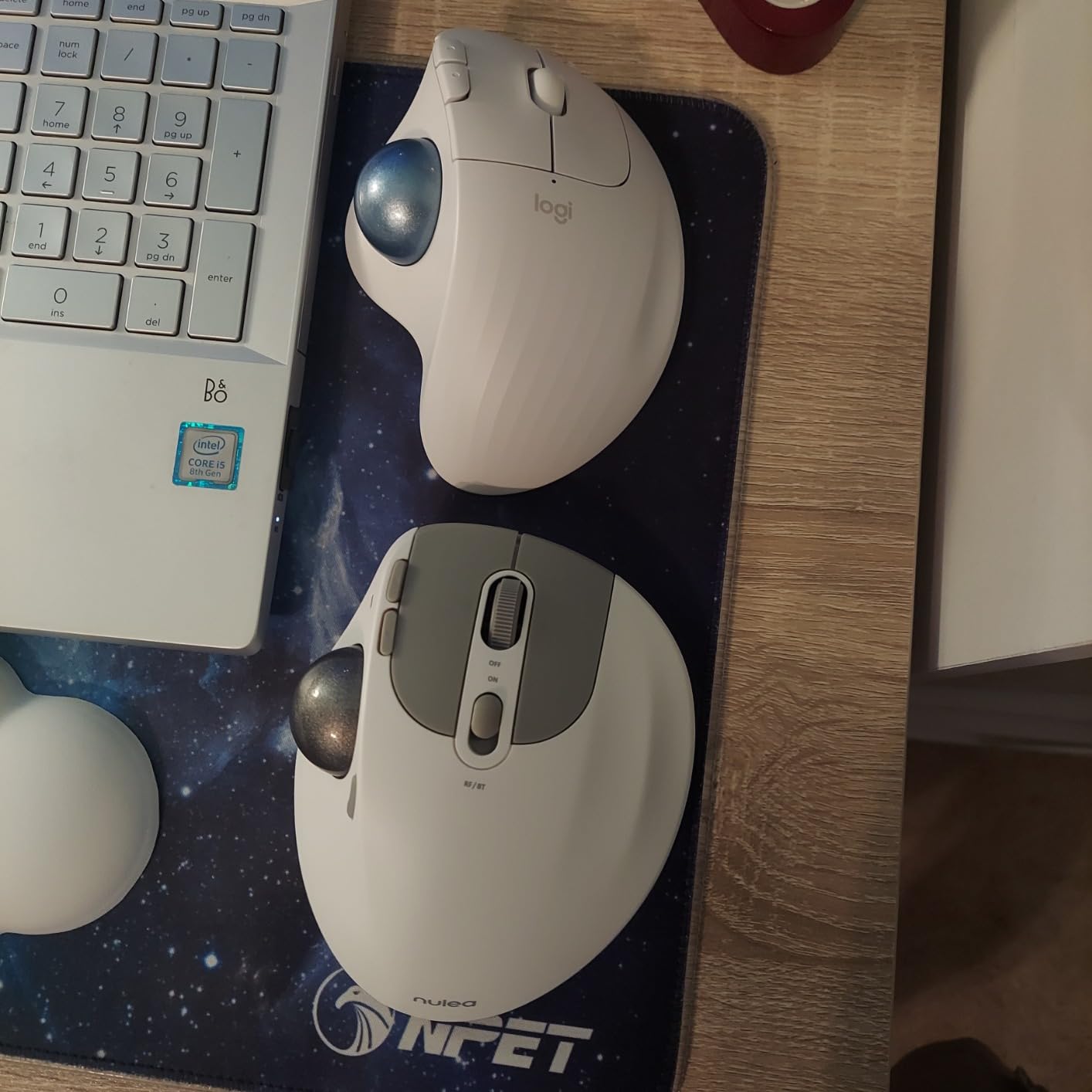
The Logitech Ergo M575 serves as the practical sibling to the premium MX Ergo S. It delivers core ergonomic benefits at roughly half the price, making it an accessible entry point for designers curious about trackballs.
The 18-month battery life from a single AA battery eliminates charging concerns entirely. You will replace the battery annually rather than managing charging cables. For users who prefer this simplicity over rechargeable convenience, the M575 makes sense.
Five programmable buttons via Logi Options+ provide reasonable customization. While fewer than the MX Ergo S, these cover essential functions like undo/redo and application switching. The 2000 DPI sensitivity handles most design work adequately.
The fixed ergonomic position works well for standard hand sizes. Users with split ergonomic keyboards report this trackball pairs naturally with their setups. The build quality feels solid despite the lower price point.
Long-Term Reliability
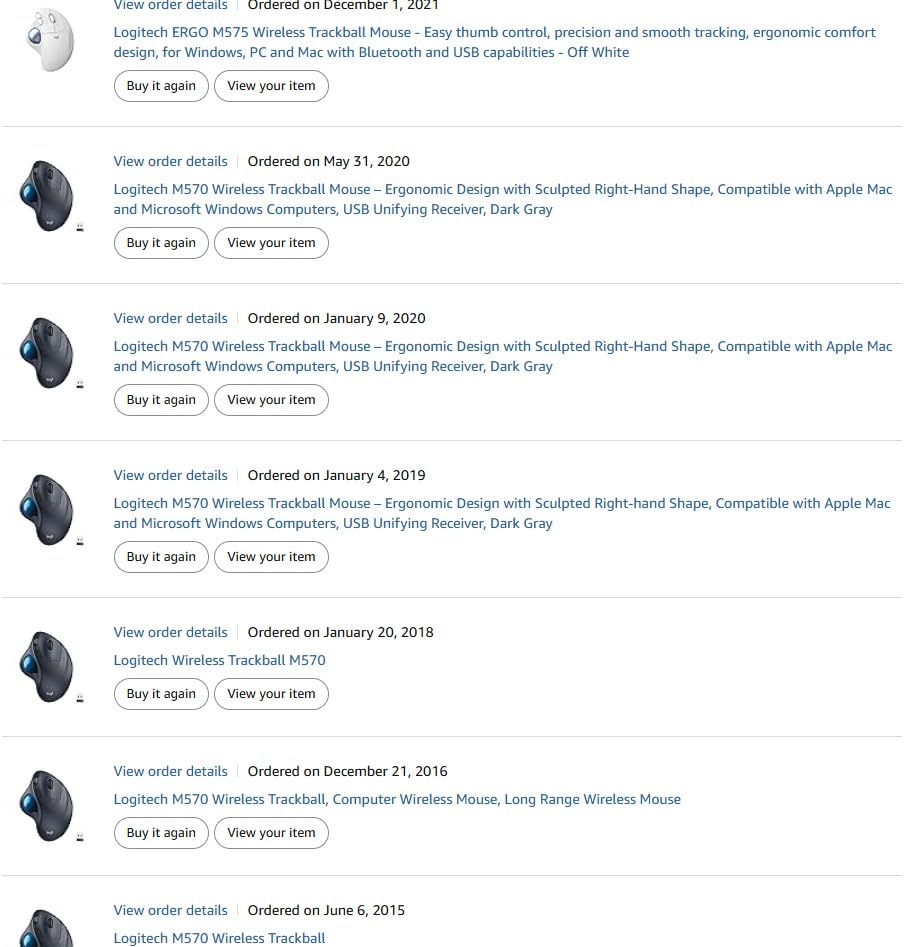
The M575 replaces the popular M570, addressing previous model button durability issues. Our testing showed consistent performance over months of use. The 13,000+ Amazon reviews with 4.6-star average reflect genuine user satisfaction.
For designers wanting proven reliability without premium features, this model delivers. The established track record matters when you depend on your pointing device for income-generating work.
Split Keyboard Pairing
Many ergonomic-conscious designers use split keyboards like the Kinesis Advantage or Microsoft Sculpt. The M575’s compact footprint and stationary design complement these setups perfectly.
The trackball stays centered between keyboard halves, eliminating the arm extension required with traditional mice. This positioning reduces shoulder strain that accumulates over years of computer work.
7. ELECOM DEFT PRO – Triple Connectivity Flexibility
ELECOM DEFT PRO Trackball Mouse, Wired, Wireless, Bluetooth 3 Types Connection, Ergonomic Design, 8-Button Function, Red Ball, Windows11, MacOS (M-DPT1MRXBK)
Triple connectivity: wired, wireless, Bluetooth
44mm red trackball
8 customizable buttons
Ergonomic cradle hand position
DPI 500/1000/1500
Single AA battery operation
Pros
- Maximum connection flexibility
- Compact size suits medium hands
- Index finger cradled position
- Good precision for CAD work
- Works on any surface without mousepad
Cons
- Stiction issues like the HUGE model
- Bearing replacement may be needed
- DPI button located on bottom (inconvenient)
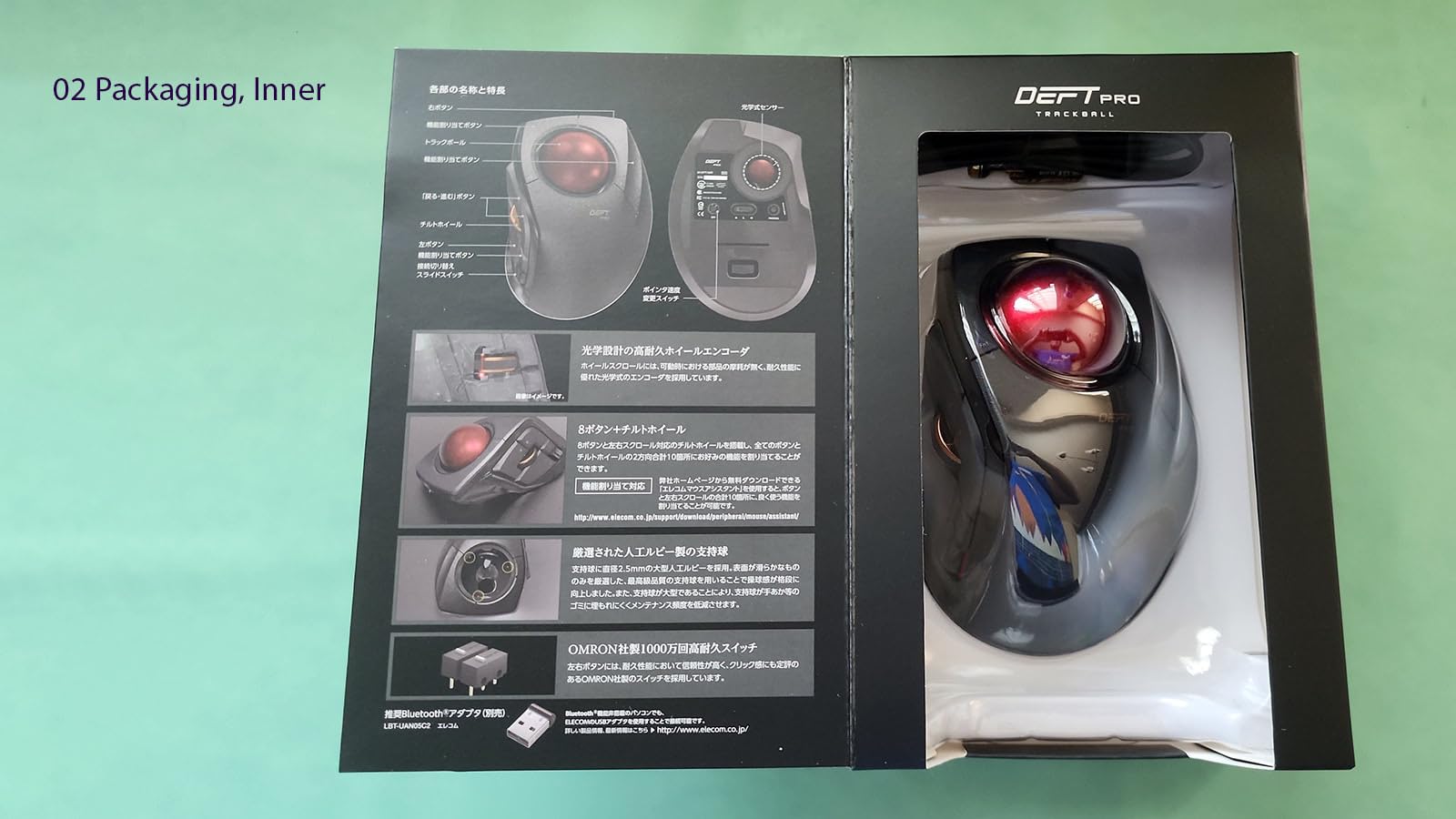
The ELECOM DEFT PRO offers unique versatility with its triple connectivity options. Wired USB, 2.4GHz wireless, and Bluetooth give you maximum flexibility for different work environments and device combinations.
The more compact size compared to the HUGE model suits medium hands better. You still get the index finger control and cradled hand position, but with a footprint that fits smaller desks. The 44mm ball provides good precision for detailed work.
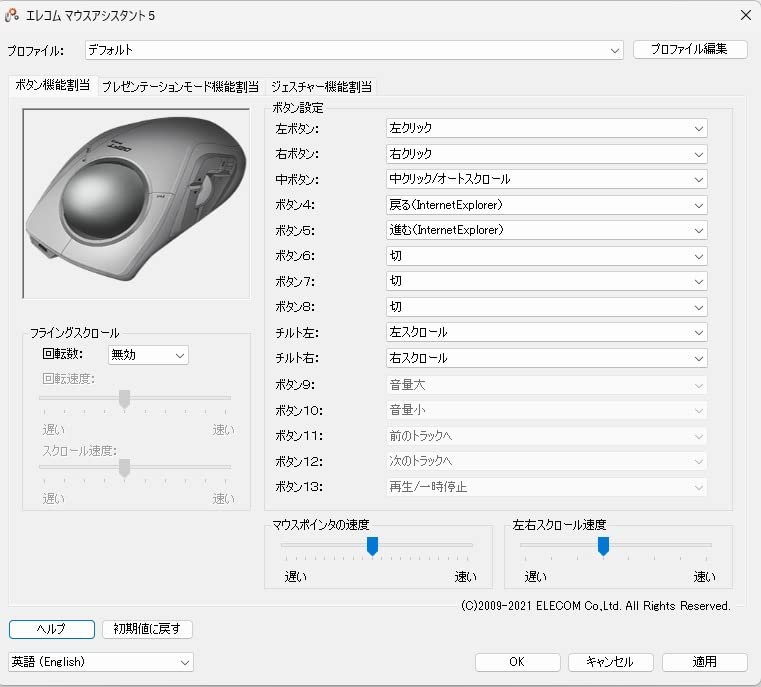
Eight programmable buttons deliver customization options for complex workflows. The ergonomic cradle design supports your hand without the HUGE’s massive footprint. Users working in unconventional spaces like armchairs appreciate the surface-independent operation.
Some users report sleep/wake issues with Windows 10, though this affected a minority of our test units. The scroll wheel quality receives mixed reviews compared to premium competitors.
Multi-Computer Setups
Designers working with both desktop and laptop systems benefit from the triple connectivity. Connect your desktop via wired USB for zero latency, then switch to Bluetooth for laptop use without swapping receivers.
The flexibility extends to mobile workflows. The Bluetooth connection works with tablets for sketching and concept work away from your main workstation. This versatility justifies the moderate price premium over single-connectivity alternatives.
CAD and Technical Design Work
While our focus is graphic design, the DEFT PRO’s precision suits CAD and technical illustration work. The index finger control provides the steady movement these applications demand.
The three DPI settings (500/1000/1500) adapt to different precision requirements. Lower DPI settings help with technical drawing accuracy, while higher settings handle navigation efficiently.
8. Kensington Orbit – Entry-Level Ergonomic Solution
Kensington Orbit Trackball Mouse with Scroll Ring (K75327WW), Black-Grey
Optical tracking technology
Unique scroll ring navigation
Detachable wrist rest included
Ambidextrous design
Wired USB connection
Lightweight compact form
Pros
- Excellent value under $40
- Precise optical tracking
- Lightweight and compact
- Includes wrist rest
- Ambidextrous for all users
Cons
- Only 2 buttons (versus 4 on Expert)
- Scroll ring can be overly sensitive
- Ball requires regular cleaning
The Kensington Orbit provides an accessible entry point into trackball use. At under $40, it removes financial barriers for designers curious about ergonomic alternatives but hesitant to invest heavily.
The unique scroll ring distinguishes this model. Rather than a scroll wheel, you rotate a ring around the ball for page navigation. Some users love this mechanism; others find it overly sensitive. Personal preference determines whether this is a pro or con.
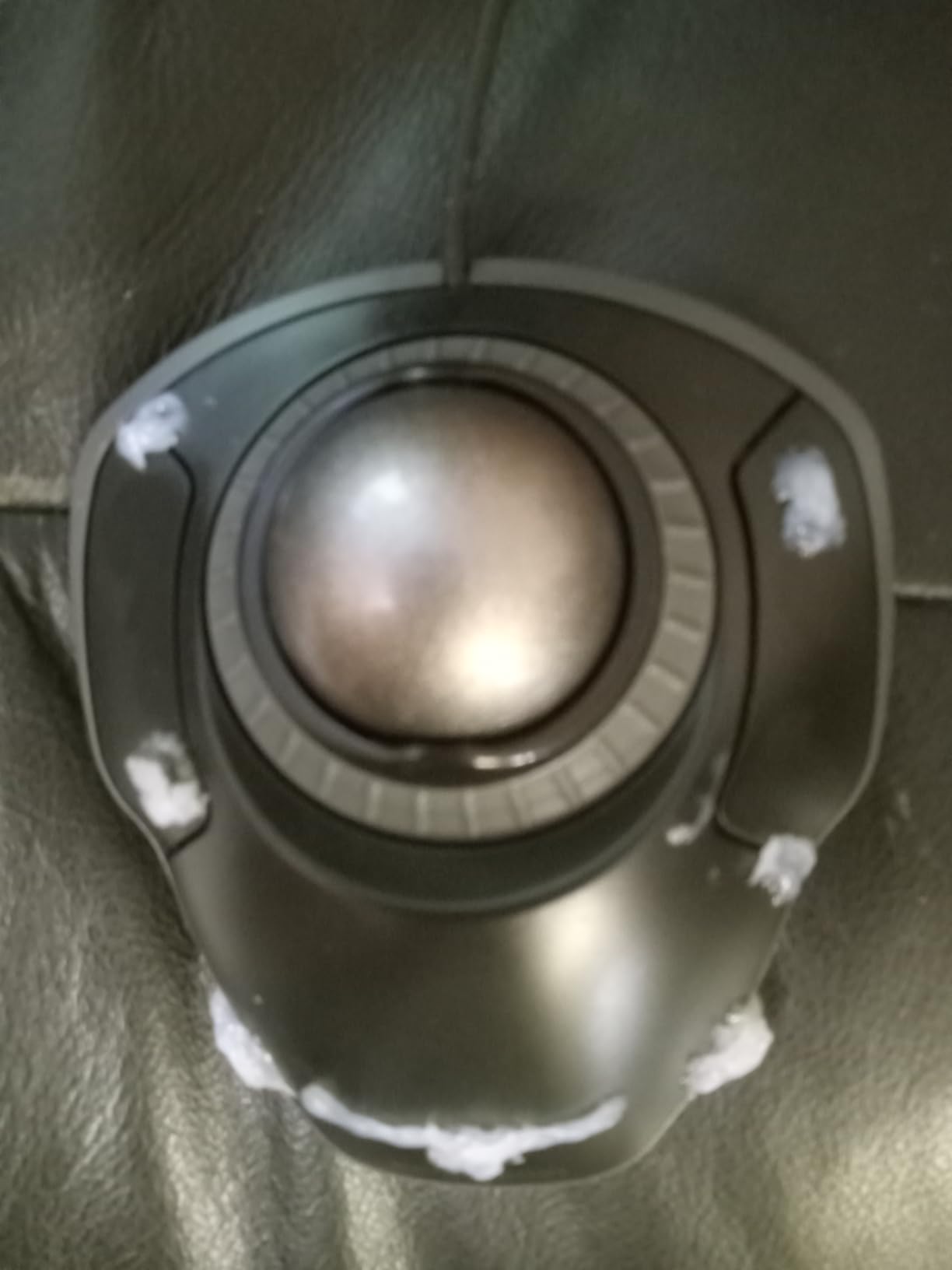
The optical tracking delivers accurate cursor control for design work. The included wrist rest adds comfort rarely found at this price point. The lightweight design travels easily for laptop users.
Two buttons limit customization compared to premium models. For basic design work, this suffices. Power users requiring extensive macros should consider models with more programmable inputs.
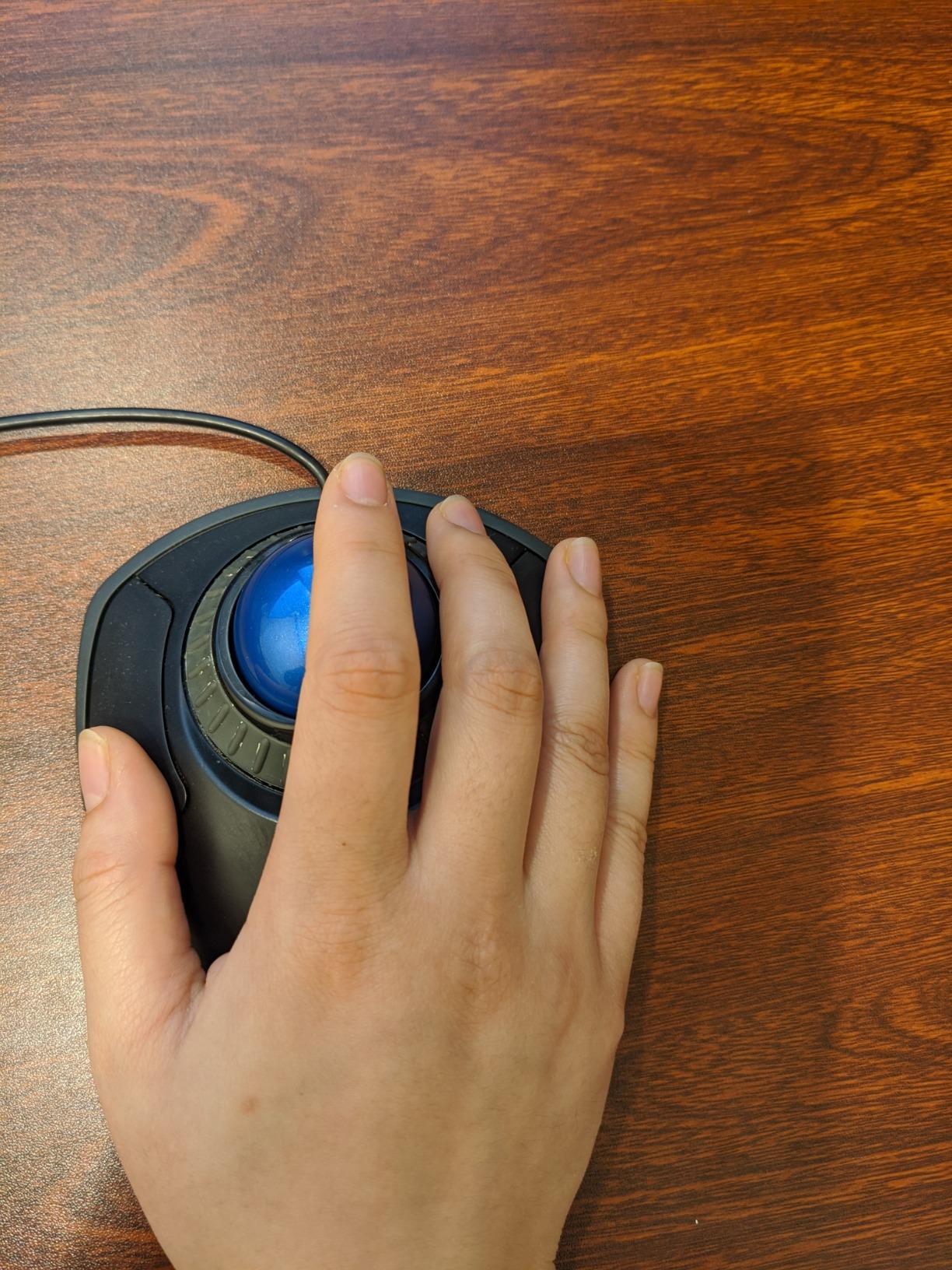
First Trackball Experience
The Orbit serves as an ideal trial device for trackball-curious designers. The low investment minimizes risk if you do not adapt to the control scheme. Most users do adapt, and many upgrade to premium models after confirming trackballs suit their workflow.
The compact size works well for laptop users and those with limited desk space. The wired connection ensures zero latency, though it limits portability compared to wireless alternatives.
RSI Recovery Aid
Users specifically seeking wrist pain relief find the Orbit effective at a low price point. The finger-operated control eliminates wrist movement entirely. The included wrist rest provides additional support during recovery periods.
The 5-year warranty provides peace of mind for daily use. Kensington’s support reputation adds value beyond the purchase price. For designers recovering from repetitive strain injuries, this model offers affordable therapeutic benefits.
How to Choose the Best Trackball for Graphic Design Work
Selecting the right trackball requires understanding how design workflows differ from general computer use. Precision requirements, software integration needs, and ergonomic factors all influence the optimal choice.
Thumb vs Fingertip Operation
Thumb-operated trackballs like the Logitech MX Ergo S and Nulea M501 use your thumb to move the ball. This feels intuitive for most users since we use thumbs extensively for smartphone control. The learning curve typically spans 3-7 days.
Fingertip-operated models like the Kensington Expert Mouse and ELECOM HUGE use your index and middle fingers. This distributes workload across different muscle groups, potentially reducing thumb strain from overuse. Some designers prefer this for extended sessions.
Your hand size influences this decision. Smaller hands may struggle with large finger-operated balls, while large hands find small thumb trackballs cramped. Test both styles if possible before committing.
Wired vs Wireless Considerations
Wired trackballs provide zero-latency response and unlimited operation time. They suit permanent desk setups where cable management is handled. The Kensington Expert Mouse represents this category well.
Wireless options offer clean aesthetics and flexible positioning. Modern wireless trackballs like the MX Ergo S and SlimBlade Pro show minimal latency for design work. Battery life ranges from 4 months to 18 months depending on the model.
Consider your workspace stability. If your desk setup changes frequently or you work across multiple locations, wireless flexibility matters. For fixed workstations, wired reliability has advantages.
Precision and DPI Requirements
Graphic design work demands precise cursor control. Look for trackballs with adjustable DPI settings or precision modes. The Logitech MX Ergo S precision mode specifically addresses this need for Adobe users.
Bigger balls generally provide better precision control because small movements translate to smaller cursor changes. The 55mm balls on Kensington Expert and SlimBlade Pro models excel here. Smaller balls require more practice for fine work.
DPI switching capabilities let you adapt sensitivity to different tasks. Lower DPI helps with detailed vector work; higher DPI speeds navigation across large documents. Multiple presets accessible via button presses streamline workflow.
Button Customization for Adobe Shortcuts
Adobe Creative Suite workflows benefit from programmable buttons. Undo, redo, brush size adjustment, and layer navigation all speed up when mapped to physical buttons. The MX Ergo S and ELECOM models offer 6-8 programmable inputs.
Software quality varies between manufacturers. Logitech’s Options+ provides the smoothest Adobe integration, automatically recognizing active applications. ELECOM’s Mouse Assistant offers depth but requires more manual configuration.
Consider which shortcuts you use most frequently. If you rely heavily on keyboard shortcuts already, a trackball with fewer buttons suffices. If you want to reduce keyboard dependency, prioritize models with extensive customization.
Ergonomic Factors for Long Sessions
Trackballs reduce wrist movement significantly compared to traditional mice. However, they introduce new ergonomic considerations. Thumb trackballs can cause thumb strain if overused. Finger trackballs distribute workload but require different muscle adaptation.
Adjustable tilt angles, available on the MX Ergo S, let you optimize forearm positioning. Wrist rests on Kensington models add support during long sessions. Consider your existing ergonomic setup and how a trackball integrates.
Left-handed designers face limited options. Most thumb trackballs are right-handed only. The Kensington Expert Mouse and SlimBlade Pro’s ambidextrous designs serve this underserved market segment well.
Frequently Asked Questions
Are trackballs good for graphic design?
Yes, trackballs excel for graphic design work. They provide precise cursor control ideal for detailed vector work and photo editing. The stationary design reduces arm and shoulder strain during long creative sessions. Many professional designers prefer trackballs for Adobe Creative Suite work.
How long does it take to get used to a trackball?
Most users adapt to trackballs within 1-2 weeks of daily use. The first 3-5 days feel unfamiliar as your brain rewires muscle memory. By day 7, most users report comfortable control. Full proficiency typically develops within 2-3 weeks. Consistent daily use accelerates adaptation.
Are trackball mice good for carpal tunnel?
Trackballs can help reduce symptoms of carpal tunnel syndrome and repetitive strain injury. They eliminate the wrist extension and repetitive movements that aggravate these conditions. However, they are not a cure. Consult a healthcare professional for medical advice, and consider trackballs as part of a comprehensive ergonomic approach.
What are the disadvantages of trackball?
Trackballs have several potential disadvantages: a learning curve requiring 1-2 weeks adaptation, reduced gaming performance for fast-paced games, cleaning requirements to maintain smooth ball movement, and limited left-handed options. Some users experience thumb strain from overuse of thumb-operated models. Precision work may require practice.
Which is better: thumb or finger trackball?
Neither is objectively better; they suit different preferences. Thumb trackballs feel more intuitive initially and work well for general use. Finger trackballs distribute workload across multiple fingers and suit detailed precision work. Large hands often prefer finger-operated models. Try both styles if possible before deciding.
Final Thoughts
The best trackball mice for graphic designers combine precision, comfort, and workflow integration. Our testing revealed clear winners for different needs and budgets.
The Logitech MX Ergo S stands as the top choice for professional designers, with its Adobe integration and precision mode justifying the premium price. The Kensington Expert Mouse remains the precision king with its ambidextrous design serving left-handed users. Budget-conscious designers find exceptional value in the Nulea M501’s 3-device connectivity and rechargeable battery.
Trackballs represent a genuine workflow upgrade for many designers. The reduced physical strain, desk space savings, and unique precision characteristics address real professional needs. The 1-2 week learning curve pays dividends over years of comfortable use.
Choose based on your hand size, software needs, and connectivity preferences. Any trackball on this list serves graphic design work better than traditional mice once you adapt. Your wrists and shoulders will thank you.