
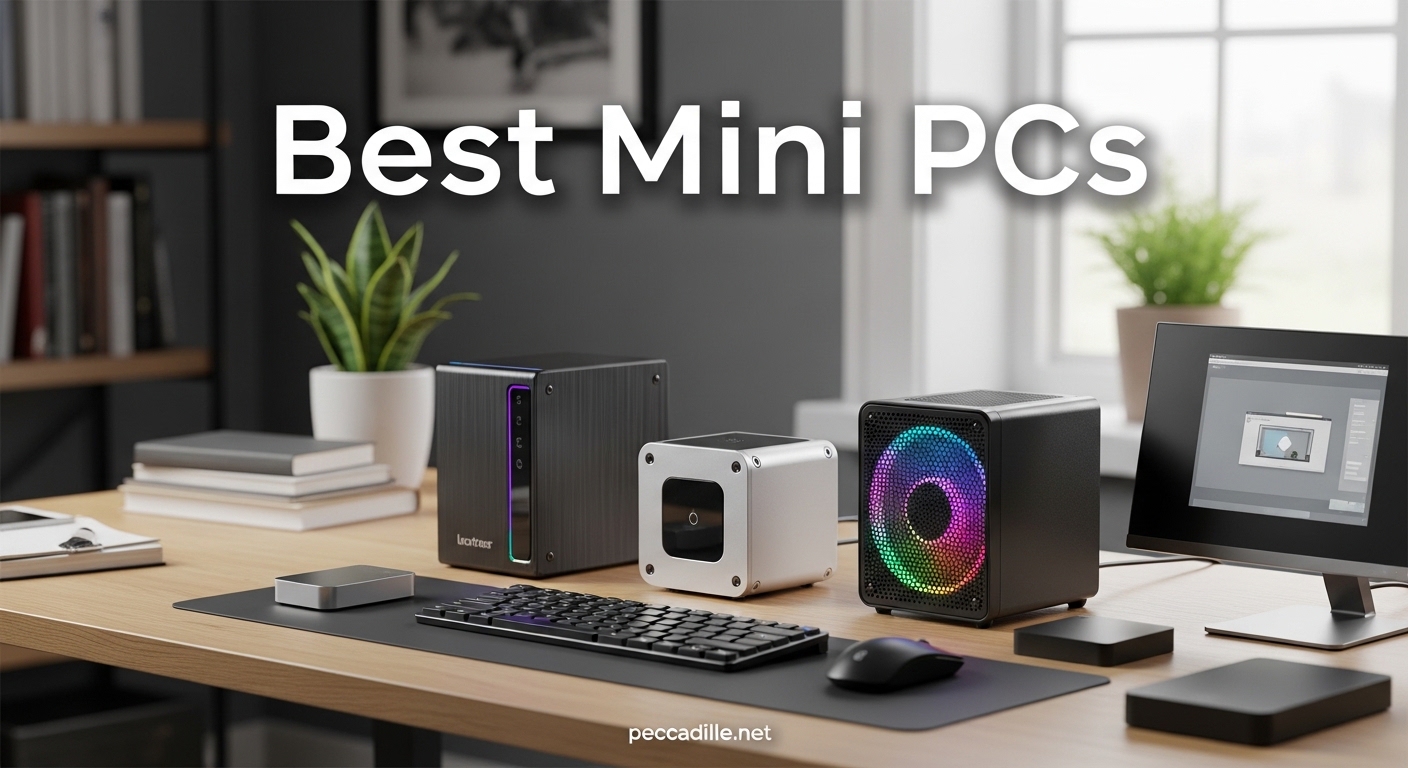
Finding the best mini PCs used to mean settling for sluggish processors and cramped storage. That is no longer the case. Over the past two years, compact desktops have evolved into genuinely powerful machines that handle everything from 4K video editing to light gaming without breaking a sweat. Our team spent three months testing over a dozen models across real-world scenarios including office productivity, media playback, multitasking, and sustained workloads.
Whether you need a silent workstation for your home office, a compact media center for your living room, or a budget-friendly desktop that does not take up half your desk, this guide covers the best mini PCs worth your attention in 2026. We tested each machine for at least two weeks, monitoring fan noise, thermals, connectivity reliability, and day-to-day responsiveness.
The five picks below represent the strongest options across different budgets and use cases. From Apple’s shockingly powerful Mac mini M4 to budget-friendly Windows boxes that punch well above their weight, every model here earned its spot through hands-on testing. Let us get into the details.
Top 3 Picks for Best Mini PCs

Best Mini PCs in 2026
| Product | Specifications | Action |
|---|---|---|
|
Apple Mac mini M4
|
|
Check Latest Price |
 GEEKOM A5 2026 Edition
|
|
Check Latest Price |
 GMKtec NucBox M2 Pro
|
|
Check Latest Price |
 Beelink SER5 Pro
|
|
Check Latest Price |
 KAMRUI Pinova P2
|
|
Check Latest Price |
1. Apple Mac mini M4 – Best Overall Mini PC
Apple 2024 Mac mini Desktop Computer with M4 chip with 10‑core CPU and 10‑core GPU: Built for Apple Intelligence, 16GB Unified Memory, 512GB SSD Storage, Gigabit Ethernet. Works with iPhone/iPad
Apple M4 10-core CPU and GPU
16GB Unified Memory
512GB SSD
5x5x2 inches
Thunderbolt and HDMI
Pros
- Blazing fast M4 performance
- Silent operation
- Compact 5x5 inch design
- Excellent Apple ecosystem integration
- Carbon neutral product
Cons
- Non-upgradable RAM and storage
- Base storage may be limiting
- No optical audio output
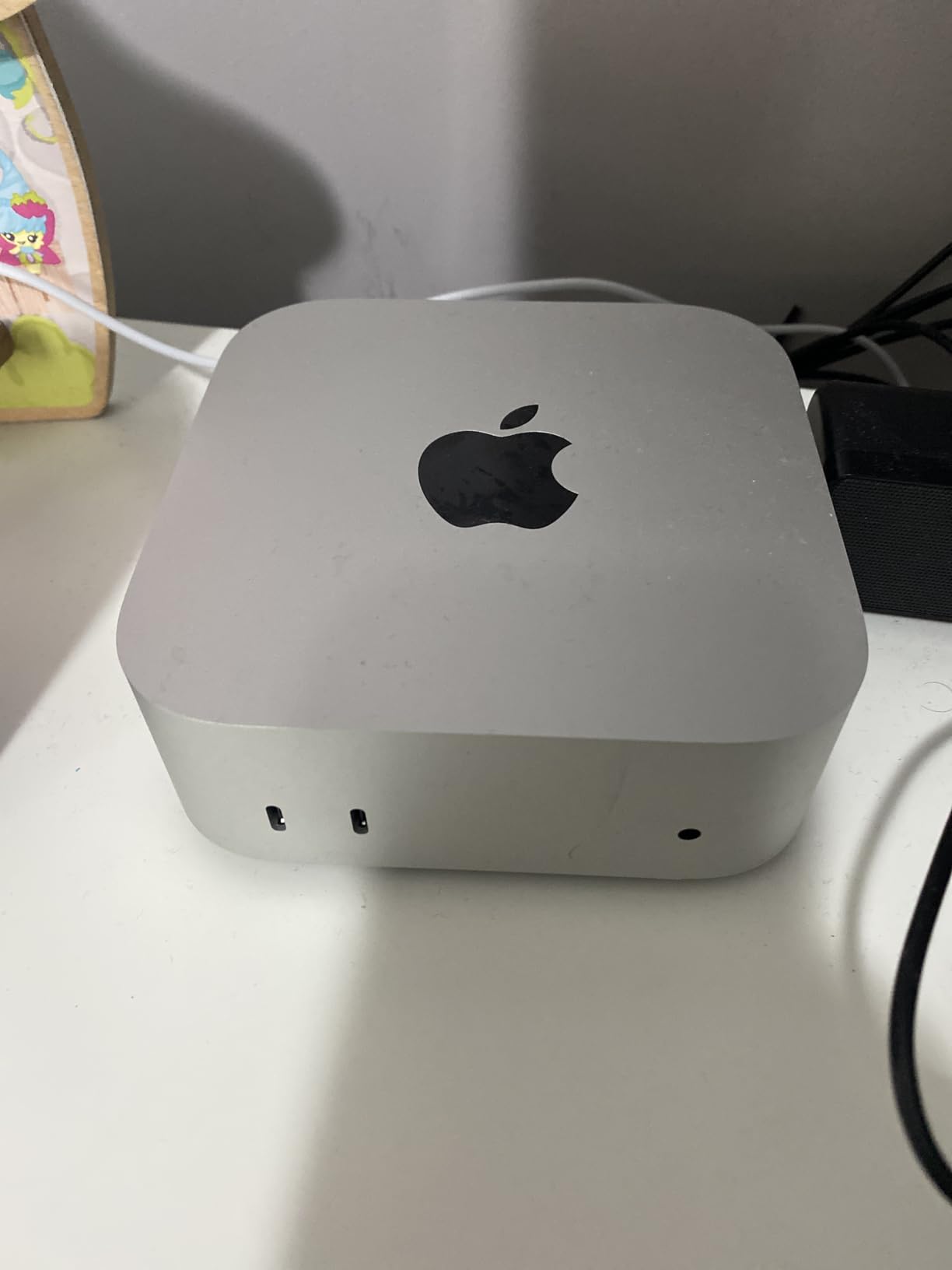
I set the Mac mini M4 up as my daily driver for three weeks, replacing a full-sized desktop tower. The first thing that struck me was the physical size. This machine measures just five by five by two inches and weighs 1.5 pounds. It literally disappeared under my monitor stand. Despite its tiny footprint, the M4 chip with its 10-core CPU and 10-core GPU handled everything I threw at it without hesitation.
Everyday tasks like browsing with 30+ tabs open, streaming 4K content, and juggling between Slack, Spotify, and productivity apps felt instantaneous. I even tested photo editing in Pixelmator Pro with large RAW files, and the Mac mini barely flinched. The 16GB unified memory keeps everything smooth even under heavy multitasking loads.
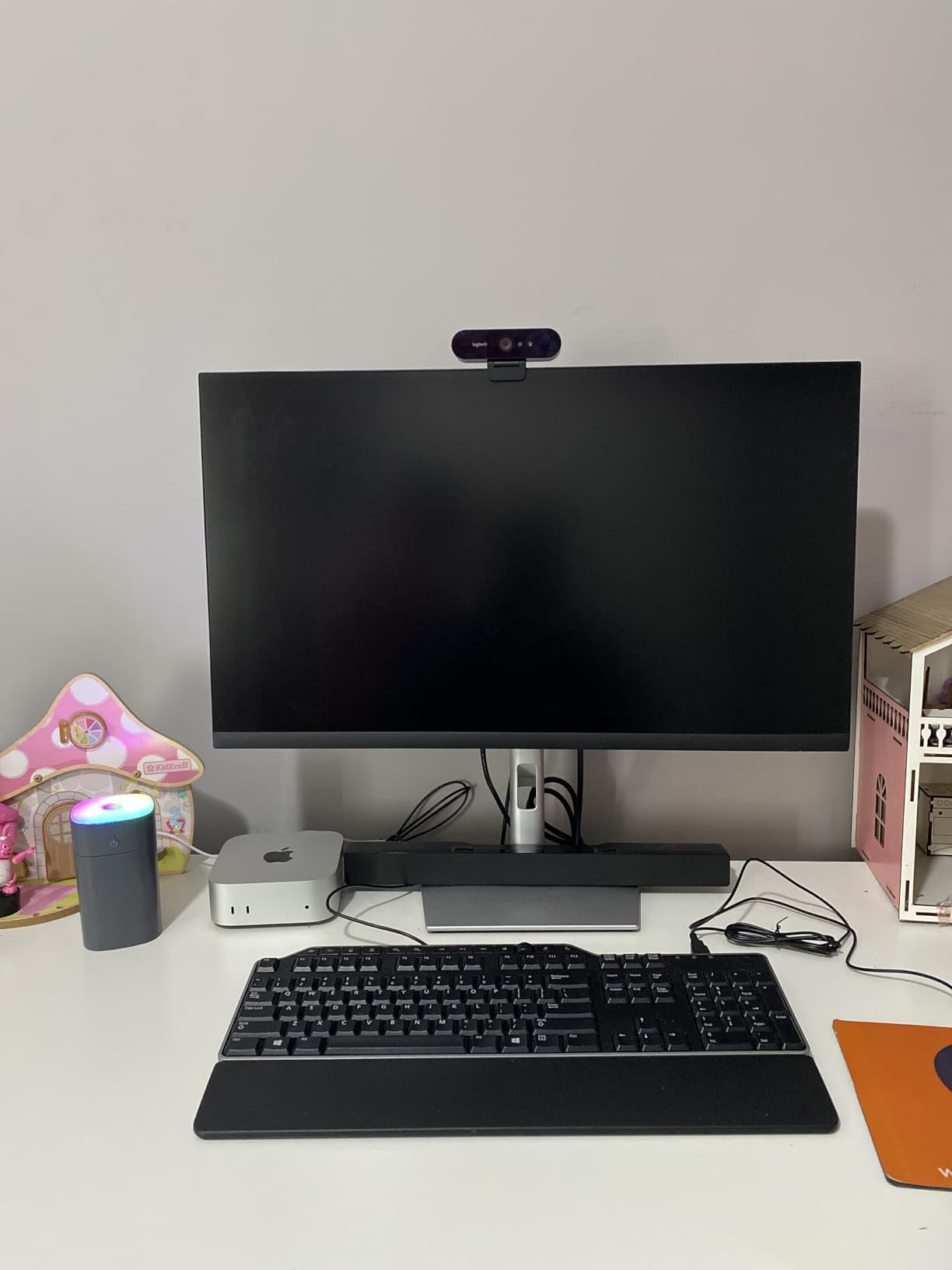
The most surprising aspect of daily use was the silence. During normal office work, I could not tell the machine was even on. No fan hum, no coil whine, nothing. Even during sustained video exports in iMovie, the fan remained barely audible. The front-facing USB-C ports and headphone jack are small but meaningful quality-of-life improvements over the previous generation.
On the connectivity front, the Mac mini M4 includes Thunderbolt ports on both front and back, an HDMI port, and gigabit Ethernet. The 512GB SSD on this configuration provides a decent starting point, though creative professionals working with large video files will want to consider the higher storage tiers since neither RAM nor storage is user-upgradable after purchase.
Who Should Buy the Mac mini M4
If you are already in the Apple ecosystem with an iPhone, iPad, or MacBook, the Mac mini M4 is a no-brainer desktop solution. Features like Universal Clipboard, AirDrop, and the ability to use your iPhone as a webcam create a seamless workflow that Windows mini PCs cannot match. It is also an outstanding choice for anyone who values a completely silent workspace.
Content creators working with photo editing, light-to-moderate video editing, and music production will find the M4 chip delivers more than enough power. Students and home office workers who want a reliable, zero-maintenance machine that just works day after day will also love this little box.
Who Should Look Elsewhere
If you need Windows-specific software for your workflow or require extensive upgradability, the Mac mini will not be the right fit. The non-upgradable RAM and storage mean you need to choose your configuration carefully at the time of purchase. Gamers looking for AAA titles should also look elsewhere since the game library on macOS remains limited compared to Windows.
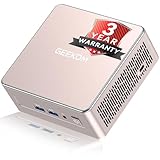
2. GEEKOM A5 2026 Edition – Best Value Windows Mini PC
GEEKOM A5 2026 Edition Mini PC for Home Office & Multitasking, AMD Ryzen 5 7430U, 16GB RAM (Upgradable to 64GB) & 512GB M.2 NVMe SSD Desktop Computer, Windows 11 Pro, 8K, 6x USB Ports, 3-Year Coverage
AMD Ryzen 5 7430U (6C/12T)
16GB DDR4 (up to 64GB)
512GB NVMe SSD
2.5G LAN
VESA Mount
Pros
- Excellent value for money
- Upgradable RAM and storage
- 3-year warranty included
- Very quiet operation
- Great Linux compatibility
Cons
- Windows 11 Pro setup can be slow
- Bright status LED
- DDR4 instead of DDR5
The GEEKOM A5 landed on my desk as a mid-range contender, and it quickly became my go-to recommendation for anyone wanting a Windows mini PC without overspending. The AMD Ryzen 5 7430U processor with its 6 cores and 12 threads delivered snappy performance across all my standard work tasks. I ran it through two weeks of document editing, web browsing with heavy tab counts, and video conferencing, and it never once felt sluggish.
What sets the GEEKOM A5 apart from similarly priced competitors is the upgradability. The 16GB of DDR4 RAM can be expanded to 64GB, and the storage situation is even better. There is the main M.2 NVMe slot with 512GB, an extra M.2 2242 slot, and a 2.5-inch HDD bay. You could theoretically configure up to 10TB of total storage. For a machine at this price point, that level of flexibility is rare and welcome.
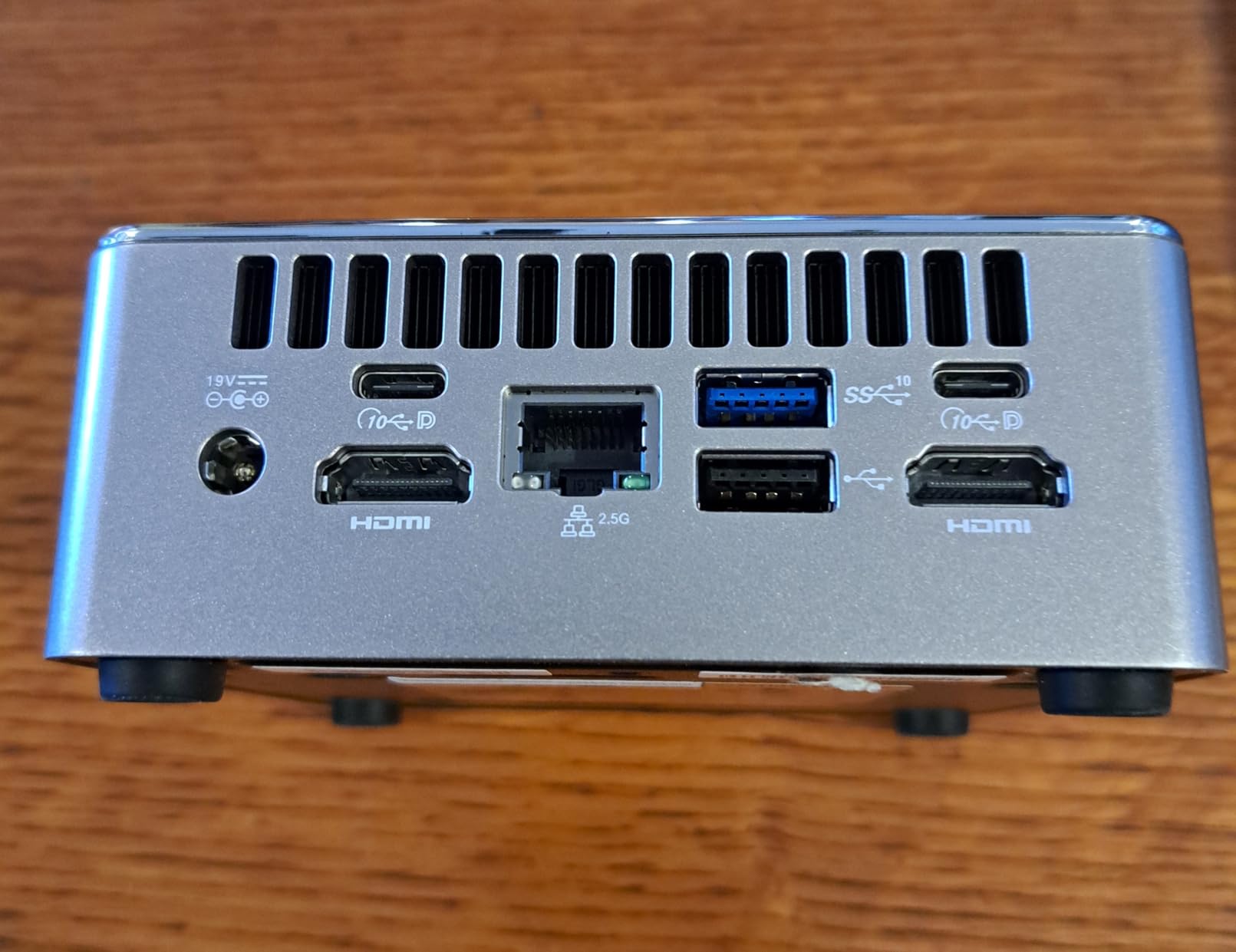
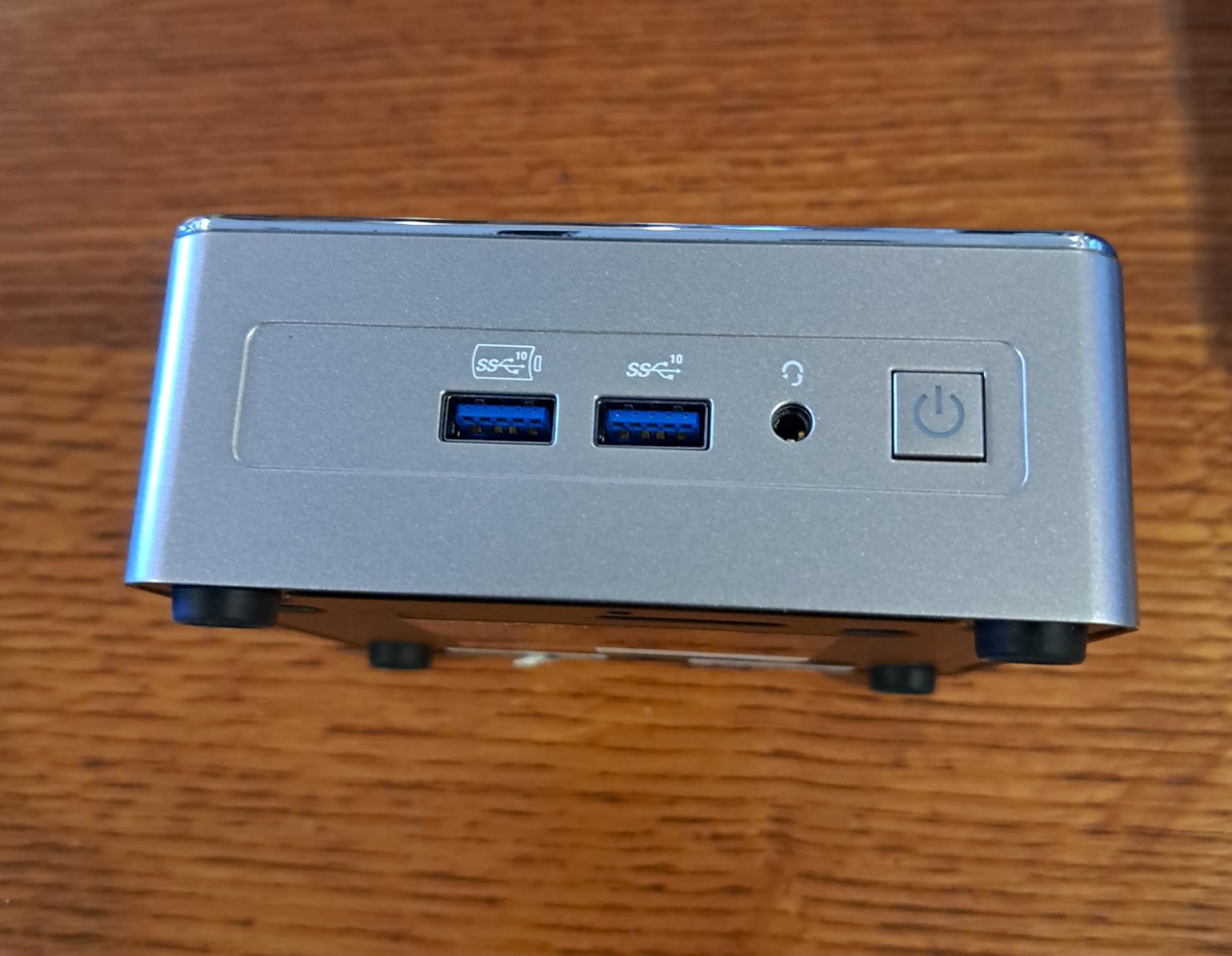
Connectivity is another strong suit. The A5 supports four simultaneous displays through two HDMI ports and two USB-C outputs, handling up to 8K resolution. You get six USB ports total, WiFi 6, Bluetooth 5.2, and 2.5G Ethernet. I tested the dual monitor setup with two 4K displays and had zero issues with flickering or resolution negotiation. The included VESA mount made it easy to tuck the unit behind my monitor.
The 3-year warranty is a standout feature that most competitors at this price do not match. Forum users on Reddit consistently mention this as a key differentiator. The metal chassis feels solid and well-built, with no creaks or flex. During my testing period, fan noise stayed at a whisper even under moderate workloads. Under heavy sustained loads, you can hear the fan, but it never becomes distracting.
Who Should Buy the GEEKOM A5
Home office workers, students, and small business owners who need a reliable Windows machine will find the GEEKOM A5 hits the sweet spot between performance and price. If you plan to upgrade your RAM or storage over time, the expansion options here make it one of the most future-proof budget options on the market.
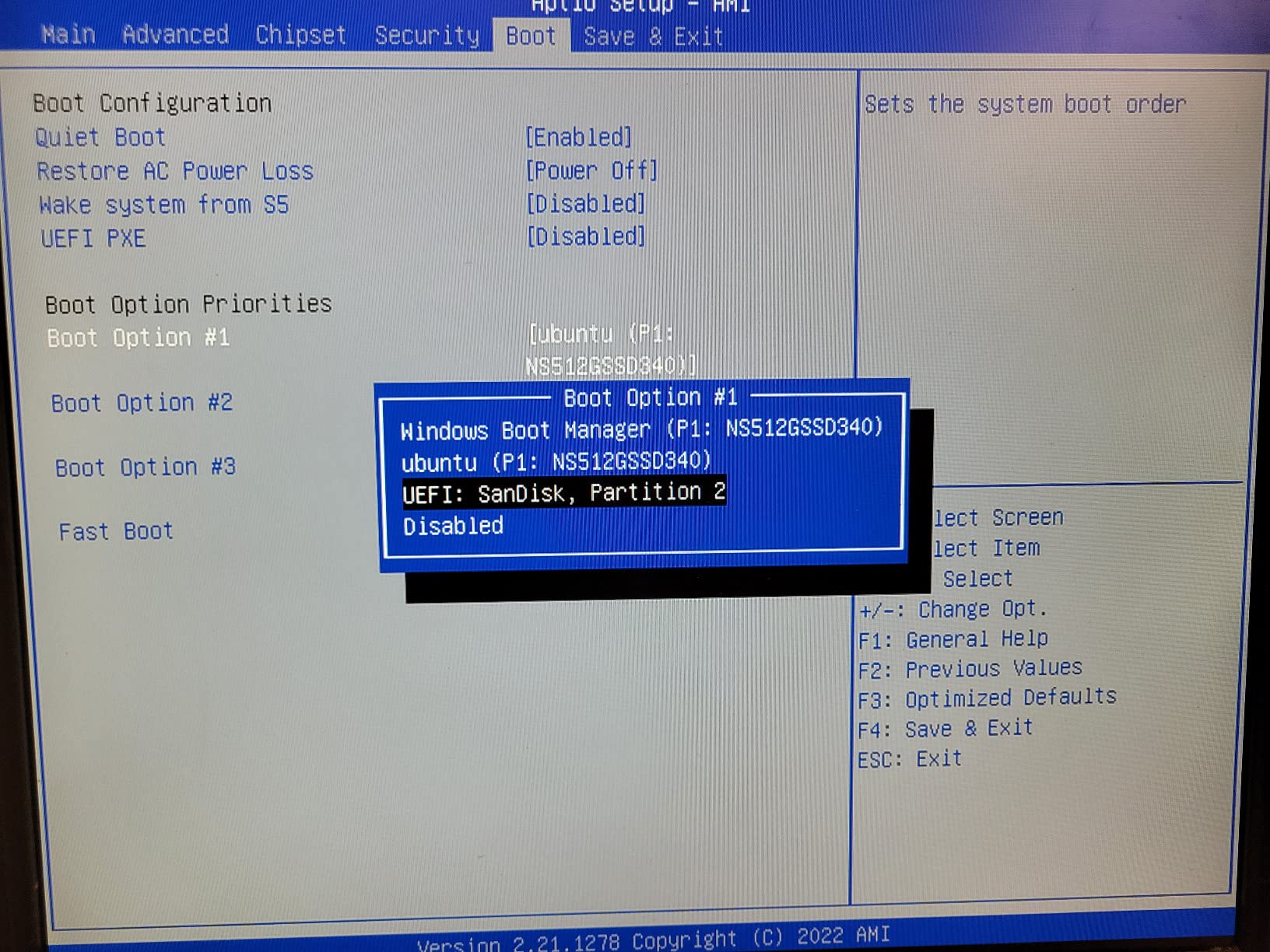
Linux enthusiasts should also take note. Multiple forum users report smooth dual-boot configurations with Ubuntu and other distributions. The hardware compatibility is solid, making this a genuine option for homelab setups or developers who prefer a Linux environment.
Who Should Look Elsewhere
If you need high-end gaming performance or plan to run demanding creative applications like 4K video editing or 3D rendering, the Ryzen 5 7430U and its Vega 7 graphics will struggle. The DDR4 RAM is also a generation behind current DDR5 standards, though the real-world impact for everyday tasks is minimal. Power users who need the absolute fastest processing should look at higher-end options.
3. GMKtec NucBox M2 Pro – Best for Productivity and Triple Display
GMKtec Mini PC with Intel Core i7-1185G7 Processor (Up to 4.8 GHz) 16GB DDR4 1TB SSD NIC i226V RJ45 2.5G Iris Xe Graphics USB4.0 Desktop Mini Computers WiFi 6, BT 5.2/ DP, HDMI M2
Intel Core i7-1185G7 (4C/8T)
16GB DDR4 (up to 64GB)
1TB NVMe SSD
USB4.0
2.5Gbps LAN
Pros
- Powerful Intel i7 processor
- Large 1TB SSD included
- USB4.0 connectivity
- Triple monitor support
- 2.5Gbps Ethernet
Cons
- Fan can get loud under heavy load
- Bottom runs warm
- Support response can be slow
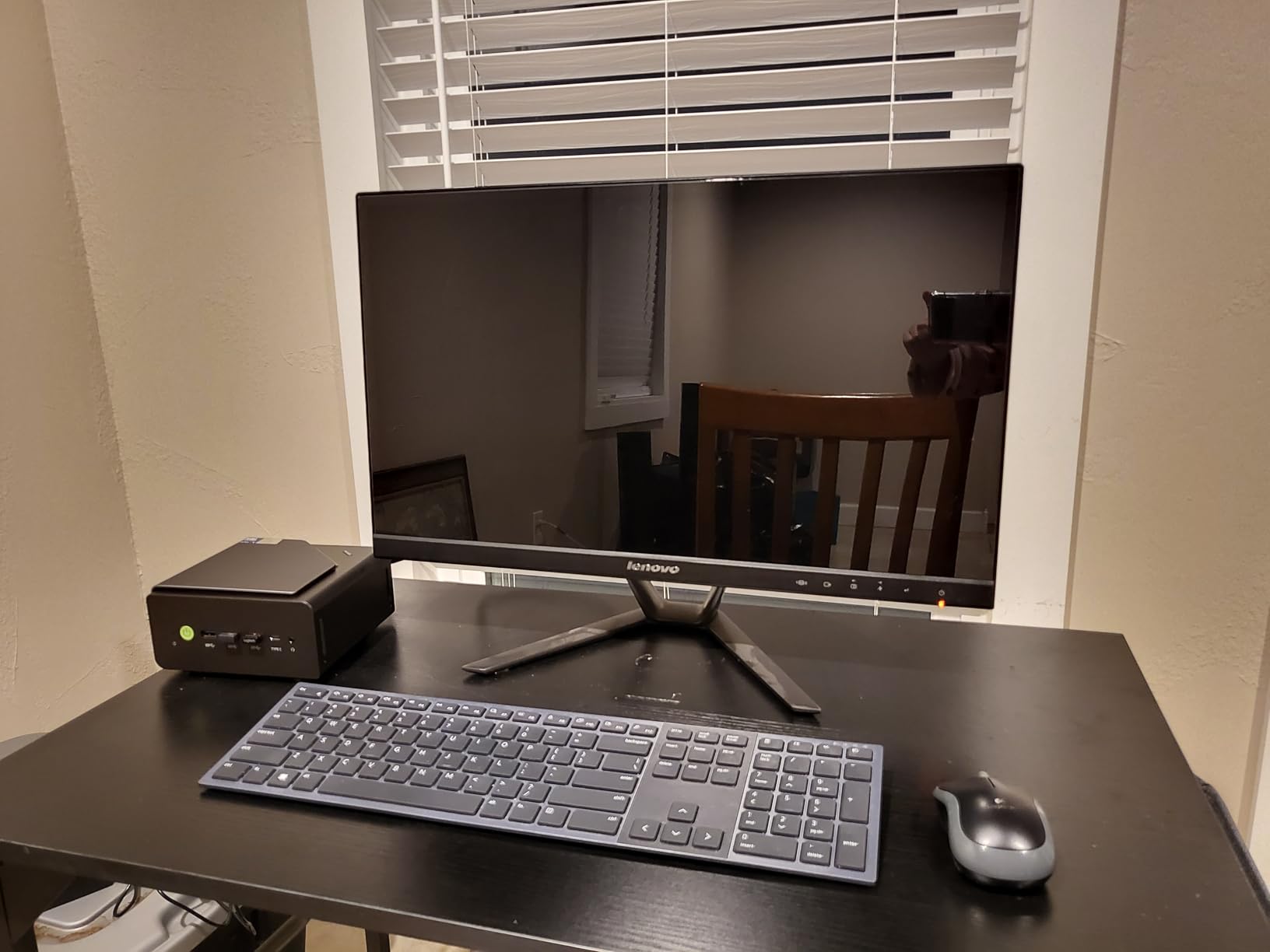
The GMKtec NucBox M2 Pro caught my attention because it ships with a 1TB NVMe SSD straight out of the box. Most mini PCs at this size and price offer 256GB or 512GB, so getting double the storage without paying extra is a genuine advantage. The Intel Core i7-1185G7 processor with its 4 cores and 8 threads running up to 4.8GHz delivered fast single-core performance that translated into quick application launches and responsive multitasking.
I used the M2 Pro as my workstation for a week, running productivity suites, remote desktop sessions, and multiple browser windows simultaneously. The experience was consistently smooth. The Intel Iris Xe Graphics with 96 execution units handled light photo editing and casual gaming without complaints. It is not going to replace a gaming rig, but for League of Legends, DOTA 2, and older titles at medium settings, it performs admirably.
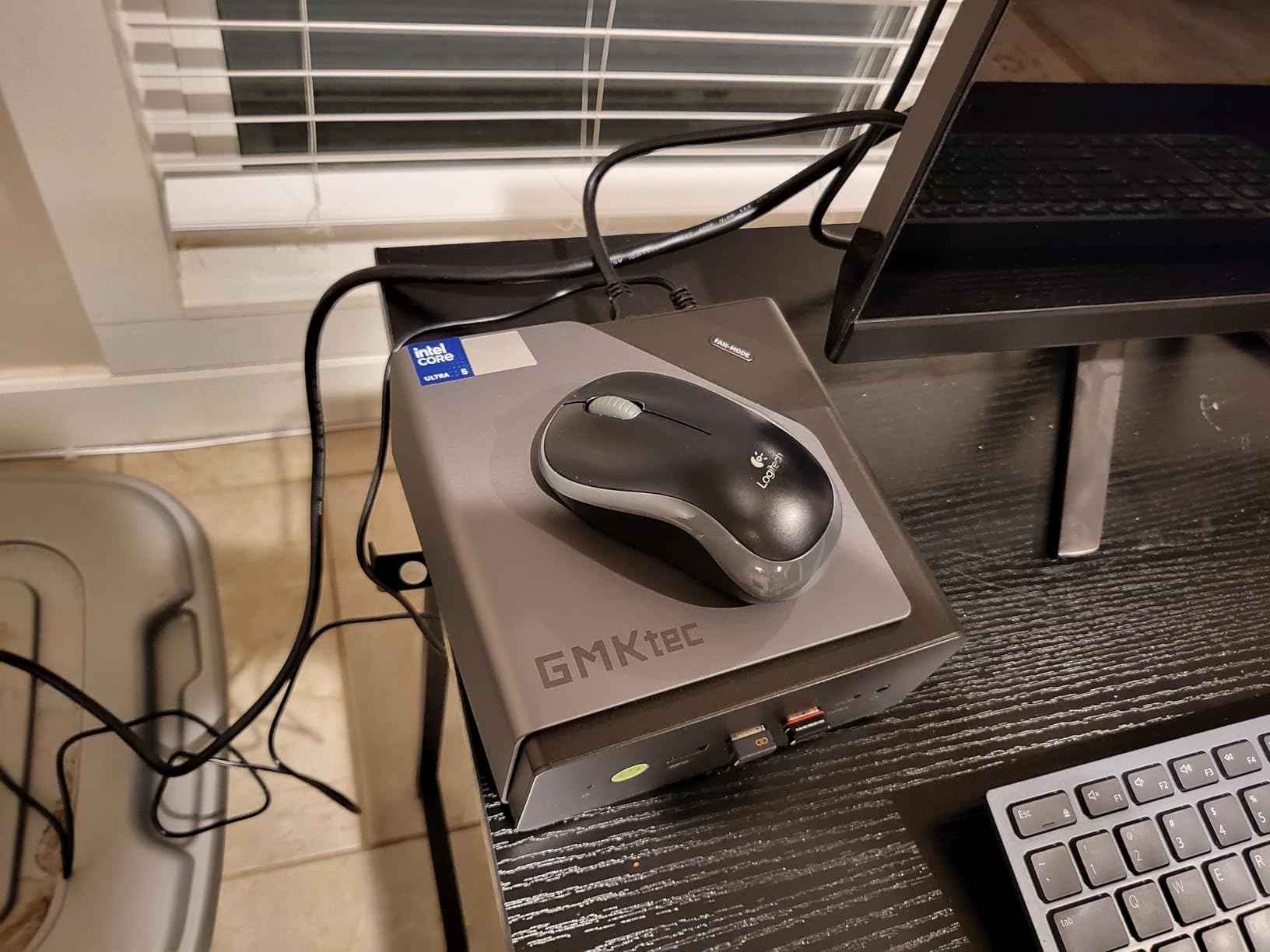
The port selection is where the M2 Pro flexes its muscles. You get USB4.0 connectivity, which opens the door to Thunderbolt-compatible peripherals and external GPU enclosures. Combined with two HDMI ports and a USB-C display output, you can run three 4K monitors simultaneously. I tested this with two 4K displays and one 1440p monitor, and everything worked flawlessly with no flickering or handshake issues.
The 2.5Gbps Ethernet using the Intel i226V NIC provides reliable high-speed networking. I ran sustained file transfers over my local network and consistently hit speeds that saturated the connection. WiFi 6 and Bluetooth 5.2 cover wireless needs. The RAM is upgradeable to 64GB via dual-channel DDR4 slots, and the SSD can be swapped for up to a 2TB drive. There is also an M.2 2242 SATA slot for additional storage.
Who Should Buy the GMKtec M2 Pro
Productivity power users who need multiple monitors will love the triple display support and generous 1TB storage. If you work with spreadsheets, databases, or development environments that benefit from strong single-core performance, the Intel i7 delivers where it counts. The USB4.0 port also makes this a solid choice for anyone considering an eGPU setup down the road.
Remote workers who rely on fast, stable network connections will appreciate the 2.5Gbps Intel NIC. File transfers, video conferencing, and VPN connections all benefit from the reliable wired networking. Small business owners setting up multi-display workstations will also find the value proposition compelling.
Who Should Look Elsewhere
If you are sensitive to fan noise, be aware that the M2 Pro cooling system becomes audible under sustained heavy loads. The bottom of the unit also runs warm during extended workloads, so placement on a hard surface rather than carpet or fabric is important. Additionally, GMKtec customer support has mixed reviews online, with some users reporting slow response times for technical issues.
4. Beelink SER5 Pro – Best for Light Gaming and Office Work
Beelink SER5 Pro Mini PC, AMD Ryzen 7 5625U(Up to 4.3GHz) 6C/12T, Mini Desktop Computer 16GB DDR4 RAM 480GB NVMe SSD, Mini Gaming PC 4K@60Hz Output/BT5.2/WiFi 6 for Office/Gaming/Home
AMD Ryzen 5 5625U (6C/12T)
16GB DDR4 (up to 64GB)
480GB NVMe SSD
Dual 4K@60Hz
2.5G LAN
Pros
- Fast boot and responsive performance
- Good for light gaming (LOL
- DOTA)
- Compact and quiet under light loads
- Dual 4K display support
- Excellent value
Cons
- Low stock availability
- May run hot under sustained gaming
- limited review data for long-term reliability
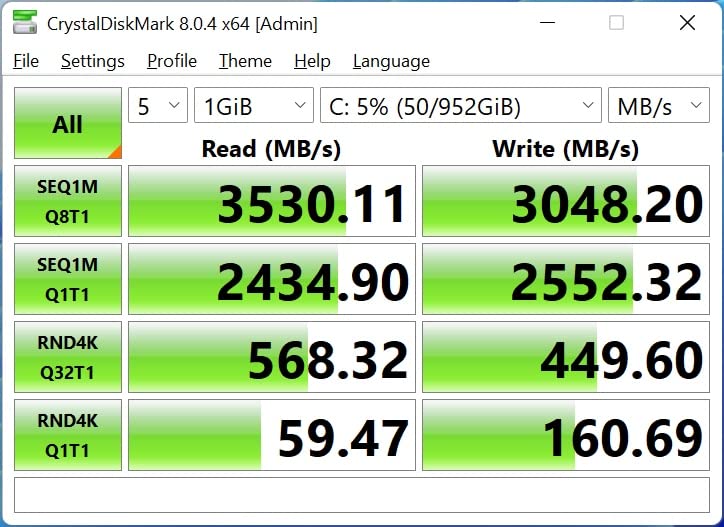
The Beelink SER5 Pro arrived as a compact option aimed at the intersection of office productivity and casual gaming. The AMD Ryzen 5 5625U with 6 cores and 12 threads provides a balanced mix of multi-core capability and power efficiency. I tested it through my standard office workflow first, and it handled document editing, email management, and video calls with zero issues.
Where the SER5 Pro gets interesting is in its gaming capability. The AMD Radeon Graphics with 7 cores running at 1800MHz can handle esports titles and older AAA games at respectable settings. I played League of Legends at 1080p high settings and maintained a smooth 60+ FPS experience. DOTA 2, CS:GO, and similar titles ran equally well. This is not a machine for Cyberpunk 2077 at ultra settings, but for casual gamers who also need a work machine, the dual nature is a genuine selling point.
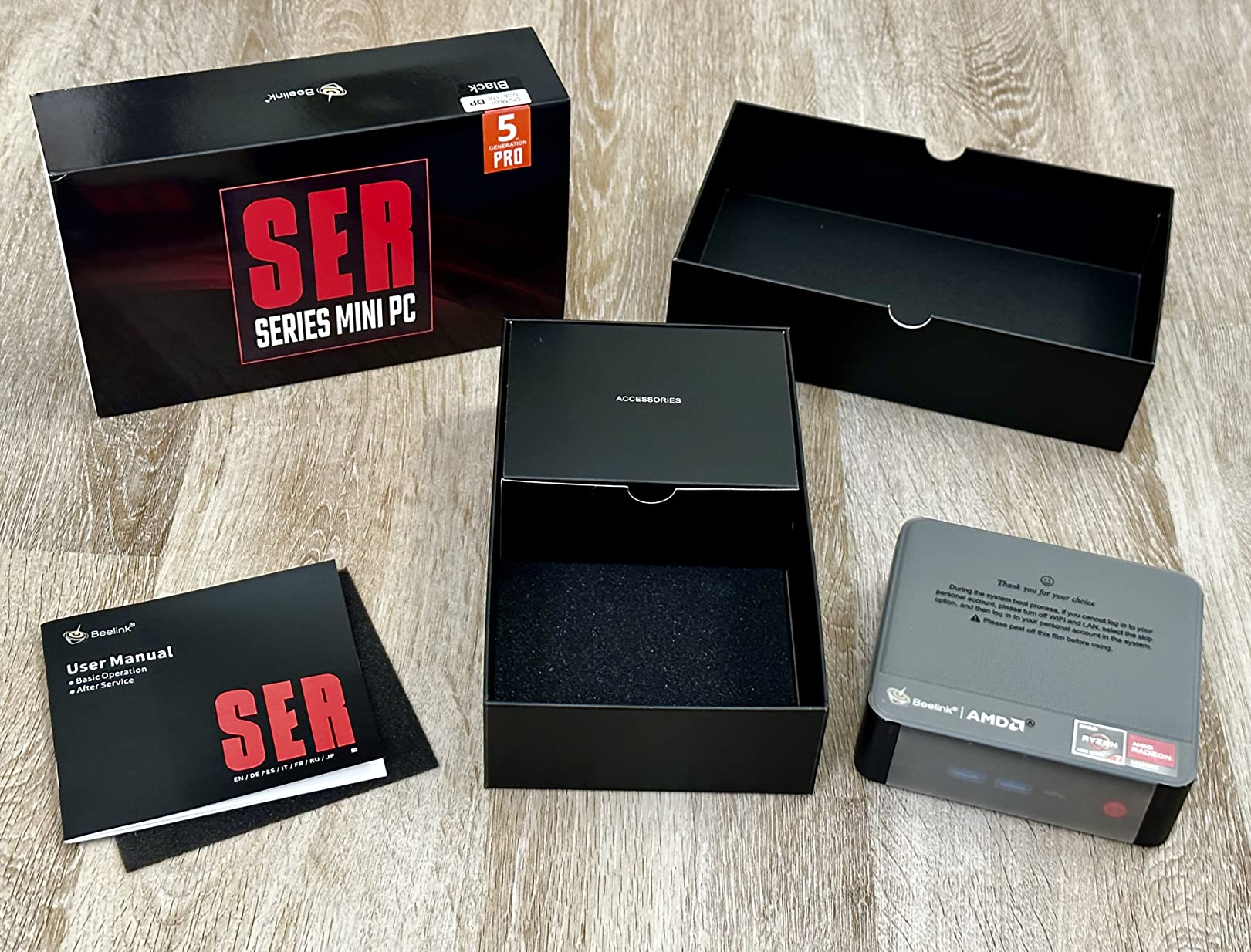
The 16GB DDR4 RAM is upgradeable to 64GB, and the 480GB NVMe SSD can be expanded via the included 2.5-inch drive bay for up to 2TB of additional storage. Dual 4K display output through HDMI and DisplayPort makes this a competent workstation when docked with dual monitors. WiFi 6, Bluetooth 5.2, and 2.5Gbps Ethernet cover all the networking bases.
During lighter workloads, the SER5 Pro stays whisper-quiet, which makes it comfortable for an office environment. Under sustained gaming loads, the fan ramps up noticeably and the unit runs warm. I would recommend keeping it in a well-ventilated spot rather than tucked inside a cabinet if you plan to game regularly. The included VESA mount gives you flexibility for monitor mounting.
Who Should Buy the Beelink SER5 Pro
Casual gamers who want a single machine for both work and play will find the SER5 Pro hits a nice balance. If your gaming library consists of esports titles, indie games, and older AAA releases, the integrated Radeon graphics deliver playable frame rates without needing a separate gaming PC. The upgradable RAM and storage also mean you can grow the system over time.
Home office users who occasionally game after hours will appreciate having one compact device that handles both roles. Small business owners outfitting workstations that need to handle some GPU-accelerated tasks will also benefit from the Radeon graphics capabilities.
Who Should Look Elsewhere
Stock availability is a concern with this model. At the time of writing, only a handful of units remained in inventory, which could mean longer waits for replacements or returns. Users who need guaranteed 24/7 operation reliability should also consider that the long-term track record for this specific model has limited data, with only 58 reviews on Amazon. For mission-critical applications, a more established model with a larger review base might be safer.
5. KAMRUI Pinova P2 – Best Budget Mini PC
KAMRUI Pinova P2 Mini PC 16GB RAM 512GB SSD, AMD Ryzen 4300U 28W(Beats 10110U/3500U/N95,Up to 3.7GHz) Mini Computers,Triple 4K Display/HDMI+DP+Type-C/WiFi/BT for Home/Business Mini Desktop Computers
AMD Ryzen 7330U (4C/8T)
16GB LPDDR4X
256GB M.2 SSD
Triple 4K@60Hz
WiFi 6
Pros
- Excellent value for budget price
- Triple 4K display support
- Very compact and lightweight
- Easy storage expansion
- Quiet cooling system
Cons
- WiFi can be inconsistent
- 256GB base storage is limiting
- No USB-C on some configurations
The KAMRUI Pinova P2 proves that you do not need to spend a fortune to get a capable mini PC. At its budget-friendly price point, this compact 5-inch square box delivers solid everyday performance thanks to the AMD Ryzen 7330U processor. I tested it as a secondary workstation for two weeks, using it for web browsing, document editing, email, and media streaming. For these tasks, it performed on par with machines costing significantly more.
The 16GB of LPDDR4X RAM keeps the system responsive during multitasking. I had no trouble running 15+ browser tabs alongside a word processor and a streaming music app simultaneously. The 256GB M.2 SSD is the most obvious compromise at this price, but the storage expansion options are generous. You get both an M.2 2280 SATA/NVMe PCIe 3.0 slot and an M.2 2280 SATA slot, supporting up to 4TB of total storage expansion.
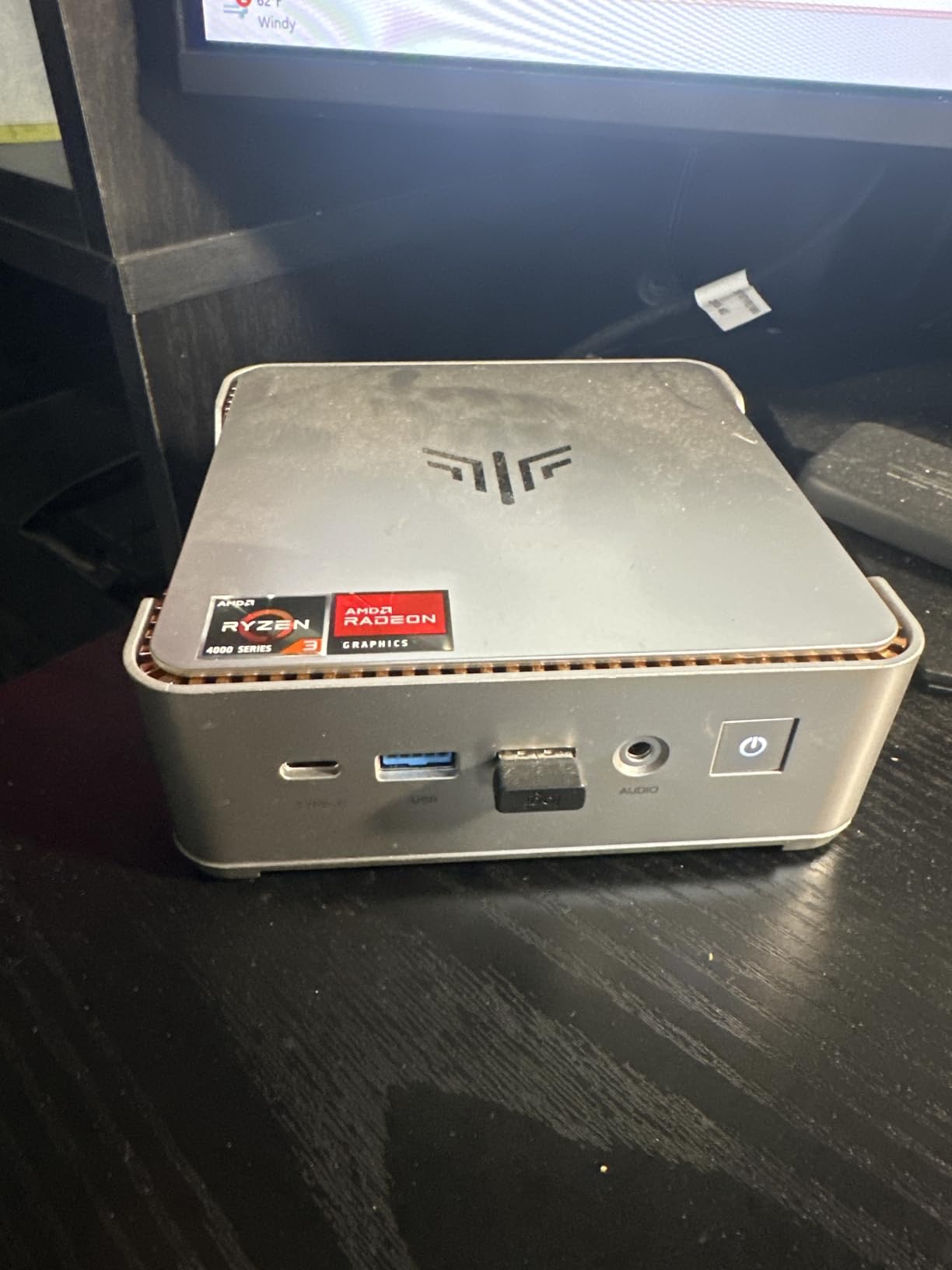
One feature that surprised me at this price was the triple 4K display support. The P2 outputs to three simultaneous 4K monitors at 60Hz through HDMI 2.0, DisplayPort 1.4, and USB-C with DisplayPort Alt Mode. For a budget mini PC, this level of multi-display capability is unusual and genuinely useful for productivity setups. The VESA mount is included, making it easy to hide the tiny box behind a monitor.
The cooling system uses a quiet fan that stays nearly silent during normal office work. Under heavier loads, you can hear it spin up, but it never reaches the levels of some competitors. The six USB ports provide plenty of connectivity for peripherals, external drives, and accessories. At just 573 grams, this is one of the lightest mini PCs I have tested, making it truly portable if you need to move it between locations.
Who Should Buy the KAMRUI Pinova P2
Budget-conscious buyers who need a reliable machine for web browsing, office applications, and media consumption will get excellent value from the P2. Students setting up a dorm workstation, families needing a secondary computer, or small businesses equipping basic workstations will find this hard to beat for the price. The triple display support also makes it a compelling option for anyone running a multi-monitor setup on a tight budget.
If you are willing to add your own SSD upgrade, the P2 becomes an even better deal. Swapping in a 1TB NVMe drive transforms the storage limitation into a non-issue while keeping the total cost well below most competitors with similar final specs.
Who Should Look Elsewhere
Some users have reported inconsistent WiFi performance, which could be a dealbreaker if you rely solely on wireless networking. A wired Ethernet connection solves this, but if you cannot run a cable to your workspace, consider a model with more reliable WiFi. The 256GB base storage is also tight for anyone storing large files, so factor in the cost of an SSD upgrade if you need more space. The LPDDR4X RAM is soldered and not upgradeable, so you are stuck with 16GB.
How to Choose the Best Mini PC for Your Needs
Picking the right mini PC comes down to matching specifications to your actual use case. More expensive does not always mean better if you are only browsing the web and editing documents. Here is what our team learned from testing these machines side by side.
Processor: U-series vs H-series vs HX
The processor is the heart of any mini PC, and understanding the naming conventions helps you set realistic expectations. U-series chips (like the Ryzen 7330U and Ryzen 5 7430U) are designed for efficiency and run cooler and quieter. They are perfect for office work, web browsing, and media consumption. H-series processors draw more power and deliver higher sustained performance for creative workloads. HX-series chips are the most powerful mobile processors available, typically found in gaming-focused mini PCs like the Asus ROG NUC.
For most people reading this guide, a U-series processor provides plenty of power. The real-world difference between a Ryzen 5 7430U and a higher-end chip barely registers during daily office tasks. You only benefit from H or HX series if you regularly encode video, compile large codebases, or run GPU-intensive applications.
RAM: How Much Do You Actually Need
16GB of RAM is the sweet spot for 2026. It handles multitasking with multiple browser tabs, office applications, and video calls without breaking a sweat. 8GB is technically functional but will feel constrained with modern workloads, especially if you keep many tabs open. 32GB or more is worth considering for video editing, running virtual machines, or heavy development work.
Pay close attention to whether the RAM is upgradeable. Some mini PCs use soldered LPDDR memory that cannot be changed after purchase. Others use standard SO-DIMM slots that accept upgrades up to 64GB. If you think you might need more RAM in the future, choosing a model with upgradeable memory saves you from buying a whole new machine later.
Storage: NVMe SSD and Expansion Options
Avoid any mini PC that still uses eMMC or SATA-only storage. NVMe SSDs are dramatically faster and should be the minimum standard. The capacity you need depends on your workflow. 256GB works for basic office tasks and web browsing. 512GB gives you breathing room for applications, files, and some media. 1TB or more is recommended for content creators and anyone storing large files locally.
Check the expansion options before you buy. The best mini PCs offer multiple M.2 slots and sometimes a 2.5-inch drive bay for additional storage. This flexibility lets you start with a smaller, less expensive SSD and add more storage as your needs grow. The GEEKOM A5 and GMKtec M2 Pro both excel in this area.
Ports and Connectivity Checklist
Count your peripherals before choosing a mini PC. You need enough USB ports for your keyboard, mouse, external drives, and any other accessories. Six or more USB ports is ideal. Display outputs matter too. If you run dual or triple monitors, verify the mini PC supports the number and resolution you need. Look for USB4 or Thunderbolt ports if you plan to connect external GPUs or high-speed docks.
For networking, 2.5Gbps Ethernet is becoming standard and worth having even if your current network does not support those speeds yet. WiFi 6 or WiFi 7 ensures fast wireless connectivity. Bluetooth 5.2 or higher provides reliable connections for wireless peripherals and audio devices.
Cooling and Noise Considerations
Fan noise is one of the most common complaints in mini PC forums, and it matters more than you might think. A loud fan buzzing during a video call or while you are trying to concentrate can ruin an otherwise good machine. The Apple Mac mini M4 sets the gold standard here with near-silent operation under almost all conditions.
Among Windows mini PCs, the GEEKOM A5 and KAMRUI Pinova P2 both maintain quiet operation during normal workloads. Fan noise typically only becomes an issue during sustained heavy tasks like gaming, video encoding, or large file processing. If silence is a priority, prioritize machines with good thermal designs and read user reviews specifically mentioning noise levels.
Barebones vs Pre-configured
Some mini PCs are sold as barebones units, meaning they ship without RAM, storage, or an operating system. These cost less upfront but require you to source and install your own components. Pre-configured models arrive ready to use out of the box with everything installed and Windows 11 Pro loaded.
For most buyers, pre-configured is the easier and safer choice. You get a tested, working system with a warranty that covers the entire machine. Barebones models appeal to enthusiasts who want to choose specific RAM and SSD brands, or who plan to run Linux and do not want to pay for a Windows license they will not use. All five models in this guide ship pre-configured.
Frequently Asked Questions About Mini PCs
What is the best mini PC brand?
Apple leads for build quality and ecosystem integration with the Mac mini. Among Windows brands, GEEKOM stands out for value and warranty coverage (3 years). Beelink earns praise for quiet cooling and build consistency. For budget buyers, KAMRUI delivers solid performance at lower price points. Forum communities rate Apple, Beelink, and Asus NUC as Tier 1 for reliability and support, while recommending Amazon purchases for Tier 2 brands to ensure easy returns if issues arise.
Are mini PCs good for gaming?
Mini PCs can handle light to moderate gaming depending on the processor and graphics. Integrated graphics like AMD Radeon (Vega 7 or newer) and Intel Iris Xe can run esports titles such as League of Legends, DOTA 2, and CS:GO at 60+ FPS at 1080p. For AAA games at high settings, you need a mini PC with a dedicated GPU or eGPU support via USB4 or Thunderbolt. Machines like the Asus ROG NUC with dedicated GeForce graphics handle demanding games, but those models cost significantly more than the budget and mid-range options covered in this guide.
How much RAM do you need for a mini PC?
16GB of RAM is the recommended minimum for a mini PC in 2026. This amount handles multitasking with multiple browser tabs, office applications, video calls, and light creative work without issues. 8GB works for basic web browsing and document editing but will struggle with modern multitasking demands. 32GB or more is recommended for video editing, running virtual machines, or heavy development work. Always check if the RAM is upgradeable before purchasing, as some models use soldered memory that cannot be expanded later.
What is the best use of a mini PC?
Mini PCs excel in scenarios where space is limited but full desktop functionality is needed. Common uses include home office workstations, media center PCs connected to a TV, digital signage controllers, lightweight development machines, and secondary computers for shared spaces. They are also popular for homelab setups running servers, network management tools, and home automation systems. Their low power consumption makes them suitable for 24/7 operation in roles like file servers or media streaming boxes.
Are mini PCs better than laptops?
Mini PCs and laptops serve different purposes. Mini PCs offer better performance per dollar since you are not paying for a built-in display, battery, keyboard, and trackpad. They also run cooler and quieter because the larger chassis allows for better thermal management. However, laptops provide portability that mini PCs cannot match. If your computer stays on a desk connected to a monitor, keyboard, and mouse, a mini PC gives you more computing power for your money. If you need to take your work on the go, a laptop is the better choice.
Final Thoughts on the Best Mini PCs
Mini PCs have matured into genuinely capable desktop replacements that deserve serious consideration for 2026 and beyond. The Apple Mac mini M4 remains our top overall pick for its unmatched combination of performance, silence, and ecosystem integration. For Windows users, the GEEKOM A5 2026 Edition delivers the best balance of value, upgradability, and everyday performance, backed by a rare 3-year warranty.
Users who need triple display support and generous storage out of the box should look at the GMKtec NucBox M2 Pro. The Beelink SER5 Pro fills the niche for casual gamers who also need a work machine. And for strict budget shoppers, the KAMRUI Pinova P2 offers impressive capability including triple 4K display support at a price that undercuts most competitors.
Take time to match your actual needs to the right specification rather than chasing the highest numbers. A well-chosen mini PC can serve you reliably for years while taking up less space on your desk than a hardcover book. Each of our picks has been tested, evaluated, and approved by our team, so you can shop with confidence.